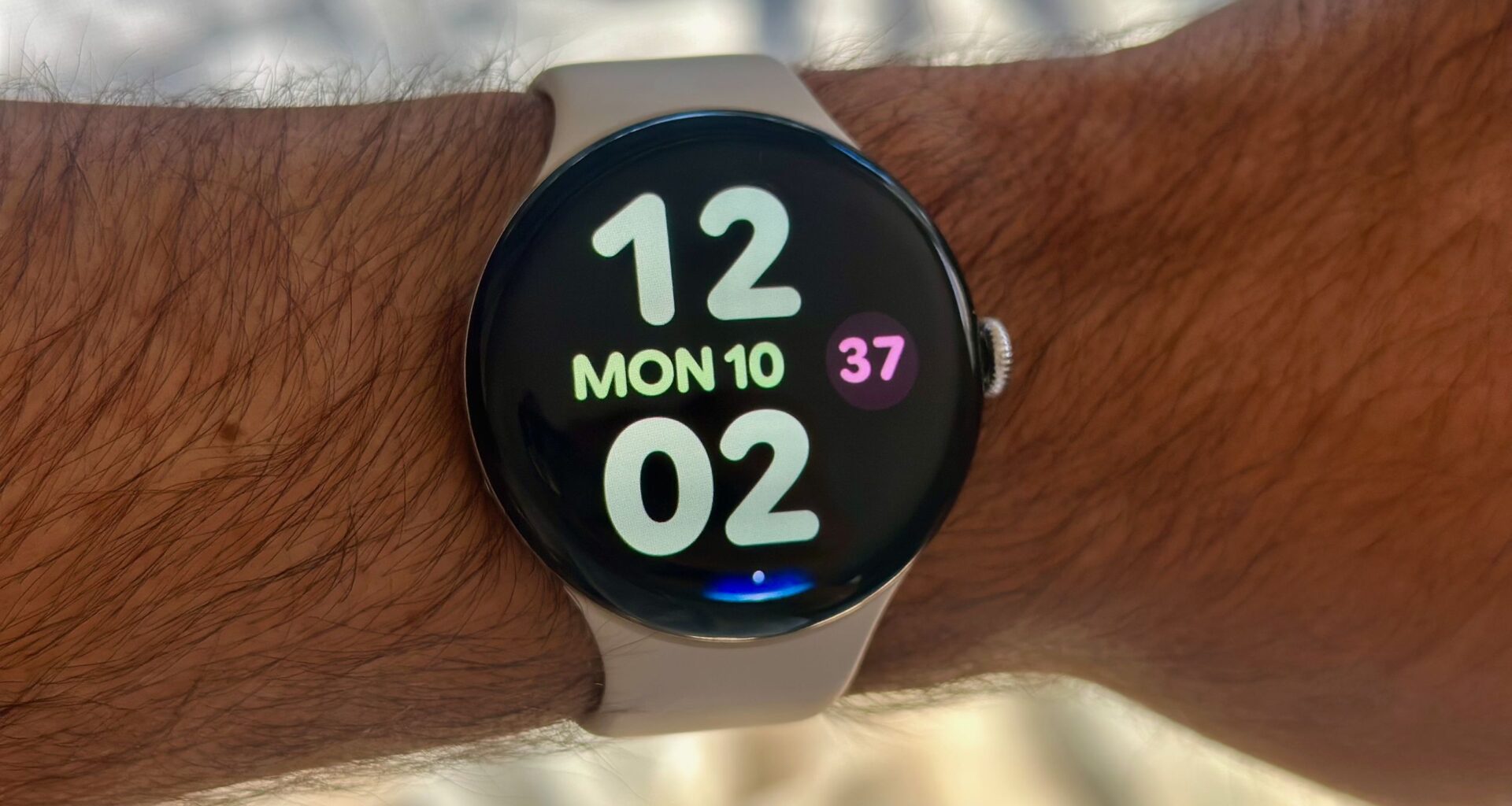
The Google Pixel Watch 4 is jam-packed with features, enough that it’s hard to keep track of everything you can, or should, be doing with your new smartwatch! Since I’ve been using it for months, even after my Pixel Watch 4 review, I can help you get started.
Google takes you through the basics during the initial Watch 4 setup, like connecting your Google email or syncing it with the Fitbit app. This Pixel Watch 4 beginner’s guide will focus on features you’re expected to find on your own.
You may like
Customize your watch faces and theme

(Image credit: Michael Hicks / Android Central)
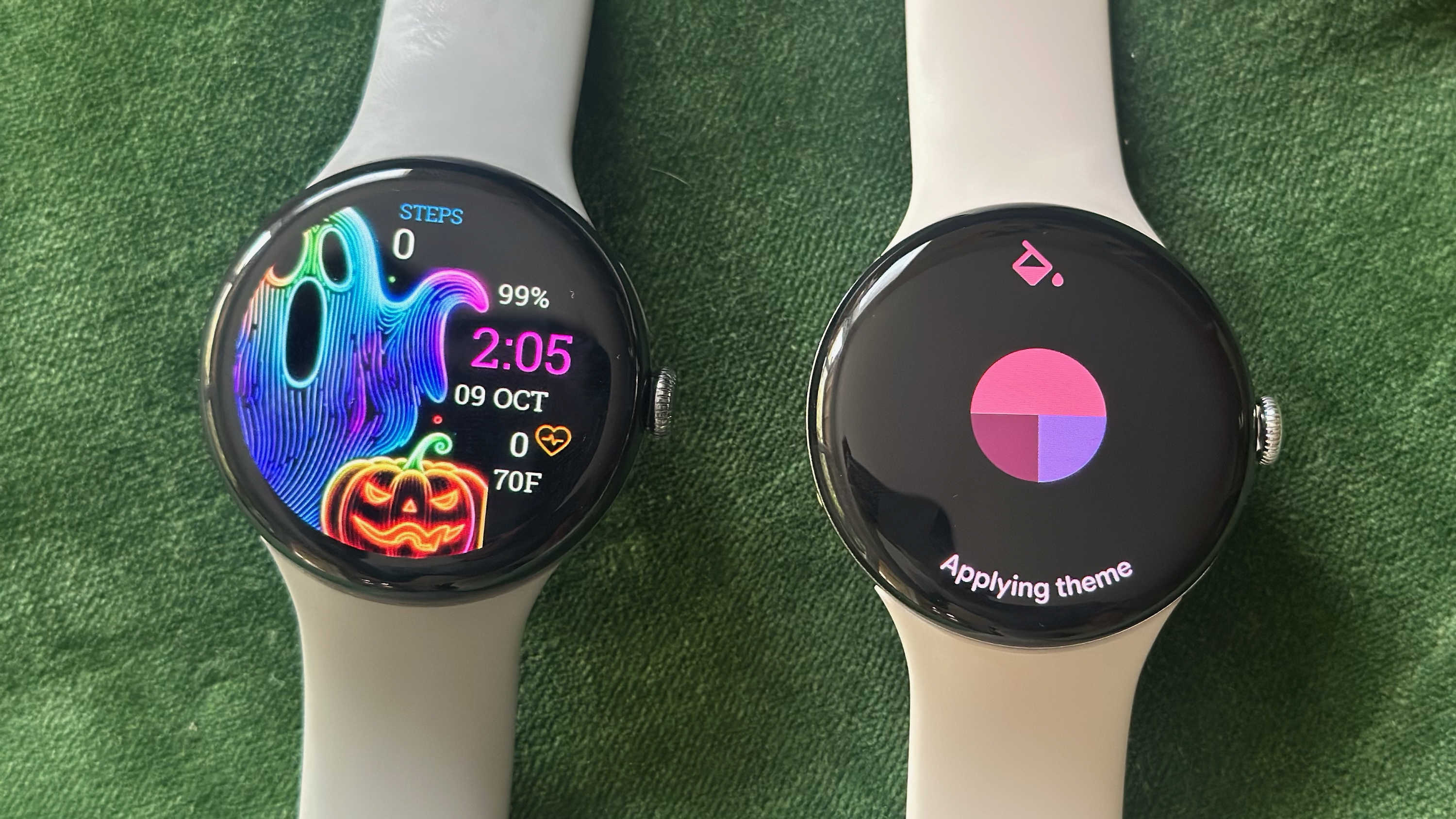
Tap and hold your watch face, then swipe left and right to move between the different default faces preinstalled on your Watch 4. Whichever face you choose, Wear OS 6 pulls the primary and secondary colors to update the Watch 4’s UI color theme; for example, the default Active face makes Tiles and buttons red, while notifications turn dull purple and text bright purple.
Google offers more primary watch faces. Open the Watch app on your connected phone, then tap Watch faces. If you tap Add watch face, you’ll find 27 categories with nearly 150 variations, mostly color differences but also different layouts, such as whether to place widgets along the display edge.
(Image credit: Michael Hicks / Android Central)
To edit your Watch 4 watch face, tap and hold the watch face, then tap the pencil icon. You’ll see three edit options for the theme color, layout, and complications; swipe left to move between them, then tap a name or complication slot to pull up a menu of options.
It’s easier to edit in the mobile Watch app, however. Open the Watch faces menu, then Edit under a specific watch face. You’ll see more options at once and can preview different colors and layouts without applying them; hit Save to immediately upload your final choices to your watch.
Add third-party watch faces

(Image credit: Michael Hicks / Android Central)
Google designed its watch faces to blend in with the edgeless display. Stylish as they are, they’re also a bit homogenous. If you’re looking for more variety, especially for fun holiday- or pop culture-themed watch faces, you’re in luck: Wear OS 6 brought back support for 3rd-party watch face apps like Facer, WatchMaker, and TIMEFLIK, with hundreds of thousands of custom options. Most require a subscription or purchase, but plenty are free.
For each app like Facer, you’ll need to download it on your phone and watch, then select the Pixel Watch 4 as your primary device. Any watch face you choose will be uploaded to the Watch 4 and given a dedicated slot next to Google’s default faces. Choose a new Facer face, and it’ll replace your old pick in the same slot; you’ll have to save old favorites within the app itself if you want to swap back.
Also, be warned that Google doesn’t pull color themes from custom watch faces, defaulting to a Moonstone theme. Once you choose your new watch face, go to Settings > Display > Color theme and select one of the eight generic options that match it.
Edit your Tiles

(Image credit: Michael Hicks / Android Central)
Wear OS 6 upgraded Tiles to make them more useful than before, with more shortcuts per Tile and (for some) an Edge button that takes you to the full app. Since you can have a maximum of 15 Tiles, take the time to decide which you need.
On any Tile, tap and hold to enter Editing mode, then tap the left or right arrow to reorder them so your favorite apps are easier to check first. Tap the + icon to add a new Tile from the available options, or swipe up on any Tile to remove it from the Carousel.
Among the available non-default Tiles, I definitely recommend adding the Alarm and Timer tiles for functionality, Google Keep’s Create Note tool for quick voice transcriptions, and the Gmail “New Emails” tile. Health-conscious users can add the Body Responses (aka stress), ECG, and Cardio Load Tiles. There are a few 3rd-party app Tiles, too, most notably Outlook, WhatsApp, and Spotify.
Customize Gemini Raise to Talk

(Image credit: Michael Hicks / Android Central)
Gemini Raise to Talk only works on the Pixel Watch 4. Older models make you use “Hey Google” or long-press the Side button; now, if you raise the Watch 4 up to your mouth and speak clearly and quickly, Gemini will answer your question. I have a full how-to guide on setting up and using Gemini Raise to Talk, and you’ll be prompted to activate the feature during initial setup.
But there’s one thing you probably don’t know: You can change how sensitive Gemini Raise to Talk is. People who gesticulate while they talk may get too many false positives, while others may find that Gemini fails to listen unless you awkwardly yank up your arm.
Open Settings > Gestures > Raise to Talk and toggle it On if it isn’t already. Then, scroll down to find Gesture sensitivity and Voice sensitivity options. I chose to make mine more sensitive, so it registers commands with more casual arm movement and without me having to speak as loudly or quickly.
Limit annoying notifications and sync Bedtime Mode

(Image credit: Michael Hicks / Android Central)
By default, your phone and watch will buzz at the same time with a notification. In the mobile Watch app under Settings, tap Notifications to limit them: Mute notifications from phone so your watch stays silent while you’re actively using your phone, and/ or Mute notifications on phone if you want your phone to stay silent while your Watch 4 shows the notification.
Another option is to tap App notifications and choose which apps are allowed to appear on the Watch 4. Take a minute to untoggle the apps that you wouldn’t want to distract you with marketing garbage during an outing or workout. If you want even more granular control over your notifications, I recommend this paid Buzzkill Notification Manager.
The most important thing is to make sure your Watch 4 is synced with your Pixel phone’s bedtime routine, so that it doesn’t buzz your wrist or light up when you turn over in your sleep. In the mobile Watch app, go to Watch preferences > Modes and make sure Sync across watch and phone is toggled on; then, in your main phone settings, go to Settings > Modes > Bedtime > Bedtime Routine and set a schedule.
Turn on Loss of Pulse detection
Image 1 of 2
 (Image credit: Michael Hicks / Android Central)
 (Image credit: Michael Hicks / Android Central)
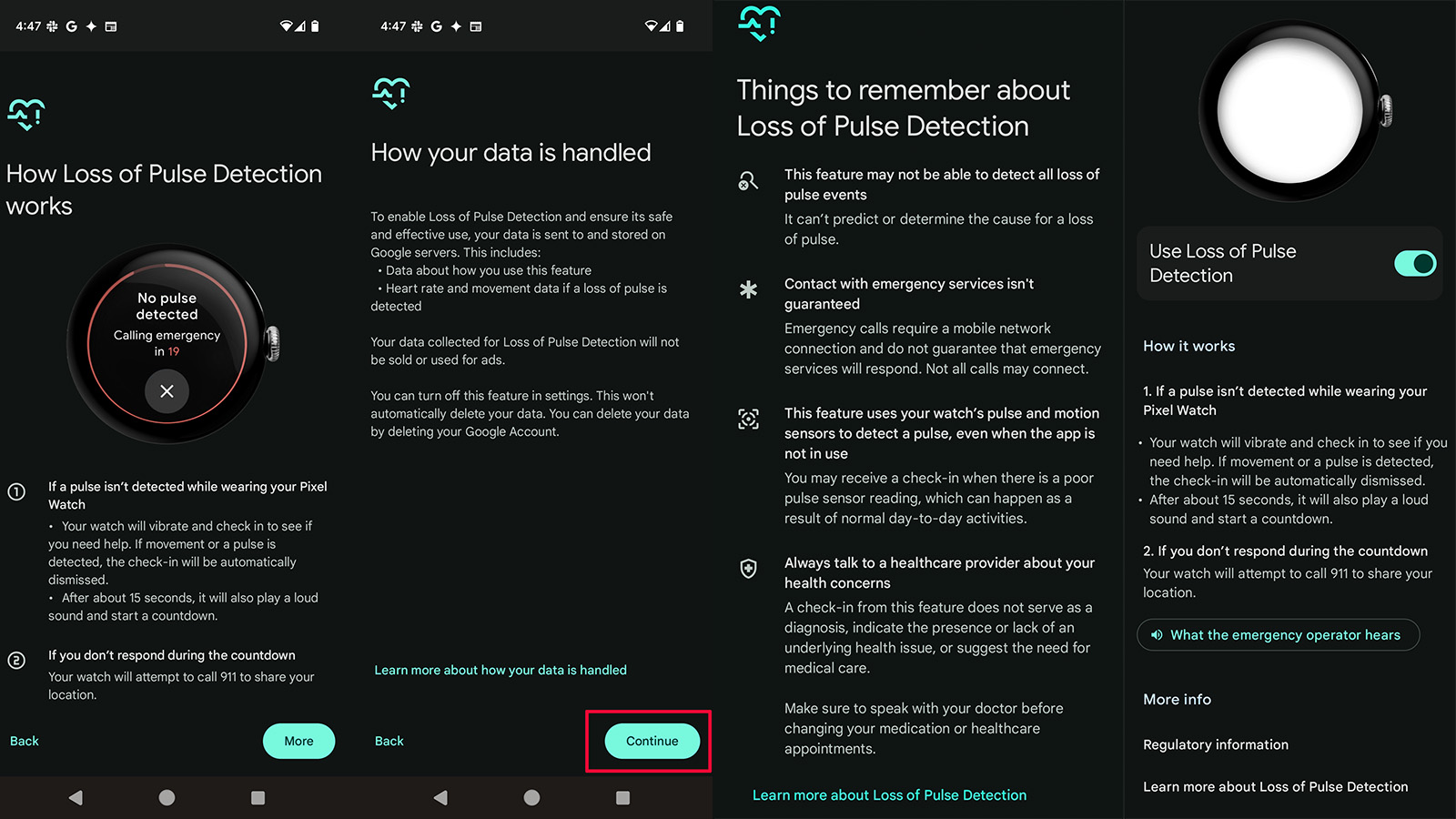
You may have already found this feature highlighted in the Fitbit app, but assumed you were too healthy to need it. But Google specifically says Loss of Pulse isn’t for people with “high risk for sudden cardiac death.” It’s for people who don’t realize they could be at risk, catching signs of cardiac arrest, respiratory or circulatory failure, overdose, or poisoning.
Our guide on how to enable Loss of Pulse walks you through each step, but it’s simple enough: On your connected phone, go to Settings > Safety & Emergency, select the Loss of Pulse feature, then follow the steps. If it’s not available, you may not live in one of the 16 countries where Google received regulatory approval.
Sign up for the Fitbit Personal Health Coach preview

(Image credit: Michael Hicks / Android Central)
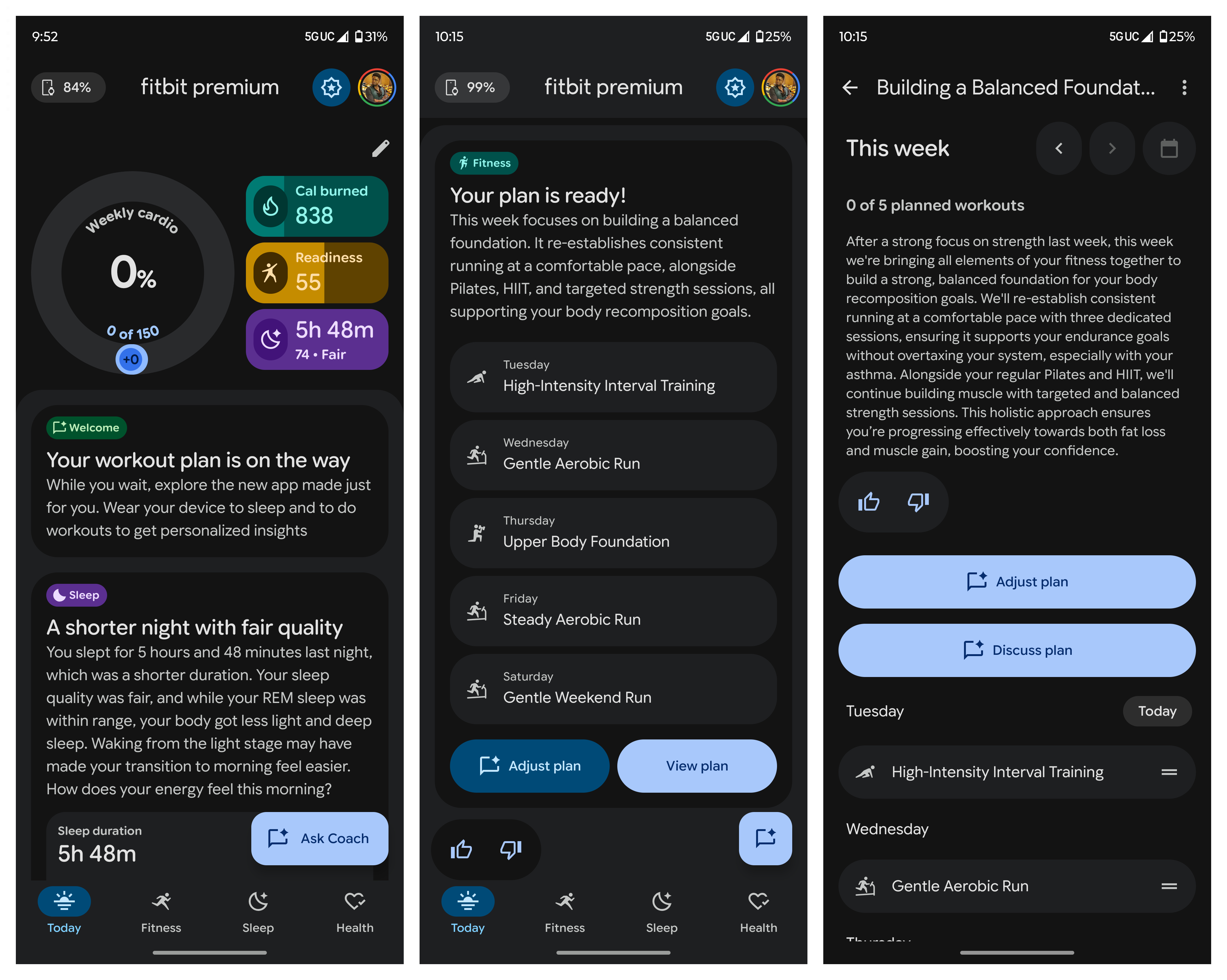
The redesigned Fitbit app, due to launch in 2026, adds a Personal Health Coach that uses a Gemini-based LLM, letting you have a “conversation” with the AI coach to build out a workout plan and discuss your Watch 4 health, sleep, and fitness stats.
It’s currently in beta, and your free six-month Fitbit Premium trial gives you access to it if you live in the United States. We have an in-depth guide on how to get started with the Fitbit AI personal health coach, one I recommend following because it’s too lengthy to list out here.
(Image credit: Android Central)
For now, here’s the gist: Open the Fitbit app and, if you’re eligible, you’ll see a pop-up option to Join the Public Preview in the Today tab. Agree to several screens of fine print, then hit Continue to start a chat with the AI Coach, where you’ll discuss your goals, favorite activities, equipment, and everything else necessary to build a training plan.
You’ll begin to see summarized “insights” about your health and sleep stats in the Today tab, or you can tap individual tabs to see more in specific areas. You’ll also get your personalized plan with a week of upcoming workouts visible; you’ll be able to tap Adjust plan if, for example, you’re injured or are working late and need something easier.
Set up Emergency SOS and fall/car crash detection
(Image credit: Michael Hicks / Android Central)
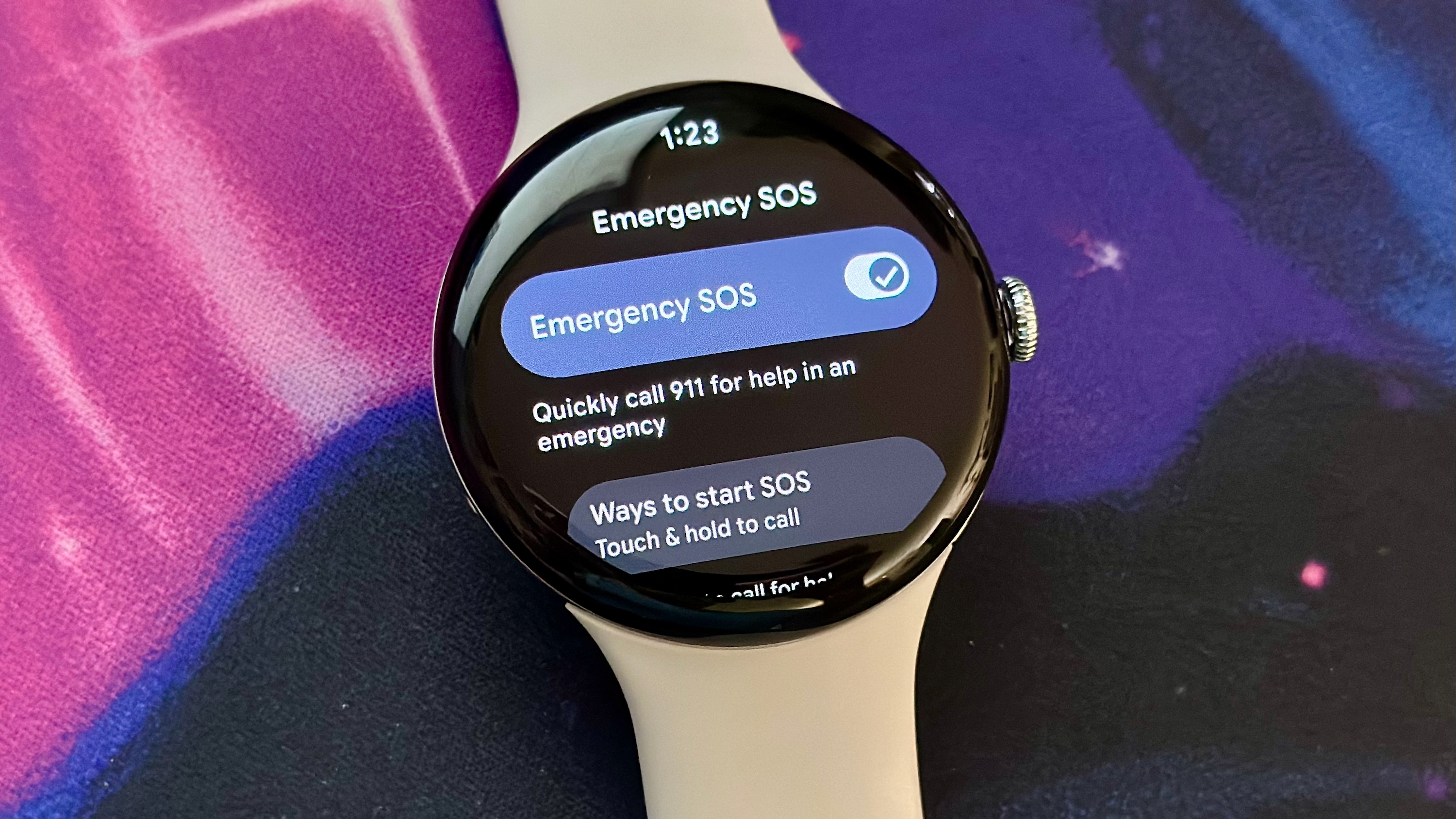
On your Watch 4, open Settings > Safety & Emergency > Emergency SOS to toggle it on. Then summon help by pressing the crown five times rapidly, then holding the screen for three seconds.
You can tap Ways to start SOS in the same menu to remove the tapping component, if you’d rather it be easier to trigger. You can then choose whether to play a sound that’ll loudly chime the imminent 911 call, or disable it.
By default, Emergency SOS dials 911. But if you have a unique situation where you’d rather call a personal contact for help in an emergency, tap Who to call for help, then tap Manage contacts to pick who you’d rather call instead using this shortcut.

(Image credit: Michael Hicks / Android Central)
Once that’s set, ensure the Watch 4 will respond to emergencies when you can’t. With fall and car crash detection, the watch’s accelerometer will respond to a sudden loss of motion and give you 30 or 60 seconds to tap “I’m okay” on the display before it calls 911.
In Settings > Safety & Emergency, you’ll find toggles for both Car Crash detection and Fall detection. Toggle both on, and for the latter, you should toggle Emergency sharing as well if you want to send an alert to loved ones that you’ve been in a crash, in addition to 911.
Use Safety Checks while working out

(Image credit: Michael Hicks / Android Central)
We’ve only scratched the surface of the Pixel Watch 4’s emergency features. The Safety Check tool is designed for athletes: When you go out for an evening run or a hike in a deserted area, you can set a timer and have Google send your location to trusted contacts if you fail to check in before it ends.
Open the Personal Safety app or Tile, then tap Safety Check > Next. Choose your activity type and the duration. Pick which contacts you’d want to message; then, decide whether to send activity start and end messages to these contacts, or to only contact them if the timer expires.
Once you hit Start Timer, you’ll see the screen above. You can end the Safety Check at any time with the red X button, or tap Start Emergency Sharing or Call 911 if necessary. You can also tap the clock icon to add more time, if necessary.
Test the satellite SOS tool

(Image credit: Derrek Lee / Android Central)
If you didn’t buy the Pixel Watch 4 LTE, your model doesn’t include satellite, so skip ahead. For those that did, if you dial 911 in a cellular dead zone, the watch will show a “Use Satellite SOS?” prompt; tapping it will begin a process of sending a message to emergency responders with your name, email, phone number, location, language preference, Watch 4 battery level, and emergency contact information
I recommend testing it out first, though not by dialing 911. Go back to Settings > Safety & Emergency, then select Satellite SOS > Try a demo. It’ll show you how you need to find an open space where the Watch 4 has a line of sight with the Skylo satellite, then orient the device to optimize the signal.
Use Watch Unlock for your connected Pixel

(Image credit: Michael Hicks / Android Central)
The Pixel Watch 4 uses its Ultra Wideband functionality to keep your nearby phone unlocked, if you want. In the mobile Pixel Watch app, tap Watch preferences > Security > Watch Unlock and type in your passcode, then hit Confirm. You’ll then need to add a PIN or Pattern to your Watch 4, if you haven’t already.
With this active, so long as you’re wearing your Watch 4 and your connected Pixel is nearby, you can unlock it simply by swiping up on the lock screen or tapping a notification. In theory, someone could grab your phone and do this, but you’ll get a notification on your Watch 4 whenever your synced phone is unlocked, with a Lock button visible if needed.
Set up Google Wallet

(Image credit: Michael Hicks / Android Central)
Adding a PIN or pattern to the Watch 4 also allows you to use Google Wallet. If you double-tap the crown, it’ll pull up your synced cards and passes. But first, you’ll need to set up the feature.
Double-tap the crown, then tap the big + button to continue on your synced phone. Assuming you already have credit cards on Google Pay, you simply select one, add your CVV, wait for approval from your bank, and then agree to the issuer’s terms. I also had to pass a 2FA test, though that depends on your bank’s security.
Aside from adding credit cards, you can add transit cards in the Watch app if you live in Puget Sound, Toronto, the SF Bay Area, or Washington D.C. Loyalty cards will also appear under your credit cards, though you’ll need to manage them directly in the mobile Wallet app.
Miscellaneous settings to optimize your Watch 4 experience
To finish off, let’s break down some basic settings that could improve your overall Watch 4 experience with just a couple of taps in the Settings!
- Display: Screen timeout lets you keep the display awake for up to 30 seconds, while Go to watch face keeps your last-used app open for up to 5 minutes, even after the display dims, so you don’t have to navigate back.
- Sound: Here, you can adjust the volume of your phone calls, notifications, alarms, media, and on-wrist phone calls. I personally mute calls and notifications because I prefer vibrations, but you may prefer the opposite.
- Vibration: Here, you can customize vibration strength for calls, notifications, and alarms. For example, you might make your alarm light so you’re not startled awake, but it’s strong enough so you notice immediately.
- Battery: Battery Saver mode triggers automatically at 15%; you can go to this menu to toggle it off if you prefer.
- Accessibility: Here, visually impaired users can turn on tools like TalkBack — which describes what’s happening on screen — Magnification, Text-to-Speech, or a Watch Vibration mode that buzzes out the current hour.
- System: To check for the latest update, go to System Update and tap the screen a few times to prompt the watch to check for an update. You can also restart the Watch 4 here if it’s being sluggish, or Transfer watch if you want to sync it with a new Android phone.
Unleashing your Pixel Watch 4

(Image credit: Michael Hicks / Android Central)
This isn’t a comprehensive list of Pixel Watch 4 tips and tricks, but this guide has hopefully improved your overall experience with it!
You may want to buy some backup Pixel Watch 4 bands and swap between them regularly to stay hygienic, or buy something like a ZAGG InvisibleShield or Spigen Armor Pro to protect your Watch 4. But that’s ultimately up to you.
If you haven’t bought the Pixel Watch 4 yet, and are using this guide to see whether it has new tricks that make it worth the upgrade, I recommend reading our Pixel Watch 4 vs. 3 guide, my Pixel Watch 4 45mm battery test, or my Pixel Watch 4 fitness test to see more of what it’s like to use.
Packed with features
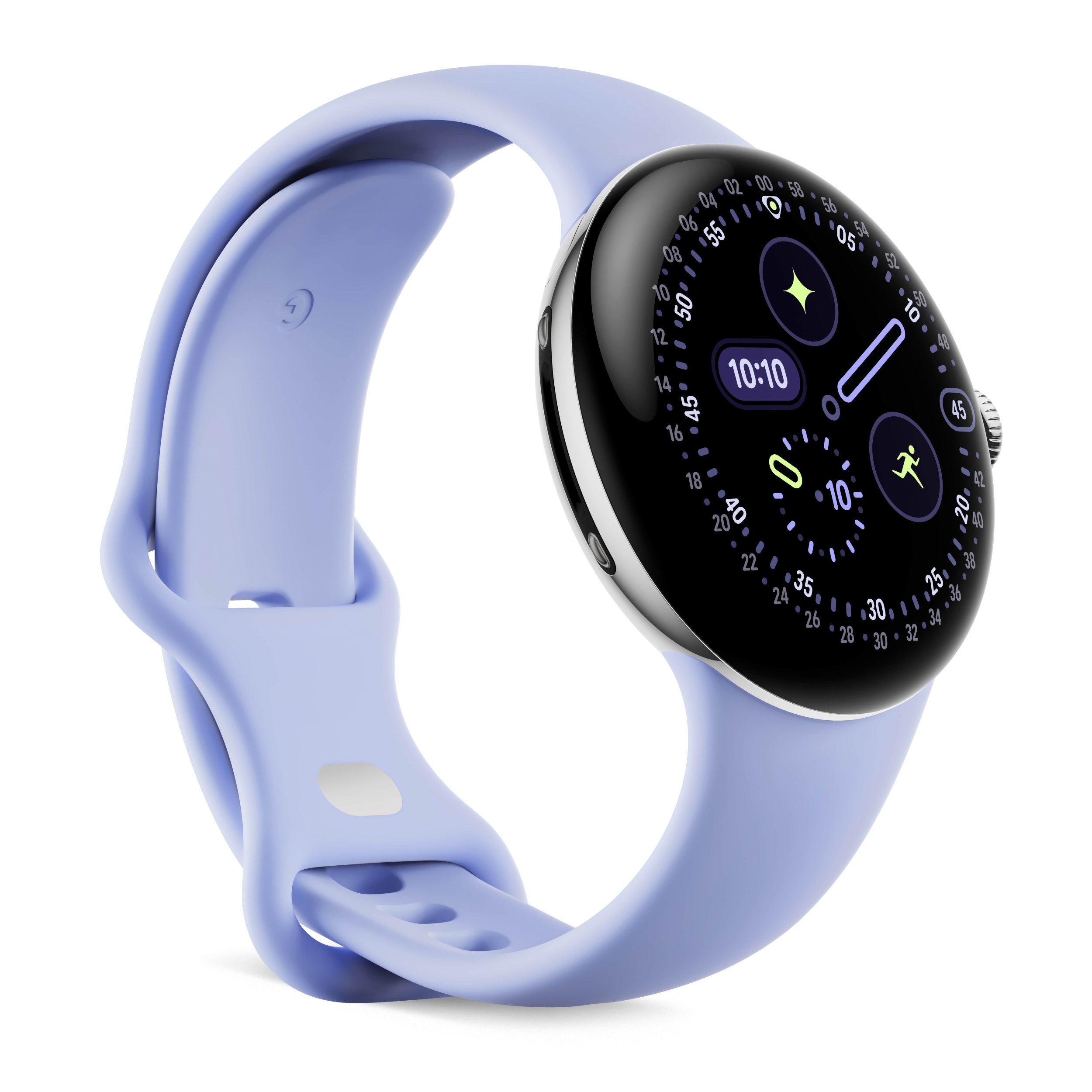
The Pixel Watch 4 offers the best Gemini experience on a smartwatch, along with a Fitbit experience that’s being enhanced with AI and a full suite of Play Store apps. It’s due to receive three years of feature updates, and it has perks like Fitbit-backed health sensors, a 3,000-nit display, and improved battery life from the last generation.