Nothing kills the motivation of a midday workout faster than raising your wrist and seeing a dead, black watch screen. Honestly, did you even work out if your smartwatch didn’t give you credit for it?
Sure, most newer smartwatch models can now last more than a day, including a full night of sleep tracking. But even some of the top powerhouses, including the Pixel Watch 4 and Samsung Galaxy Watch 8, tend to crap out midway through day two when there’s no charger in sight (mine’s on my nightstand).
After one too many days staring at a dark screen and missing key health metrics as a result, I finally started looking for ways to squeeze a few more hours out of my watch — long enough to at least get back to my charger at the end of the day without skipping a beat.
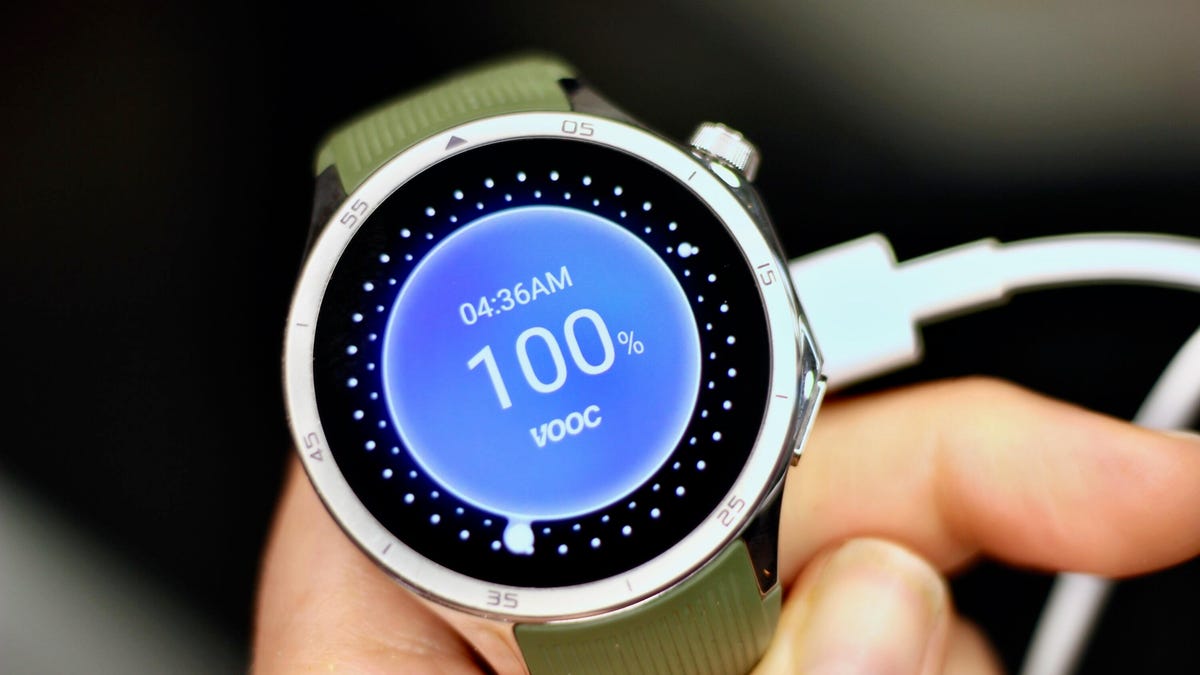
I took over five days for me to see this battery symbol pop up on my OnePlus Watch 3.
Vanessa Hand Orellana/CNET1. Lower the display brightness
Most people overlook this simple tweak: Your watch can usually run at a lower brightness setting without losing visibility. It’s one of the easiest ways to extend battery life without giving up any features, and it can add an extra hour or two of runtime. Just make sure to keep adaptive brightness on so that the display adjusts automatically as you move between indoors and outdoors, since the lowest setting can be unreadable in direct sunlight.
To adjust brightness, go to Settings > Display > Brightness.
2. Disable ‘Hey Google’ or hotword detection
Being able to summon Google’s voice assistant (now Gemini) hands-free is convenient, but it’s hardly essential and comes with a steep battery cost. Your watch is constantly listening in the background for the “Hey Google” cue, which drains power throughout the day.
Disabling the “Hey Google” voice command will buy you more battery time.
Numi Prasarn/CNET
To cut back on that battery toll, switch to manual activation instead. On most watches, you can summon the assistant with a long press of the side button.
Go to Settings > Google > Digital Assistant and toggle off Hey Google.
If you’re using the Pixel Watch 4, you may also want to disable “Raise to Talk”, which triggers Gemini in a similar way without even having to say the magic phrase. Go to Settings > Gestures > Raise to Talk and toggle it off.
3. Use a battery-friendly watch face
Brighter watch faces with lots of animations or complications that need frequent updates (like the heart rate or weather widgets) generally drain the battery faster than darker, simpler ones with static complications.
Some platforms, such as the OnePlus Watch, even assign a battery score to watch faces so you can see which ones consume the most power. Third-party apps like Facer also have a “power impact” rating for their watch faces. Needless to say, the lower the power rating, the longer your battery life.
Simpler watch faces with darker backgrounds like the one on this Pixel Watch 4 tend to consume less power.
Vanessa Hand Orellana/CNET4. Turn off the always-on display
If you want to see a major jump in battery life — I’m talking five-plus hours — try turning off your watch’s always-on display. Glancing at the time (and other info) without lifting your wrist may be convenient, but it’s also one of the biggest battery hogs on any smartwatch.
The exact steps vary by model, but you’ll typically find the toggle under Settings > Display > Always-On.
Just note that on some models, this also means your workout metrics won’t stay visible during exercise, though others, like the Pixel Watch 4, keep workout stats on even when the AOD is disabled.
5. Turn on Power Saving (Battery Saver) mode
If all else fails, you can always turn on whatever permutation of low-power mode your smartwatch offers. On Samsung and OnePlus watches it’s called Power Saving/Saver, on Pixel it’s Battery Saver and on Mobvoi’s TicWatch it’s Essential Mode.
These modes typically disable the AOD, pause or limit background health tracking (you’ll still get full metrics during workouts) and may delay notifications. Since the specifics vary across manufacturers, it’s best to check your device’s settings so you know exactly what you’ll be missing out on.
You can usually access power-saving mode from the quick-settings menu (tap the battery icon) or by going to Settings > Battery > Battery Saver.
And if you want to go truly extreme, some watches offer a mode that turns your device into a dimly lit, time-only analogue. Samsung’s Watch-Only Mode, for example, can push battery life up to 27 days.
The Pixel Watch 4 comes with a redesigned quick-charging dock that can power it from 0 to 50% in just 15 minutes.
Carly Marsh/CNET6. Max out the charging speed
Even with the longest-lasting batteries, you’ll eventually need to recharge, which is why it’s important to make sure you’re getting the fastest charging speeds possible. The less time your watch spends off your wrist, the more credit you’ll get for the sleep and exercise you actually do.
Charging speeds vary by manufacturer, but you can only take full advantage of them if you’re using the right power adapter. Check your watch’s specs to confirm the wattage required for fast charging. The Galaxy Watch, for example, needs a 10W (or higher) charger to reach the super-fast charging speed.
7. Prioritize battery life before you buy
Even with all these tips, your battery may still drain faster than you need. In that case, it might be time to upgrade to a newer model. Smartwatch batteries naturally deteriorate over time and aren’t always replaceable. Here are a few things worth knowing upfront if you’re looking to optimize battery life.
Go bigger when possible. In most lineups, the larger case size typically has a bigger battery that lasts a bit longer than its smaller counterpart — at least a couple of extra hours, depending on the model. The larger Pixel Watch 4 (45mm), for example, gets roughly 10 hours more running time than its smaller (41mm) counterpart. The downside to larger watch sizes is that they tend to be more expensive and may look and feel bulky on smaller wrists.
“Ultra” or rugged models last the longest. These watches often pack the biggest batteries in a company’s lineup. Samsung’s Galaxy Watch Ultra, for instance, has the largest battery of the brand’s current models and can push close to 48 hours of use.
The Galaxy Watch Ultra (bottom) has the largest and longest lasting battery of Samsung’s lineup.
John Kim/CNET
Brand matters. While you can’t expect any Wear OS watch to deliver the week-long (or longer) battery life that dedicated sports watches like Garmin can, there are still significant variations from brand to brand. At 631 mAh, the OnePlus Watch 3’s battery is the largest of any Wear OS watch I’ve tested, followed closely by Mobvoi’s TicWatch Pro 5, which has a 628 mAh battery. There will be other trade-offs in terms of features, but they both outlast Samsung’s and Google’s flagship models by at least five hours, depending on size and usage.
Newer models may charge faster. You can save money by choosing an older model of a watch, but companies tend to optimize charging speed with each upgrade. So check that the watch you’re getting has the fastest possible charging speed. This year’s Pixel Watch, for example, can reach a full charge in under an hour or give you enough juice for a full night of sleep tracking in the five minutes it takes you to brush your teeth.
Whatever combination of tricks you use, or new model you upgrade to, hopefully you’ll find the right mix of settings and features to keep your Wear OS watch tracking the data you truly care about before the battery runs out. And once you see how useful the health and sleep information these devices can surface is, keeping them powered up feels worth the effort.