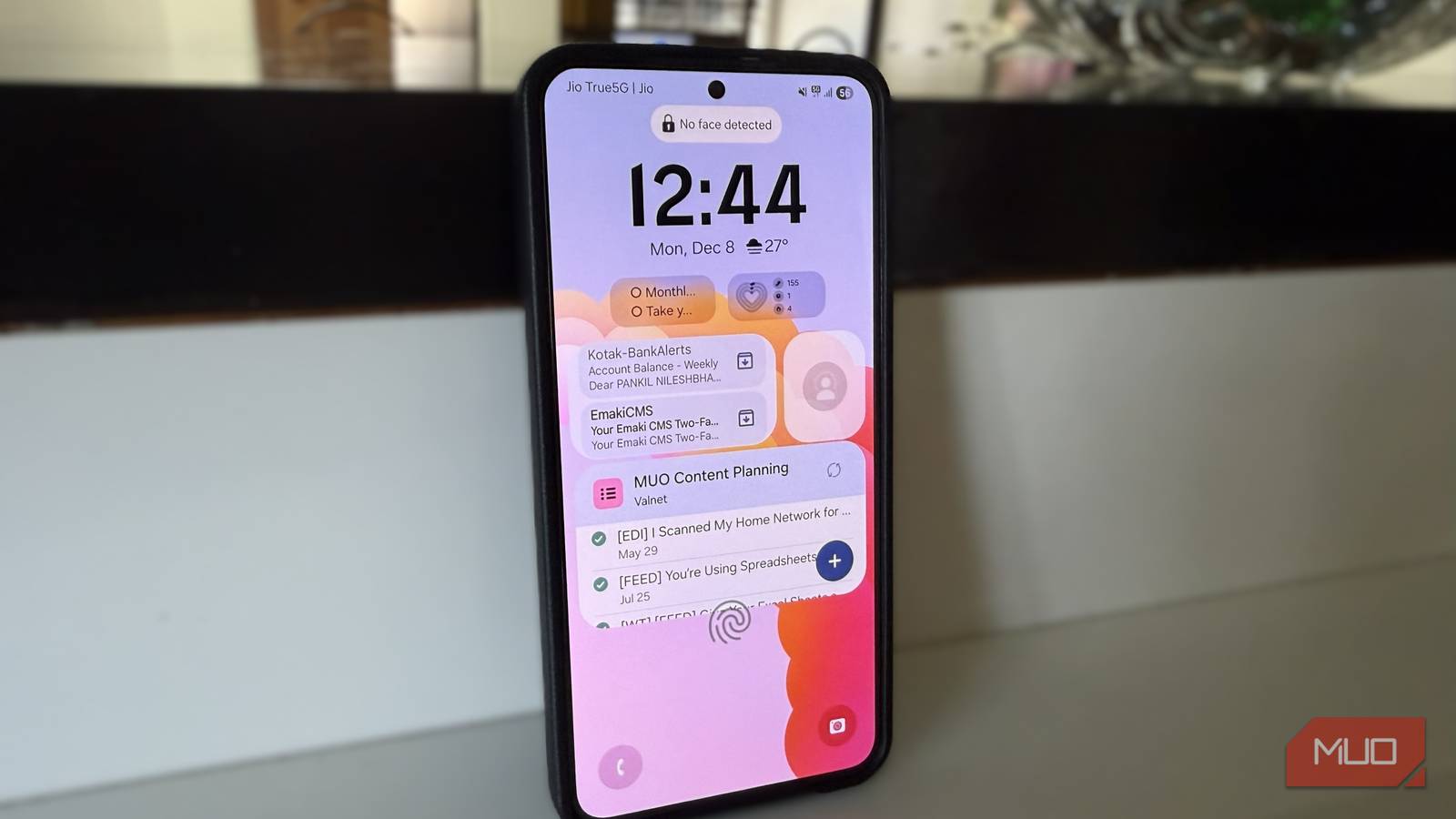
Like most folks, I used to unlock my phone dozens of times a day just to do simple things like check my inbox, see how many steps I’d taken in the Samsung Health app, and toggle noise cancellation on my Galaxy Buds. None of that is particularly hard, but when you repeat it dozens of times a day, the little bits of friction really add up.
So I started putting the tools I use the most right on the lock screen. Now I can take a quick look, tap what I need, and move on. This saves me from unlocking my phone too many times and helps me avoid getting distracted.
Reminders
A quick nudge right when I need it
 Screenshot by Pankil Shah — No attribution required
 Screenshot by Pankil Shah — No attribution required
 Screenshot by Pankil Shah — No attribution required
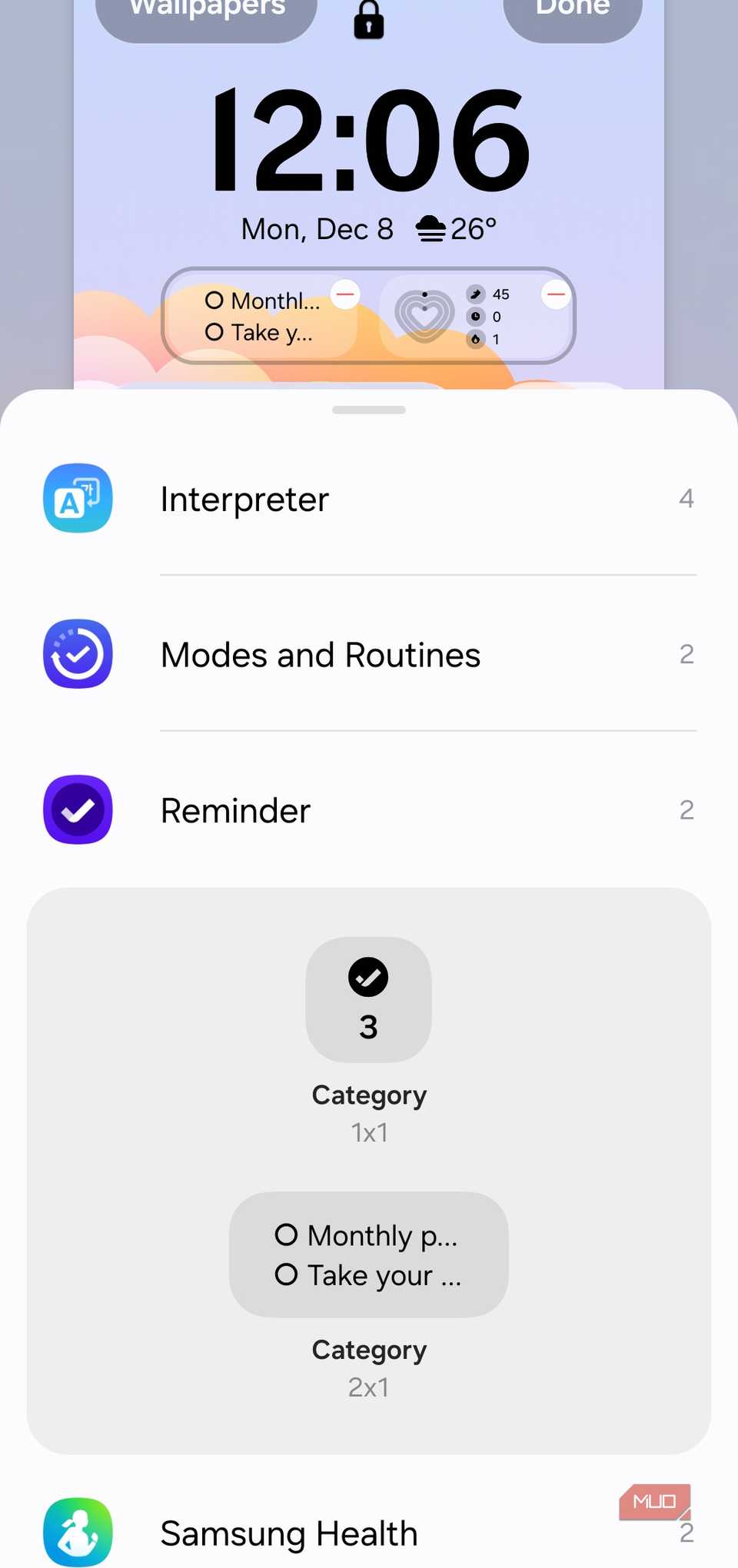
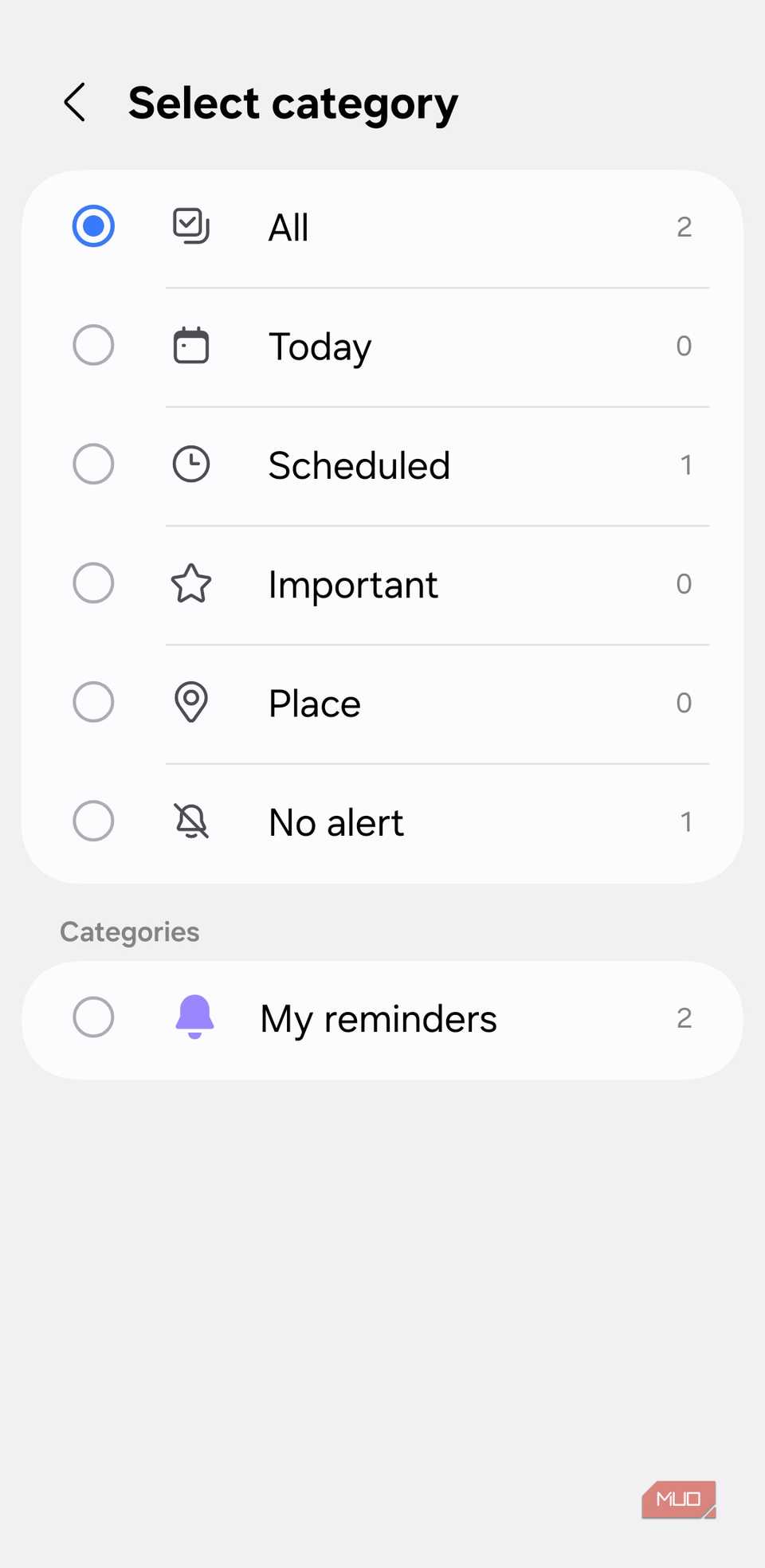
Like most people, I rely on reminders to make sure I don’t forget important things. The problem is, most of the time these aren’t time-sensitive things, so instead of setting a one-time notification, I’ve added a reminder widget on the lock screen. Now those little notes like “buy the anniversary present” and “take your medicines” stare at me the moment I pick up my phone.
This way, I don’t have to open the app or worry about the reminder notification getting lost. It’s a simple add-on that gives me peace of mind, knowing that I won’t forget anything important.
Samsung Health
Motivation every time I wake the screen
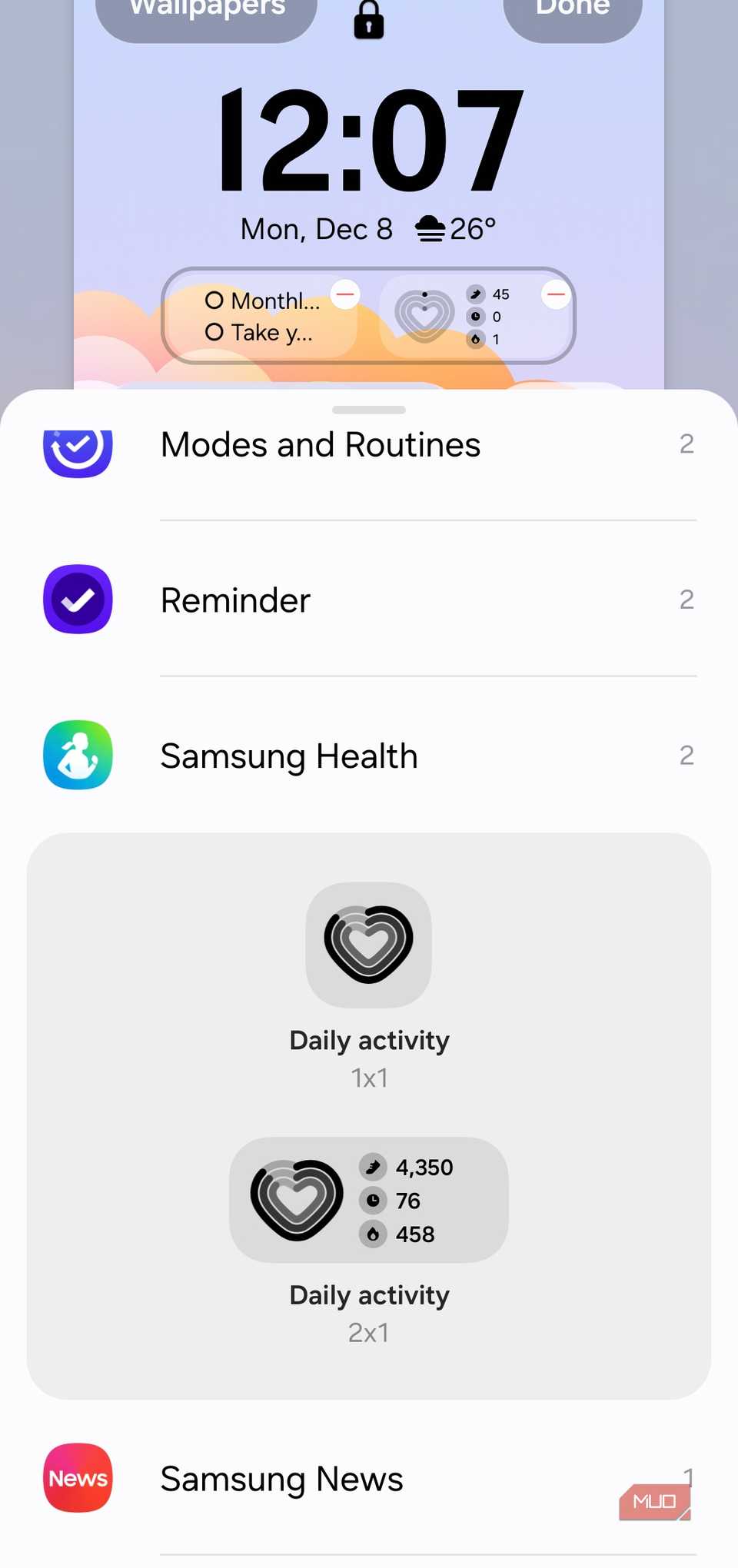 Screenshot by Pankil Shah — No attribution required
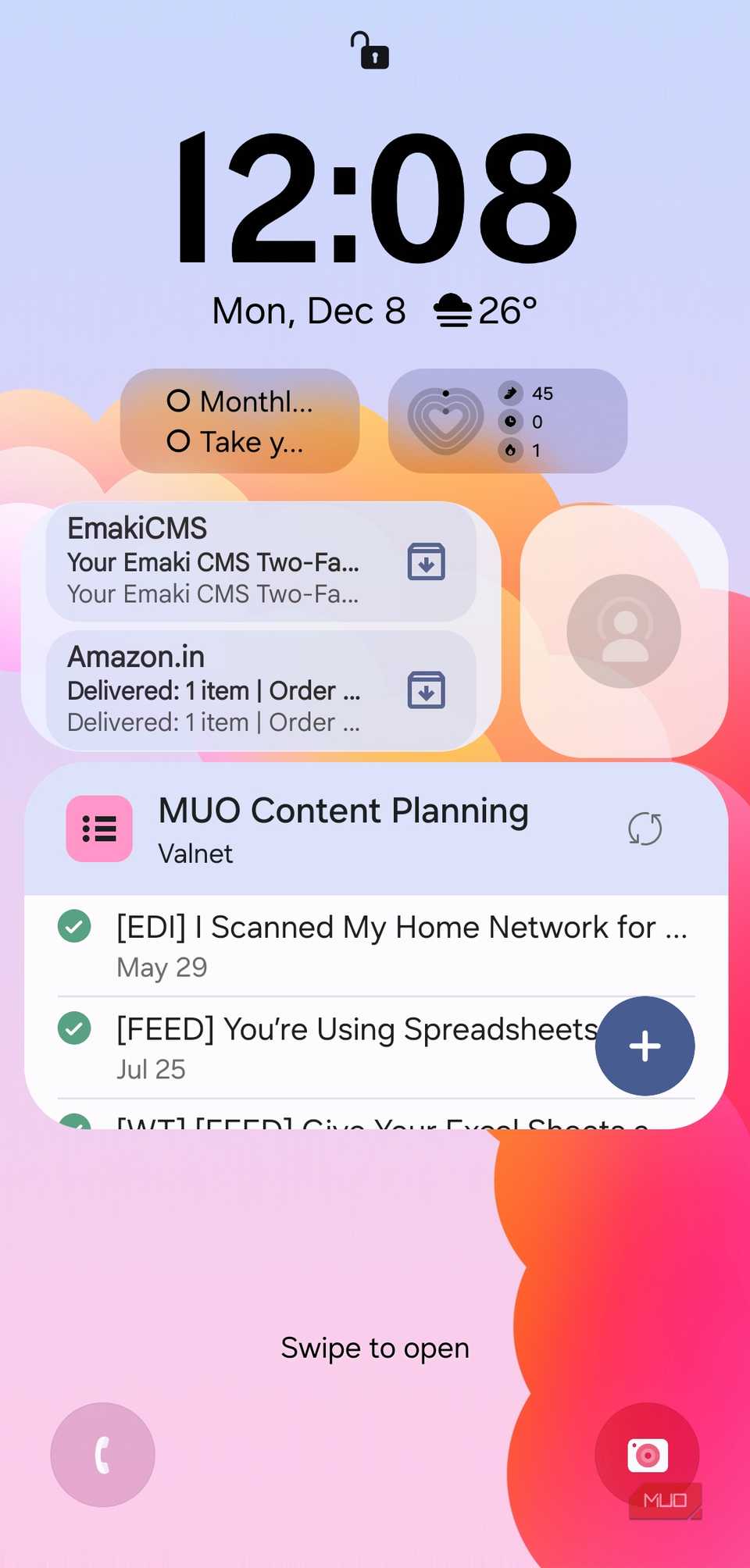 Screenshot by Pankil Shah — No attribution required
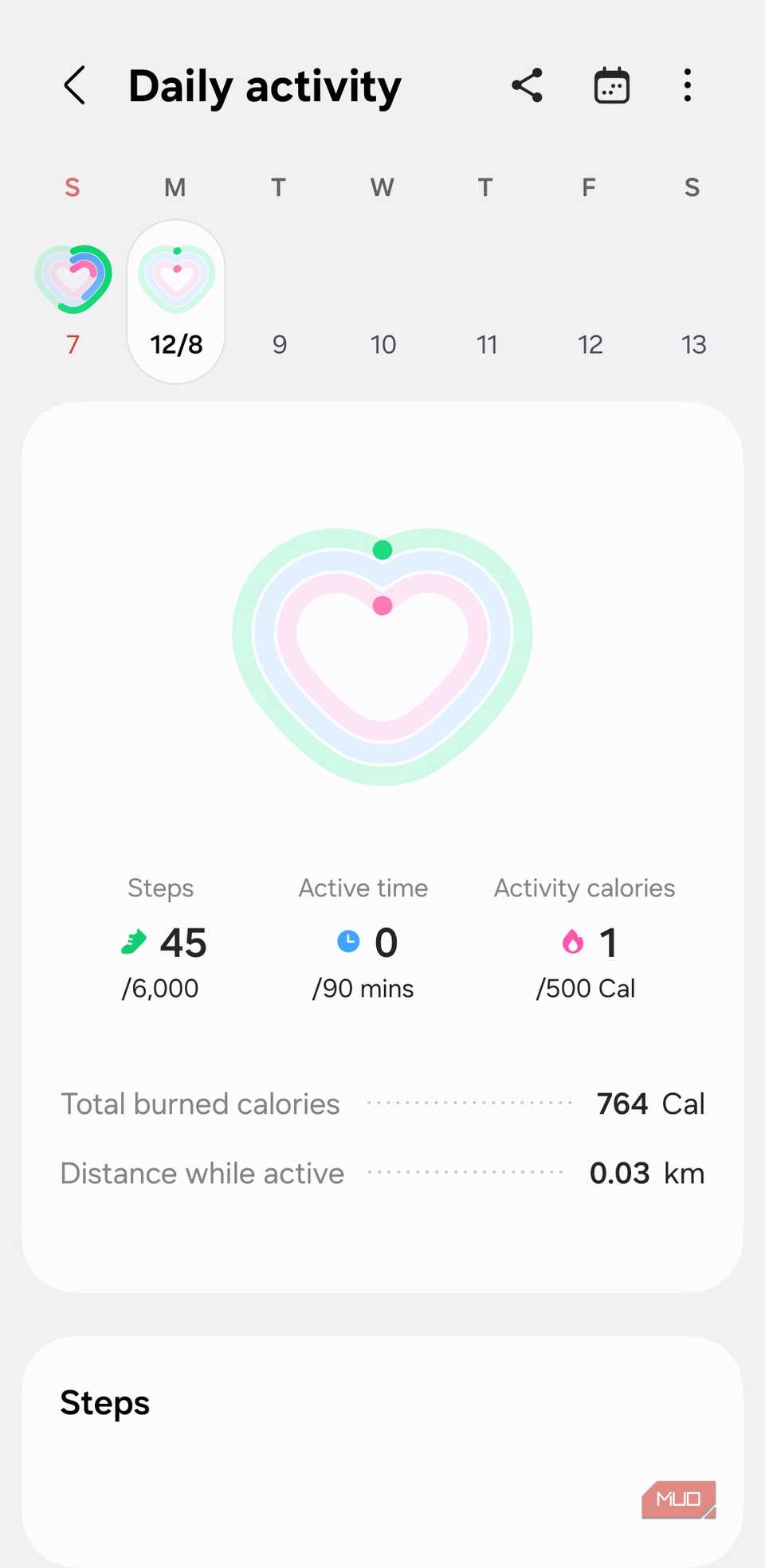 Screenshot by Pankil Shah — No attribution required
Keeping an eye on my daily activity used to be something I’d only think about when Samsung Health notified me that I’d hit a goal. As someone who works from home and barely needs to walk for anything, I definitely need a nudge every now and then.
Adding the Samsung Health widget to my lock screen turned those occasional reminders into a steady source of motivation. It shows me my daily step count, active time, and calories burned. And when those numbers look low, I get that tiny guilt-driven spark to move a bit more.
Gmail
My inbox is always within reach
Email is one of those things I need to check way more often. Notifications do help, but they also get buried. And there are always those emails I promise myself I’ll get back to later but somehow forget about the moment I swipe them away.
The Gmail widget on the lock screen solves all of that in the simplest way. I can glance at my inbox, scroll through emails, and tap on one to open it. It keeps important emails front and center where I can’t ignore them, and I can also pick which account I want to keep an eye on.
The Gmail App Has a Secret Swipe That’ll Save You Hours
This tiny customization makes a big difference in your inbox flow.
Galaxy Buds Manager
Sound control without unlocking
 Screenshot by Pankil Shah — No attribution required
 Screenshot by Pankil Shah — No attribution requiredScreenshot by Pankil Shah — No attribution required
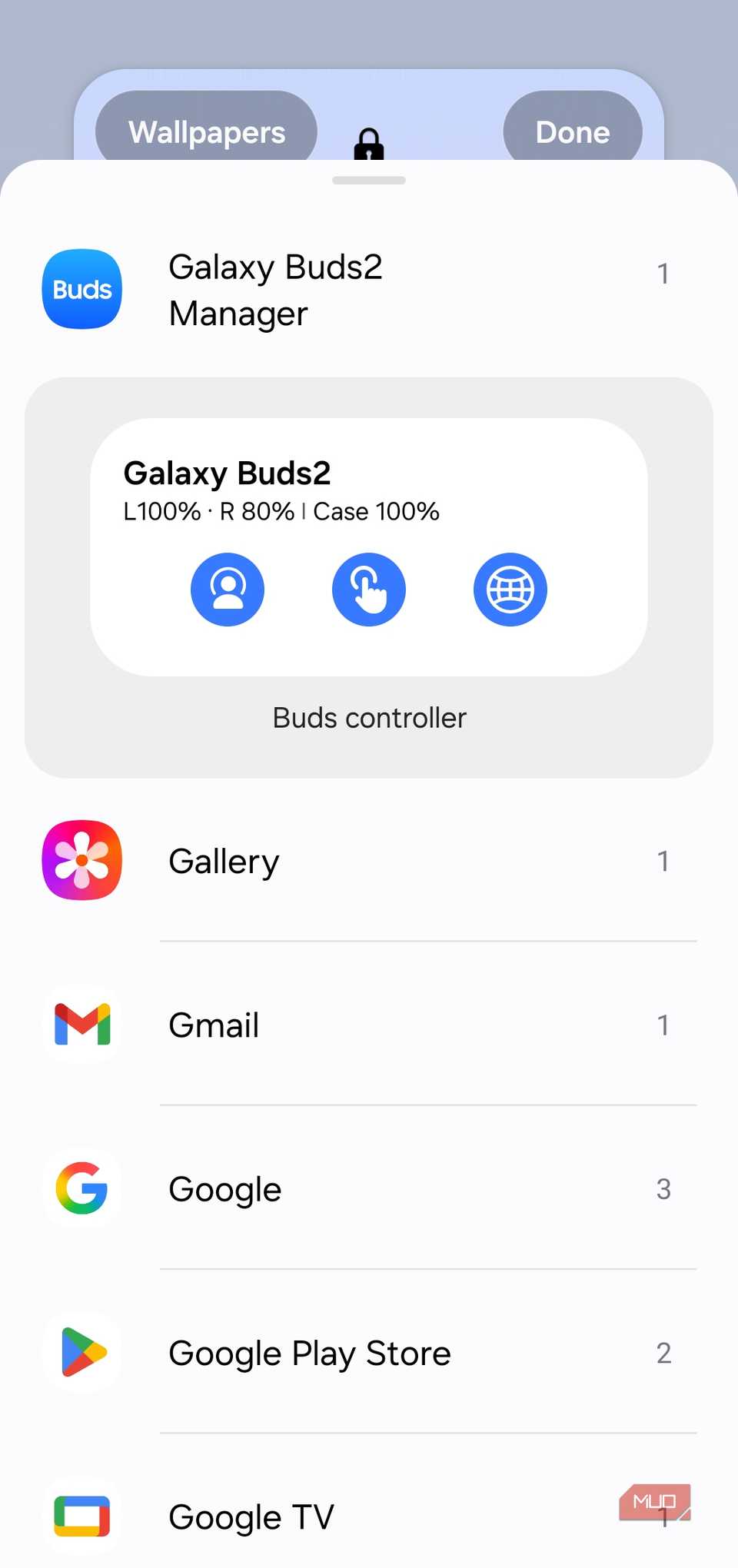
My earbuds are practically glued to me throughout the day, which means I’m always switching between noise control modes and checking the battery. Before, that meant opening the Galaxy Wearable app or using the home screen widget. Neither of the two is exactly convenient when all I want to do is turn the noise cancellation on or off.
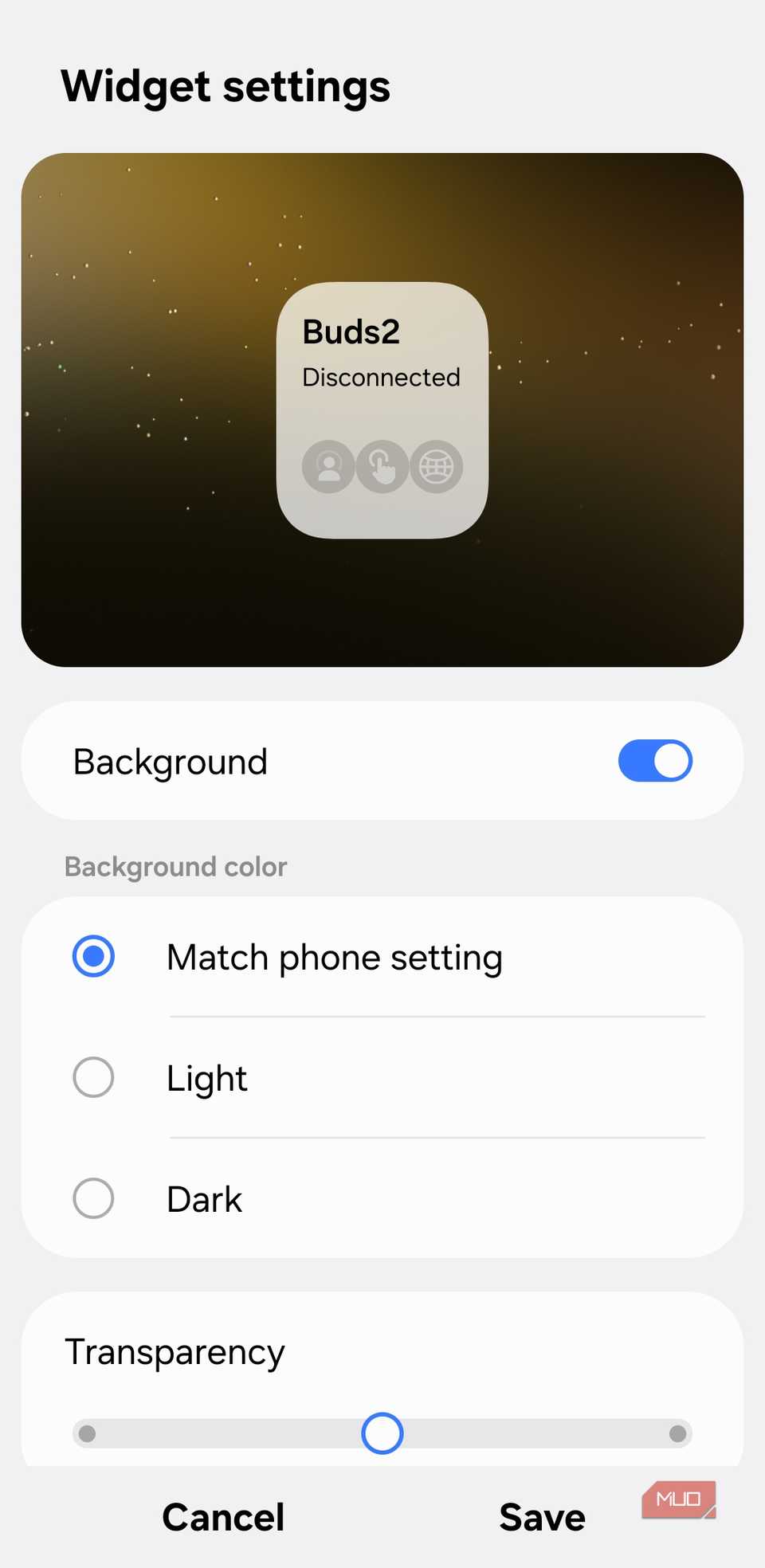
Galaxy Buds Manager widget solves that problem for me. I can easily switch between active noise-canceling, transparency mode or even turn off touch controls. Battery levels are also right there, so there are no surprises, like my earbuds dying halfway through a meeting.
Asana
My workday checklist, front and center
 Screenshot by Pankil Shah — No attribution required
 Screenshot by Pankil Shah — No attribution required
 Screenshot by Pankil Shah — No attribution required
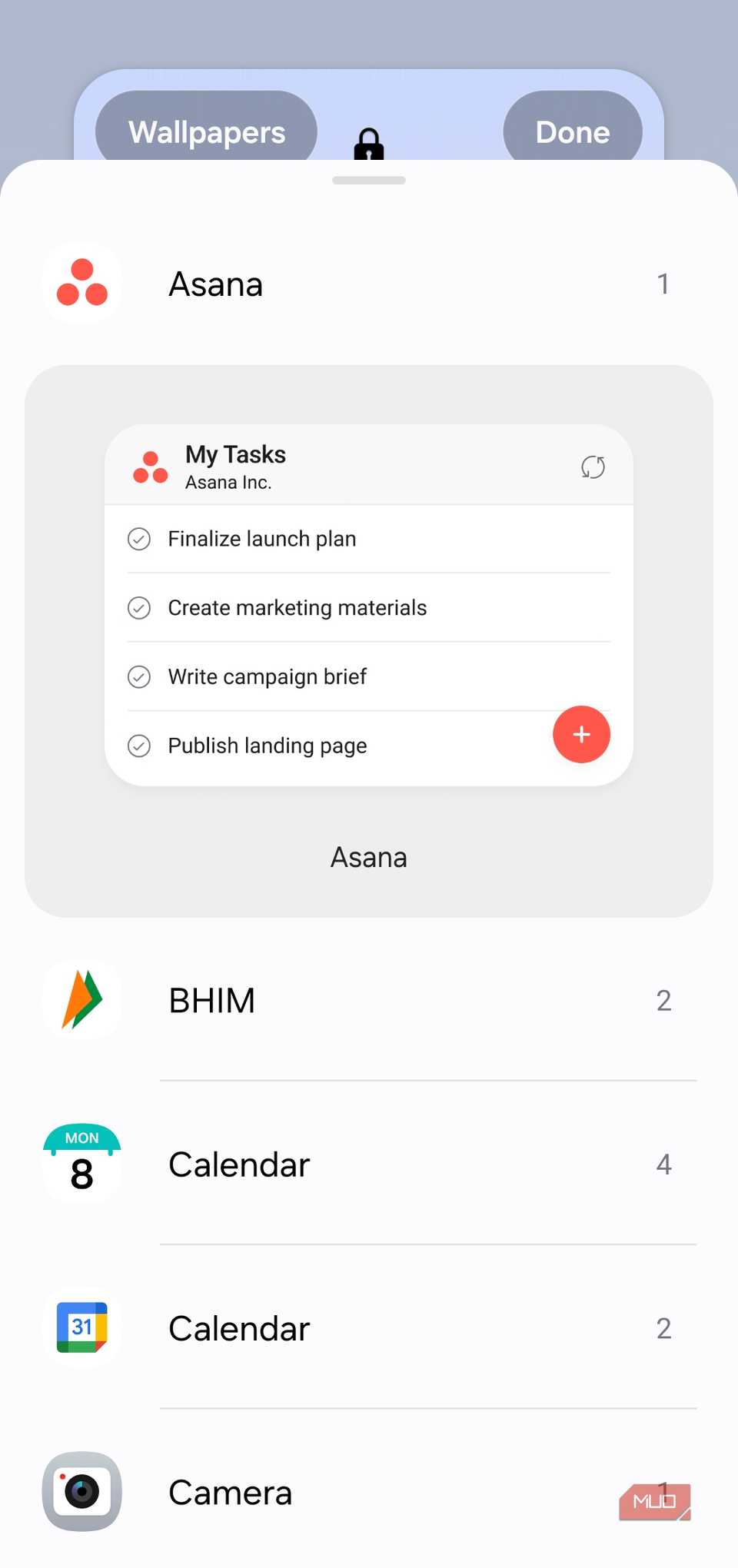
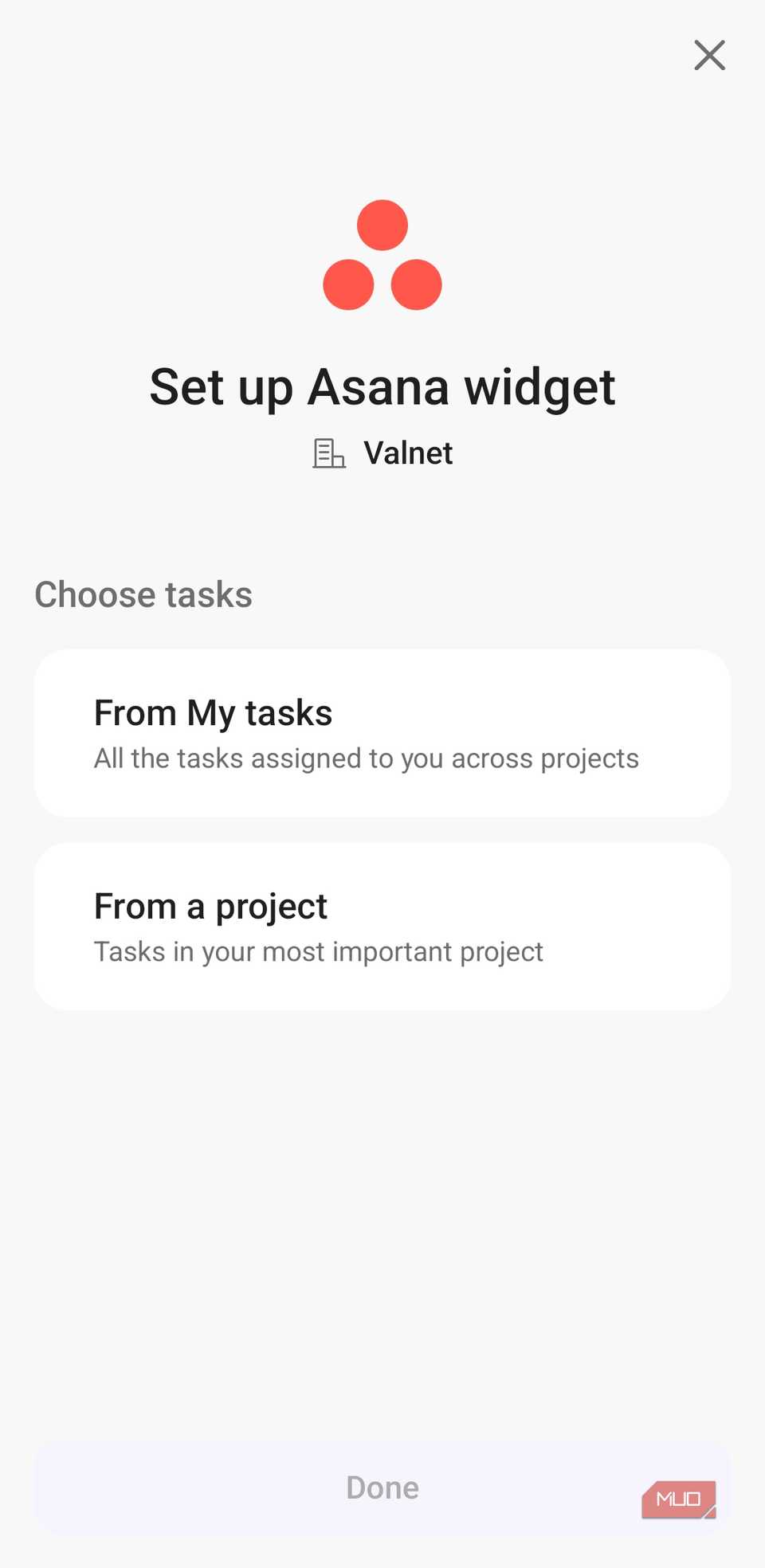
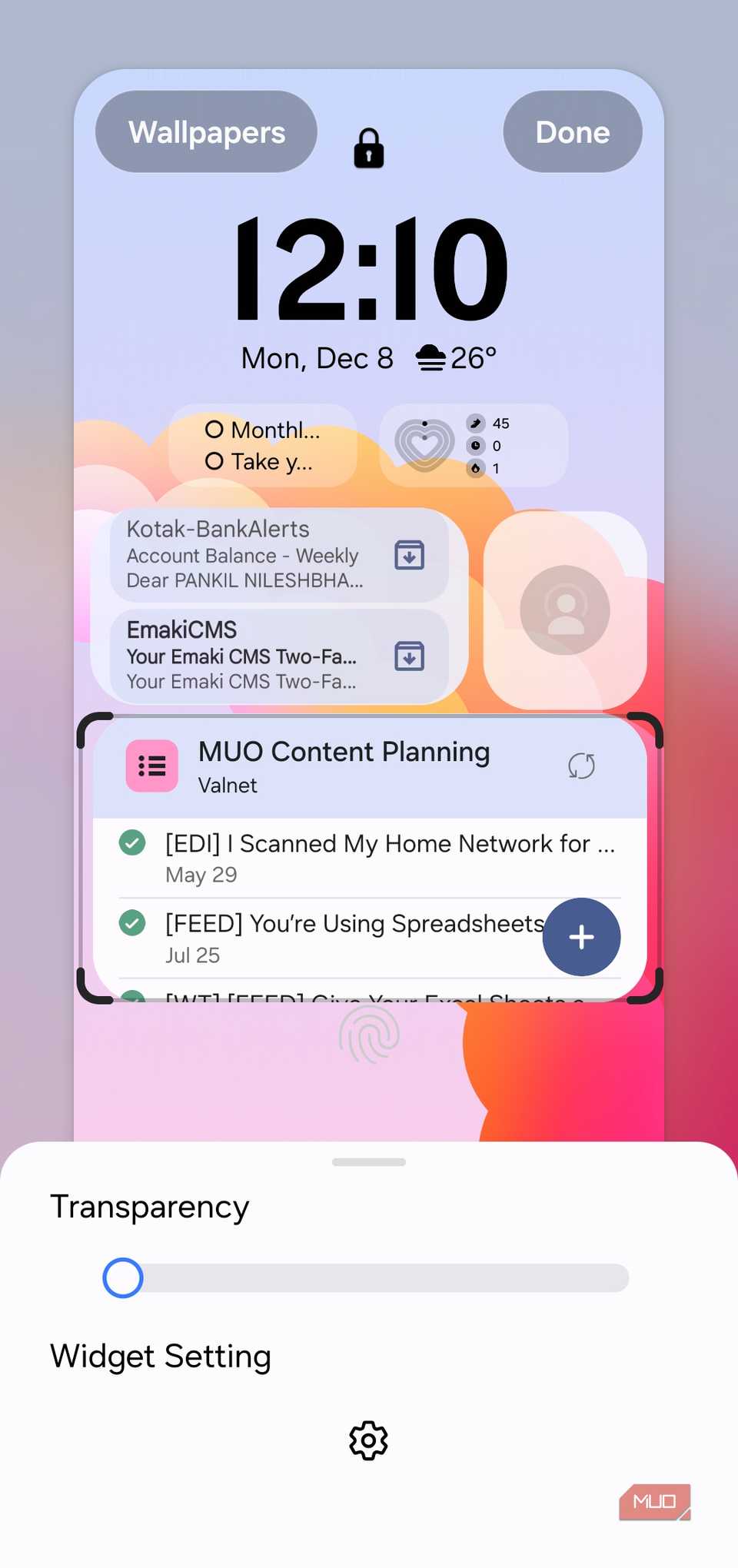
Asana is where all my article tasks and deadlines live. It’s basically my second brain for work. Instead of opening the app every time I want to check what’s due next, the Asana widget brings everything to my lock screen. I can skim through upcoming tasks, see deadlines, refresh the list, and even add new ones if something pops into my head.
It turns my phone’s lock screen into a dashboard. If you rely on a different project management tool or even your calendar, you can add that to your lock screen instead.
About adding lock screen widgets on Samsung phone
Screenshot by Pankil Shah — No attribution required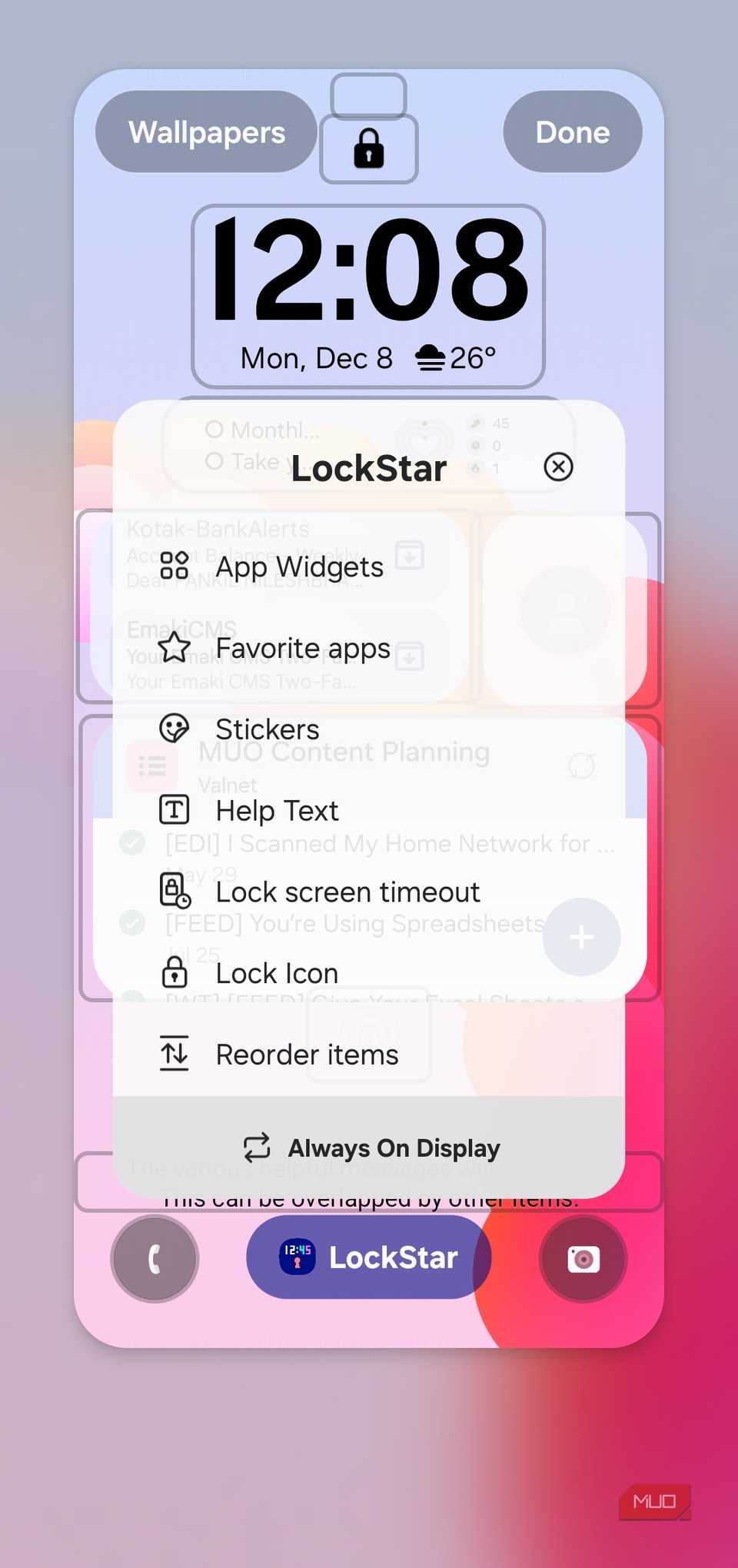 Screenshot by Pankil Shah — No attribution requiredScreenshot by Pankil Shah — No attribution required
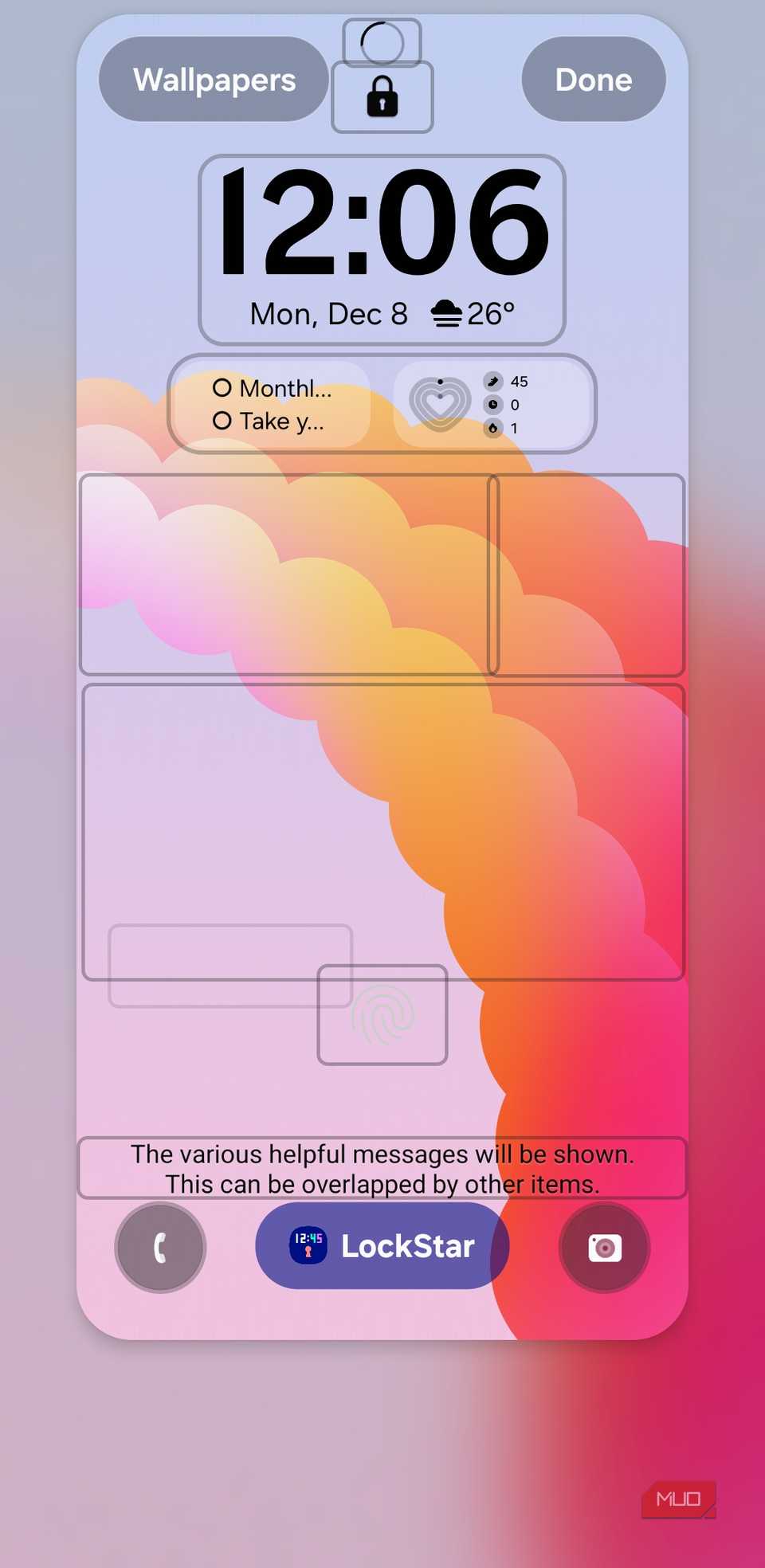
By default, One UI only allows a handful of widgets under the lock screen clock. They are useful, but the 4×1 space can feel limiting. To add widgets from third-party apps, you need to download the Good Lock app on your phone. Once done, get the LockStar module.
After that, the setup is easy. Simply tap and hold on the lock screen to edit it, tap LockStar at the bottom, and choose App Widgets. From there, you can add and arrange widgets exactly where you want them. Once added, you can tap a widget to resize it or adjust its transparency.
There’s a small trade-off when you start loading up the lock screen with every useful widget you can find. That is, your lock screen notifications sit right on top of them. So when a bunch of alerts pile up, your beautifully organized widgets get buried underneath them.
It’s not a problem once you clear the notifications, but it’s still something to keep in mind. Hopefully, Samsung gives us a better way to balance alerts and widgets in a future update because the potential here is too good to hide behind a wall of missed messages.