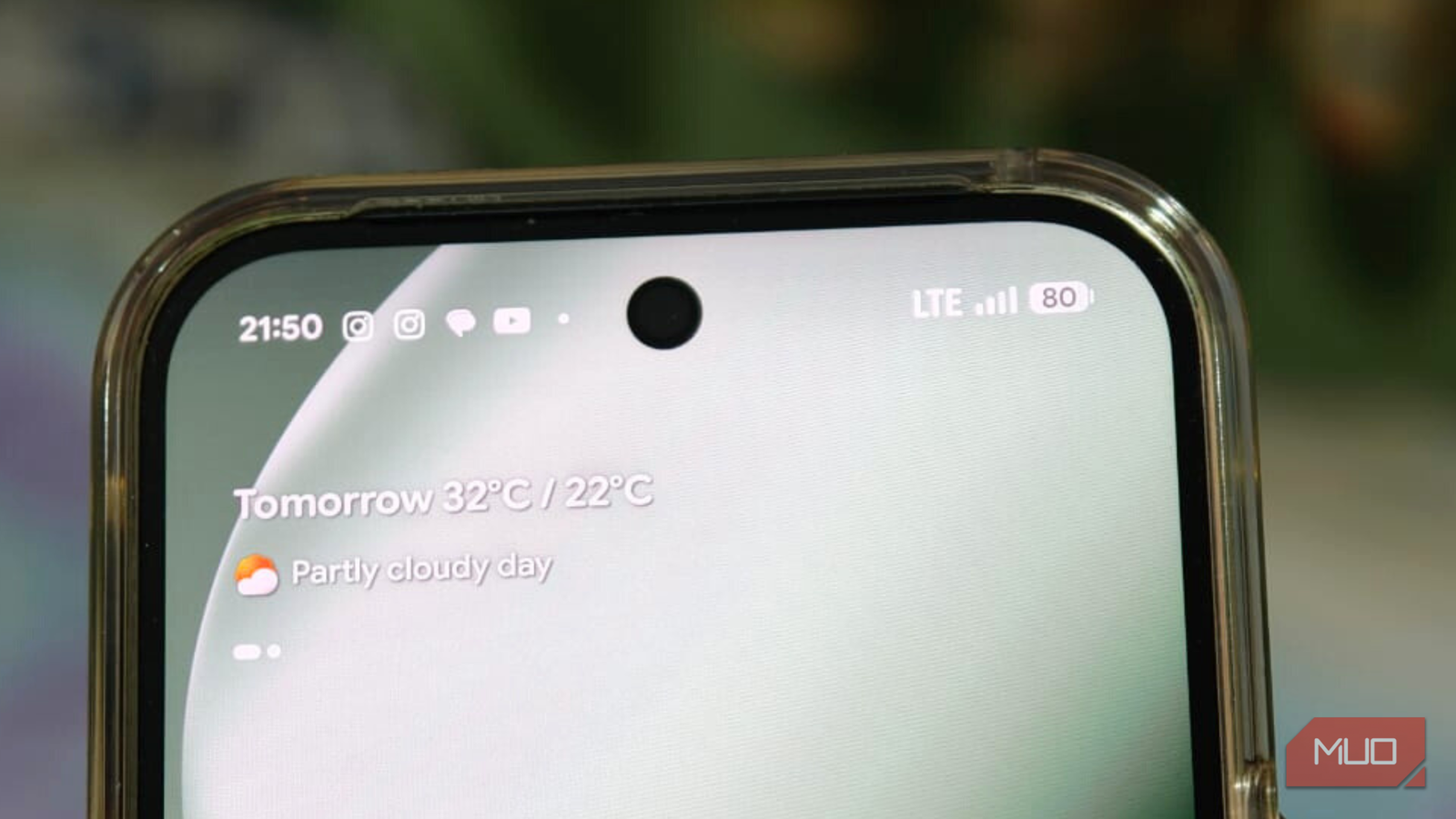
Phone signal loss is a serious problem, especially during emergencies. There’s nothing more stressful than needing to make a call or send a message and seeing no bars on your screen. At that moment, it’s frustrating, confusing, and you’re often left wondering what to try next.
That’s why I am sharing five simple tricks that have actually helped me when I needed a signal and couldn’t get it. And no, I’m not talking about walking around, holding up your phone, or hunting for that one sweet spot with better reception. We have all tried that. This is what you do after that fails.
Related
Every house has a cell signal sweet spot — this trick finds yours
Your phone’s bars aren’t random. There’s a pattern, and it’s beatable.
Airplane mode is a good first step
The oldest signal trick that still works
Whenever I see zero bars on my screen, I turn on Airplane mode first. Sometimes your phone just needs a moment to reconnect to the network, and Airplane mode actually works like a quick reset. It forces the phone to drop a connection and search for the best available signal again, often giving you faster results.
If you’re using an iPhone, follow these steps:
- Unlock your phone and swipe down from the top-right corner to open your Control Center.
- Tap the Airplane mode icon on the top-left.
- Wait for about 5–7 seconds.
- Tap the icon again to turn it off.
- Give your iPhone a few seconds to reconnect and check the signal.
On the other hand, if you’re an Android user, this is what you need to do:
- Swipe down on your home screen to open the Quick Settings panel.
- Look for the Aeroplane mode icon.
- Tap it and wait for 5–7 seconds.
- Tap it again to turn it off.
- Give your phone a moment to reconnect with the network.
In most cases, this simple step is enough to improve your phone’s signal.
Try changing your network mode
Downgrading your network to upgrade your signal
When you’re stuck in an area with poor network coverage, switching your network mode can actually make a noticeable difference. Newer networks like 5G don’t always perform well in weak signal areas, and your phone may struggle to stay connected. Dropping to LTE can sometimes give you a more stable connection, even if it’s not the fastest.
To make this change on an iPhone, open the Settings app, go to Mobile Service and select your SIM. Tap Voice & Data, switch from 5G to LTE and give your phone a few seconds to reconnect. In many cases, you’ll see more signal bars, or at least enough connectivity to make an emergency call or send a message.
On Android, open the Settings app, go to Network and Internet, tap SIMs and select your active SIM. Now, go to Preferred Network Type, select LTE and wait for a moment. This often helps your phone lock onto a usable signal when 5G is struggling.
I’m using the Google Pixel 10 Pro, so these settings are based on the Pixel’s settings menu. The exact path may vary slightly on other Android phones. If you can’t find the option, just search for “network type” in Settings, and it should point you in the right direction.
Make calls over Wi-Fi
The backup plan your phone already has
If switching to LTE doesn’t get you a useable signal, turning on Wi-Fi can really help. It lets you make calls and send messages over Wi-Fi, even when the mobile signal is barely there or completely missing.
On an iPhone:
- Open the Settings app and go to Mobile Service.
- Under SIMs, select your active SIM.
- Tap Wi-Fi Calling and toggle it on.
On Android:
- Open the Settings app and go to Network and Internet.
- Tap SIMs and select your active SIM.
- Under Calling, tap Wi-Fi Calling and turn it on.
Once enabled, just connect your phone to any available Wi-Fi network. You can then make calls and send texts the same way you normally would, even without a mobile signal.
Try resetting network settings
When your phone needs a clean slate
If none of the fixes above work, resetting your network settings is usually the solution. I’ve had to rely on this myself. Once, during a concert, my iPhone had almost no signal, and I needed to make an important call to let my friend know where I was. A quick network reset instantly fixed my phone’s signal. And in situations like this, especially when you’re out and about, you can also make better use of someone else’s mobile hotspot, if available, by following these six simple tips.
On an iPhone, open the Settings app and go to General. Scroll down and tap Transfer or Reset iPhone. Tap Reset and select Reset Network Settings. Finally, follow the on-screen steps to complete the process.
On Android, on the other hand, open the Settings app and tap System. Select Reset Options and tap Reset mobile network settings. Here, tap Reset settings in the bottom-right corner and follow the on-screen instructions.
Once this is done, your phone will reconnect to the network from scratch, and in almost all cases, this brings the signal back to life.
Take out and reinsert your SIM card
Pop it out, pop it back, hope for bars
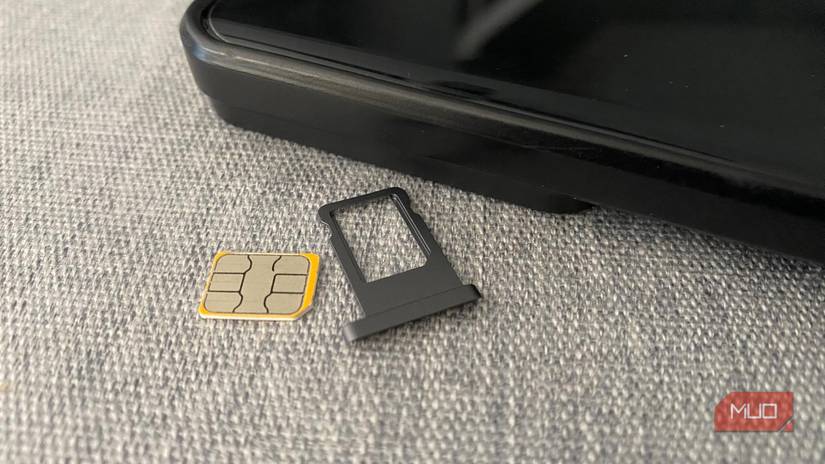
Credit: Tyler Fyock/MakeUseOf
Finally, if nothing else works, try removing your SIM card. Take it out of the SIM tray, gently clean the SIM and the tray and then insert it back again properly. Dust or slightly lose fit can sometimes interfere with your connection, and reinserting the SIM helps your phone re-establish contact with the network.
Once you put it back in, give your phone a moment to reconnect. This will definitely restore the signal.
Removing your SIM card can instantly log you out of apps like WhatsApp and even some banking apps. So make sure you’re prepared for re-verification before you pop the SIM out and put it back in.
A survival guide for bad network days
Apart from walking around and hoping for better bars, one of these five tricks will almost always come to your rescue on bad network days. They’re really simple, practical, and don’t require too much of your time. It’s more about helping your phone reconnect to a better network reception.
The key is to stay calm and try one by one rather than panic. In most situations, at least one of these fixes will work and get you back online when you need it the most.