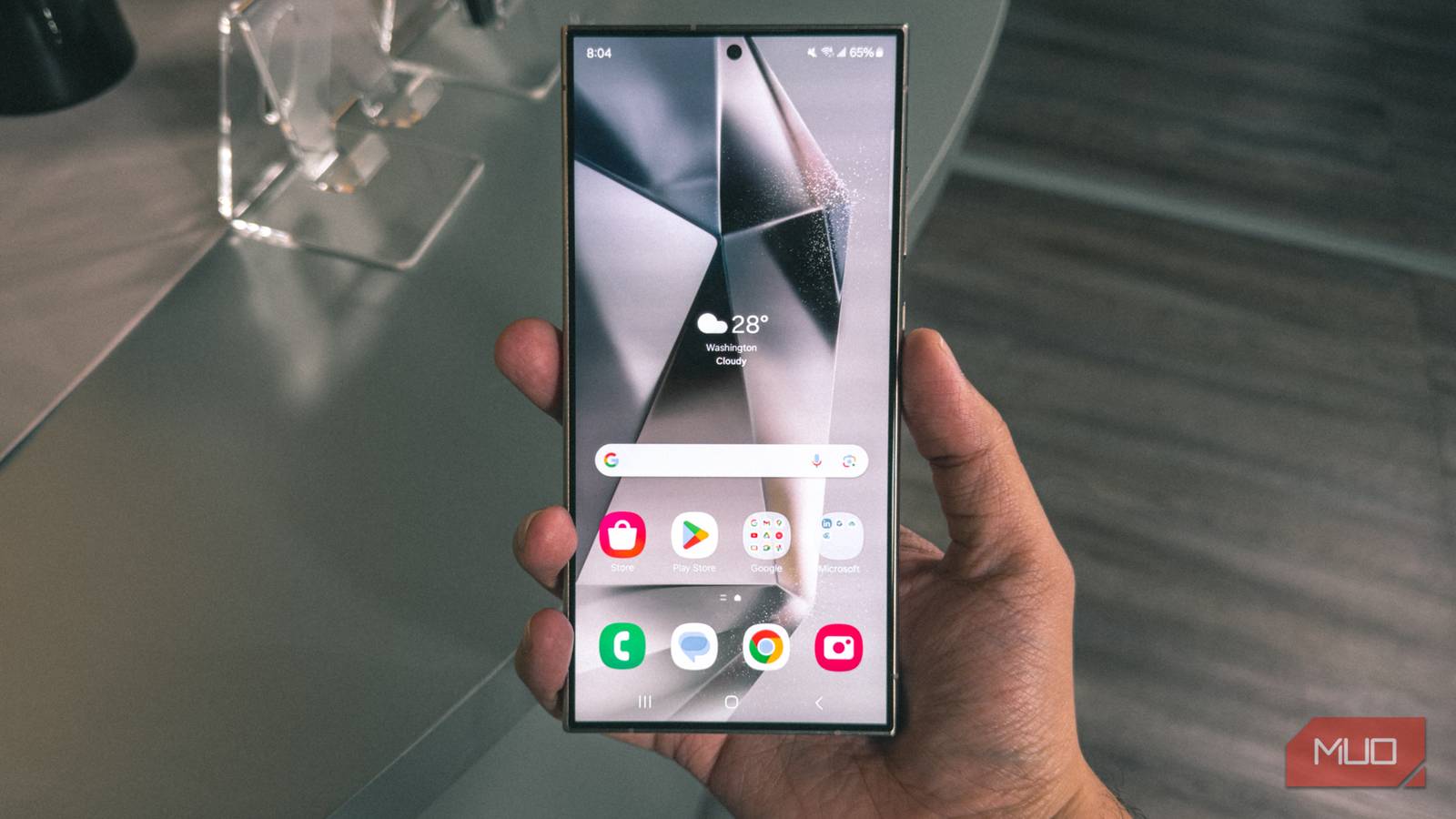
The default settings on your Samsung phone are good enough to get you started, but not ideal if you want to make the most of it. Inside that boring-looking Settings menu, there are several useful settings and tweaks that most people overlook.
Changing the right settings can unlock smoother performance, better notifications, and controls that make your life easier. Personally, I regret not discovering some of these settings earlier, but now that I have, I can’t recommend them enough.
Enabling notification categories
Fine-tune app alerts the right way
Most apps these days let you set notification preferences, but they’re usually not very detailed. For instance, WhatsApp offers options to enable or disable notifications for messages, calls, and even reactions in its settings menu. But you won’t find options to turn off those alerts that appear while the app is creating a backup or uploading media.
Notification categories on Android gives you granular control over exactly what kind of alerts an app is allowed to send. Each notification is broken down into its own category, and you can even customize how each category behaves, including changing notification sounds, vibration patterns, and whether they show up on lock screen.
Oddly enough, Samsung phones hide this powerful feature by default. Mind you, this isn’t the case with other Android phones. To enable it, head to Settings > Notifications > Advanced settings and turn on Manage notification categories for each app. Once done, open the app info page of any app, tap Notifications, and you’ll see the full notification categories menu.
Take ads out of your notifications
 Screenshot by Pankil Shah — No attribution required
 Screenshot by Pankil Shah — No attribution required
 Screenshot by Pankil Shah — No attribution required
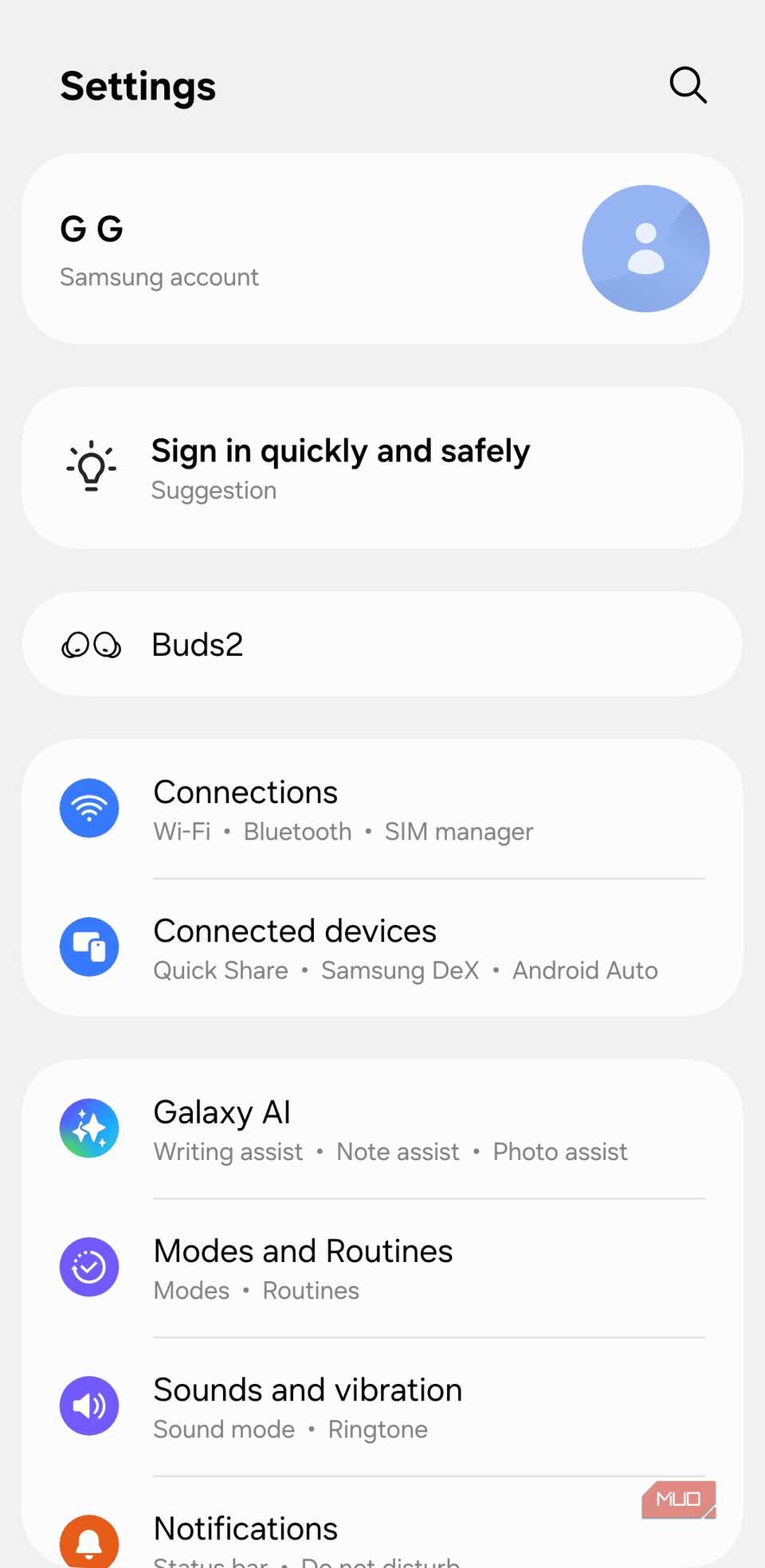
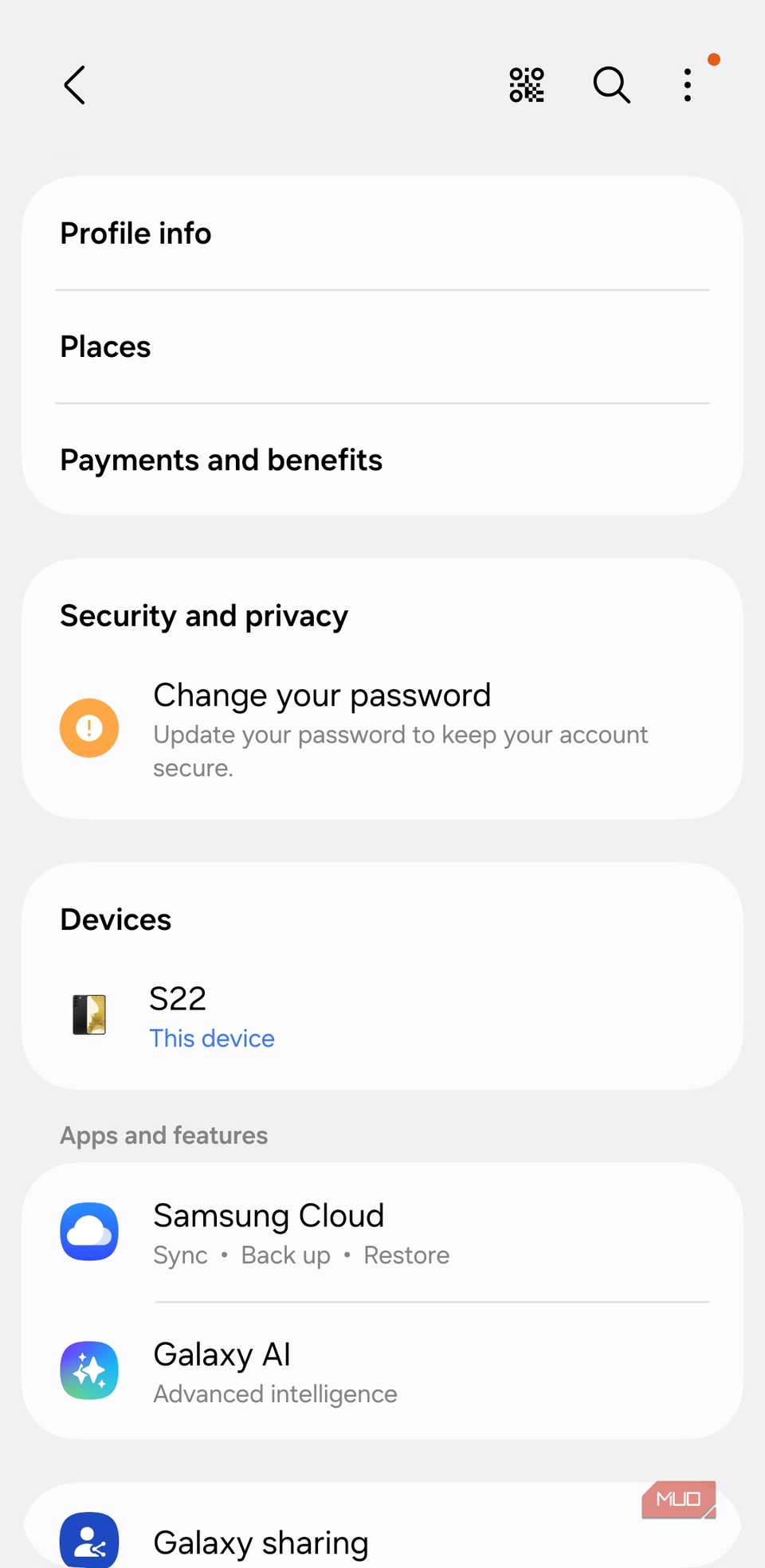
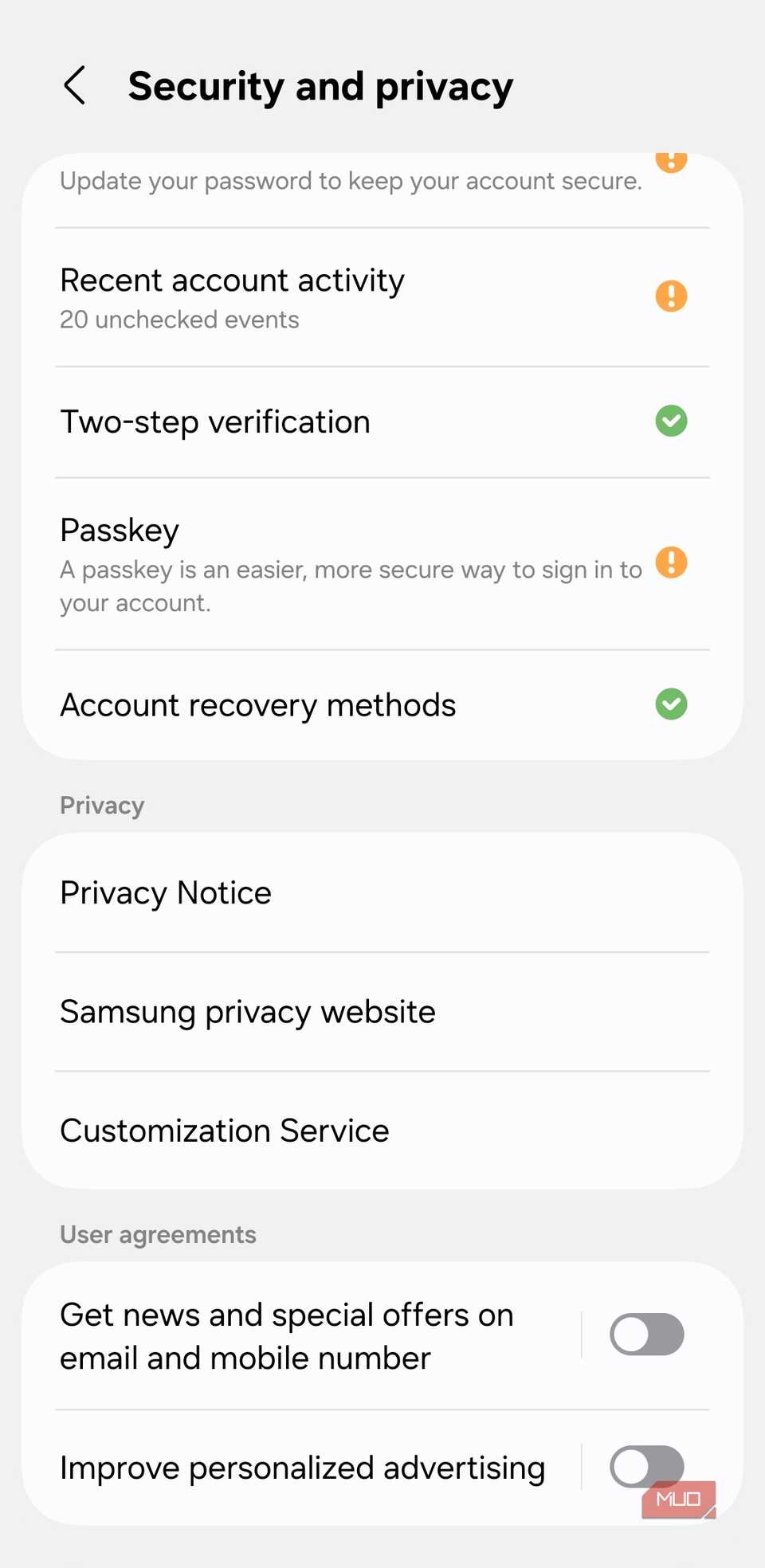
If there’s one thing that annoys me the most about Samsung phones, it’s how they show ads even on flagship models. Once you set up a Samsung account, it keeps showing news and special offer alerts at random times. To put it plainly, these are just ads where Samsung promotes its own products.
I kept dismissing them for months before finally finding a way to turn them off for good. To do the same, head to Settings > Samsung account > Security and privacy and turn off Get news and special offers on email and mobile number and Improve personalized advertising.
Remove unwanted pre-installed apps
Not exactly a setting, but worth doing
 Screenshot by Pankil Shah — NAR
 Screenshot by Pankil Shah — NAR
 Screenshot by Pankil Shah — NAR
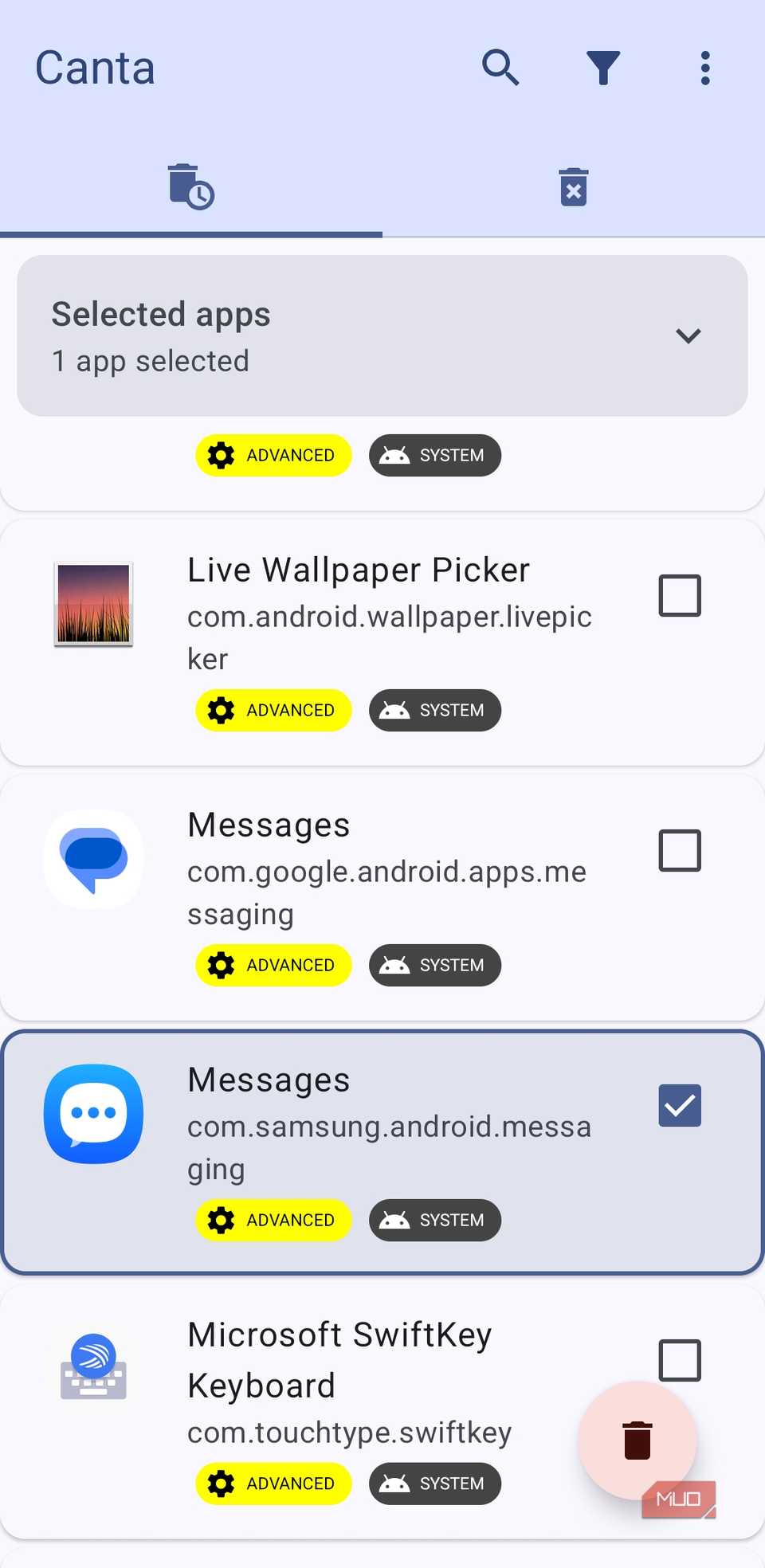
Samsung phones come with a lot of pre-installed apps. That’s because Samsung makes its own versions of core apps like Gallery, Contacts, Messages, and even the App Store. Alongside those, you also get Google’s apps that do essentially the same thing. Then there’s the long-standing partnership between Samsung and Microsoft, which adds apps like OneDrive, Office 365, Outlook, and more.
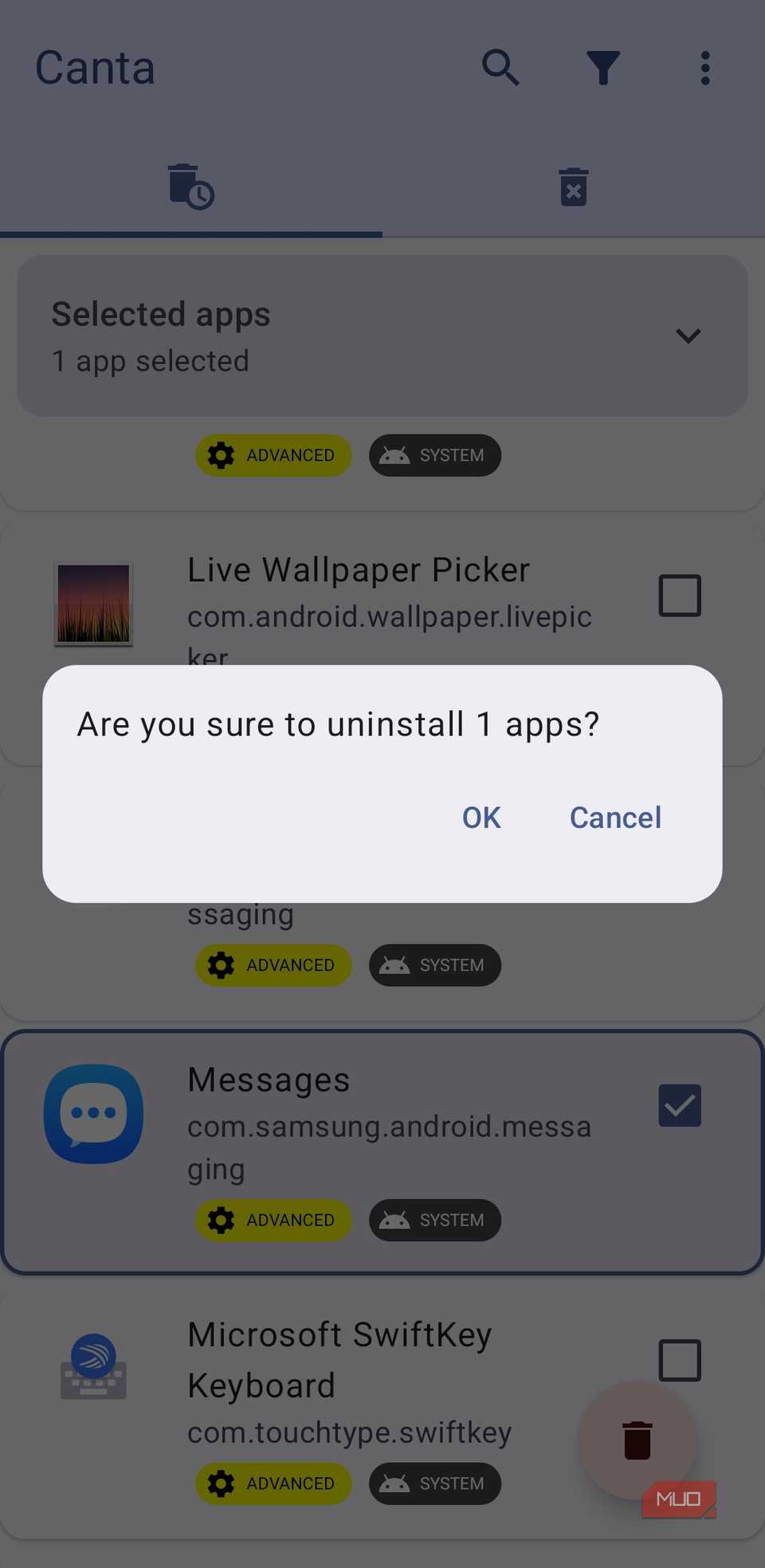
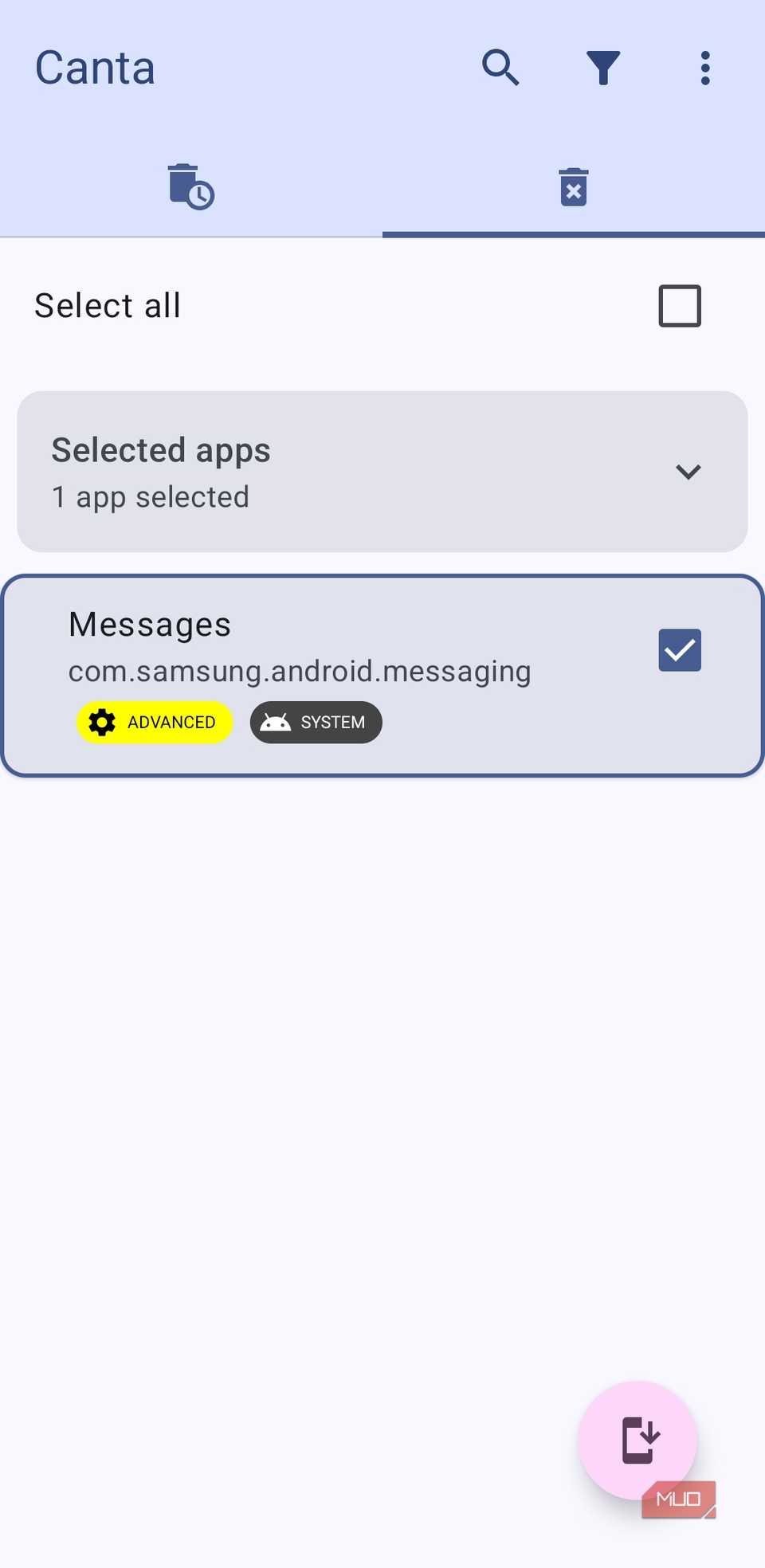
All of this means you end up with a bunch of apps you might never touch. And the worst part is that Samsung doesn’t make it easy to uninstall some of them. Recently, though, I found a way to uninstall these pre-installed apps without root. Now that I’ve removed all those useless apps, my phone finally feels like mine.
Tweaking the display settings
Make it look gorgeous
 Screenshot by Pankil Shah — No attribution required
 Screenshot by Pankil Shah — No attribution required
 Screenshot by Pankil Shah — No attribution required
The display is one of the biggest reasons I bought a Samsung phone. The problem is One UI tends to dial things back by default to save battery, which means you are not getting the best possible experience out of the box.
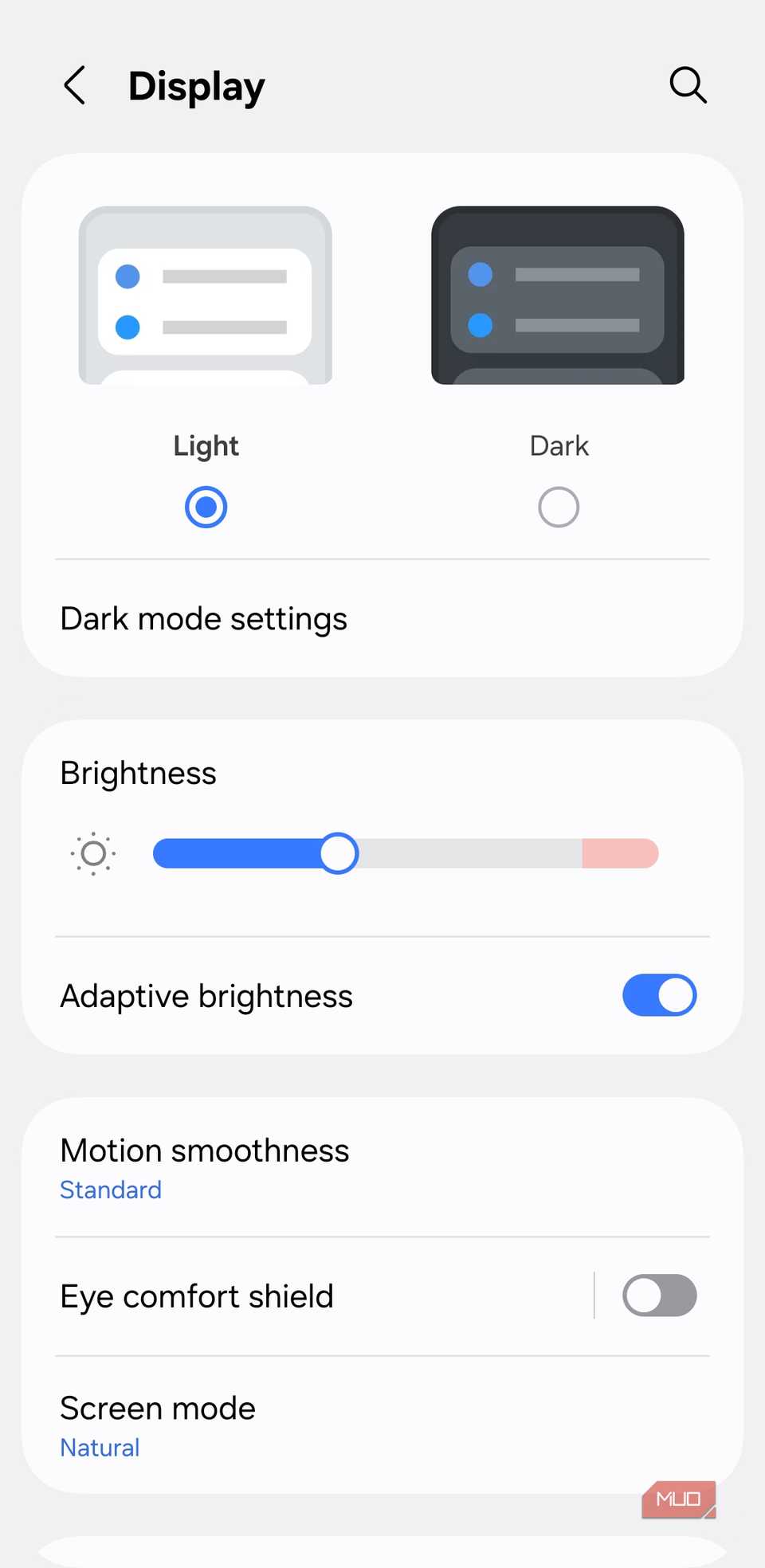
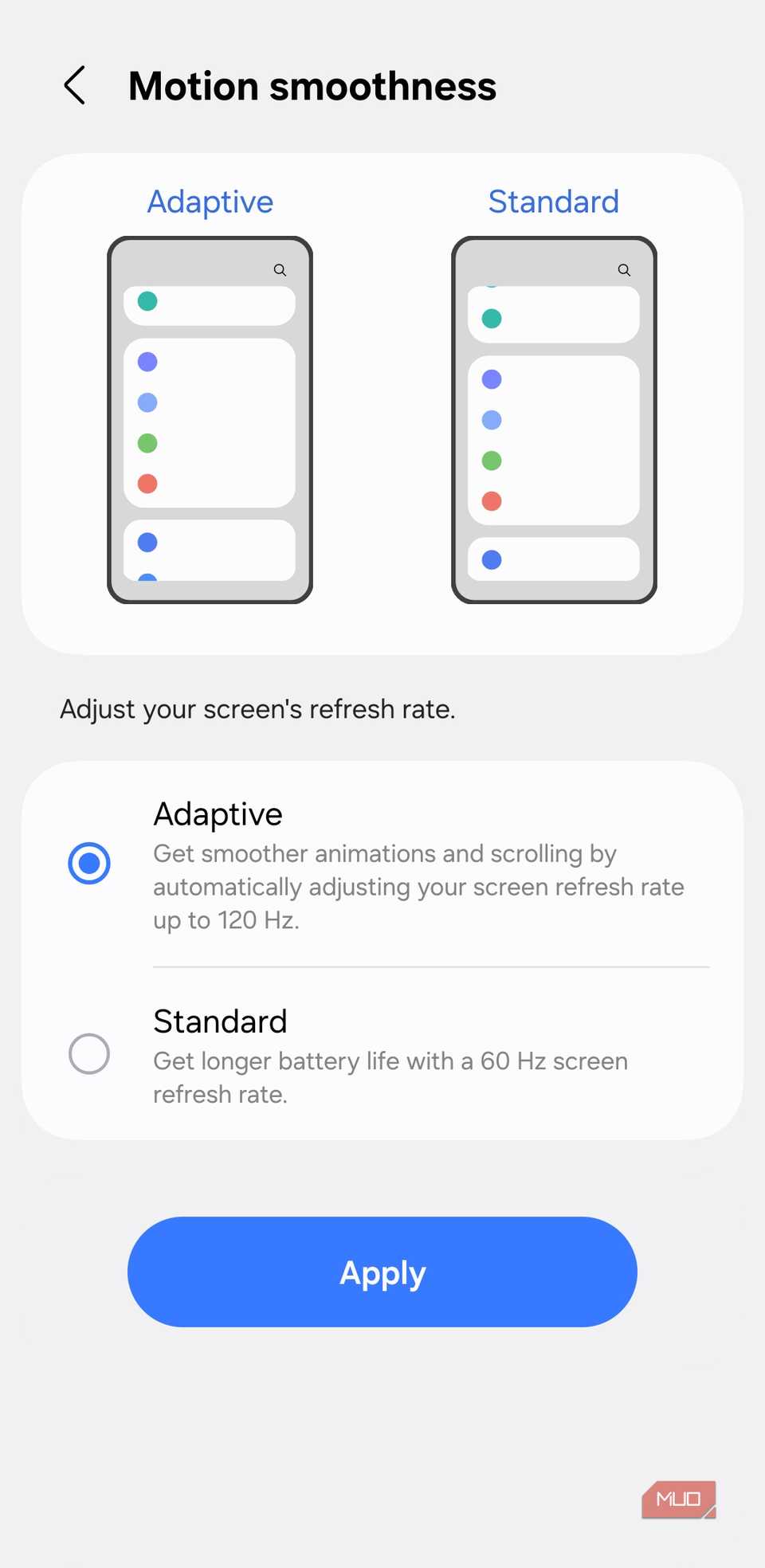
For instance, most Samsung phone displays are set to FHD+, which looks fine, but once you set it to QHD+, you’ll never want to go back. To change this, head to Settings > Display > Screen resolution. Similarly, One UI also sets the refresh rate to 60Hz by default, which basically means your screen refreshes 60 times per second. But if you have a high-end Galaxy phone, setting it to 120Hz can make the animations and scrolling feel a lot smoother.
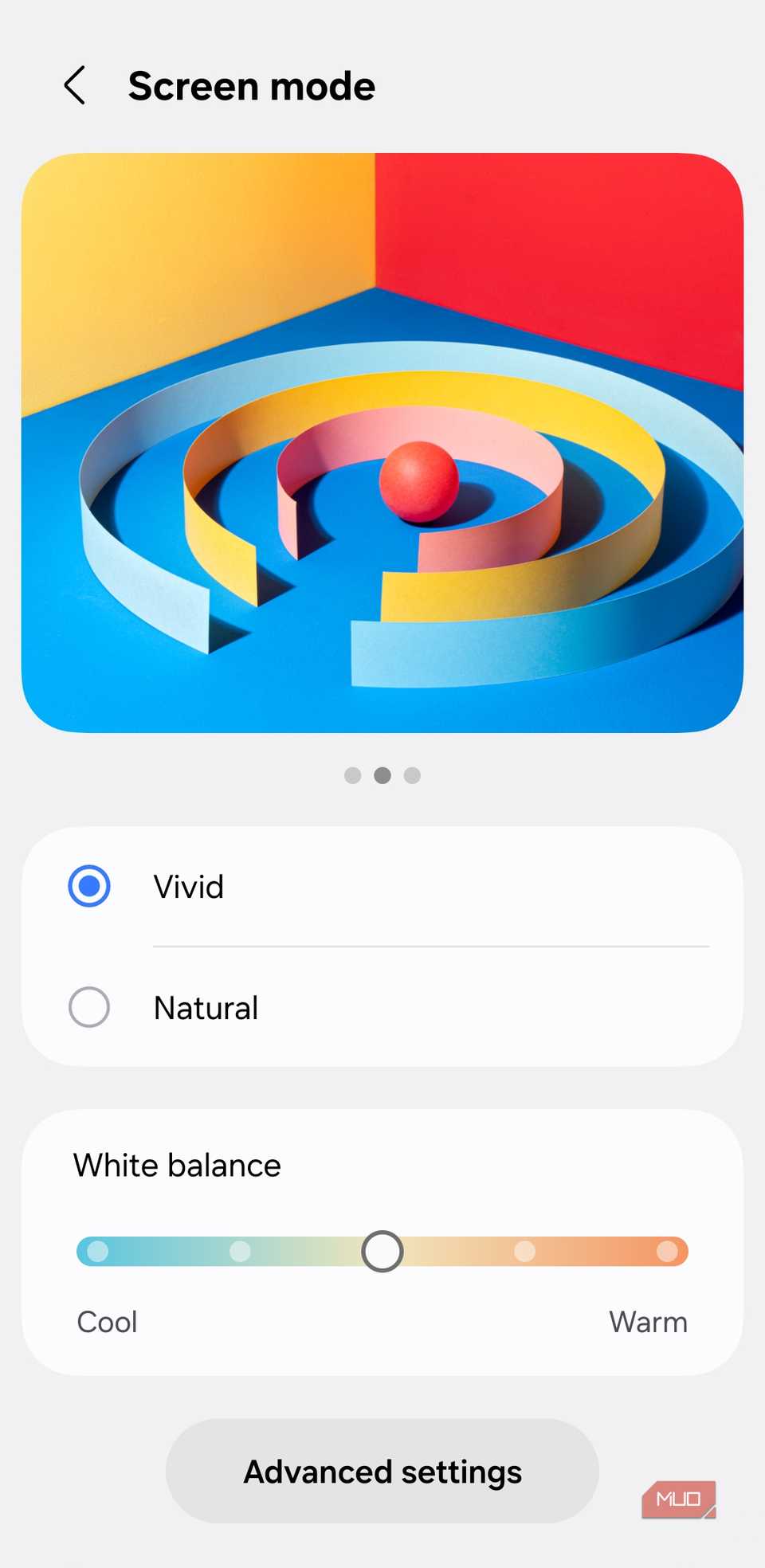
Finally, there’s the screen mode. This one is more subjective, but I like my phone to show brighter visuals, so I’ve changed it from Natural to Vivid.
Changing what the side key does
Make it useful
 Screenshot by Pankil Shah — No attribution required
 Screenshot by Pankil Shah — No attribution required
 Screenshot by Pankil Shah — No attribution required
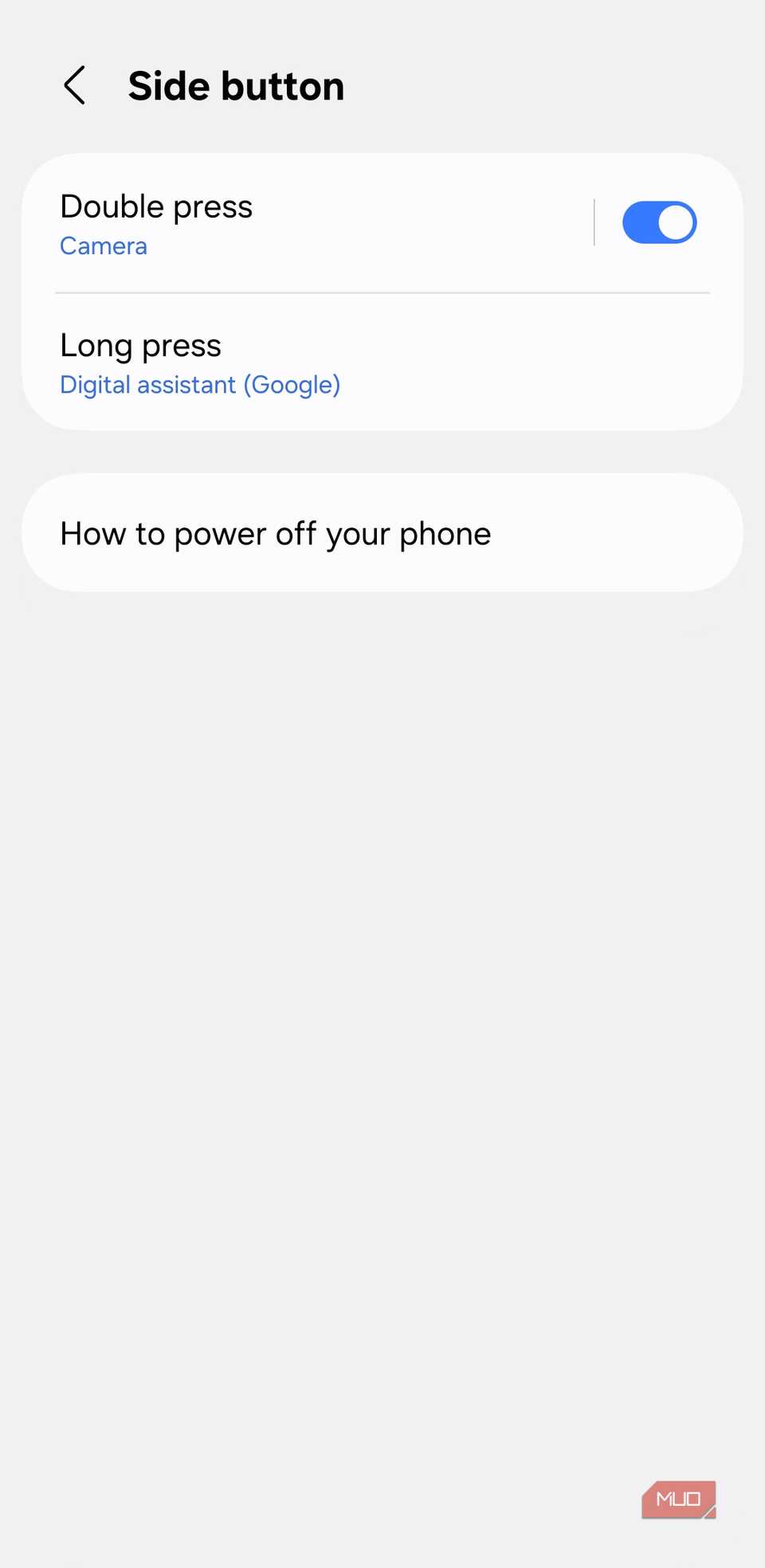
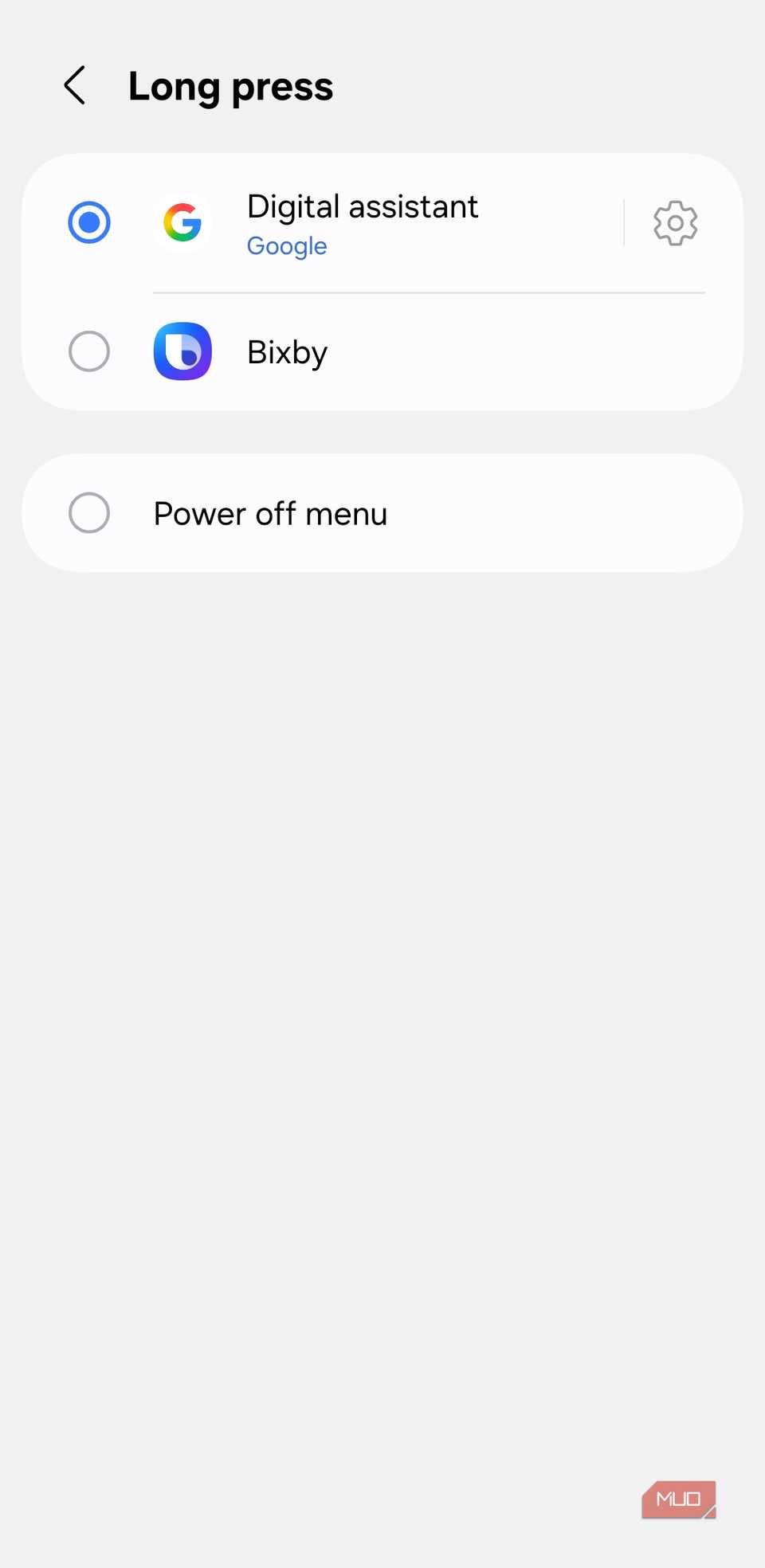
By default, long pressing the side button on Samsung phones brings up Bixby and double-pressing it launches the Camera app. Personally, though, I don’t use Bixby or even Gemini all that much and the camera shortcut is already there on the lock screen.
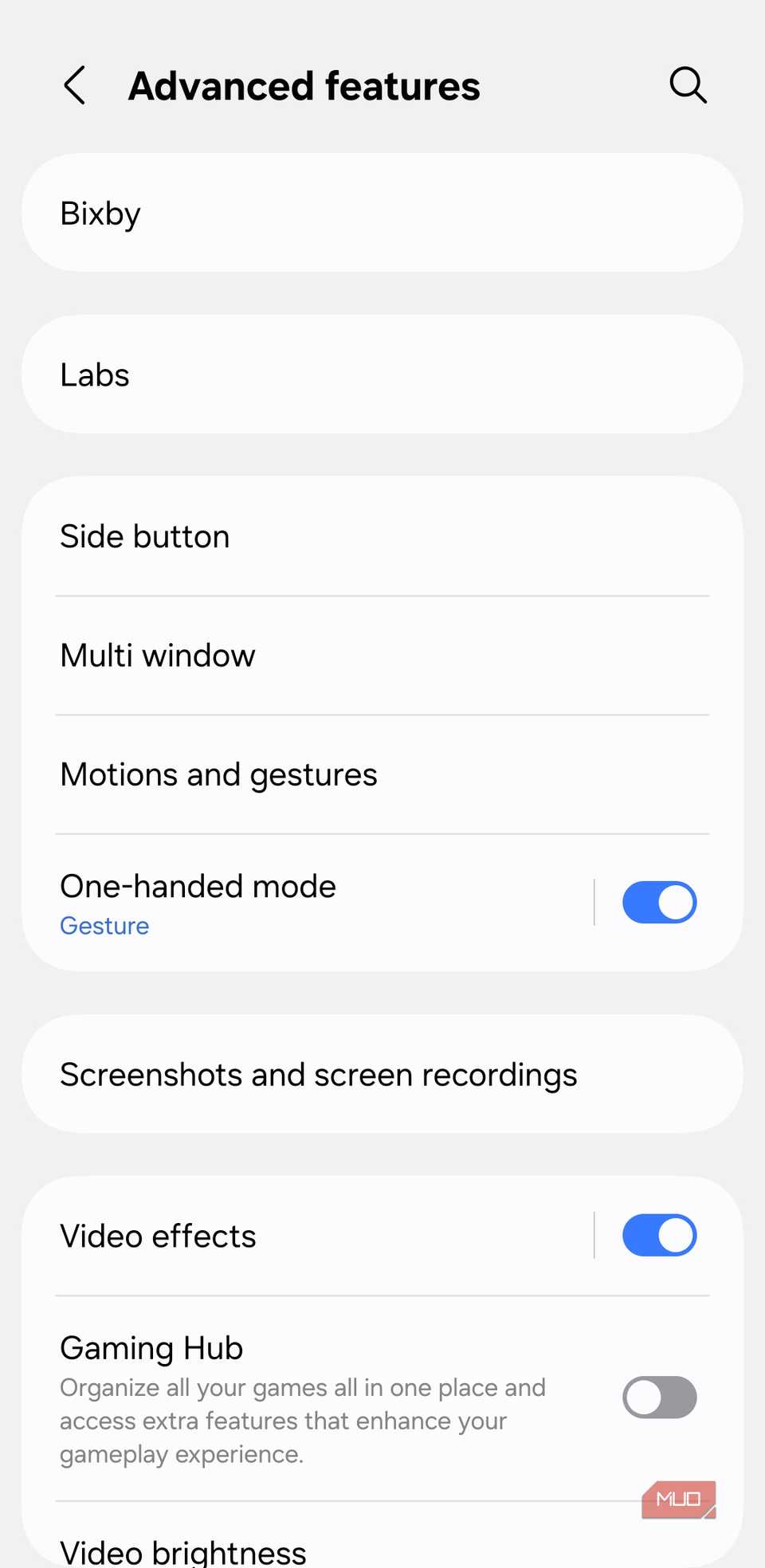
This meant I was not using the side button for anything useful. Thankfully, One UI lets you remap what the side key does. Head to Settings > Advanced features > Side key, and you can set the long press action to open the Power off menu. Similarly, you can set the double-press action to launch any app on your phone.
I went one step further, though. I installed the Routines+ module from Good Lock, which lets you assign custom actions to physical buttons. Now, long-pressing the side key opens Chrome’s incognito window, and double-pressing it pulls up Google Maps with directions to my home.
Samsung gives you an incredible amount of control over how your phone works, but it’s up to you to take advantage of it. Of course, your phone will work just fine even if you never touch these settings, but taking a few minutes to explore them can take your experience from good to something you actually love using.