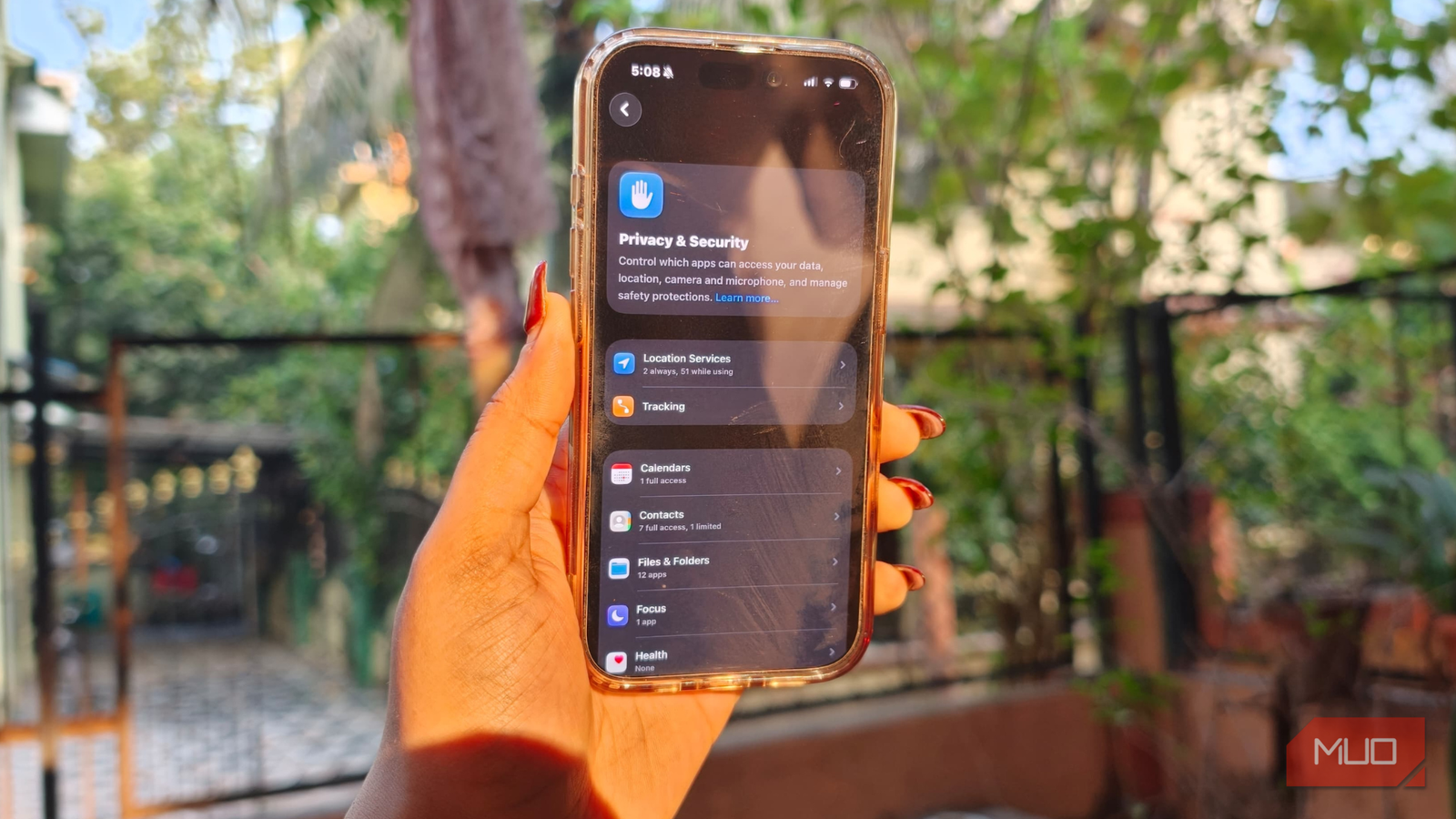
iPhones have long been known for their strong privacy and security controls. However, as Apple’s tightly guarded ecosystem has gradually opened up, that sense of control no longer feels ironclad as it once did. Features like Airdrop becoming accessible to Pixel users, along with regulatory pressure from the EU forcing changes Apple clearly resisted, such as a shift from the lightning port to USB-C, make it all the more important to stay vigilant about personal data.
That’s exactly why I have become more deliberate about how my iPhone is set up. Making a few thoughtful adjustments can go a long way in tightening privacy. Changing these five settings on my iPhone 17 has helped me maintain better control over my personal data, without compromising everyday usability.
Putting boundaries on Apple’s data collection
Deciding what Apple really needs to know
I’m very particular about setting clear boundaries when it comes to data collection, and Apple’s approach to gathering user data is, admittedly, quite clever. The company clearly states:
Help Apple improve its products and services by automatically sending daily diagnostic and usage data. Data may include location information.
Honestly, it does sound reasonable. Apple frames it as a way to improve products and services by collecting ‘usage data,’ which is essentially a polite and well-worded request for your information. That said, choosing to limit how much data Apple collects is still a smarter move, especially if privacy matters to you. That’s why taking control of these settings is important. If you want to reduce data sharing, here’s what you need to do:
- Open the Settings app on your iPhone.
- Scroll down and tap Privacy & Security.
- Scroll to the bottom and select Analytics & Improvements.
- Toggle off anything you don’t want to share.
Make sure to read the description properly before turning anything off. Some settings may genuinely improve your experience, while others are entirely optional. The goal is not to blindly disable everything, but to stay informed and in control of what your iPhone shares in the background.
Keeping apps out of your business
Drawing the line with app tracking
These days, almost every new app you download on your iPhone comes with a familiar pop-up asking whether you want to allow it to track your activity across other apps and websites. Honestly, it feels unnecessary. There’s little reason to willingly share your personal data with every app you install.
Thankfully, Apple offers a dedicated setting that lets you shut this down entirely. If you suspect apps are tracking your activity and serving ads based on what you search for or browse, it’s time to keep them firmly out of your business. Here’s how to double-check and turn it off:
- Open the Settings app on your iPhone.
- Go to Privacy & Security.
- Tap Tracking and toggle off Allow apps to request to track.
Once disabled, apps won’t even be allowed to ask for tracking permission. It’s a simple change, but it goes a long way in reducing app-level tracking and keeping your data more private in the background.
Enable app privacy report
Let your iPhone keep an eye on apps
Turning on App Privacy Report on your iPhone gives you a detailed look at how apps interact with your data and device sensors. It shows how often apps access sensitive information, a breakdown of each app’s network activity, the websites they connect to, and the domains they contact most frequently. This also helps you spot whether an app may be sharing data with third parties, based on the domain it communicates with.
The report displays activity from the past seven days, making it easy to track behavior rather than outdated usage.
To enable it, follow these steps:
- Open the Settings app on your iPhone.
- Head to Privacy & Security.
- Scroll down to Transparency logs and tap App Privacy Report.
- Tap Turn on App Privacy Report.
Once enabled, your iPhone will start collecting data in the background, and the report will populate as you continue using your apps.
Control camera access on your iPhone
Knowing who can see through your camera
It’s important to stay aware of which apps have access to your iPhone’s camera. Regularly reviewing these permissions helps you stay in control and ensures that no app is accessing your camera without a genuine need. To check this, simply follow these steps:
- Open the Settings app on your iPhone.
- Go to Privacy & Security.
- Scroll down and tap Camera.
- Review the list of apps that have camera access.
If you notice an app that doesn’t really need to access your camera, just toggle it off. It’s a quick check, but one that goes a long way in protecting your privacy.
Manage photo library permissions
Putting your photo library behind a gate
It’s easy to lose track of which apps have full access to your photo library. In a time when deepfakes and misuse of personal images are becoming increasingly common, I’d rather not have my photos sitting in places where they serve no real purpose. That’s why regularly reviewing photo permissions is essential. To check which apps can access your photos, follow these steps:
- Open the Settings app on your iPhone.
- Go to Privacy & Security.
- Scroll down and tap Photos.
- Check the apps that have access to your photo library.
If you notice an app you no longer use, tap it and set Photo Library Access to None. For apps you use occasionally, choosing Limited access is a better option. This way, you decide exactly which apps can see your photos and which ones have no access at all. While you’re fine-tuning camera-related permissions, these iPhone camera settings can also help you master the photos you take.

Related
How to Lock the Photos App on Your iPhone
Add an extra layer of security to the Photos app with the help of Shortcuts or Screen Time on your iPhone.
Not everything needs to be shared
To be honest, Apple still offers some of the best privacy tools on iPhone, which is the big reason I continue to use an iPhone. However, these tools work best when you stay in control. Spending just a few minutes reviewing and changing these settings can make a noticeable difference in how secure you feel.
You don’t need to be paranoid about privacy. Just stay informed, make conscious choices, and keep your data firmly in check. And after locking things down, choosing the right apps becomes the next step, starting with these nine apps you should install first on your iPhone.