Most modern day smartphones can capture decent photos out of the box. The real difference, though, often comes down to the software experience. Samsung phones shine in this particular area for me, mainly because they pack some genuinely useful features that eliminate the need for third-party apps.
You can capture GIFs, add a custom watermark, record using the front and rear camera at once, and do much more. Honestly, these aren’t features you’ll need every day, but they’re ones you’ll certainly appreciate and enjoy using.
Recording with front and rear camera simultaneously
Capture both sides of the story
 Screenshot by Pankil Shah — No attribution required
 Screenshot by Pankil Shah — No attribution required
 Screenshot by Pankil Shah — No attribution required
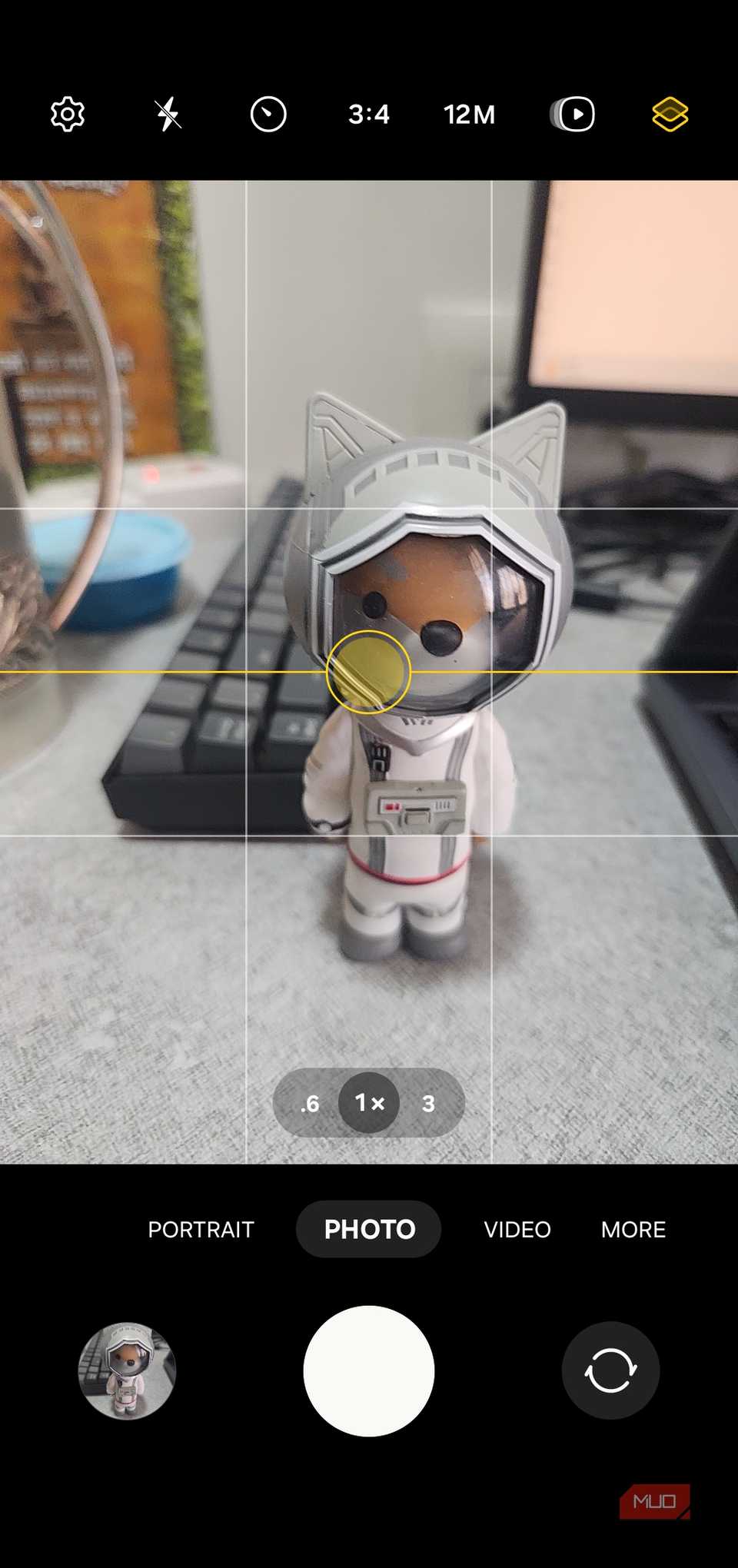
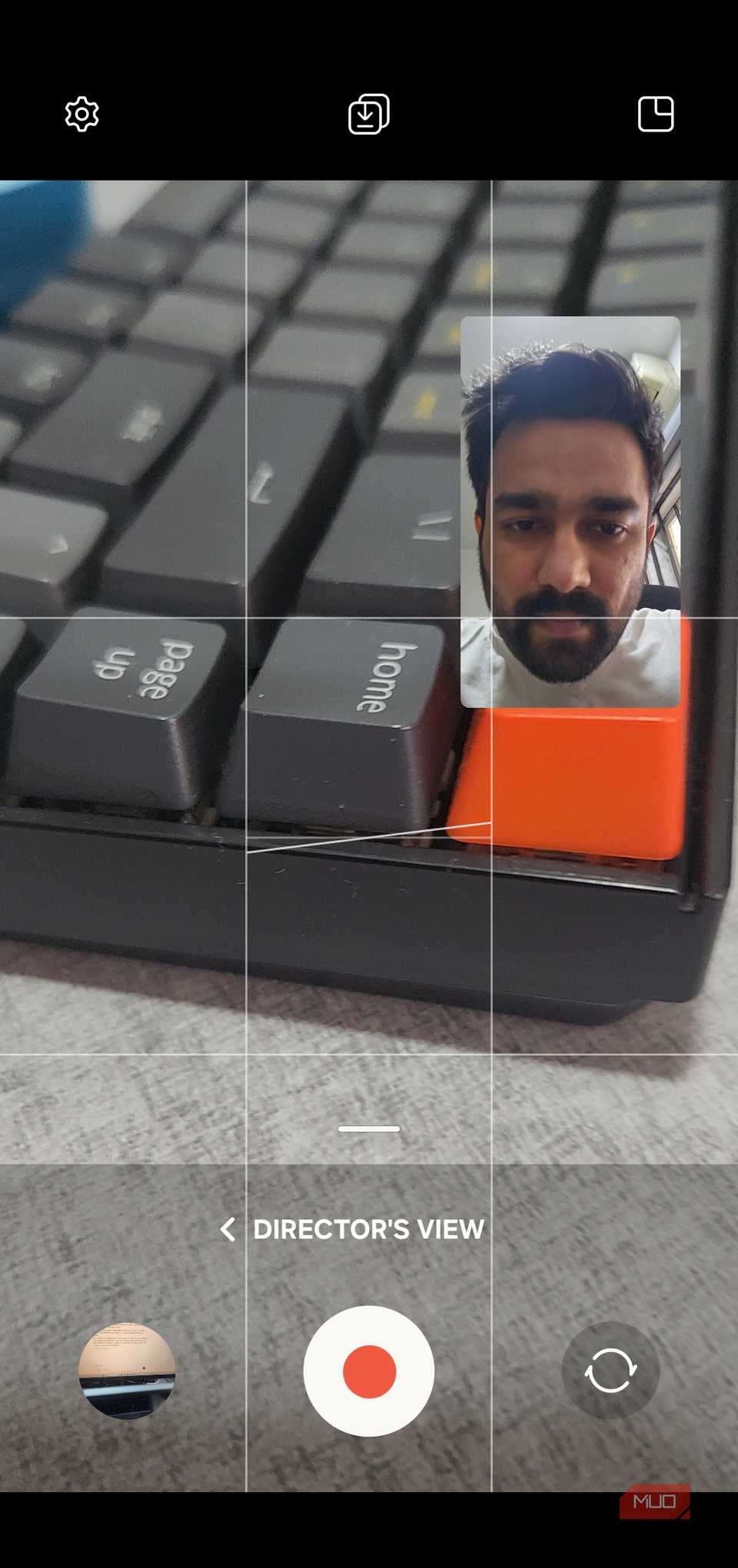
Let me start with my favorite Samsung Camera feature, which is the Director’s View. With it, you can record videos using both front and the rear cameras at the same time. For the rear camera recording, you can even pick the lens you want to use, be it wide, ultra-wide, or telephoto. This is great when you’re recording something and also want to capture your reaction to it.
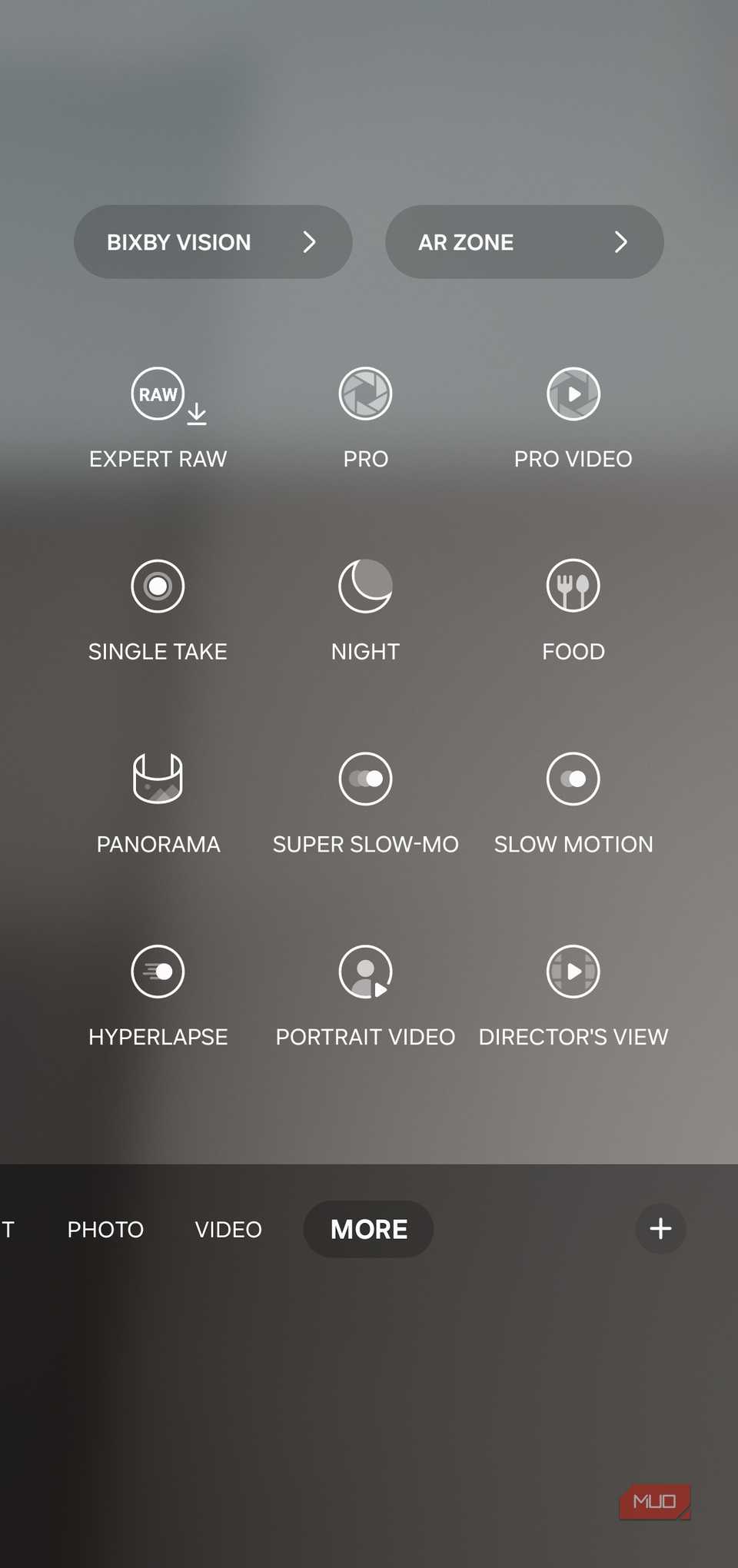
To use this, go to More > Director’s View. Once you see a small preview from the front camera, drag it anywhere on the screen, or tap the four tiny dots to switch to a split-screen layout.
By default, the Camera app saves everything as a single video, but you can tap the download icon at the top to save videos as separate files. This gives you slightly more creative freedom when editing later.
Record video while the music is playing
Keep the music going
Although it’s easy enough to add background music to a video after recording, sometimes you just want to record while the music is already playing on your phone to avoid any extra steps. Or, you might want to record while listening to your favorite songs. Unfortunately, this is something that most phones don’t allow.
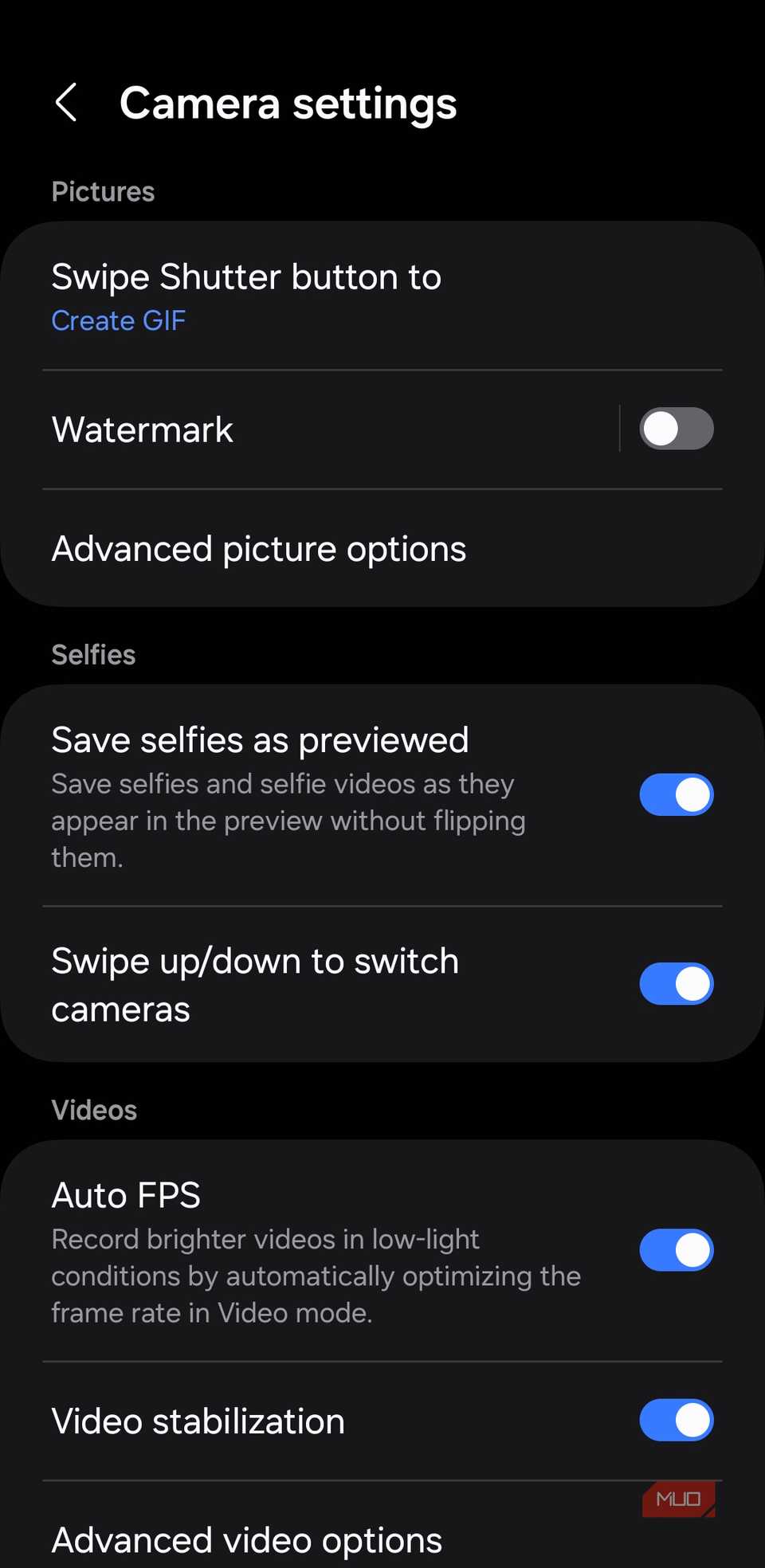
On Samsung phones, though, you can enable this in the Camera app. Head to Camera settings > Advanced video options, and turn on Audio playback. Once you do this, your phone won’t pause the music when you start video recording. It’s a small feature, but you’ll be glad your phone has it when you need it.
Capture moments as a GIF
Why stick to photos and videos?
 Screenshot by Pankil Shah — No attribution required
 Screenshot by Pankil Shah — No attribution required
 Screenshot by Pankil Shah — No attribution required
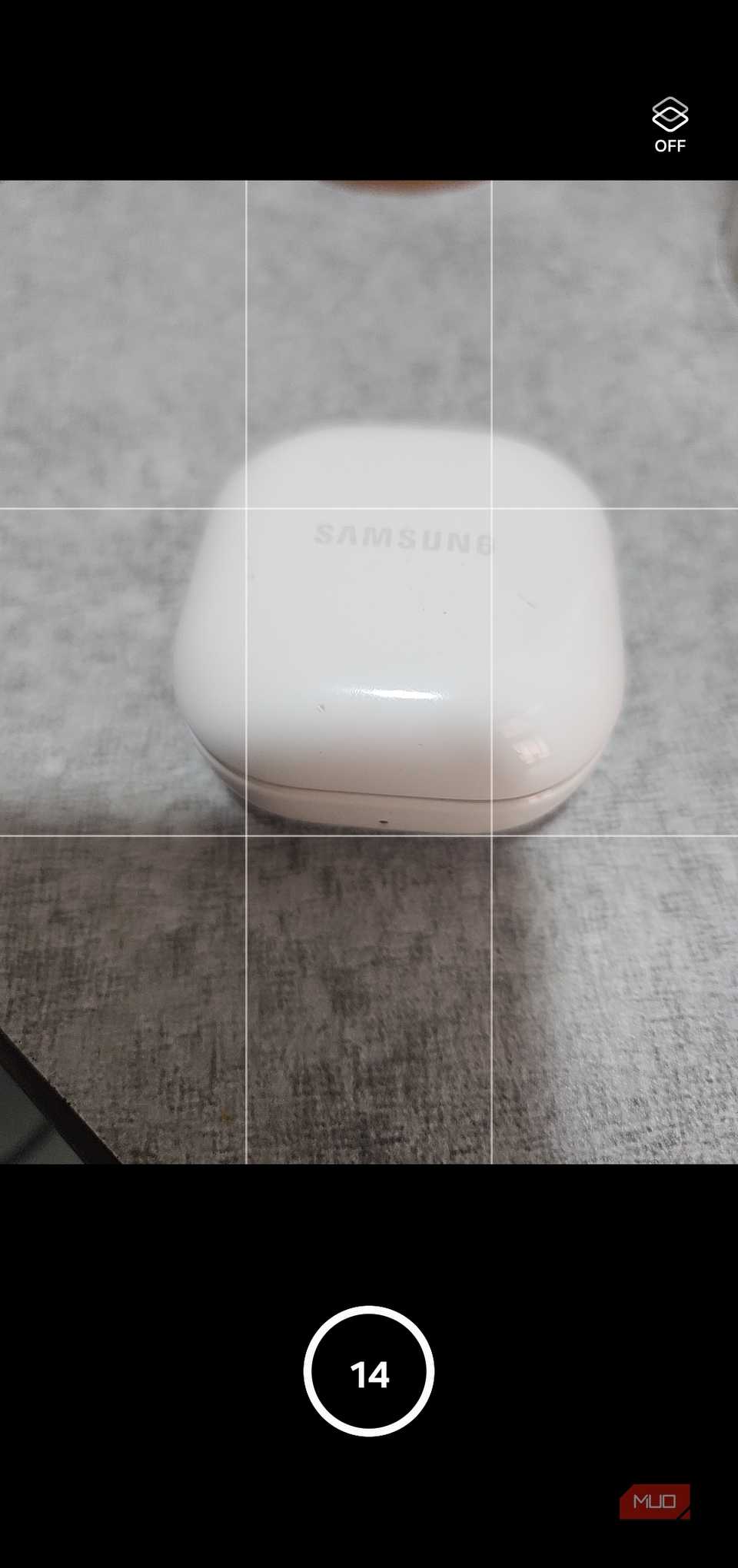
Sometimes a still photo is not enough to capture the moment and recording a video feels like overkill. I can’t tell you how many times I’ve used Instagram’s boomerang mode just to capture a looping clip in the past. But with a Samsung phone, there’s no need for such workarounds.
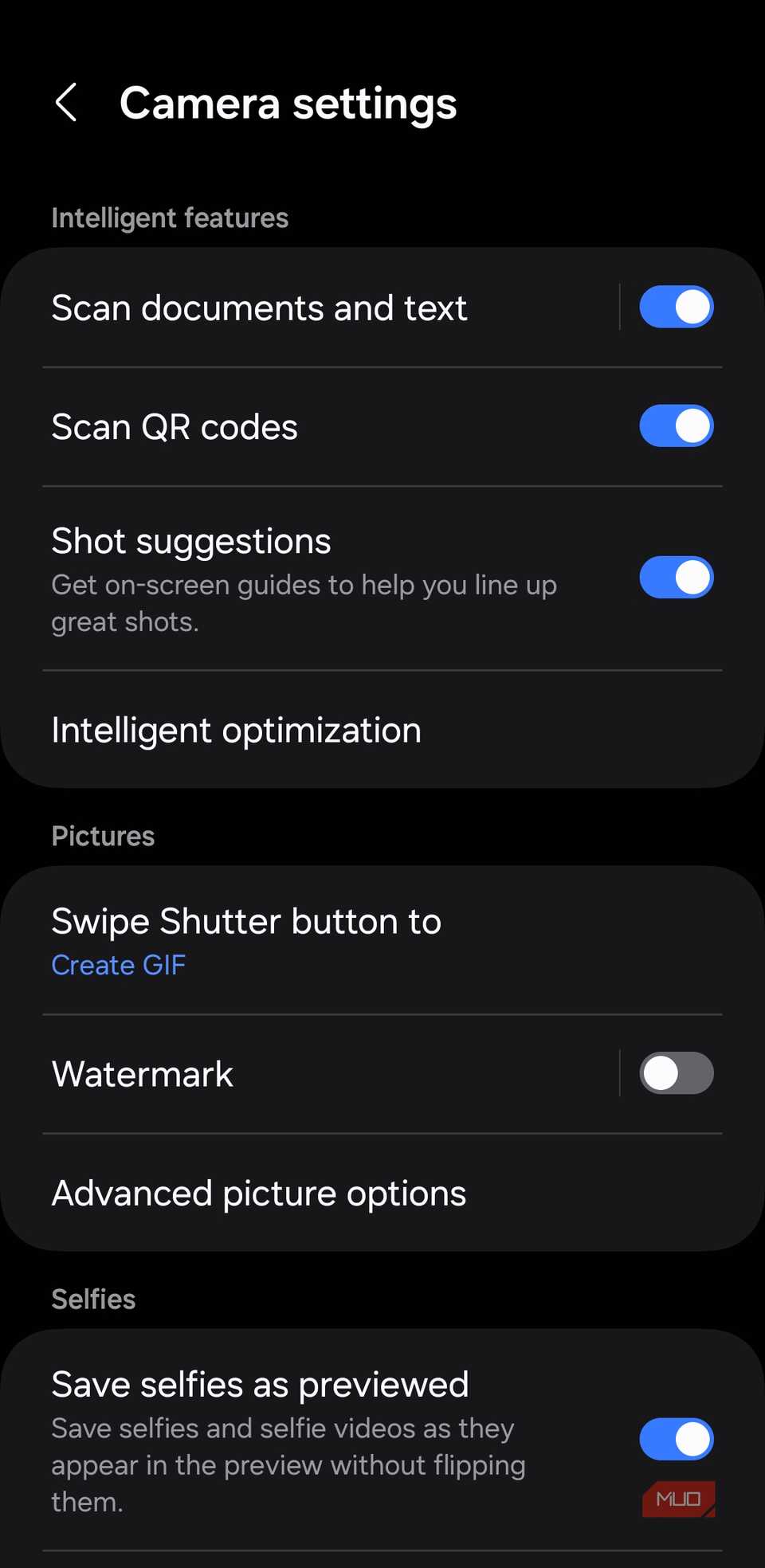
You can configure the Samsung Camera app to record a GIF when you swipe down and hold the shutter button. This lets you capture up to 30 frames, which you can edit later.
In the Gallery app’s editor, you can fine-tune the GIF by cropping it, speeding it up, slowing it down, and adding text and emojis. All of this means you don’t need any apps to record or edit GIFs on your phone.
Add custom watermarks to photos
Put your personal stamp on everything you capture
 Screenshot by Pankil Shah — No attribution required
 Screenshot by Pankil Shah — No attribution required
 Screenshot by Pankil Shah — No attribution required
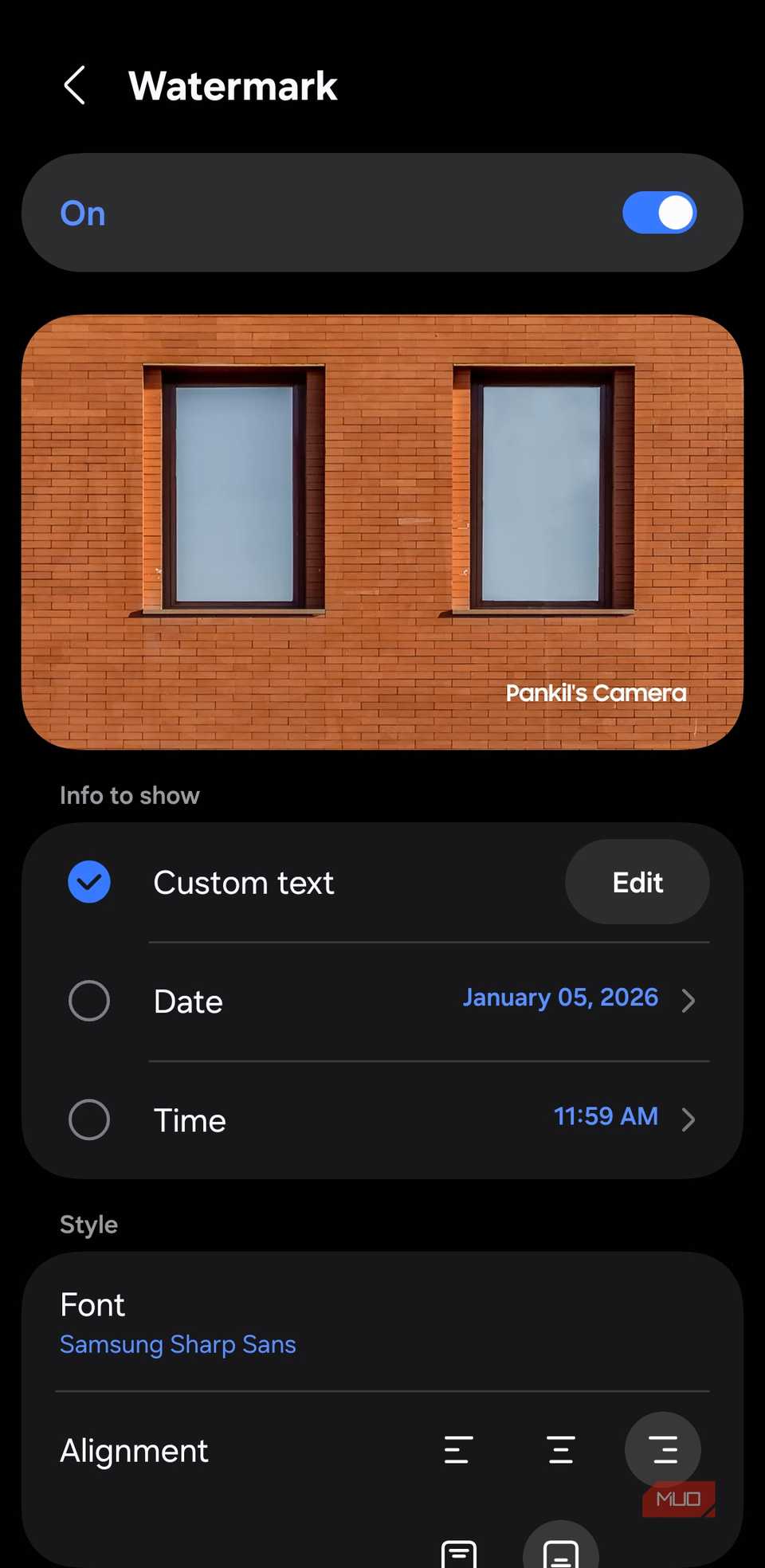
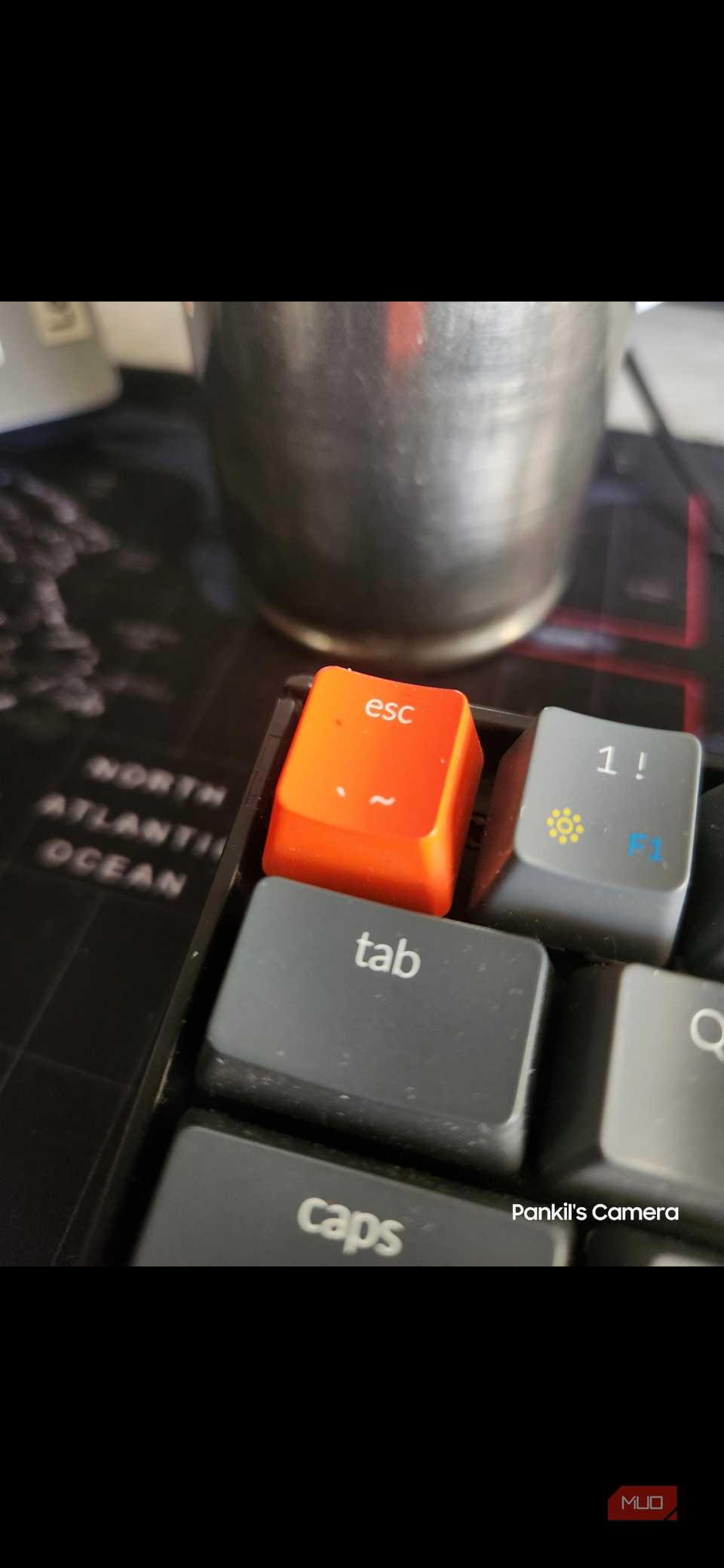
For anyone who loves sharing their photos online, adding a watermark is a great way to give the image a personal touch. It could be your name, the name of the website, or something simple like a date and time.
On most phones, except for ones from OnePlus and a select few Chinese manufacturers, you won’t see an option to add watermark to photos. That usually means using a third-party app just to add a small line of text to a photo.
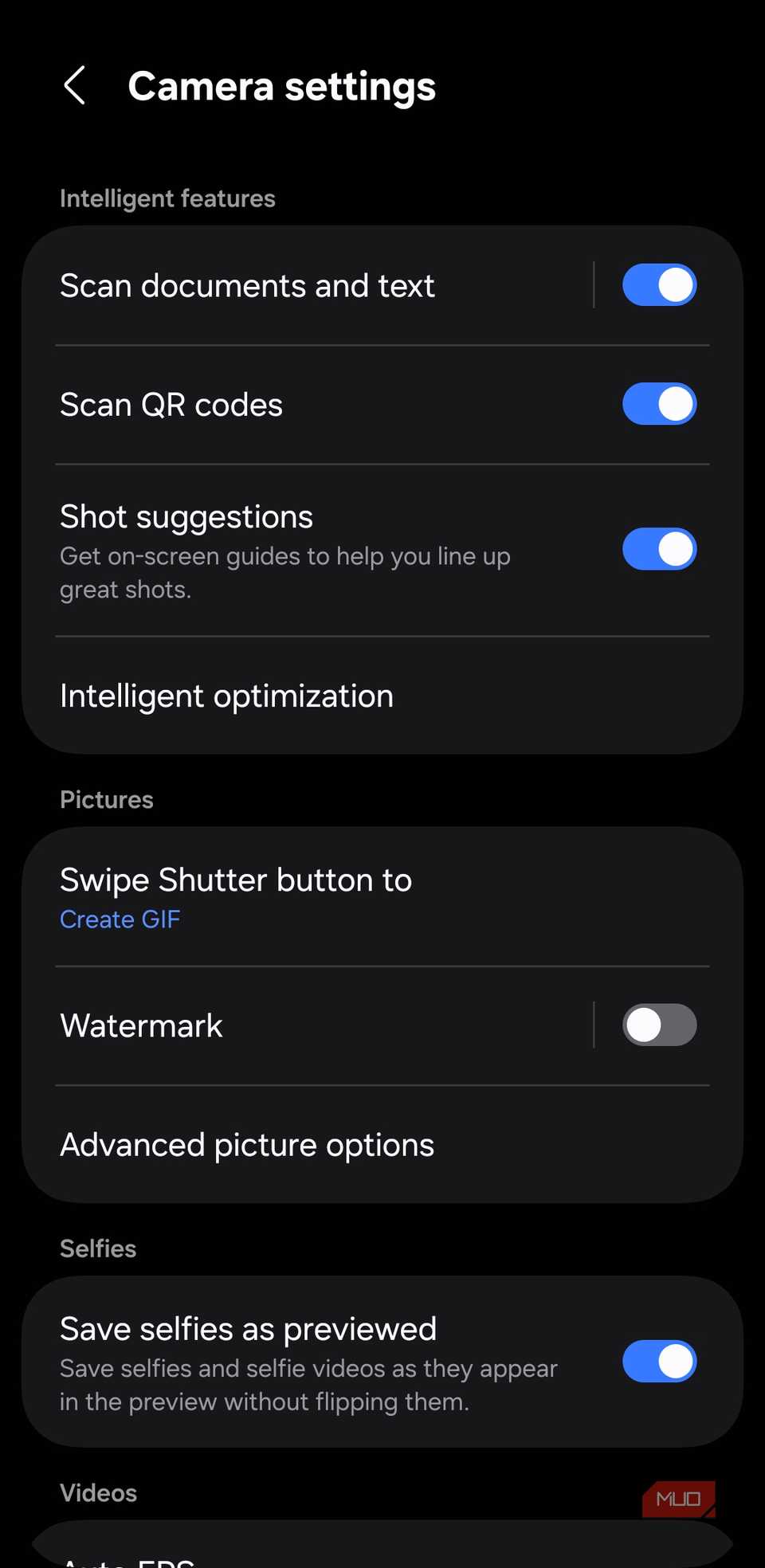
The Samsung Camera app not only lets you add watermarks but also customize them however you like. In Camera settings, head to Watermark and you’ll see all the options. You can add custom text, include the date and time, and even adjust the font style and alignment.
5 things your Samsung Galaxy camera can do besides taking photos
You already know how to use the camera, just not like this.
Use scene optimizer for eye-catching photos
Just point and shoot
Screenshot by Pankil Shah — No attribution requiredScreenshot by Pankil Shah — No attribution required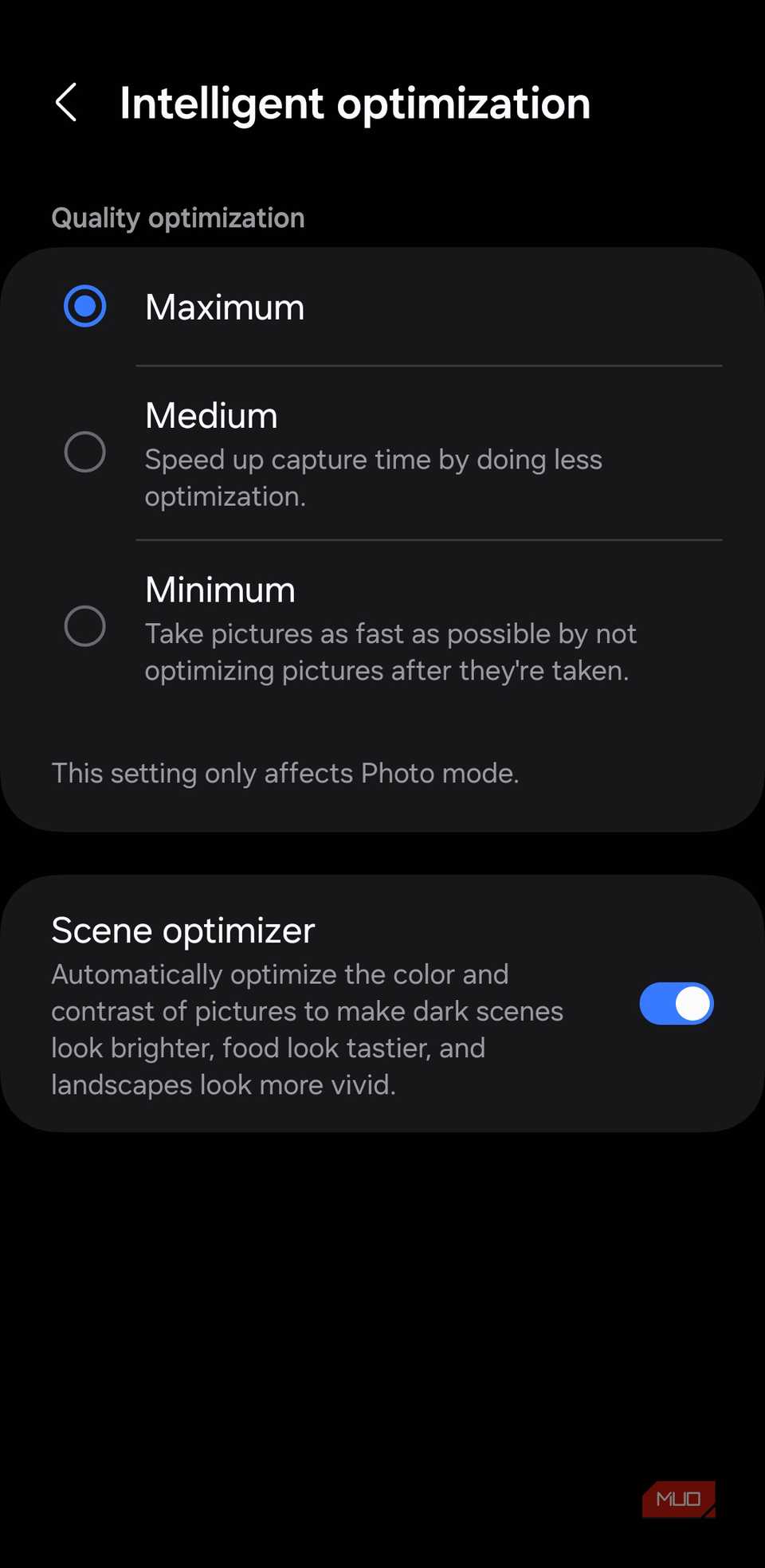 Screenshot by Pankil Shah — No attribution required
If you’re like me and don’t know much about smartphone photography, you’ll love the scene optimizer feature. It can automatically adjust things like lighting, color, and exposure, so you don’t have to deal with those confusing sliders.
It can recognize what you’re pointing the camera at, and detect most scenes like food, landscape, pet, or even text. To enable it, head to Camera settings > Intelligent optimization and turn on Scene optimizer.
This is great if you use your Samsung phone as a point-and-shoot camera. With this feature enabled, you can just tap the shutter and get a photo that looks perfect most of the time.
Any smartphone manufacturer can slap a big camera sensor on a phone, but what I like about Samsung is that they’ve also added some genuinely useful features into the camera app. These are all tricks that help you create better content with less effort.