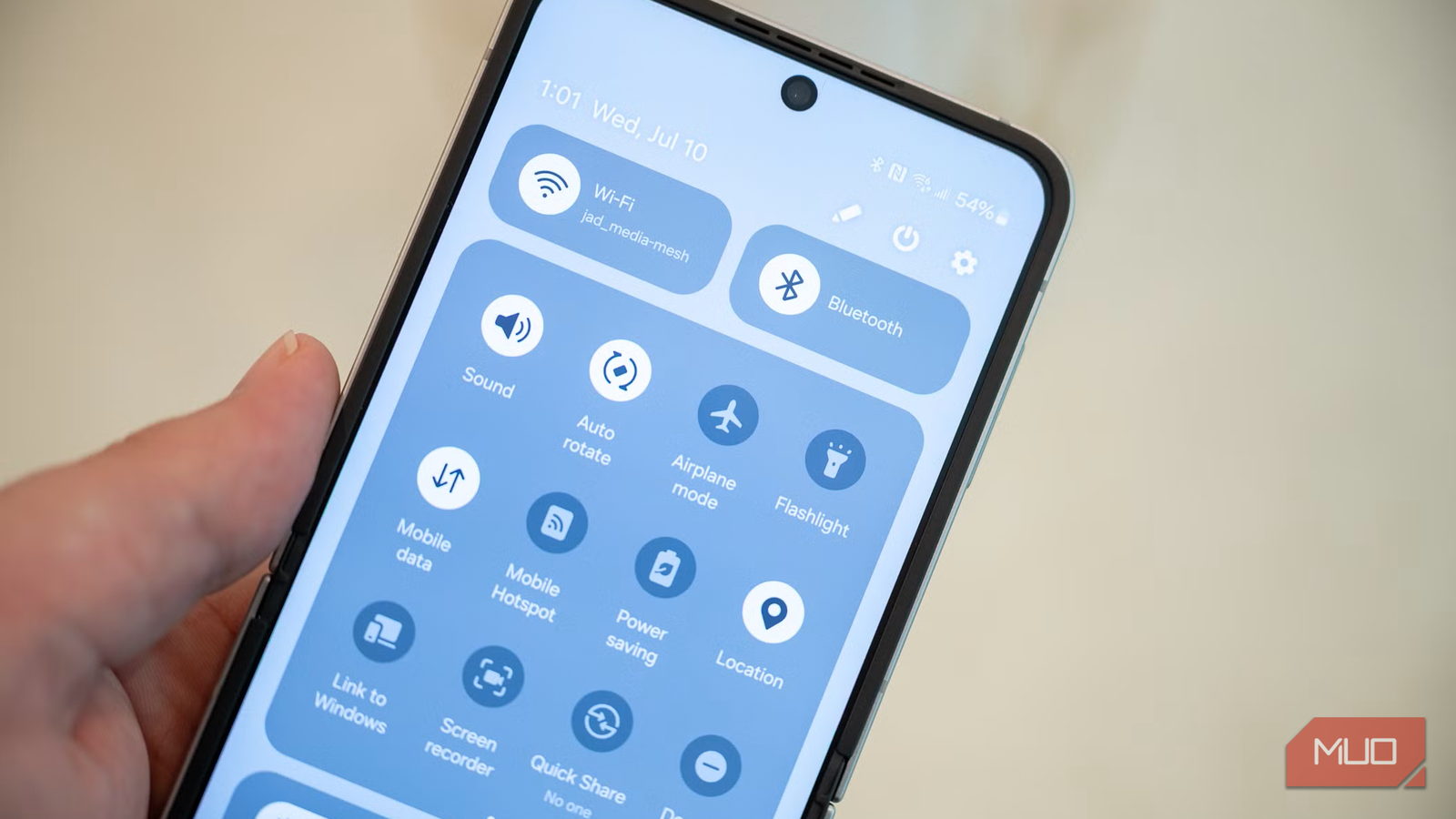
If you’re like most people, you probably only open Wi-Fi settings when you want to connect to a new network. But on Samsung phones, that boring-looking Wi-Fi menu hides plenty of powerful features. Most of them are tucked away in a section called Connectivity Labs.
You can use this hidden menu to monitor your Wi-Fi usage, test your router’s security, and even analyze how strong the signal is in different parts of your home. Although Connectivity Labs is hidden by default, it’s safe to enable, and it’s something that every power user will find useful.
It only takes a few taps
 Screenshot by Pankil Shah — No attribution required
 Screenshot by Pankil Shah — No attribution required
 Screenshot by Pankil Shah — No attribution required
The Connectivity Labs menu is hidden by default on Samsung phones. It’s something you’ll never come across unless you go looking for it, yet it packs the most useful features for managing and understanding your phone’s Wi-Fi performance.
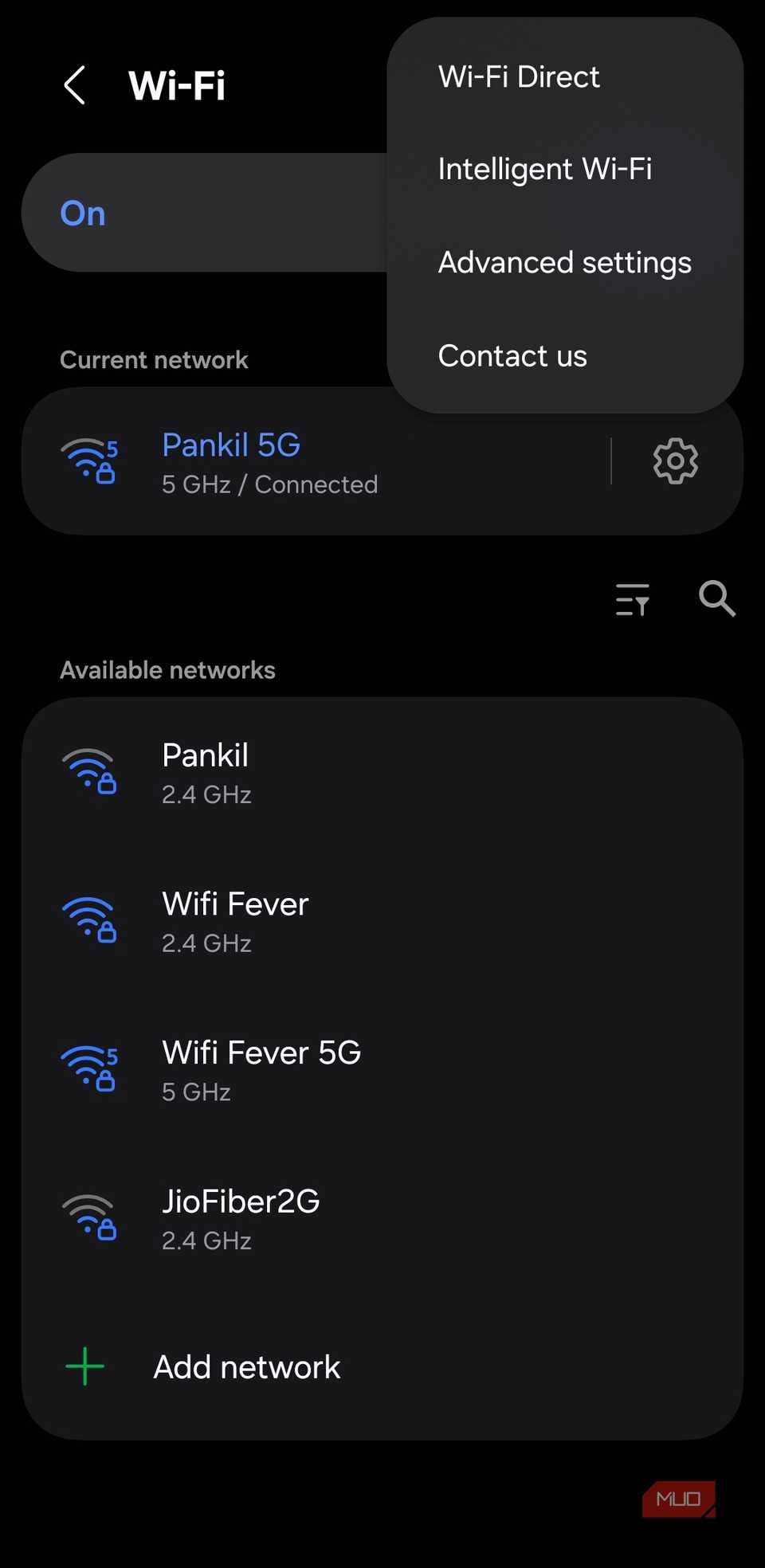
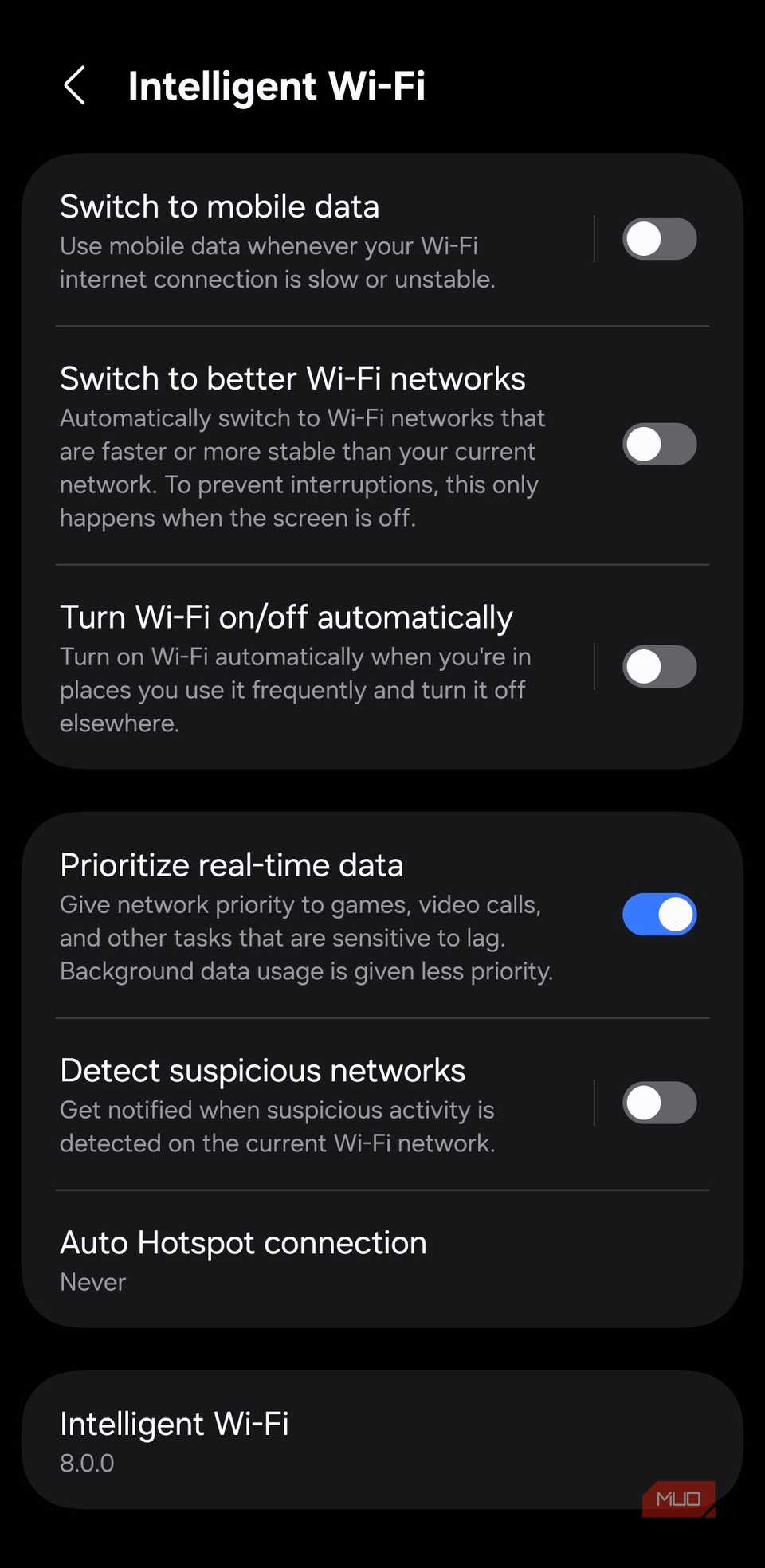
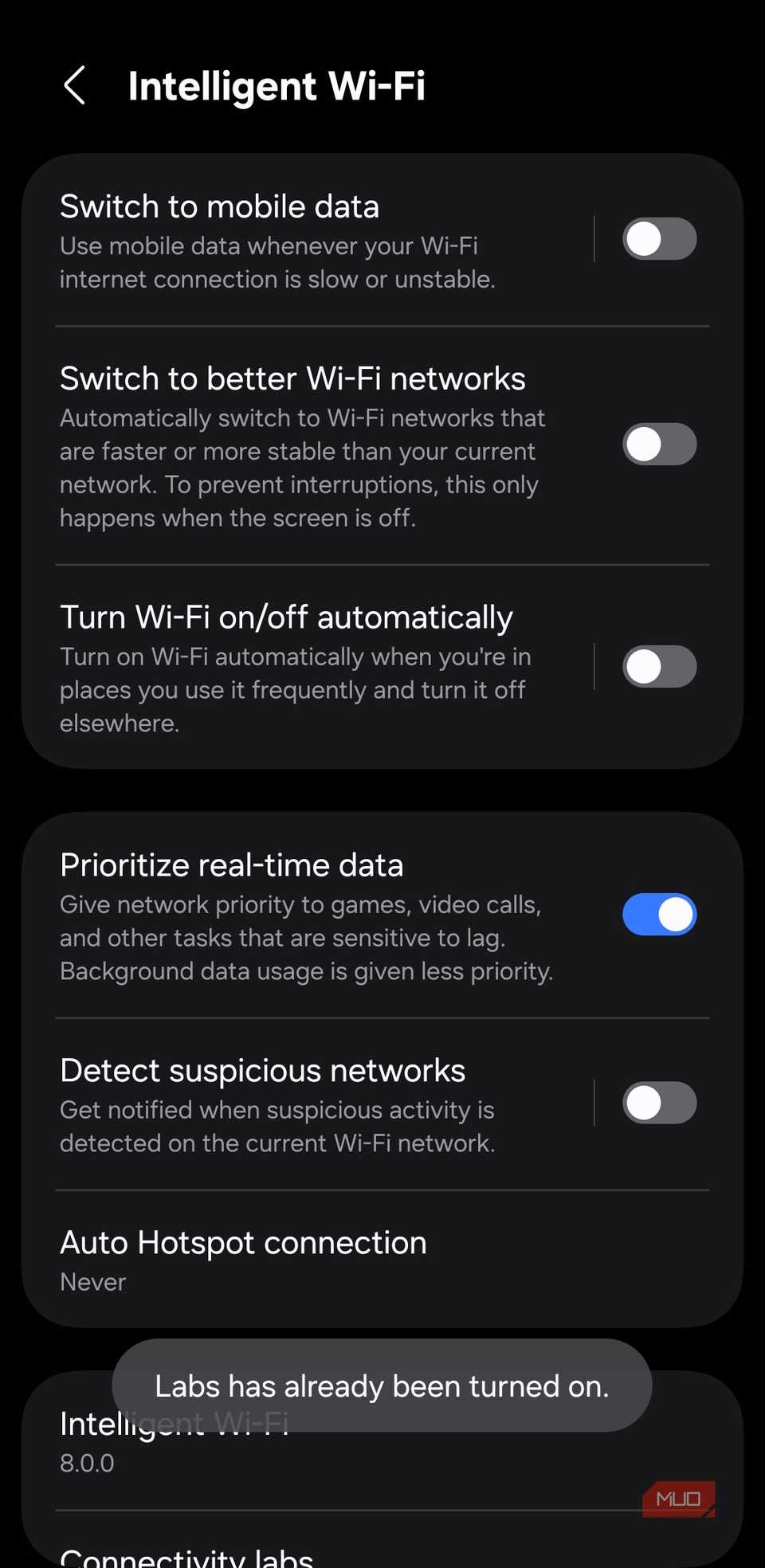
To enable it, head to Settings > Connections > Wi-Fi, then tap the three-dot icon in the top right corner and select Intelligent Wi-Fi. Finally, scroll down and tap Intelligent Wi-Fi seven times quickly. You’ll see a small toast message saying Connectivity labs is enabled. Once you do, tap the Connectivity labs option and you’re in.
See Wi-Fi usage stats at a glance
 Screenshot by Pankil Shah — No attribution required
 Screenshot by Pankil Shah — No attribution required
 Screenshot by Pankil Shah — No attribution required
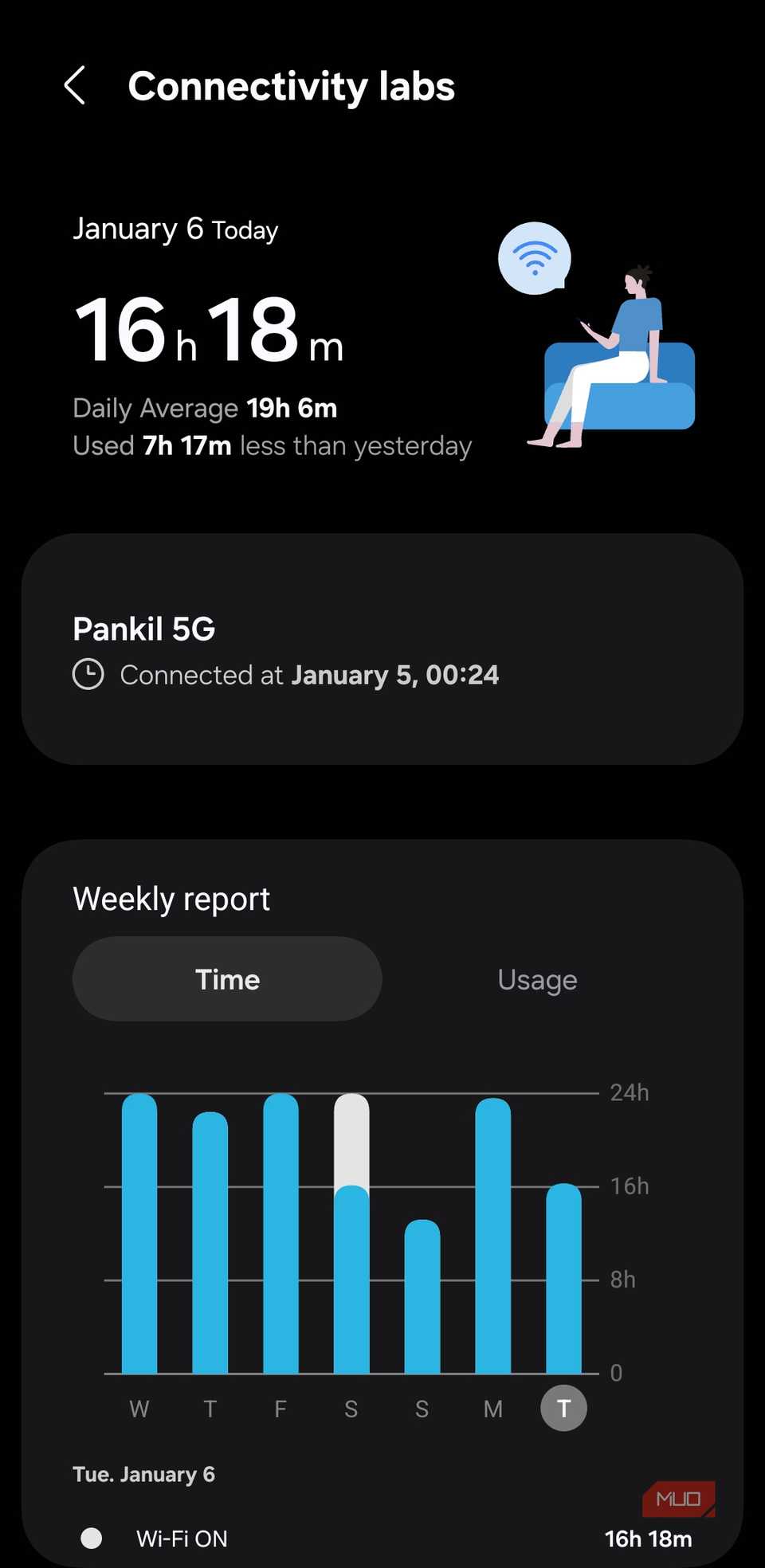
The first thing you’ll notice when you open Connectivity Labs is your Wi-Fi usage. Right at the top, it shows how many hours you’ve used Wi-Fi today, along with your daily average.
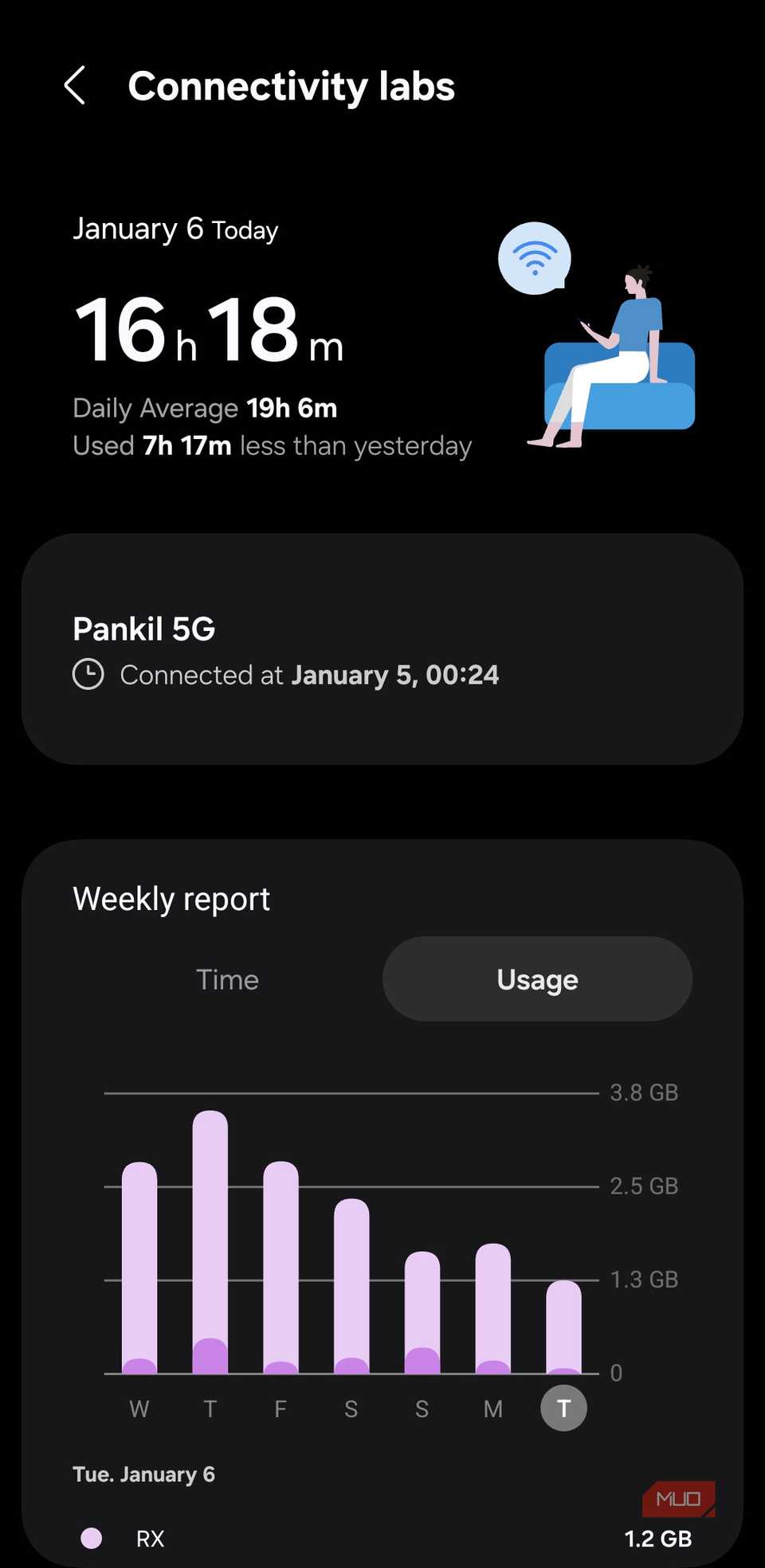
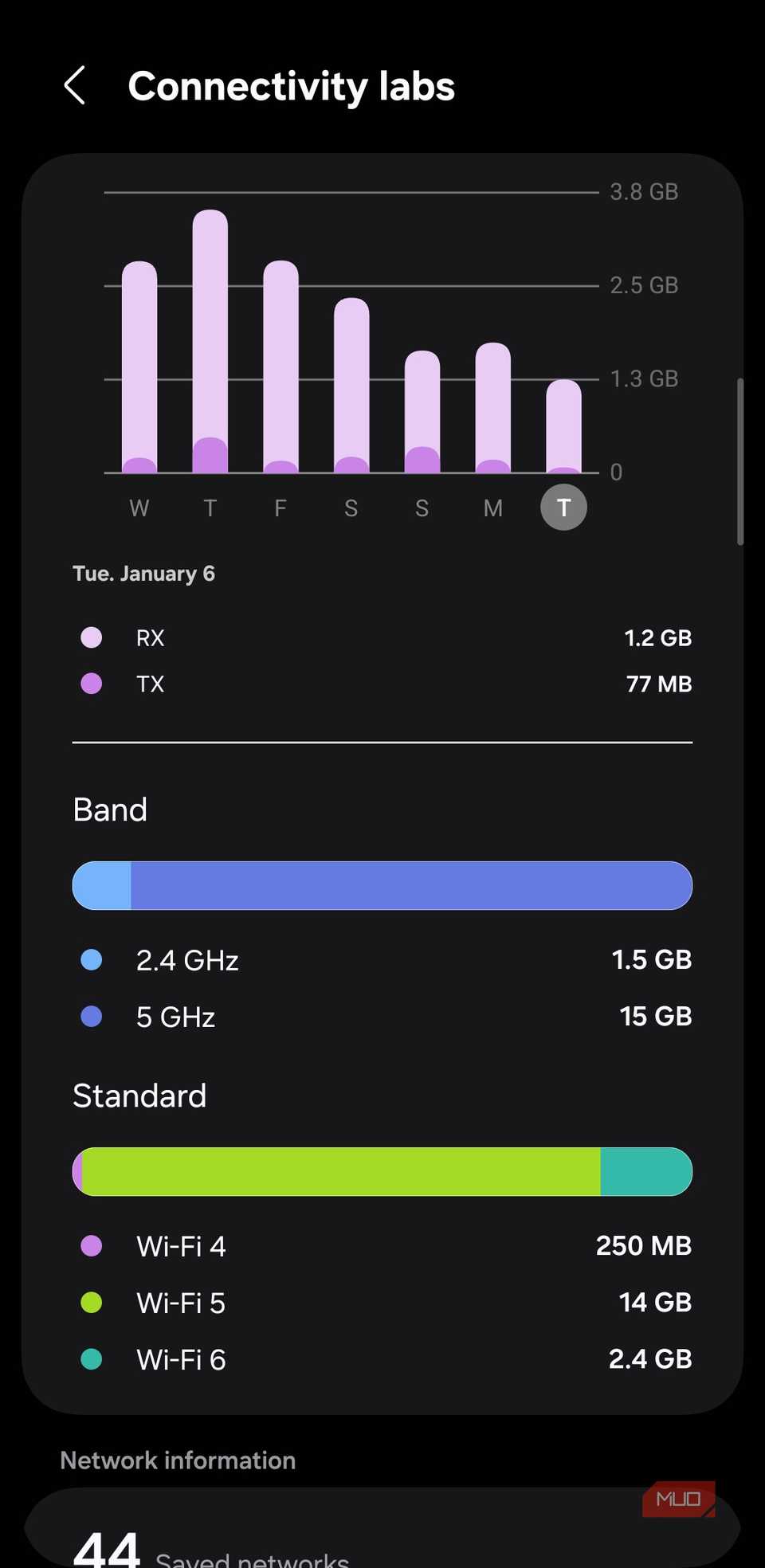
Scroll down, and you’ll see a detailed breakdown of your usage for each day in a clean graph. This can tell you how often you’ve used Wi-Fi versus mobile data. Switching to the Usage tab shows you the amount of data you’ve consumed each day.
Right below the graph, the menu will show which Wi-Fi bands you’ve used and for how long. All of this information might sound like overkill but can be genuinely useful if you’re on a limited internet plan or simply a nerd like me.
Inspect your Wi-Fi’s security and performance
Fix your Wi-Fi fast
 Screenshot by Pankil Shah — No attribution required
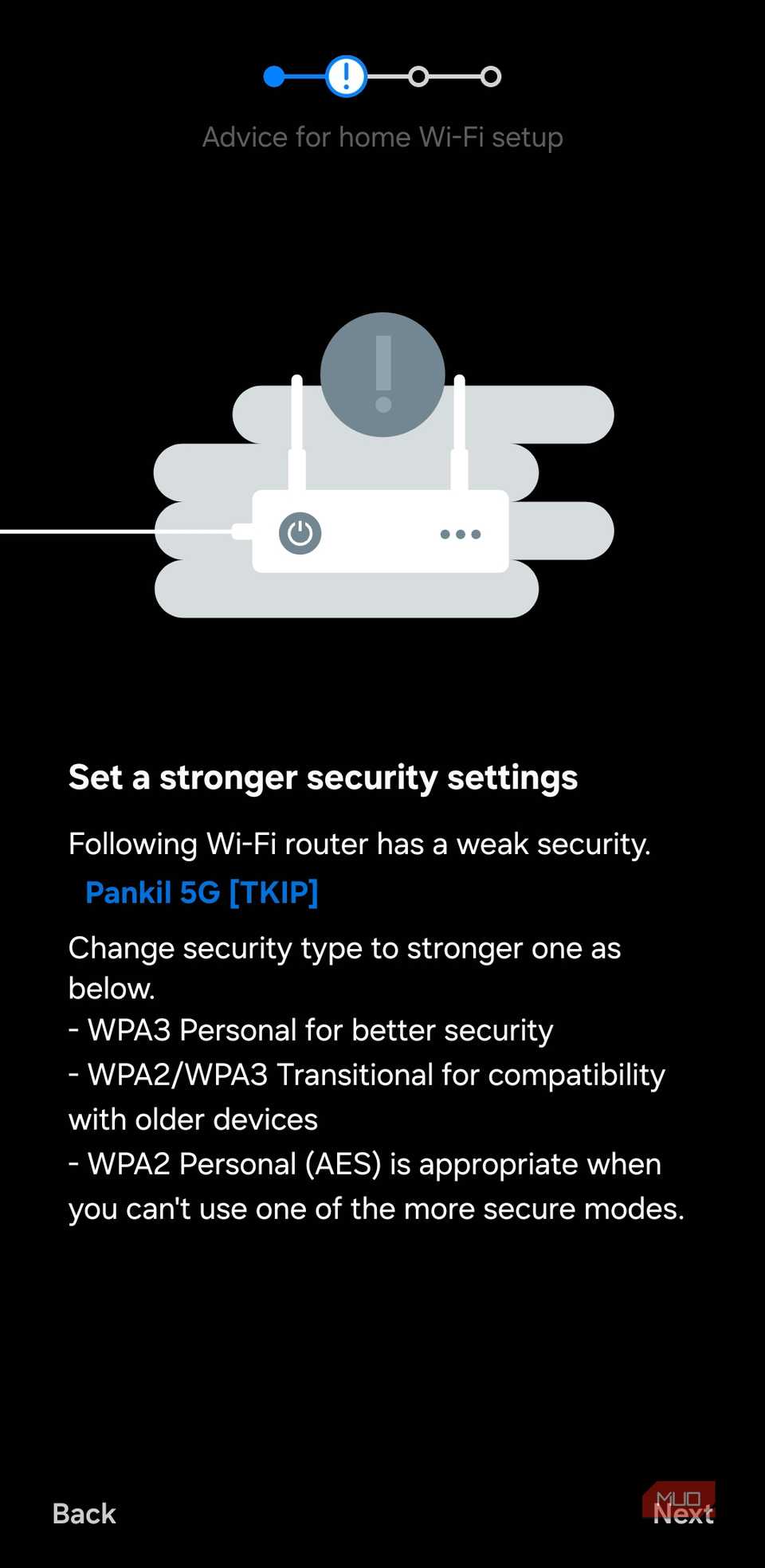 Screenshot by Pankil Shah — No attribution required
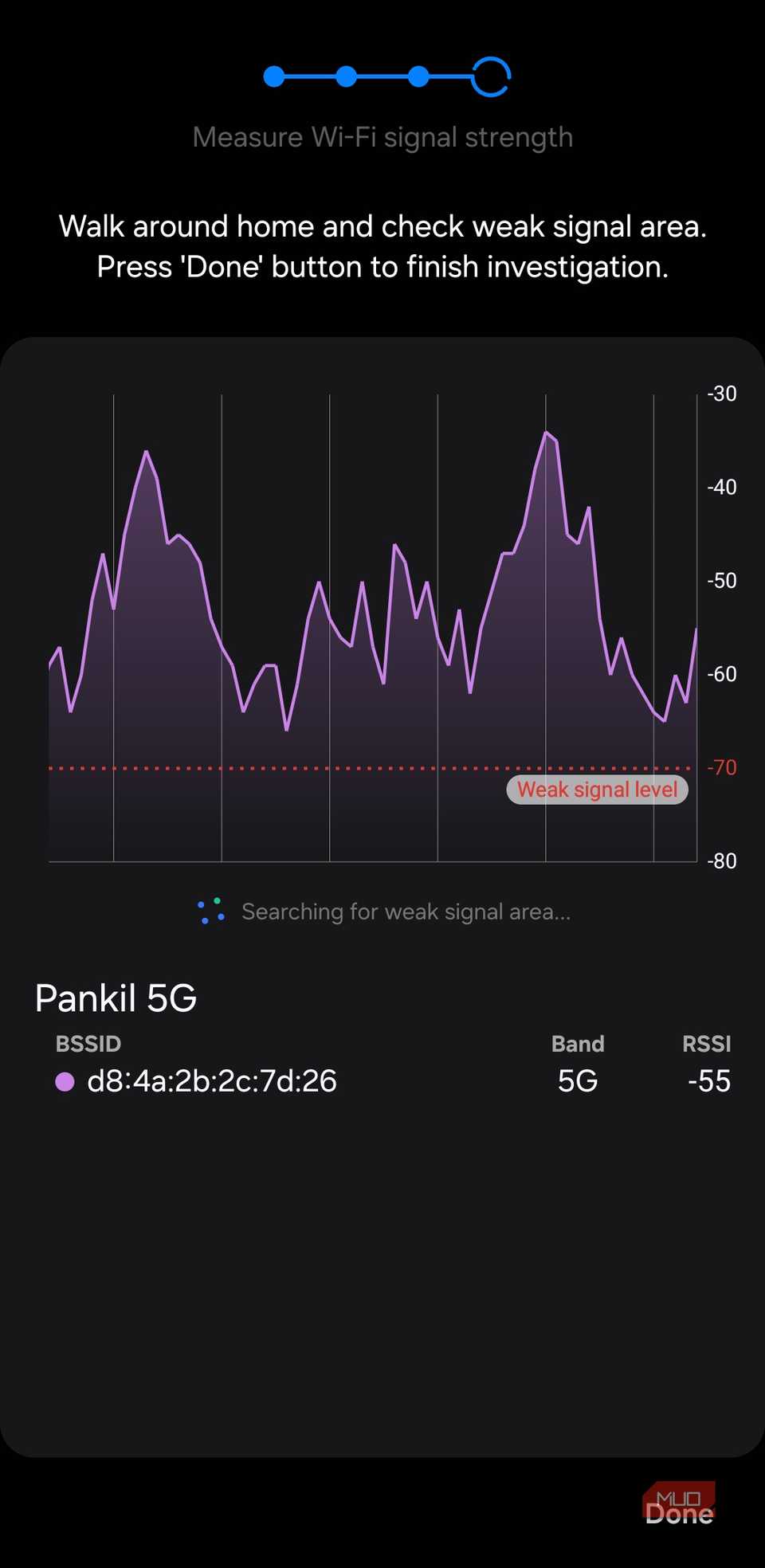 Screenshot by Pankil Shah — No attribution required
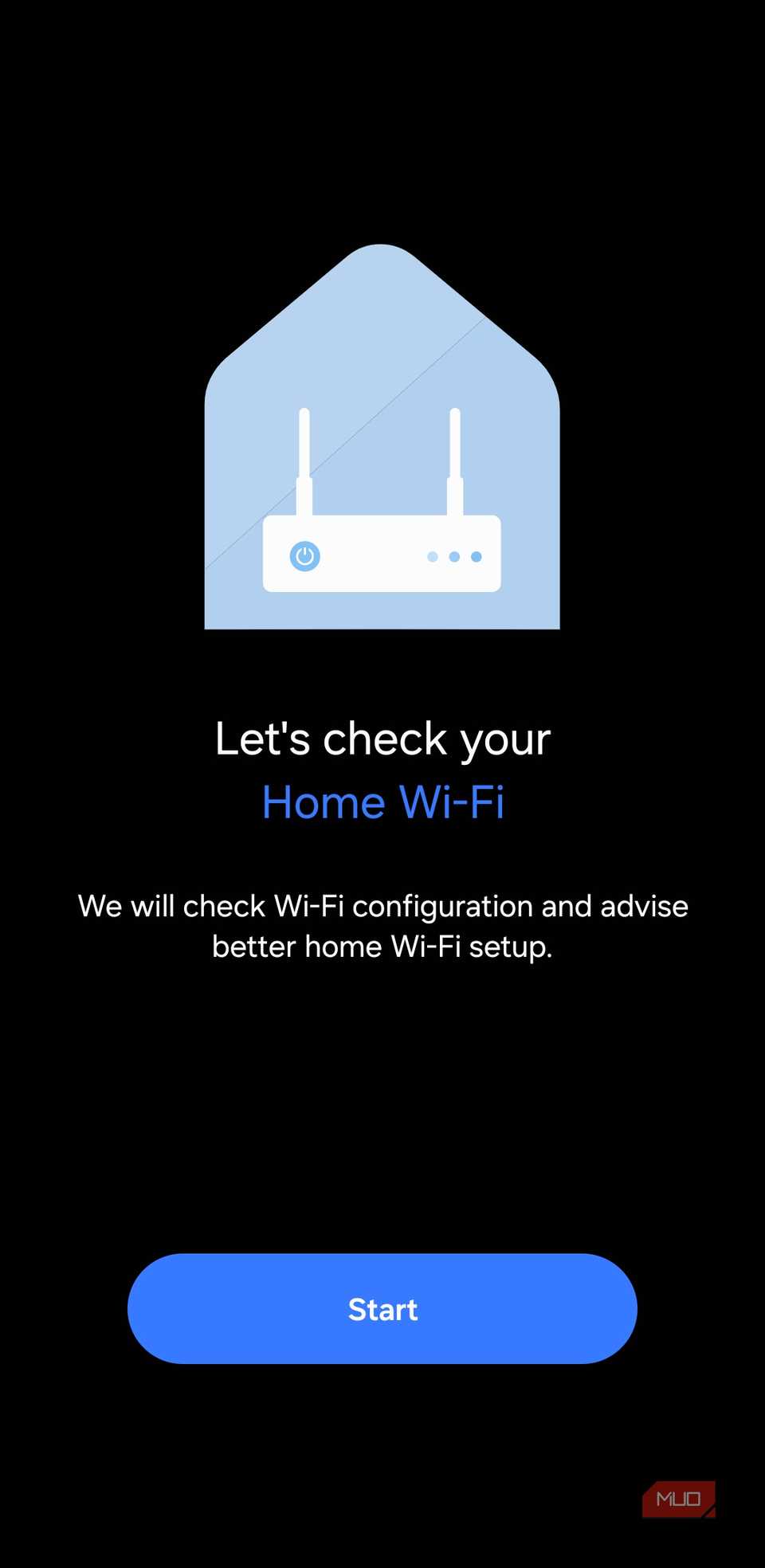
The Wi-Fi usage stats are fun to explore, but the most useful Connectivity Labs option has to be the Home Wi-Fi inspection. It does two very important things. First, it inspects your router’s security and suggests changes if necessary. In my case, for instance, it pointed out that my Wi-Fi router, which I received from my ISP, was running on weak security and recommended switching to a stronger WPA3 standard.
Besides this, this inspection can help you find weak Wi-Fi spots around the house. Once you select your Wi-Fi network, you need to move around the house. As you move, it maps the strength and quality of connection in real time. This makes it easy to understand where Wi-Fi is strong, where it drops off, and where dead zones might be hiding.
This is great if you’re trying to find the best spot for your router or planning to add a range extender. While there’s no shortage of free apps that can map Wi-Fi networks, it’s nice to see this feature built right into Samsung phones.
12 Samsung Galaxy Phone Settings You Should Always Change
Setting up your new Samsung Galaxy device? Here are the settings you should change to get your phone working better.
Small tools you’ll actually use
The Connectivity Labs menu also hides a few small but incredibly useful features. The first one is Customize Wi-Fi list settings. From here, you can use the RSSI filter to tell your phone to only show networks with strong signals.
Enabling the filter menu lets you sort networks by SSID, security type, frequency, and more. You can also force each Wi-Fi network to show the network band, which can be handy if you’re looking to avoid slower 2.4 GHz connections.
Another useful option is Switch to mobile data faster. This is ideal when you’re on a public Wi-Fi or in a place where the signal is weak. As the name suggests, this feature allows your Samsung phone to switch from Wi-Fi to mobile data more quickly than usual, so you can enjoy uninterrupted connectivity.
Finally, if you head to Wi-Fi developer options > Nearby Wi-Fi information, it’ll show you all the nearby networks, ranked as Best, Good, Bad, and Worst. If you’re in an office, hotel, or any place with multiple networks available, this saves you from trial and error. Instead of testing each network one by one, you can simply check this menu to find the strongest connection.
Samsung phones come packed with features that you won’t see in most other Android phones. The problem is some of the best ones are tucked away where no one looks. Similar to Connectivity Labs, your Samsung phone hides several extra features in other apps too, including Gallery, My Files, and Samsung Internet. Most people never stumble across these, which is a shame given how useful they are.