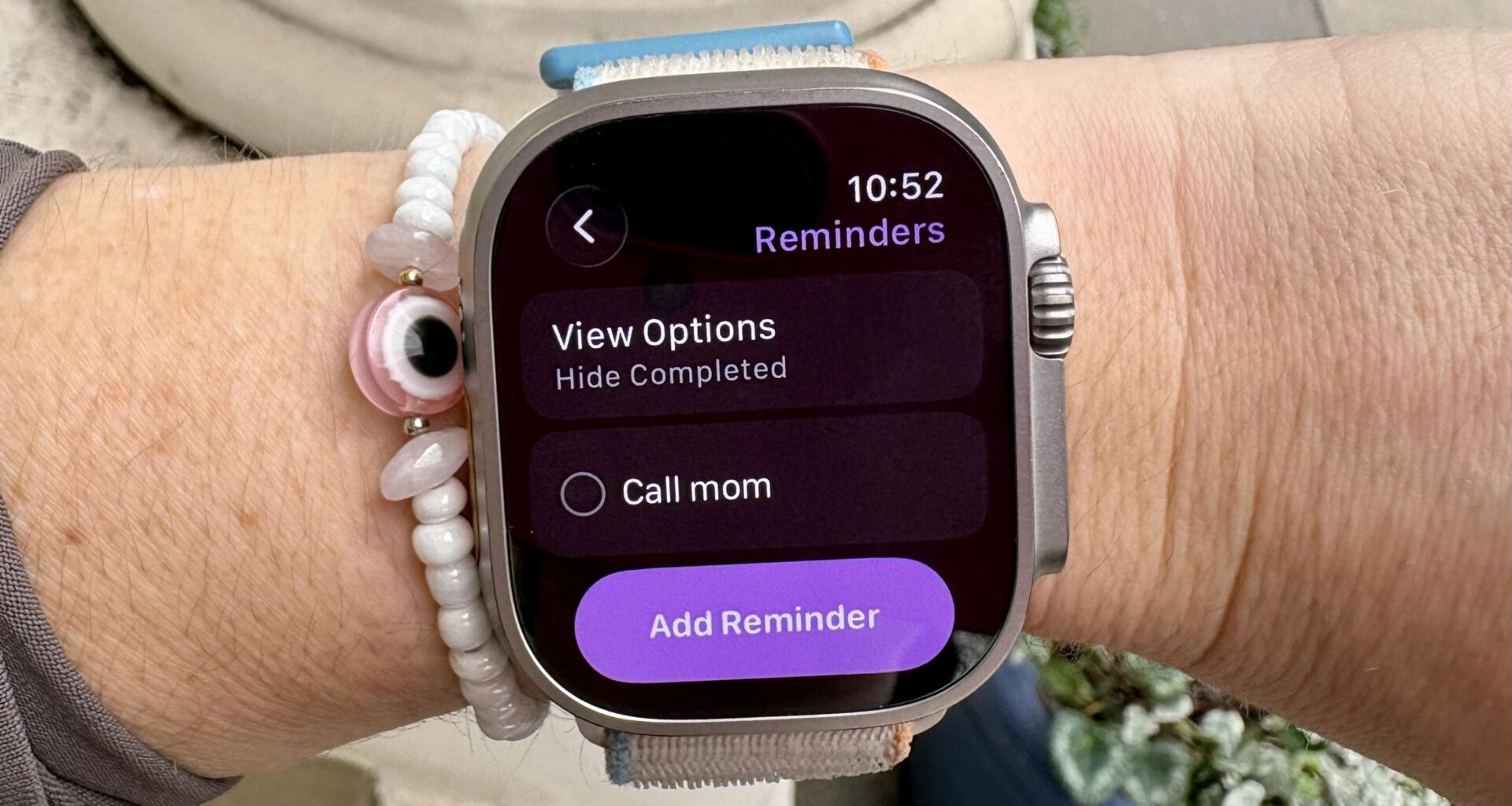
I’ve been wearing an Apple Watch for the better part of the last decade, but, like most users, I only use about 10% of the features loaded onto it. My colleague Dan highlighted 7 hidden Apple Watch features he swears by, but it turns out every day really is a school day, and I recently found this handy hack that has helped me feel more organized.
Did you know that you can set location-based reminders on your Apple Watch to help you remember to grab your keys before leaving the house, call your mom, or take out the trash as soon as you get home? Hopefully, I’m not the only one late to the party, so read on to find out how to use this handy feature if you don’t know about it.
You may like
It’s pretty simple to set up location-based reminders on your Apple Watch. If, like me, you have the memory of a goldfish, this simple Apple Watch hack is life-changing. Here’s how to do it:
How to use Apple Watch location-based reminders using your iPhone
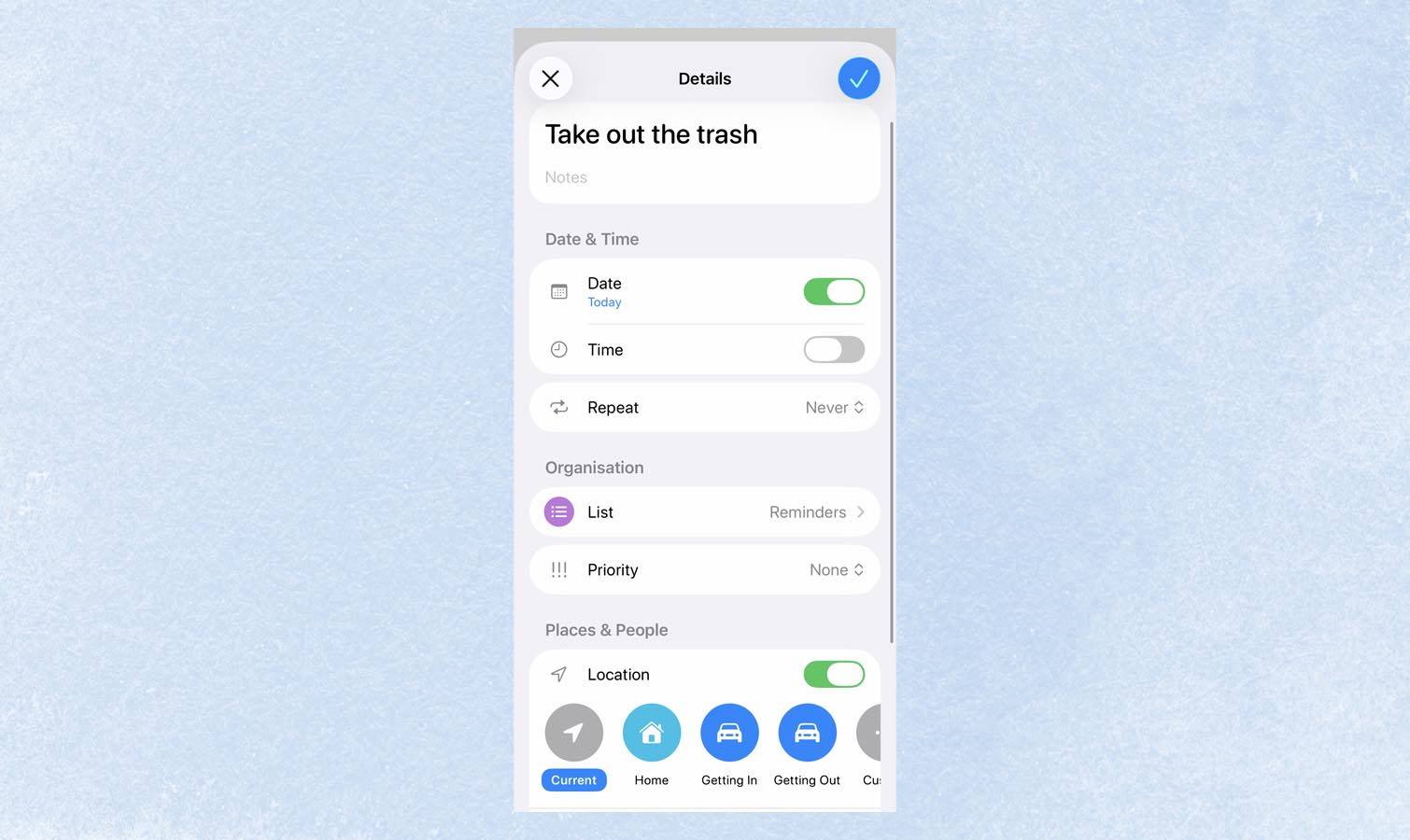
Open the Reminders app on your iPhone — this is a white icon with a to-do list on the side.
Create a new reminder, or tap the “I” icon on an existing one.
Tap Location, then choose a suggested place or enter an address.
You can choose whether you want to be reminded when you arrive or when you leave the said location. You can also decide whether you want the reminder to repeat.
How to use Apple Watch location-based reminders using your watch
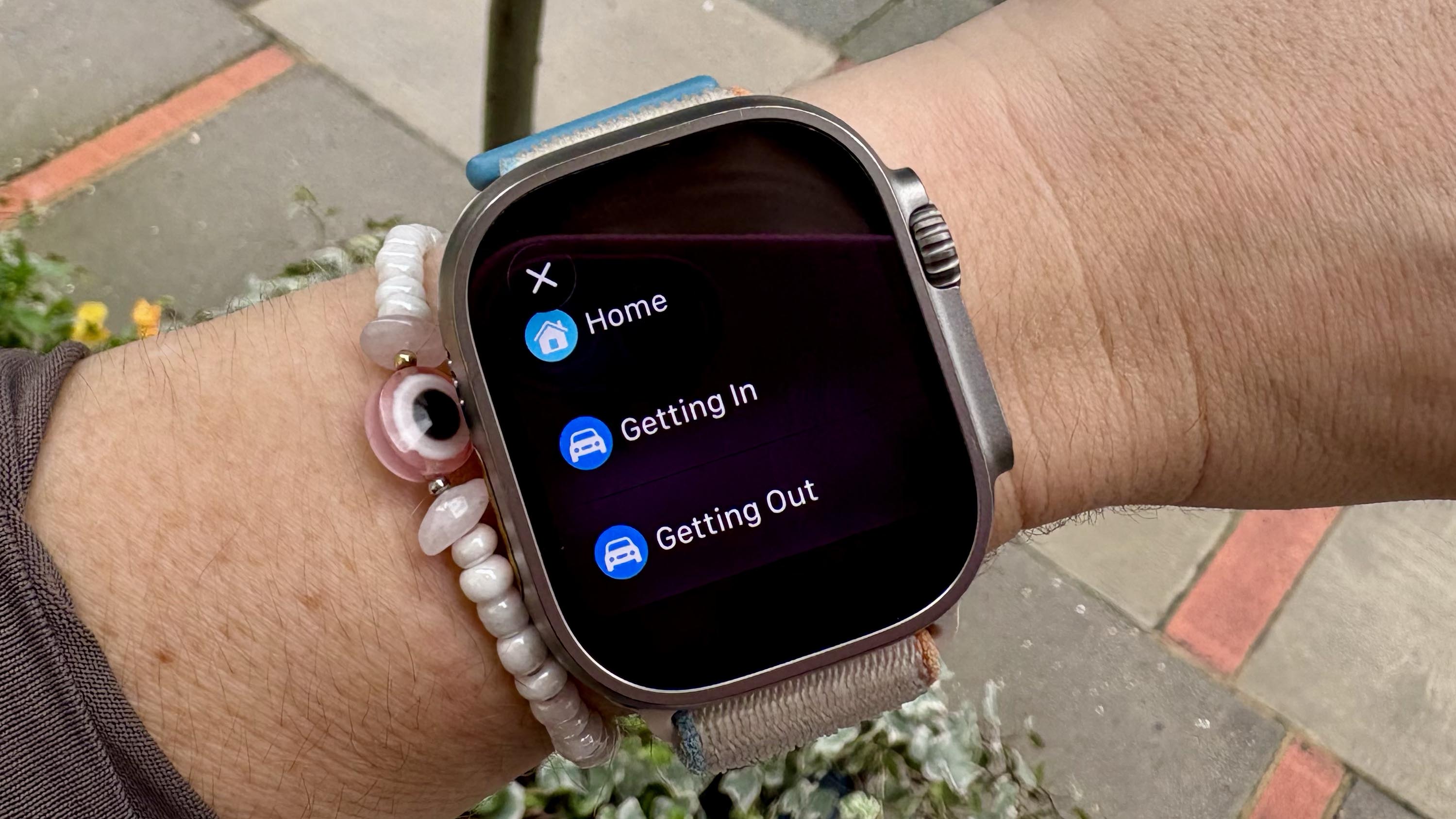
Open the Reminders app on your Apple Watch.
Add a reminder, or click on the “I” icon to edit an existing one.
Follow the same steps as above to create the reminder.
If you find you no longer need a reminder, you can simply swipe left on it to delete it from the Reminder app on your Apple Watch. You can also tap on the reminder itself to mark it as complete — oddly satisfying if, like me, you love a to-do list.
Watch out, world, because my Apple Watch just made me more organized than ever before. Now, where did I leave my keys…
Follow Tom’s Guide on Google News and add us as a preferred source to get our up-to-date news, analysis, and reviews in your feeds.
More from Tom’s Guide