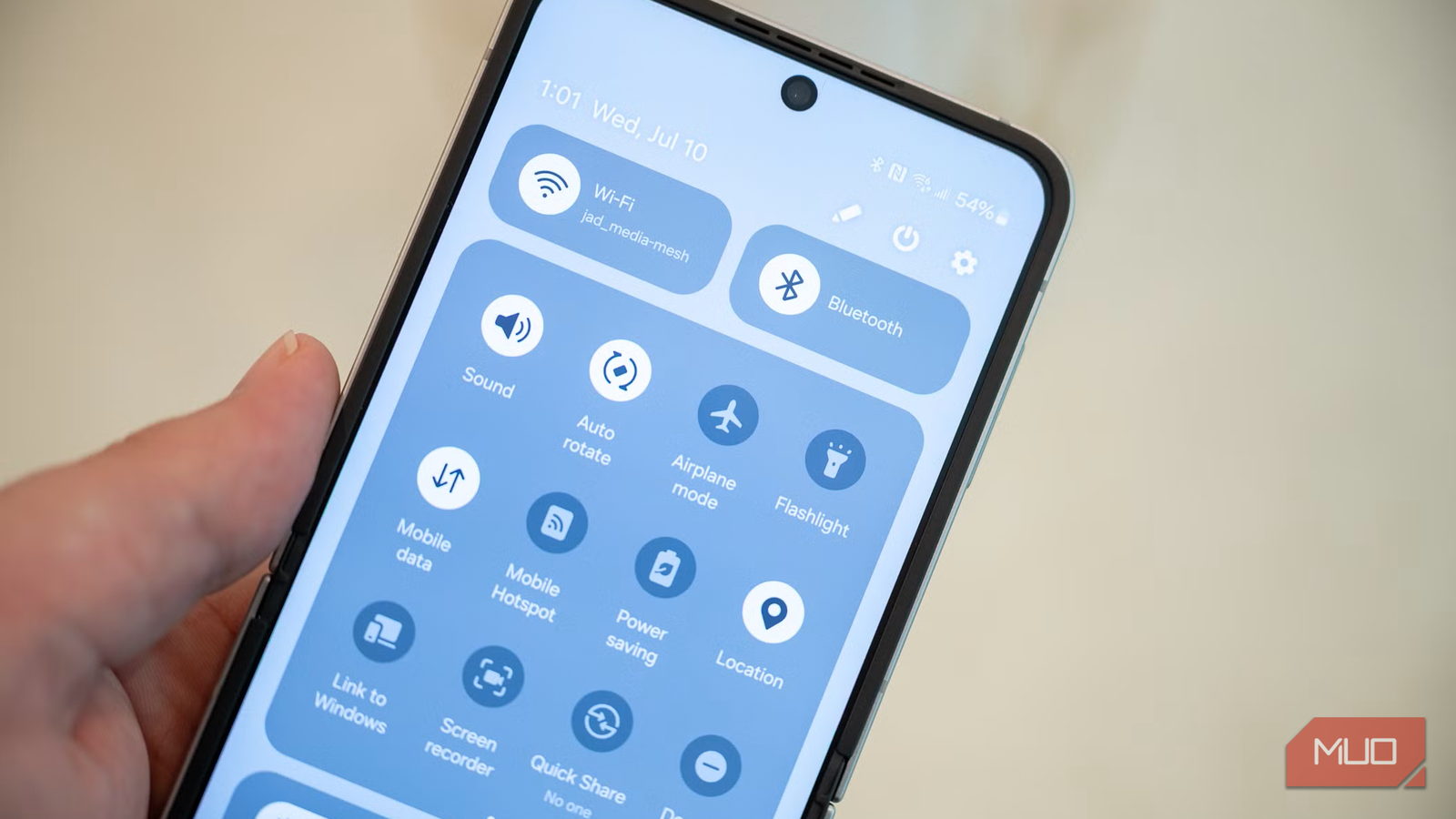
Your phone has plenty of features, and while every one of them requires a battery, some nibble at your battery more than you’d expect. Wi-Fi and Bluetooth scanning, location services, background app refresh, and a few others constantly remain active in subtle ways you rarely notice.
They’re not pointless at all, of course. They’re incredibly useful, convenient, and turned on by default for good reason. But that doesn’t mean you have to let them drain your battery unnecessarily.
Wi-Fi and Bluetooth scanning
The background scans you don’t even notice
 Screenshot by Pankil Shah — No attribution required
 Screenshot by Pankil Shah — No attribution required
 Screenshot by Pankil Shah — No attribution required
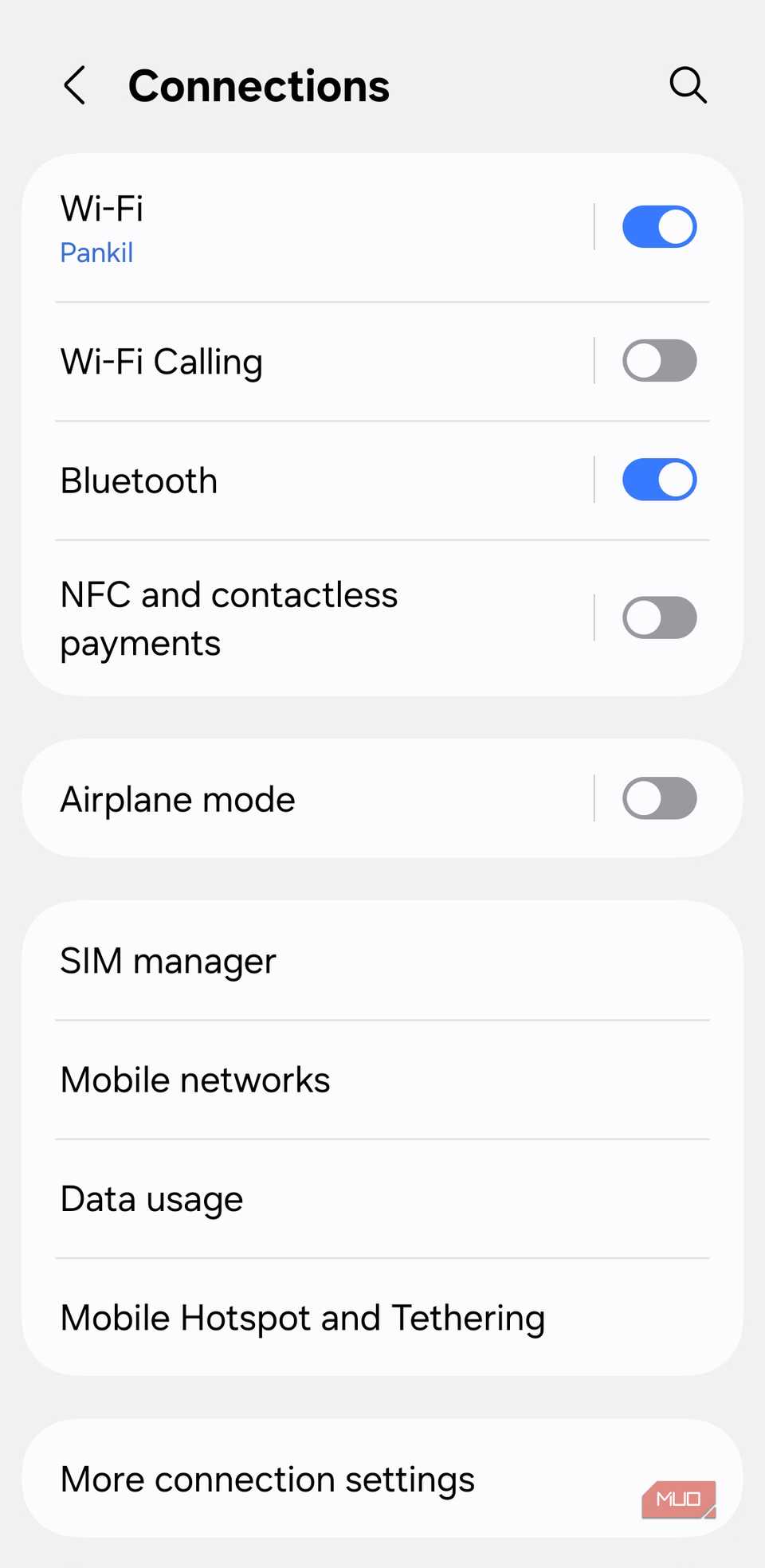
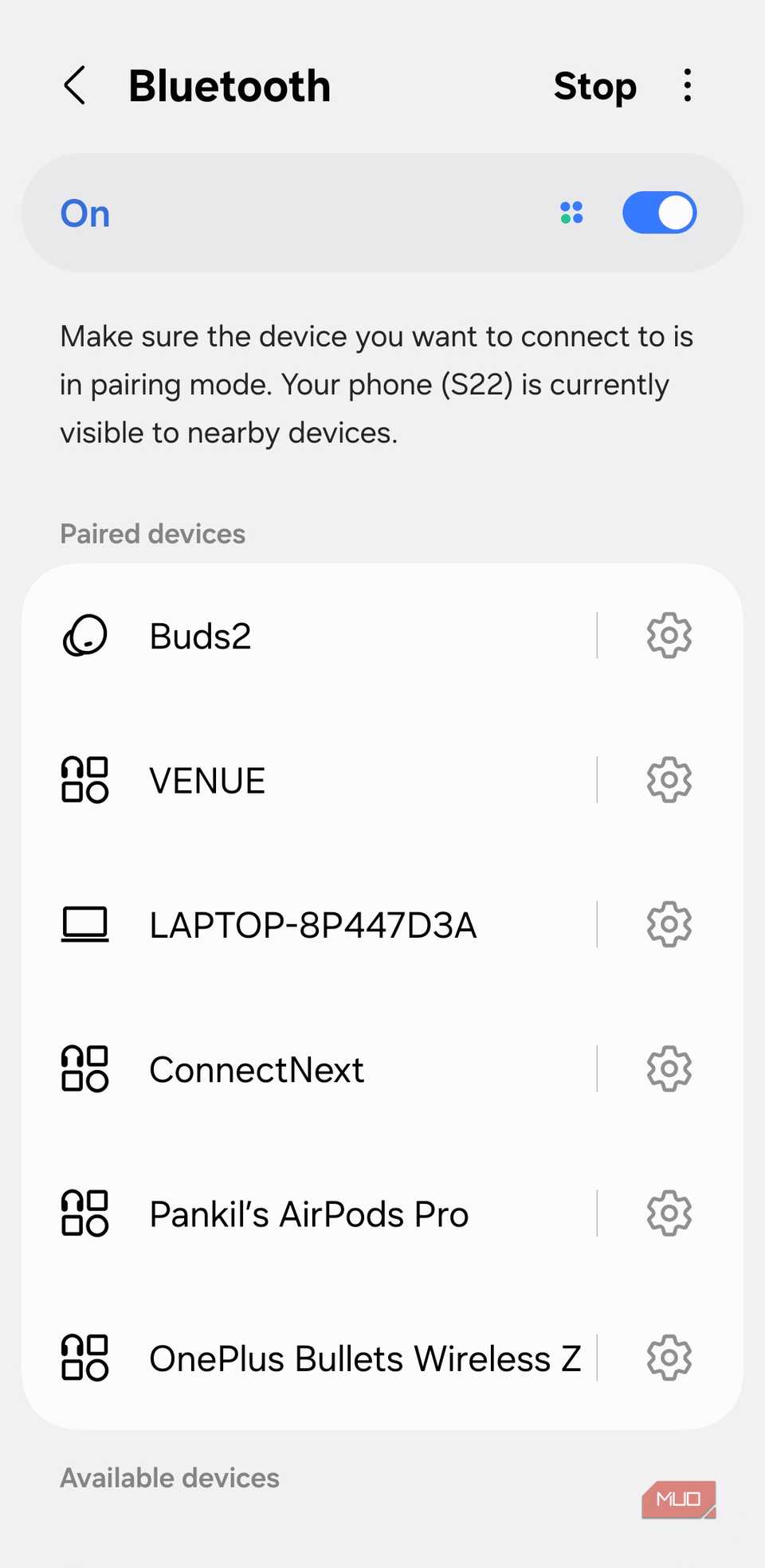
Even when you’re not using Wi-Fi or Bluetooth, your phone constantly scans the airwaves in the background to look for familiar networks and accessories. That’s how your phone magically reconnects to your home Wi-Fi or instantly pairs with your earbuds on its own. While that’s convenient, all that constant scanning requires power.
The good thing is that modern Wi-Fi and Bluetooth standards are less power hungry than before, so you don’t have to keep turning these toggles on or off as you go about your day. But if you know you won’t be needing them for a while, turning them off can save you 3-4% battery over the course of a day.
Quick Share
A useful feature that doesn’t know how to rest
 Screenshot by Pankil Shah — No attribution required
 Screenshot by Pankil Shah — No attribution required
 Screenshot by Pankil Shah — No attribution required
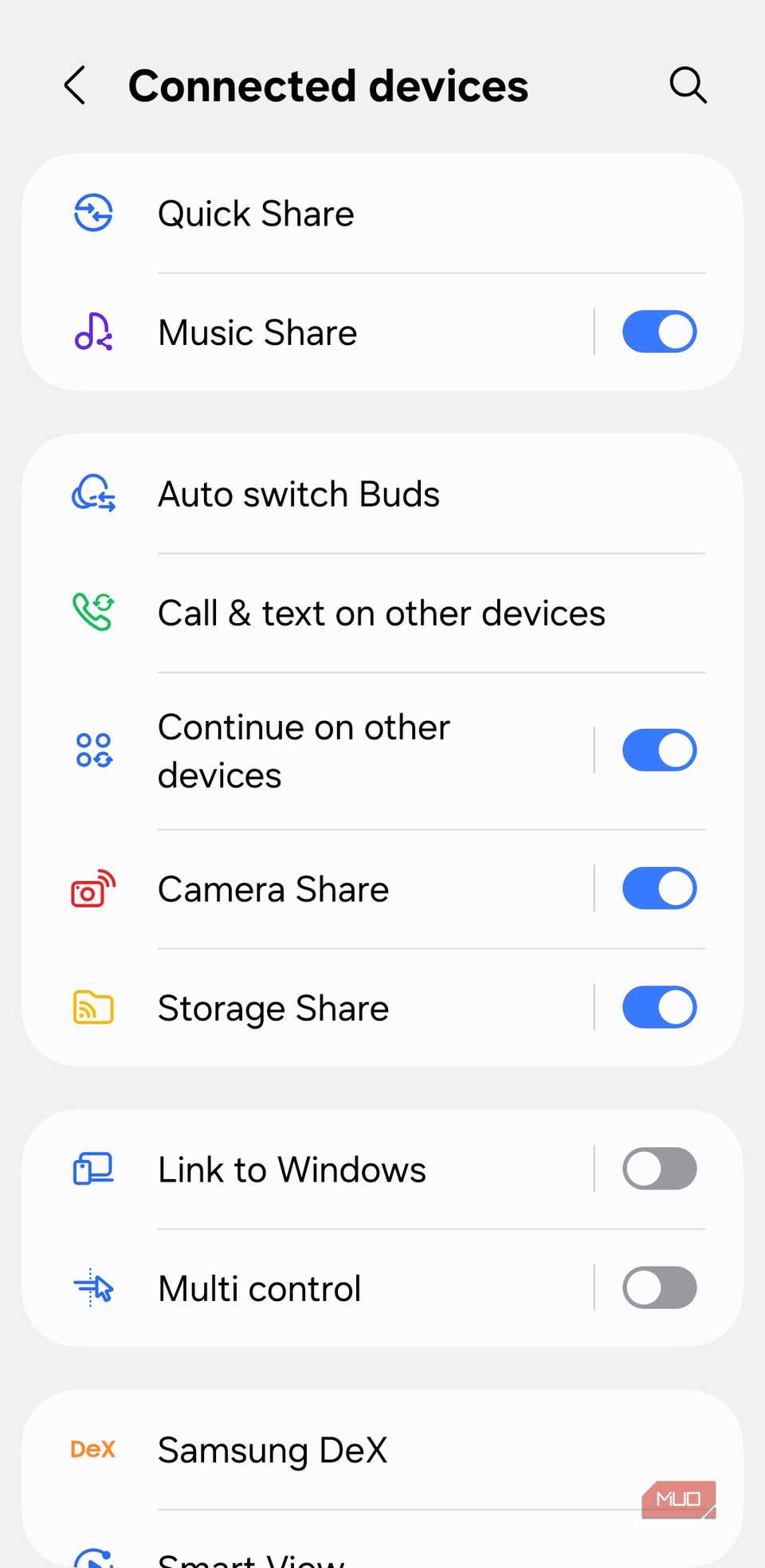
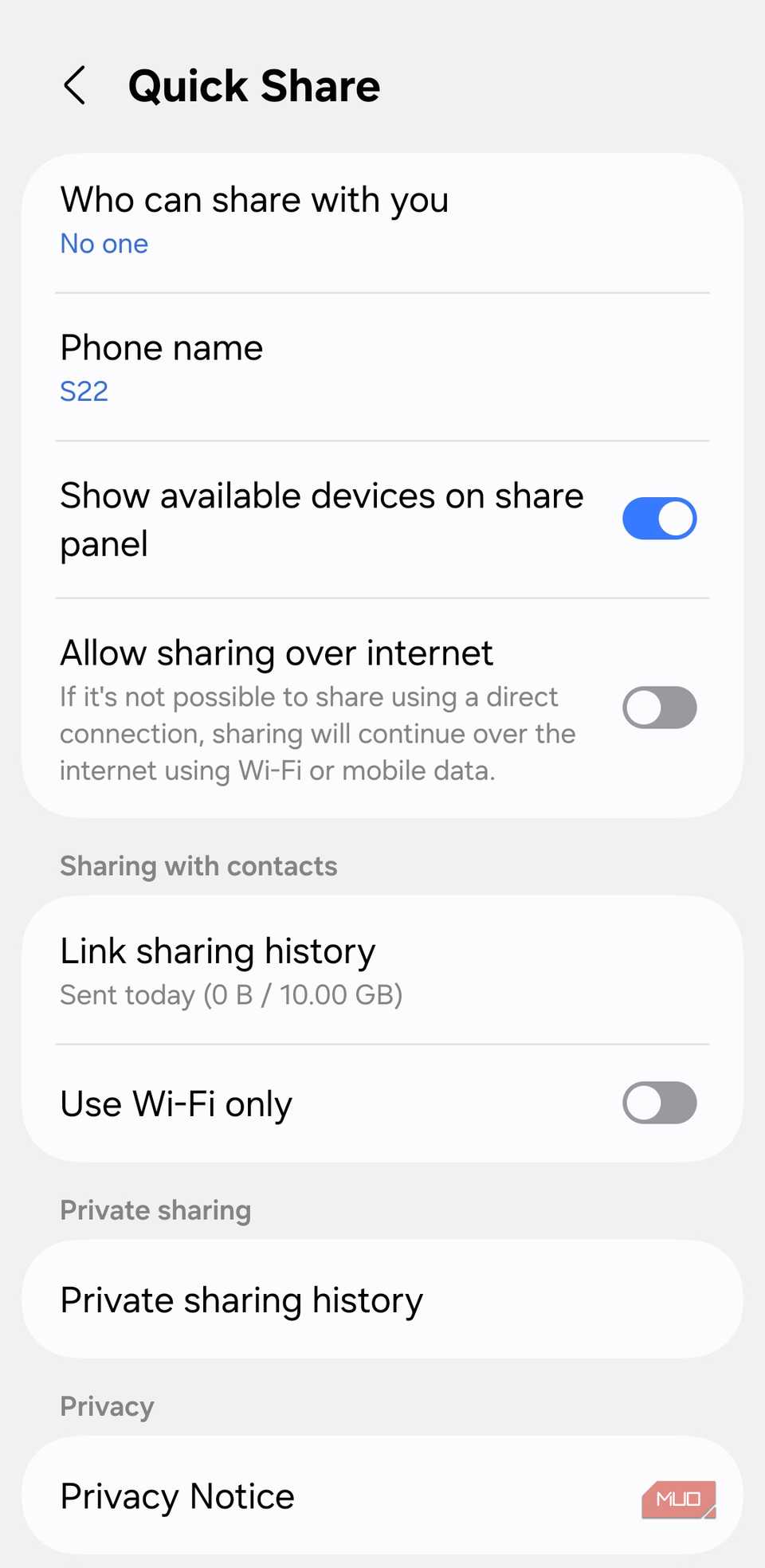
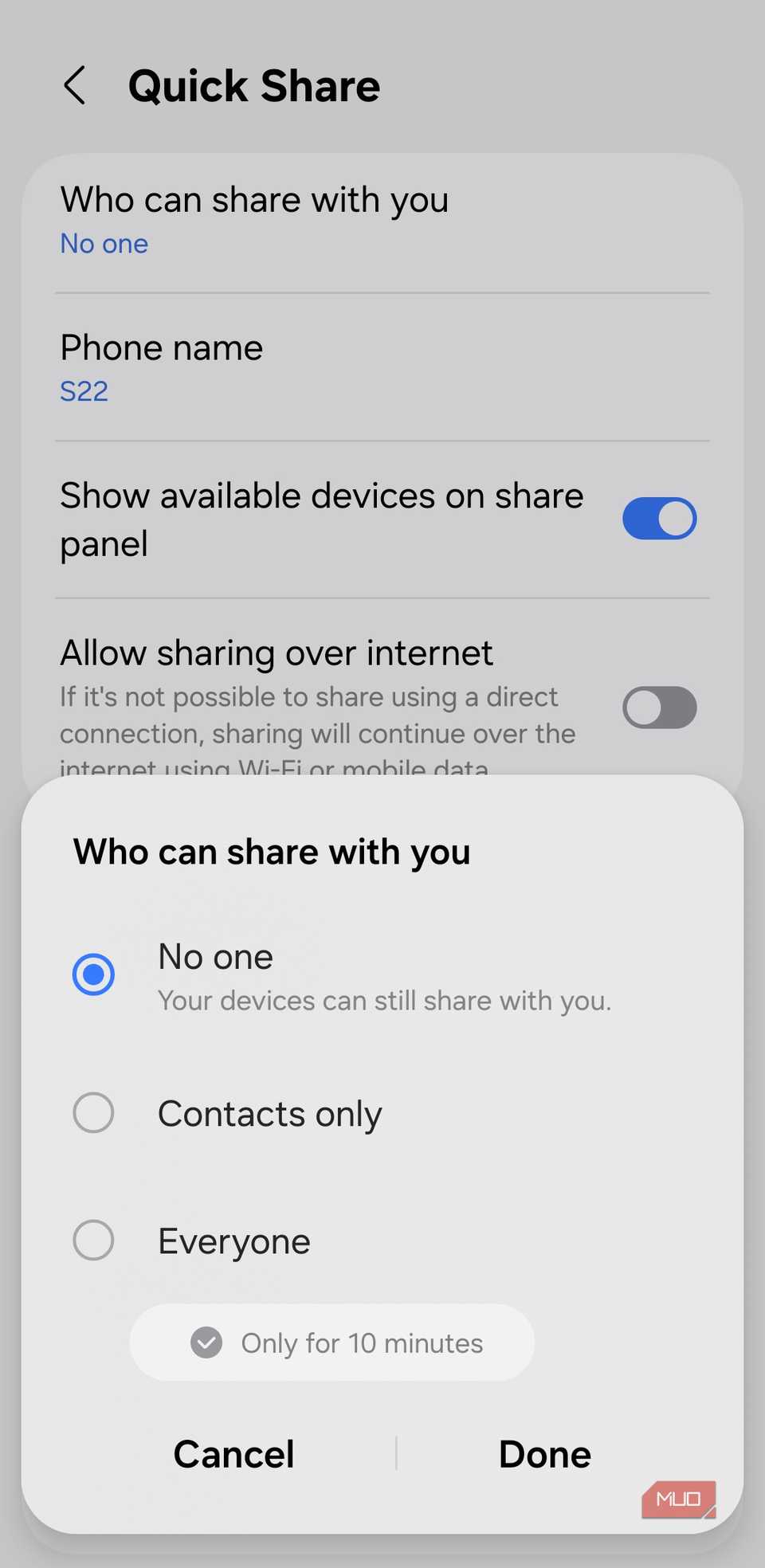
Quick Share feels like magic when you need to send a file wirelessly. A couple of taps, and you can send photos, videos, documents, and more. But to make that instant handoff possible, your phone has to keep looking for devices and incoming transfer requests.
Since Quick Share uses both Wi-Fi and Bluetooth to work its magic, it can slowly nibble at your battery. If you spend a little time browsing Samsung support forums, you’ll find plenty of users calling out Quick Share as an unexpected power drainer.
If Quick Share is something you don’t use regularly, you can turn it off. For that you’ll have to set Who can share with you to None. Your battery will thank you, and you can always flip it back on from the Quick Settings panel.
AirDrop is finally coming to Android, but only if you have this phone
File transfers just became less of a headache.
Background app refresh
Tiny updates that add up fast
By default, any app you install is allowed to work in the background. This lets them use the internet, refresh their content, and sync data when you’re not using them. It’s important for certain apps like cloud storage services, email clients, and instant messaging apps. But for most other apps, background activity doesn’t benefit you at all. It just wastes battery.
Individually, these background tasks don’t drain much, but when you have dozens of apps, it can all add up. Your phone ends up waking itself repeatedly to keep everything in sync, even while you’re asleep.
If you’re trying to squeeze more life out of your battery, limiting background refresh is an easy win. You can dive into an app’s info page, tap Battery, and choose Restricted. Then, go to Mobile data and turn off Allow background data usage. If you have a Samsung phone, you can also enable the sleeping apps feature, so your phone automatically puts lesser-used apps to sleep.
System vibrations
The haptic habits you don’t think about
 Screenshot by Pankil Shah — No attribution required
 Screenshot by Pankil Shah — No attribution required
 Screenshot by Pankil Shah — No attribution required
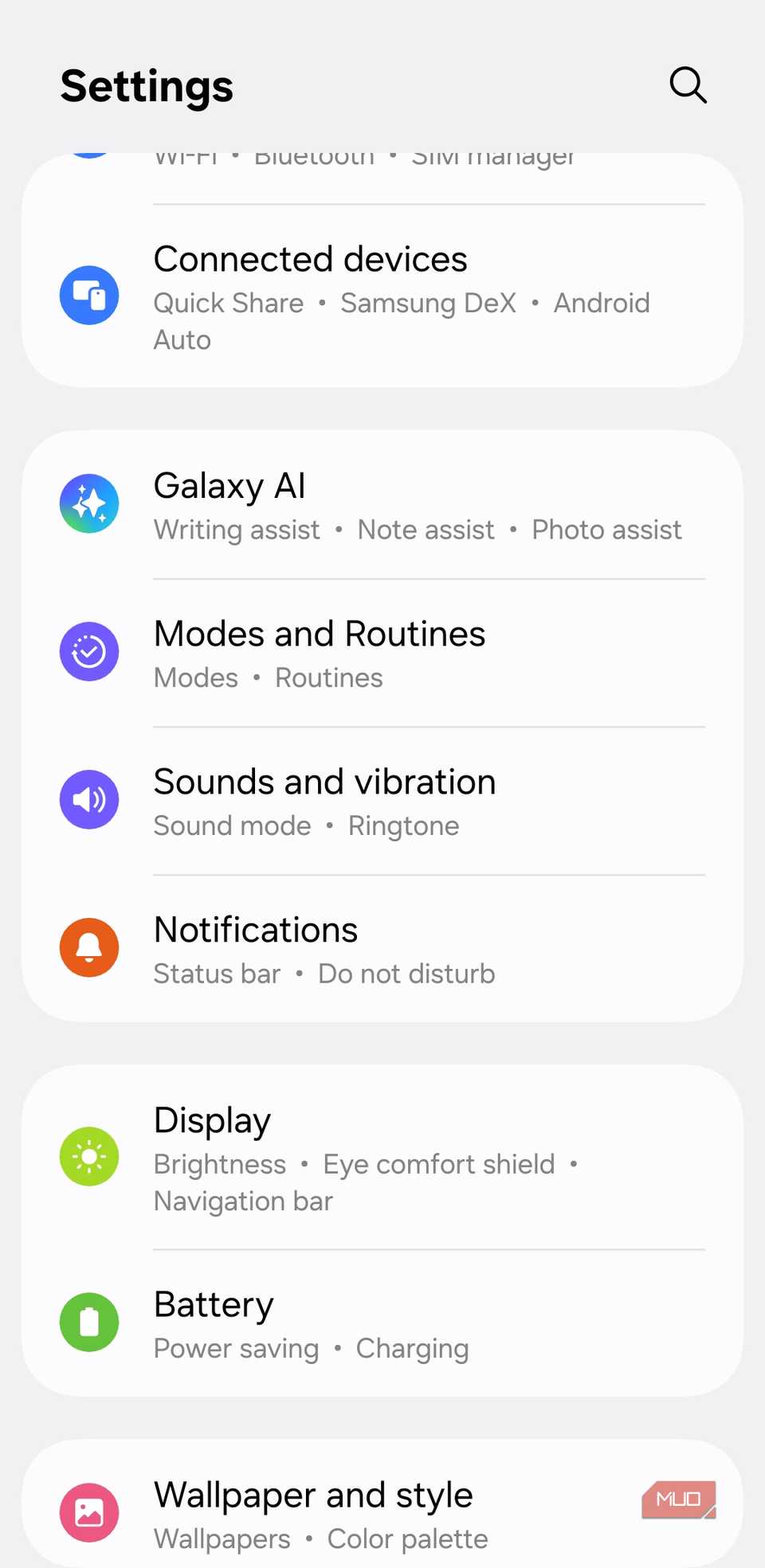
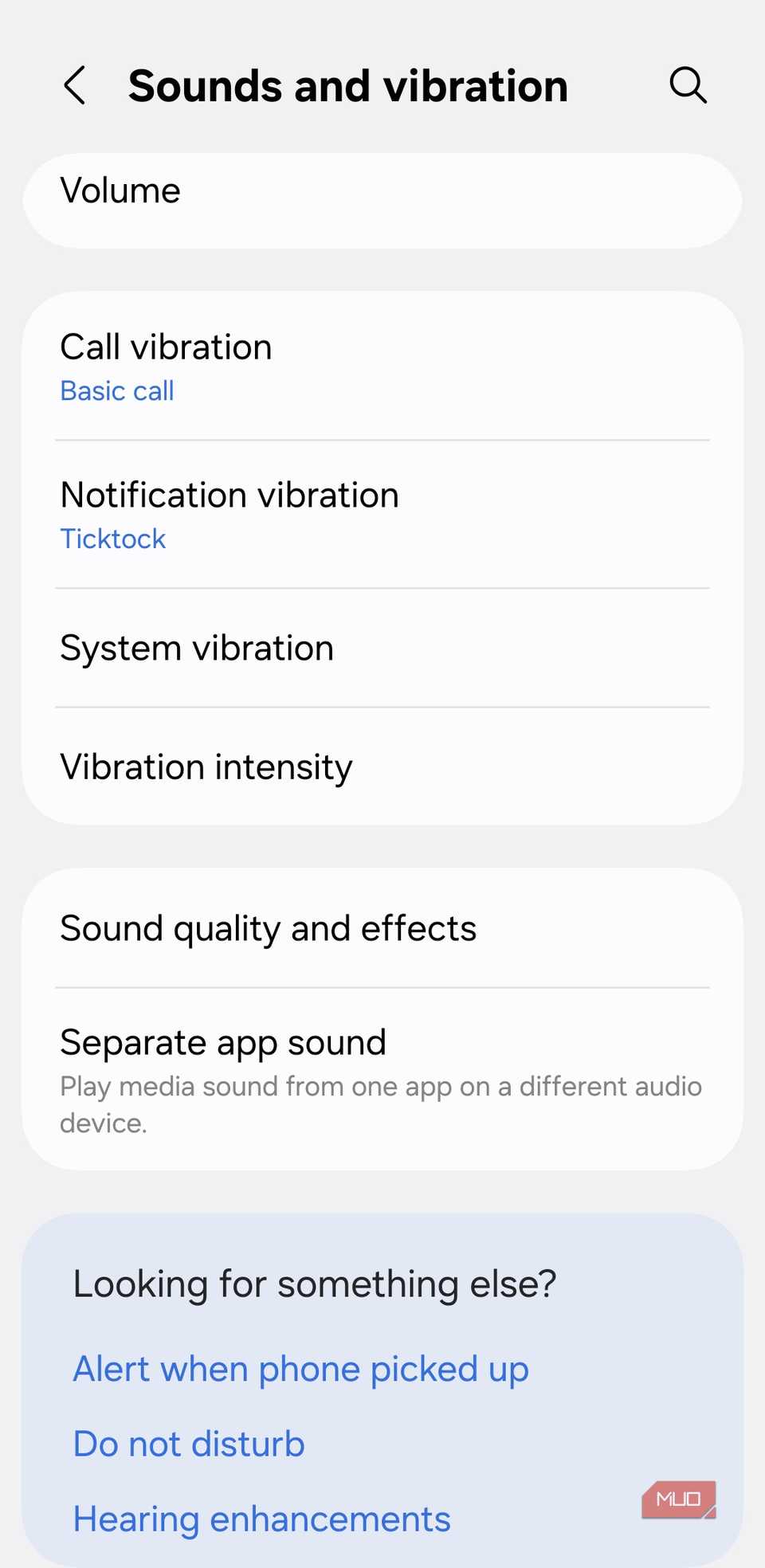
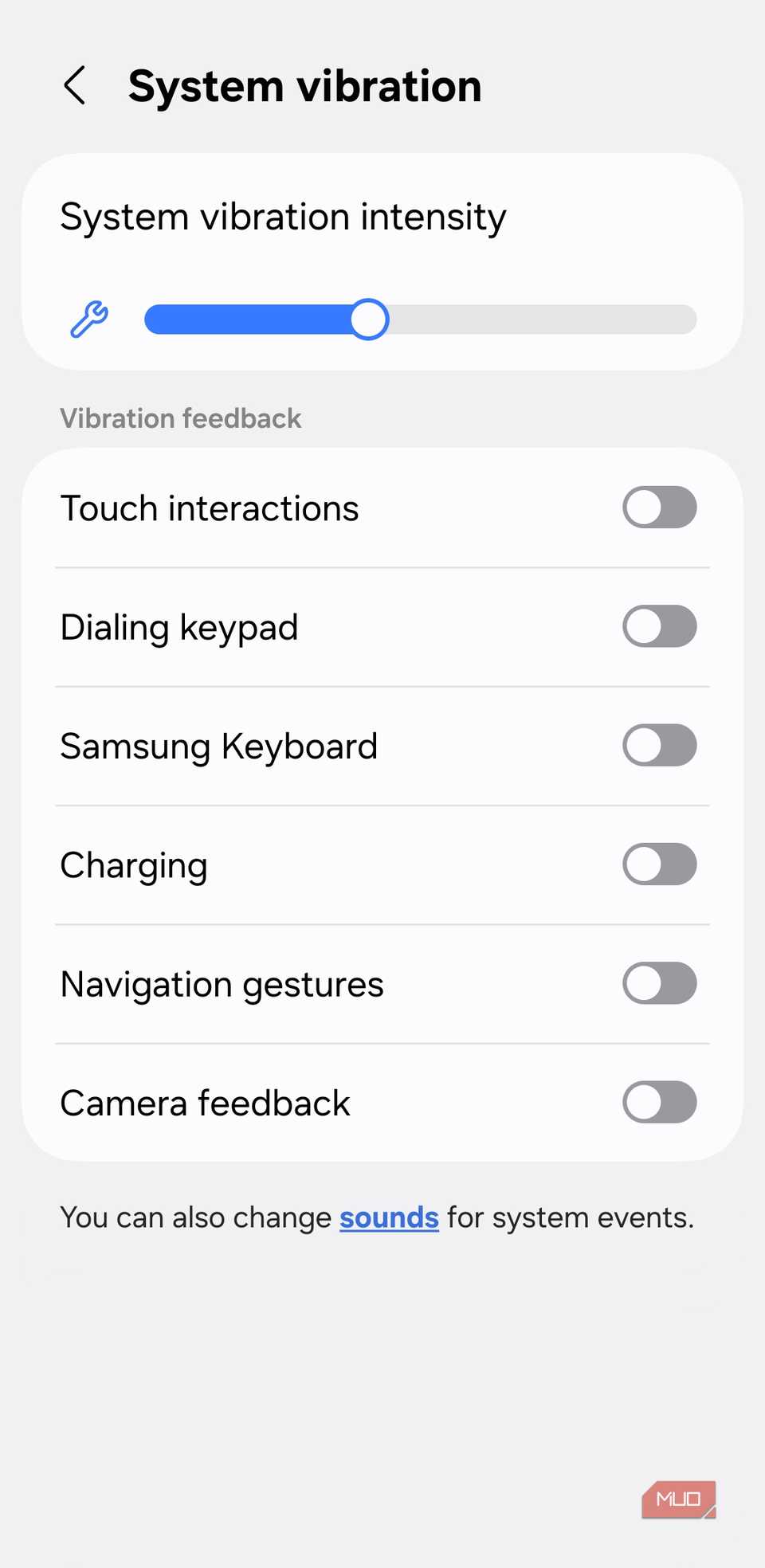
Every time you dial a number, type something, or move between menus, your phone gives you subtle haptic feedback. And every time that vibration motor spins, it uses power. A little buzz doesn’t hurt the battery, of course, but when you add hundreds of vibrations throughout the day, it can drain your battery substantially.
What makes this drain sneaky is how often these vibrations fire without you noticing. Type a long message and every key tap sends a small jolt. Swipe up to go to the home screen or use the back tap gesture and your phone gives you feedback for that too.
None of this feels dramatic, but it requires power. If you can live without these tiny pulses, disabling system vibration is a simple way to make the battery last a little longer.
Location services
The biggest battery hog hiding in plain sight
 Screenshot by Pankil Shah — No attribution required
 Screenshot by Pankil Shah — No attribution required
 Screenshot by Pankil Shah — No attribution required
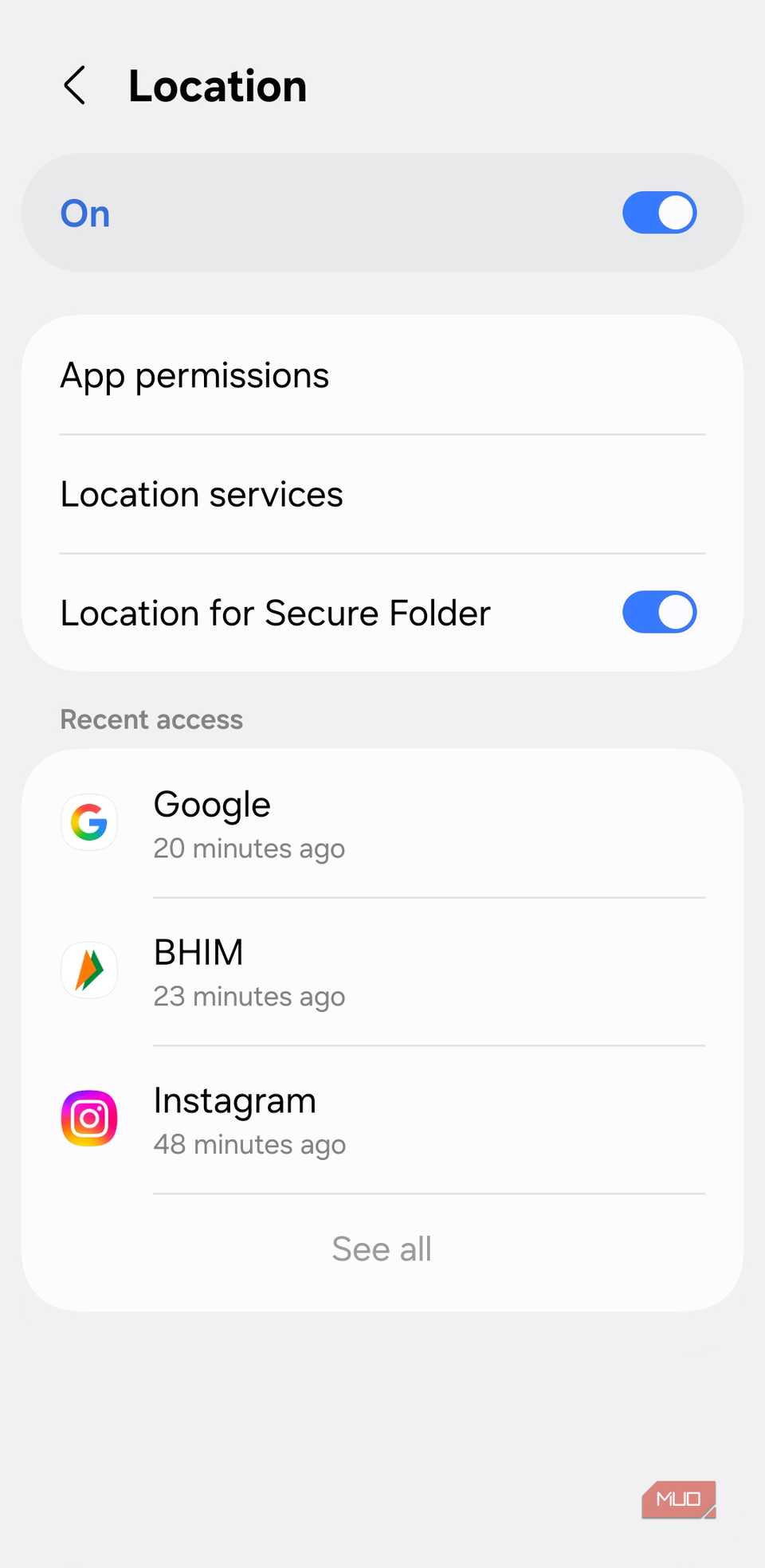
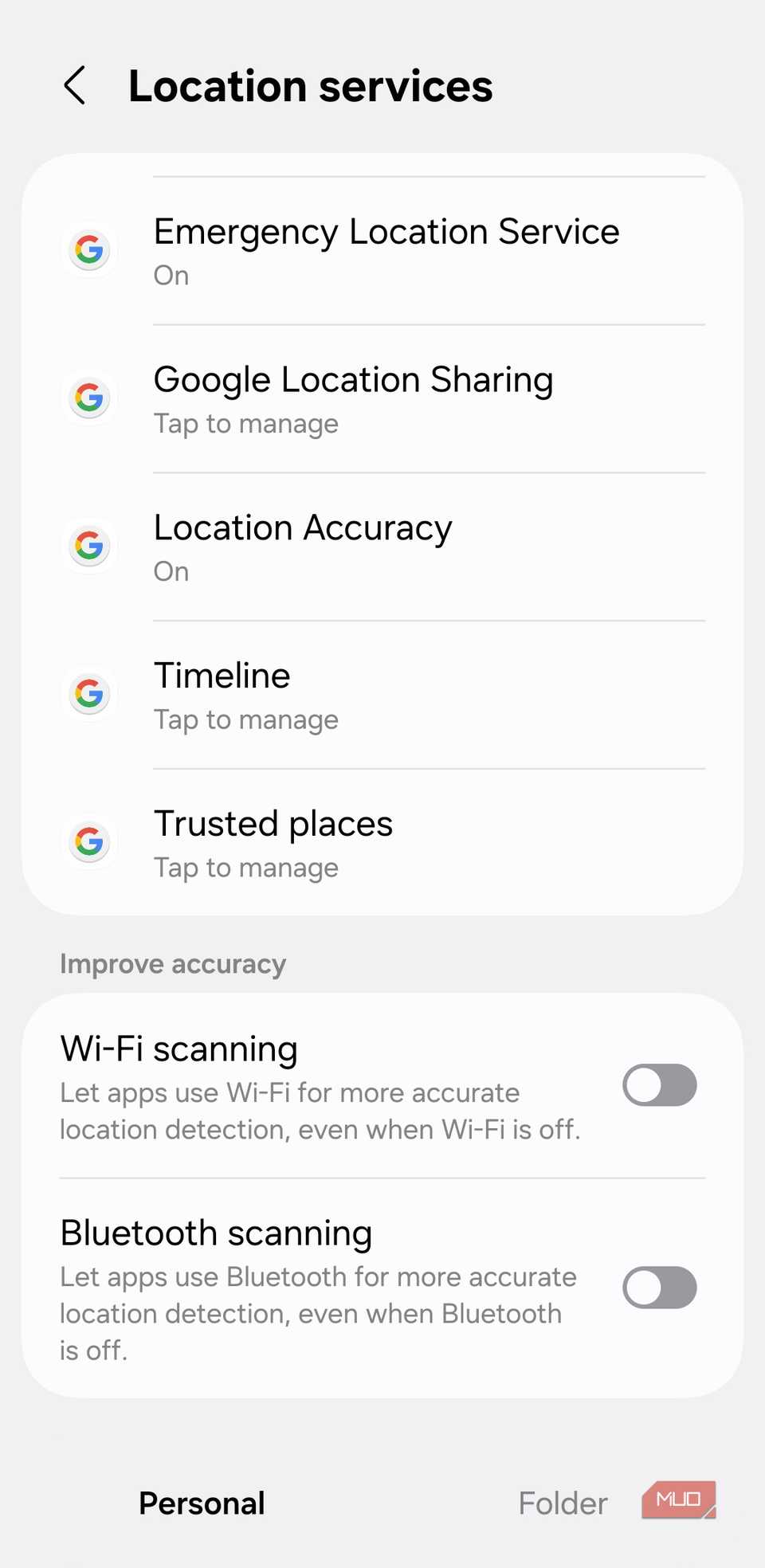
Out of every system toggle on your phone, location services is the biggest battery hog. That’s because they rely on GPS, Wi-Fi, Bluetooth, nearby cell towers, and even your phone’s sensors to figure out where you are at any given moment. Apps that tap into this constantly for things like navigation, weather updates, tagging posts, finding nearby stores, and even serving location-based ads.
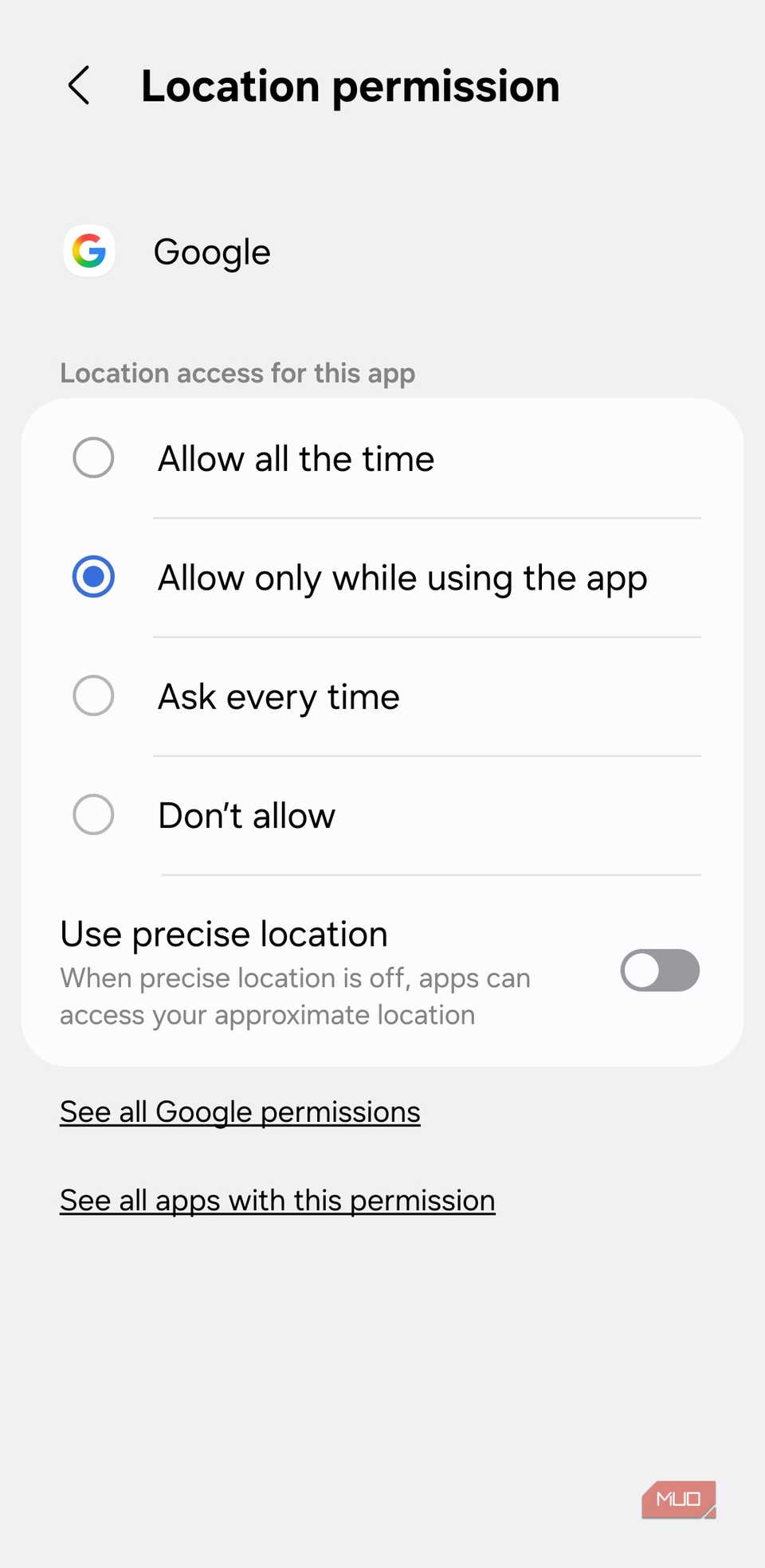
Of course, location is absolutely essential for apps like Google Maps, Uber, Google Fit, Weather, and many others. Without it, they simply can’t do their job. But a lot of other apps request location access even when they have no real need for it. And things can get worse if you’ve enabled the Precise Location toggle for apps.
If you want to keep your phone running longer, review which apps have location access. Set most of them to Allow only while using the app or turn it off entirely if the feature doesn’t make sense.
Keeping these system toggles in check doesn’t mean stripping your phone of all its smart features. It’s simply about knowing what’s quietly active in the background and choosing what matters to you. Of course, if you want to push your battery life even further, there are plenty of other tips, like changing your phone’s display settings.