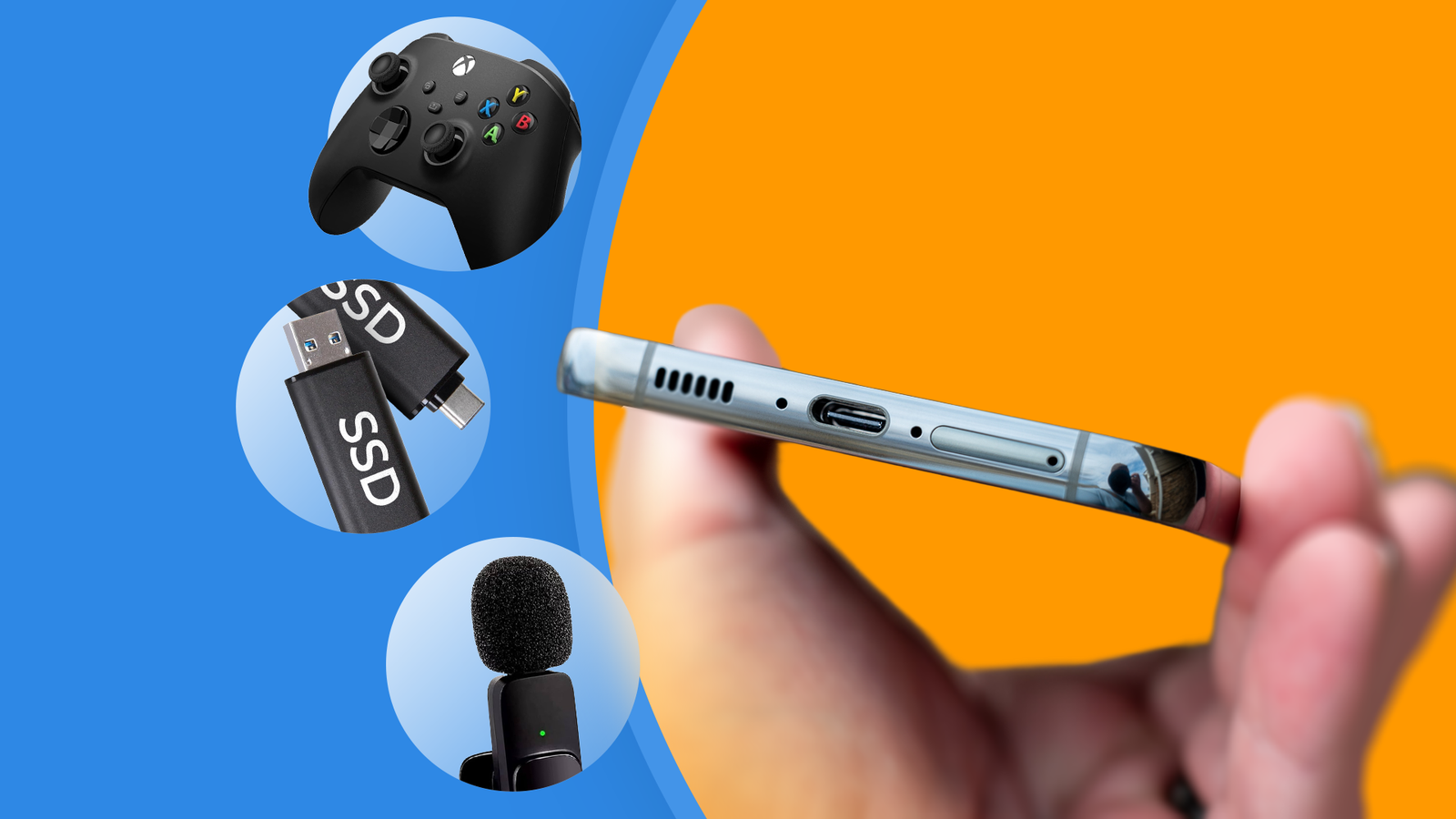
Your Android phone’s USB-C port is incredibly versatile. If you’ve only been using it to charge your phone to the point where you practically call it a charging port, you’ll be surprised by just how many cool gadgets you can plug into it.
Whether you’re adding storage, transforming your mobile gaming experience, or improving your phone’s audio capabilities, here are some cool ways to put your USB port to good use.
Plug in a game controller
Credit: Sergio Rodriguez / How-To Geek
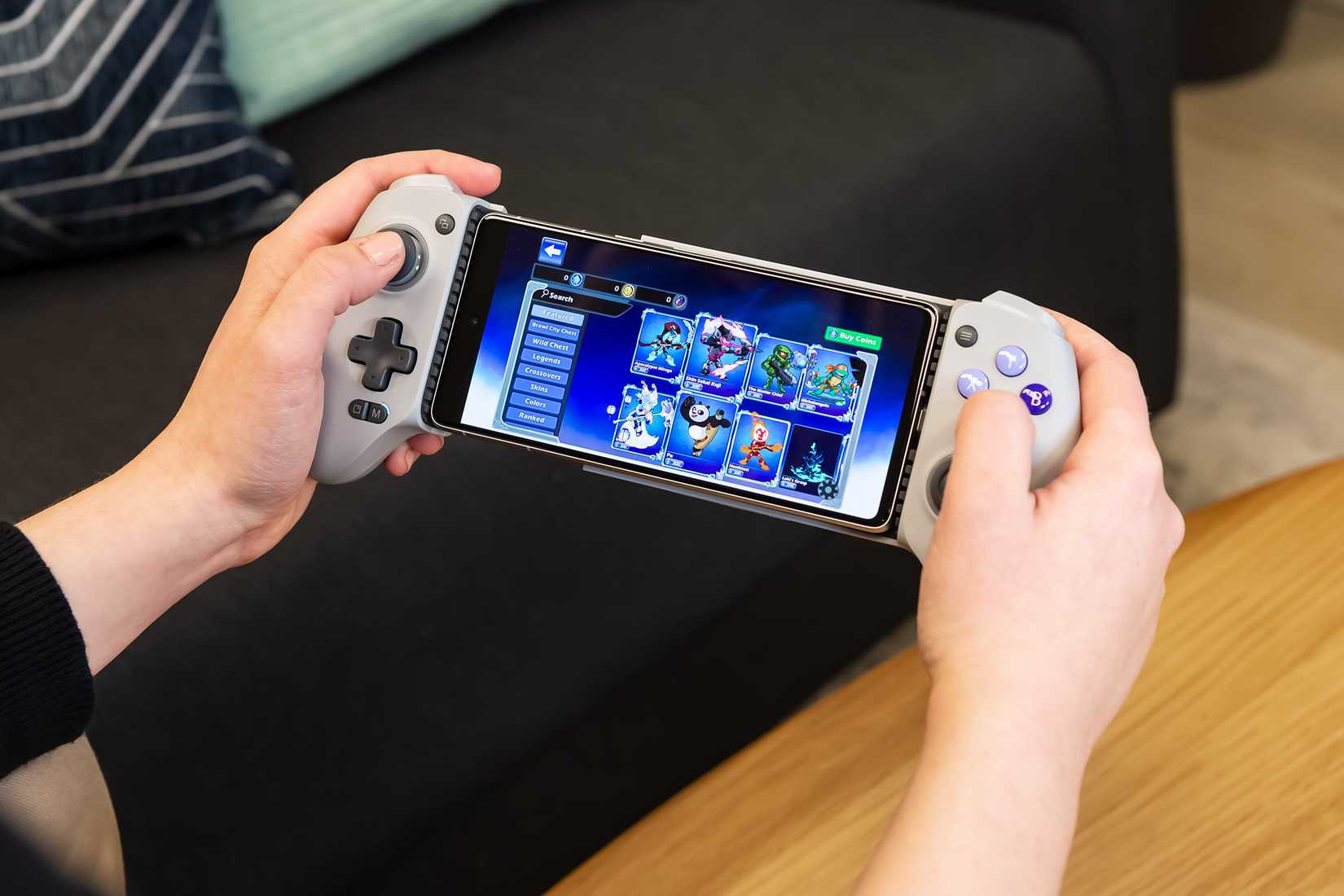
When it comes to wireless controllers with Bluetooth support, like the Xbox Wireless Controller and the DualSense, connecting them to your phone is fairly straightforward. But did you know that wired controllers can be hooked up to your phone as well?
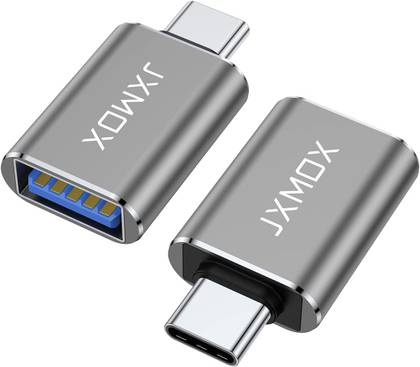
With a USB-C to USB-A OTG adapter, you can connect almost any gamepad to your phone using a wired connection. This is a great way to enjoy superior physical controls when gaming on your phone without needing to invest in a mobile gaming controller.
- Brand
-
JXMOX
- Cable Type
-
Adapter
This 2-pack JXMOX USB-C to USB 3.0 (female) adapter is all you need to connect most USB devices to your phone. It’s a small, low-profile adapter that easily fits into your pocket.
Plus, since the connection is wired, you won’t experience input lag or signal drops—which is important if you play competitive games.
It’s worth noting that not all controllers will work immediately with a wired connection. If your controller does work but the controls don’t behave as expected, you can try remapping them with a third-party app.
Related
How to Connect a Mouse, Keyboard, or Controller to Android
It’s a breeze to connect accessories to your Android device.
Connect USB flash drives and external SSDs
Credit: Patrick Campanale / How-To Geek
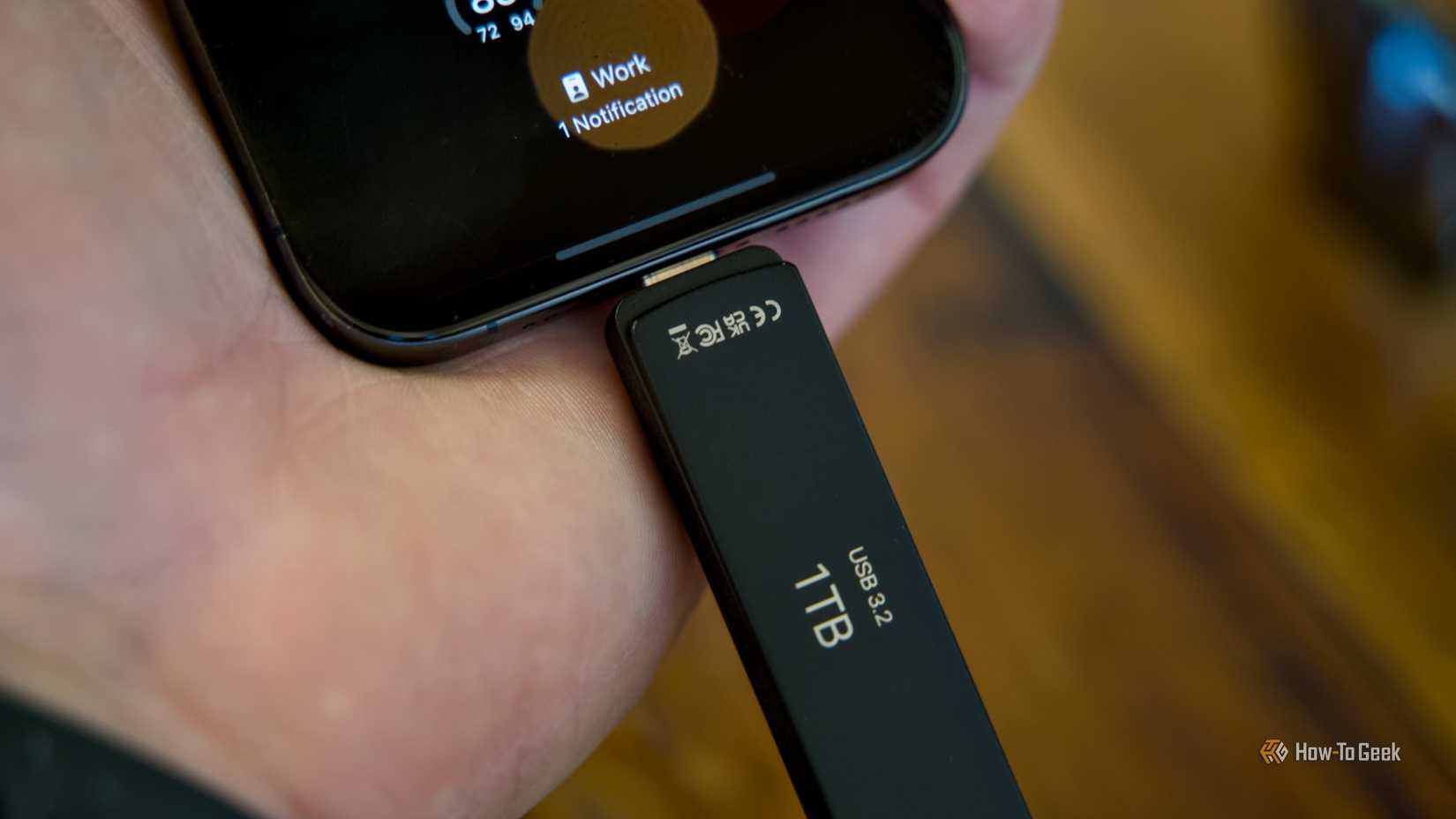
Have you ever wished you could add storage to your phone, but your device doesn’t have a microSD card slot?
Worry not, because some USB-C flash drives and external SSDs can connect directly to your phone to cover all your storage needs.
Well, most of your storage needs anyway, since external storage doesn’t allow you to run apps and games directly from the drive. They’re excellent for storing music, photos, and videos or movies, though.
If you’ve already got a spare flash drive or external SSD, the cheapest solution is to get an OTG adapter instead. This is the perfect option if you only need to use the external drive to occasionally offload large files and free up space on your phone.
Use external audio equipment
Credit: Bertel King / How-To Geek
If you use your phone for video calls or video or audio recording, one of the best upgrades you can make is to switch to an external microphone. There’s a long list of USB-C microphones that offer a plug-and-play solution to replace your phone’s built-in mic.
For instance, when I plugged my Shure MV6 into my phone, it worked flawlessly, with no additional setup required (though there is a Motiv app that unlocks additional functionality).
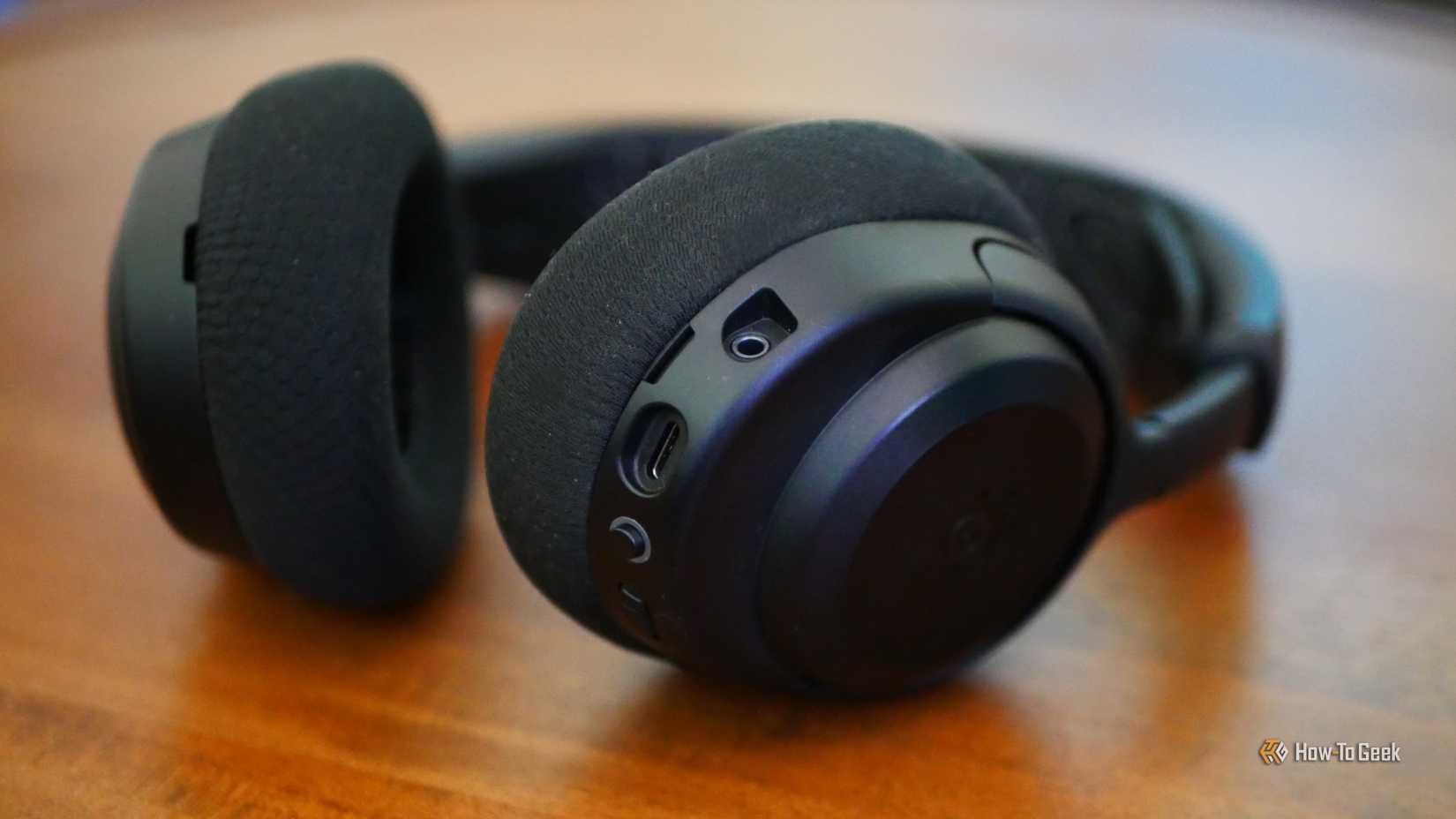
Microphones aren’t the only audio equipment you can hook up to your phone, though. If you want to enjoy audiophile-grade sound quality with wired headphones or earbuds, a mobile amp, DAC, or amp/DAC combo is an excellent upgrade at a reasonable price.
You could also make a case for connecting headphones directly via a USB-C cable. Most of these headphones are primarily wireless, like the Bowers & Wilkins Px8, but a wired connection is still going to provide better sound quality with no latency. Wired earbuds with a dedicated USB-C cable are another viable solution.
Provide USB internet to your PC
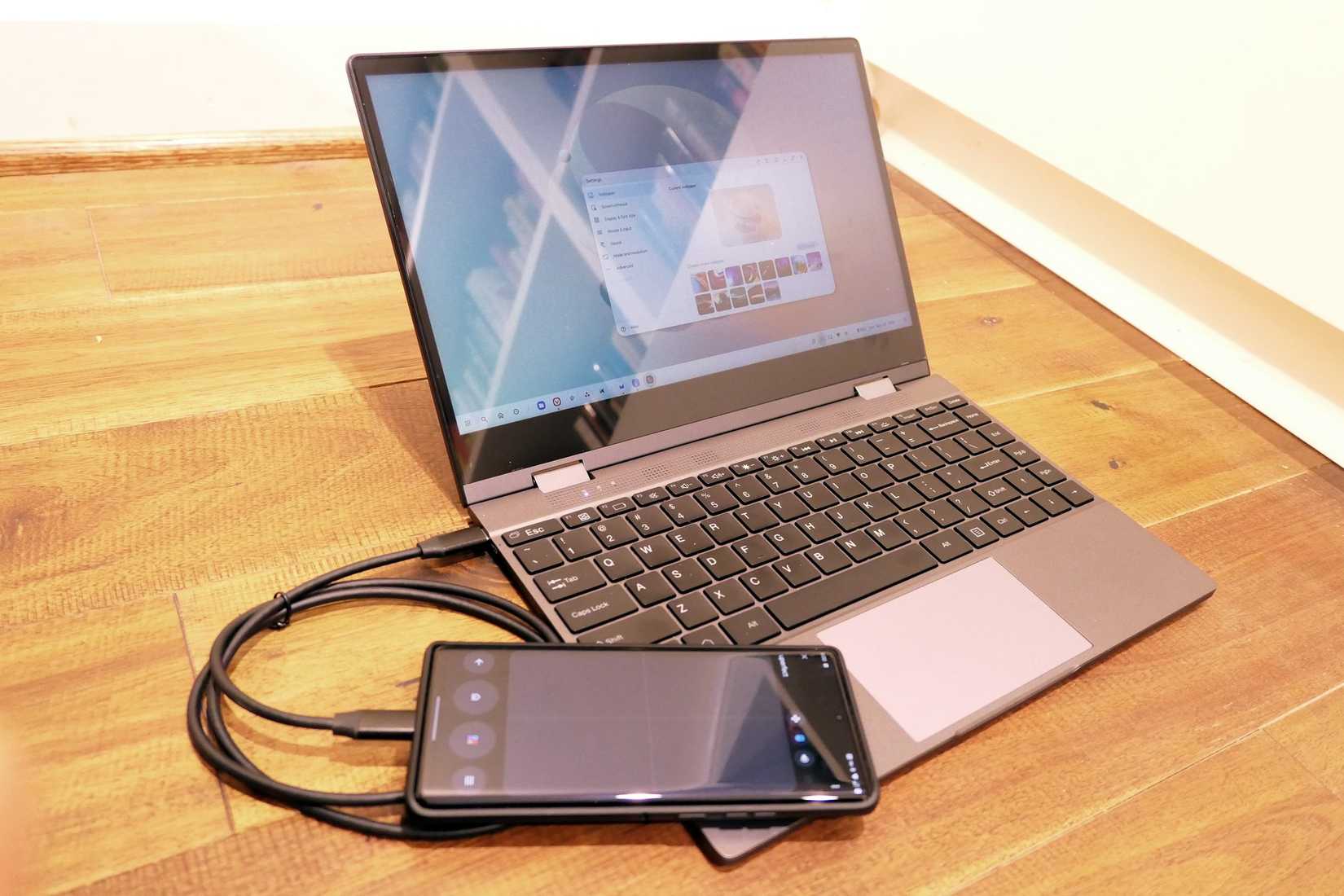
Image Credit: Bertel King / How-To Geek
If you experience an internet outage and your home connection goes down, but you still have mobile data on your phone and need to continue working on your PC, you can USB-tether your phone to share its internet with your computer.
To enable USB tethering, simply plug a USB cable into your phone and your PC, enable USB tethering, and your PC should automatically connect to your phone’s internet connection.
You can even do this with a Wi-Fi connection, effectively turning your phone into a Wi-Fi receiver. I did this when I brought my desktop PC on vacation and managed to play Fallout 76 on my PC using my Airbnb’s Wi-Fi signal.
Related
How to Reverse Tether Your PC’s Internet Connection to Android
Your Windows PC can be a hotspot for Android, too.
Turn the phone into a PC with a USB hub
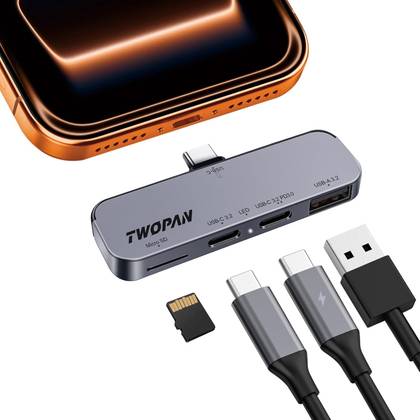
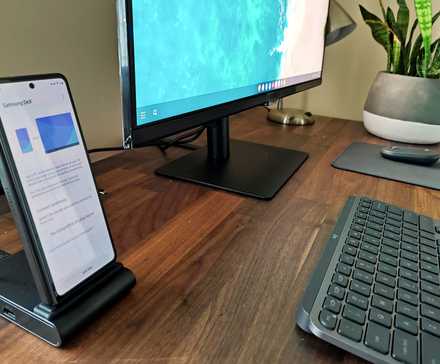
The best way to add more USB ports to your phone is to buy a smartphone-compatible USB hub. If you get an expansive one model, you can turn your phone into a proper mini-PC that can handle multiple USB devices, connect to external audio gear, microSD cards, displays, a mouse, a keyboard, and even Ethernet, all while continuing to charge the phone thanks to USB-C PD.
Credit: Amazon
- Connection
-
USB-C
- Ports
-
1 USB-A, 2 USB-C, 1 microSD
This lightweight USB-C hub for the iPhone 16/15 enables high-quality video recording, including 4K ProRes, by connecting external SSDs/hard drives via its USB 3.2 port. It features a microSD slot for file transfer and a dedicated USB-C port for PD charging, allowing you to power your iPhone during shoots. With versatile ports, it simplifies professional video workflow on the go.
A hub essentially combines every other device you can connect to your phone to create the ultimate phone-based workstation.
Related
8 Things I’ve Learned from Using My Phone as My PC
It’s been quite the change, but I’m sticking with it.
Note that you might run into compatibility issues with your phone, the hub, or both, so research carefully before investing in a new one.
Your phone’s USB-C port is surprisingly versatile, perhaps even more than you might have thought. Whether you want to play games, record high-quality audio, or turn your phone into a mini media machine with extra storage and a hub, the sky is the limit.