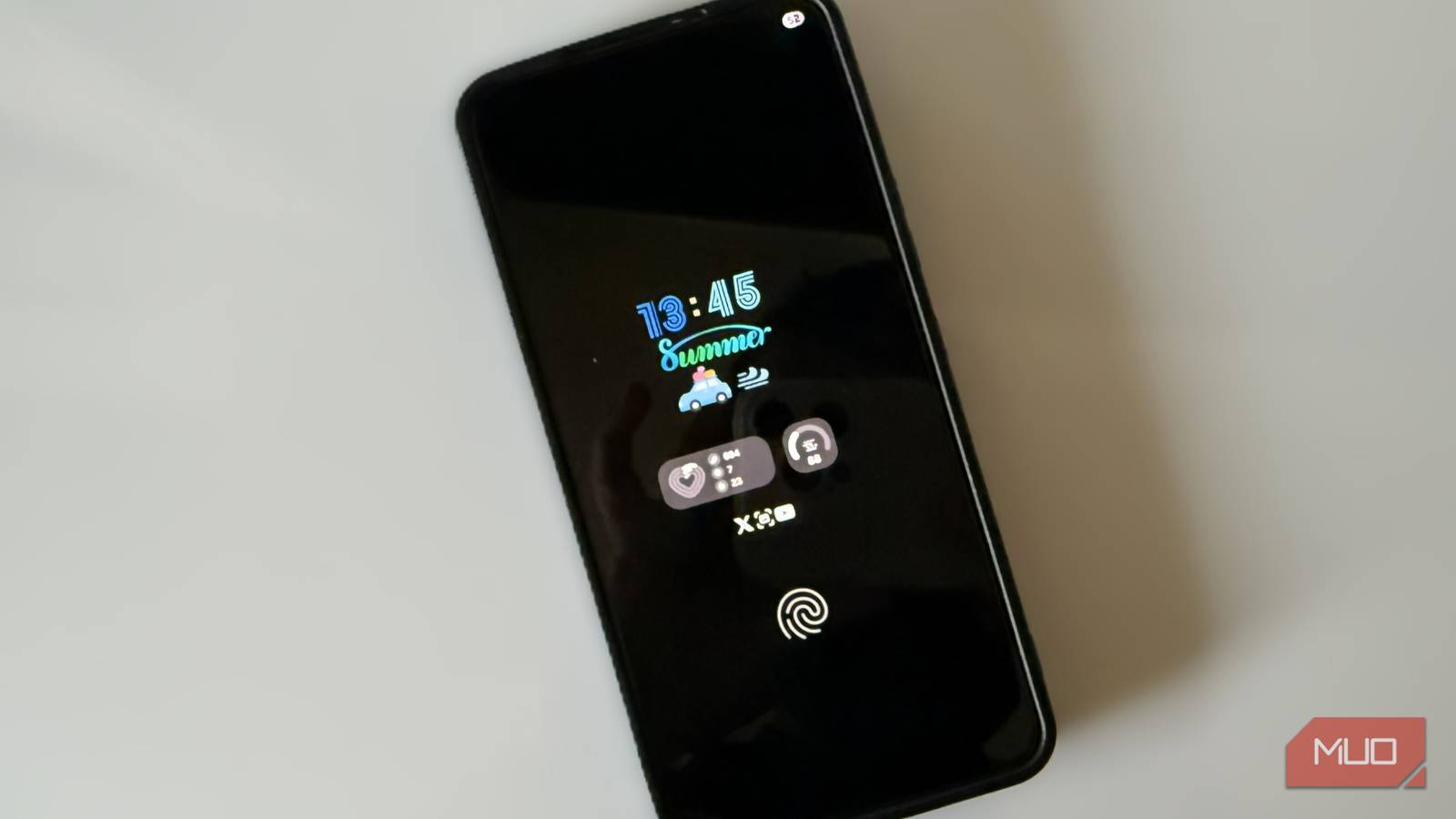
Samsung’s always-on display is one of those features you appreciate for its convenience but rarely think about. It shows the time, lock screen widgets, and a few notification icons. If you like personalizing your Samsung phone though, you’ll find that the built-in AOD options leave a lot to be desired.
But the good thing is you don’t have to limit yourself to those built-in options. Samsung’s Good Lock app offers plenty of room to get creative. With it, you can shift AOD from a simple status screen to something that feels unique and fun.
The built-in AOD customization options are limited
Basic styles and minimal control
Digvijay Kumar / MakeUseOfCredit: Digvijay Kumar / MakeUseOf
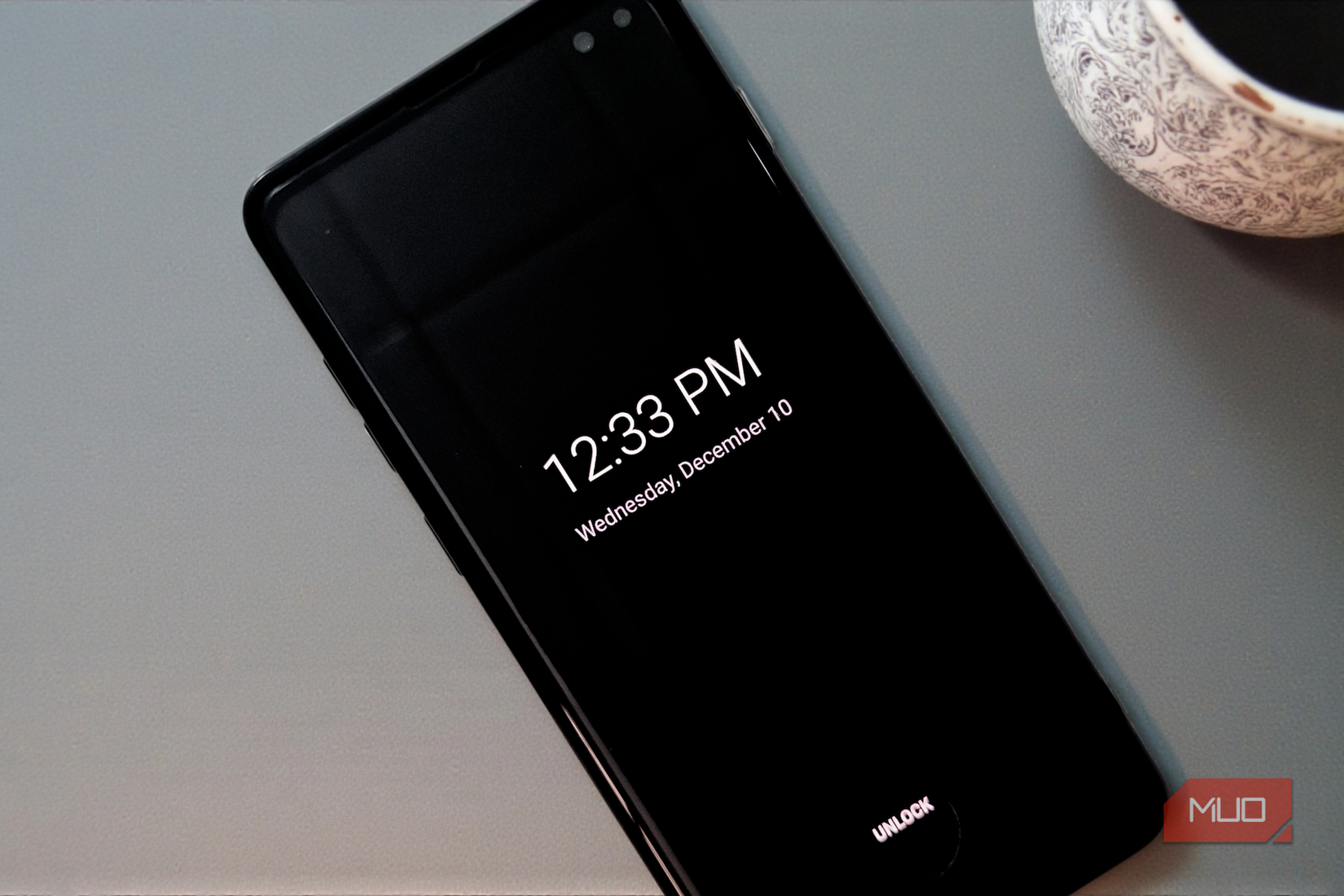
Galaxy phones used to offer always-on display customization options right in the settings menu. With One UI 6.1, however, Samsung removed those dedicated controls and merged the lock screen and always-on display into one unified setup. With this, any changes you make to the lock screen clock and widgets show up on your AOD too, and you can’t customize them separately anymore.
And that would be fine if the lock screen itself offered deep customization, but it really does not. Your options boil down to changing the clock font, swapping colors, and choosing from a handful of preset styles. That’s basically it.
This is exactly why you need Good Lock. It’s a free app from Samsung that brings several useful features to your Galaxy phone, including the ability to customize the AOD clock face.
Good Lock unlocks effortless AOD customization
Take control of every detail
To get started with AOD customization, you’ll first need to get the Good Lock app from the Galaxy Store. Then open it, head to the Plugins tab, and get the LockStar and ClockFace modules.
With those installed, open the LockStar module. Tap the LockStar button at the bottom and select Always on display. One of the first useful tricks is the ability to set brightness manually. Tap the AOD Auto Brightness, and you’ll see the option to disable it. Then use the slider to adjust the brightness manually.
Next comes the creative part. While you’re still in the lock screen edit mode, tap the clock, and switch to the Style tab. You’ll see a few more clock faces than before. Tap the one you like, and it will appear on both lockscreen and AOD.
You can also open the ClockFace module to browse even more options. This is where you’ll find plenty of clock styles, from colorful gradients to bold minimal layouts and even playful animated options.
The best part is you can also edit these clock faces and fine-tune everything from spacing to color to placement. It gives options to add custom text, emoji, images, and even GIFs. And if something doesn’t fit the vibe you’re going for, ClockFace also lets you remove it.
Design your custom AOD clock from scratch
A creative canvas for truly personal designs
If picking a preset or editing feels too limiting, Good Lock’s ClockFace module also lets you build your own. Tap the plus icon in the top right corner to get started.
First, you’ll need to pick from one of the three clock types: analog, digital, or text clock. Once it appears, you can resize it to any proportion you like and apply whatever colors fit your theme.
With the main clock set, tap the plus icon, and you’ll see options like date, text, image, GIF, and weather. Select anything you want to add, and you’ll find plenty of customization options for each one. You can keep things clean with a simple date underneath the time or go fully expressive with personal photos, animated stickers, or an inspirational quote.
If you own a Galaxy Watch, ClockFace also lets you design a watch face using the same tools.
There’s also a quick way to spice up the AOD
Customize AOD without affecting the lock screen
 Screenshot by Pankil Shah — No attribution required
 Screenshot by Pankil Shah — No attribution required
 Screenshot by Pankil Shah — No attribution required
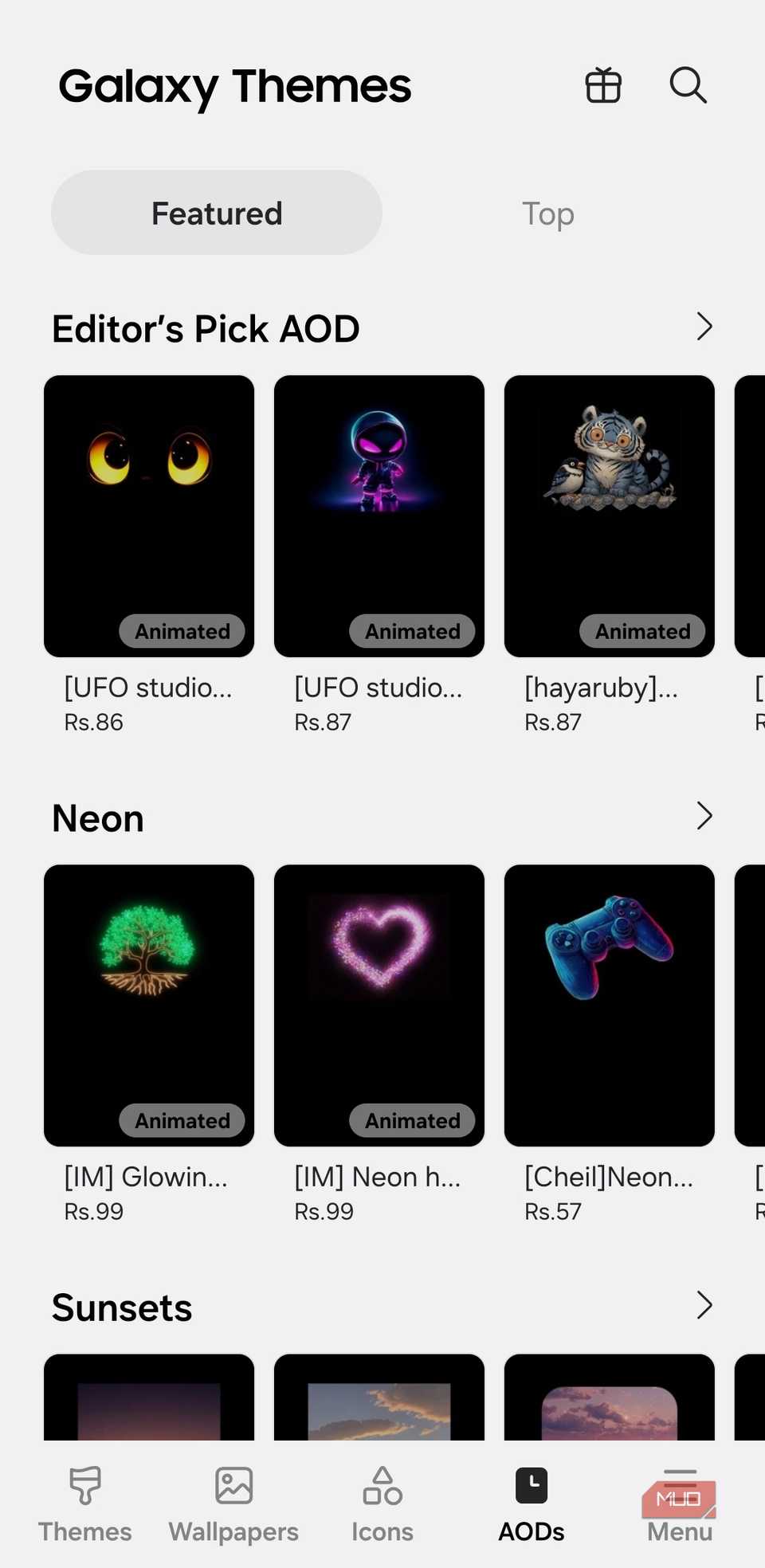
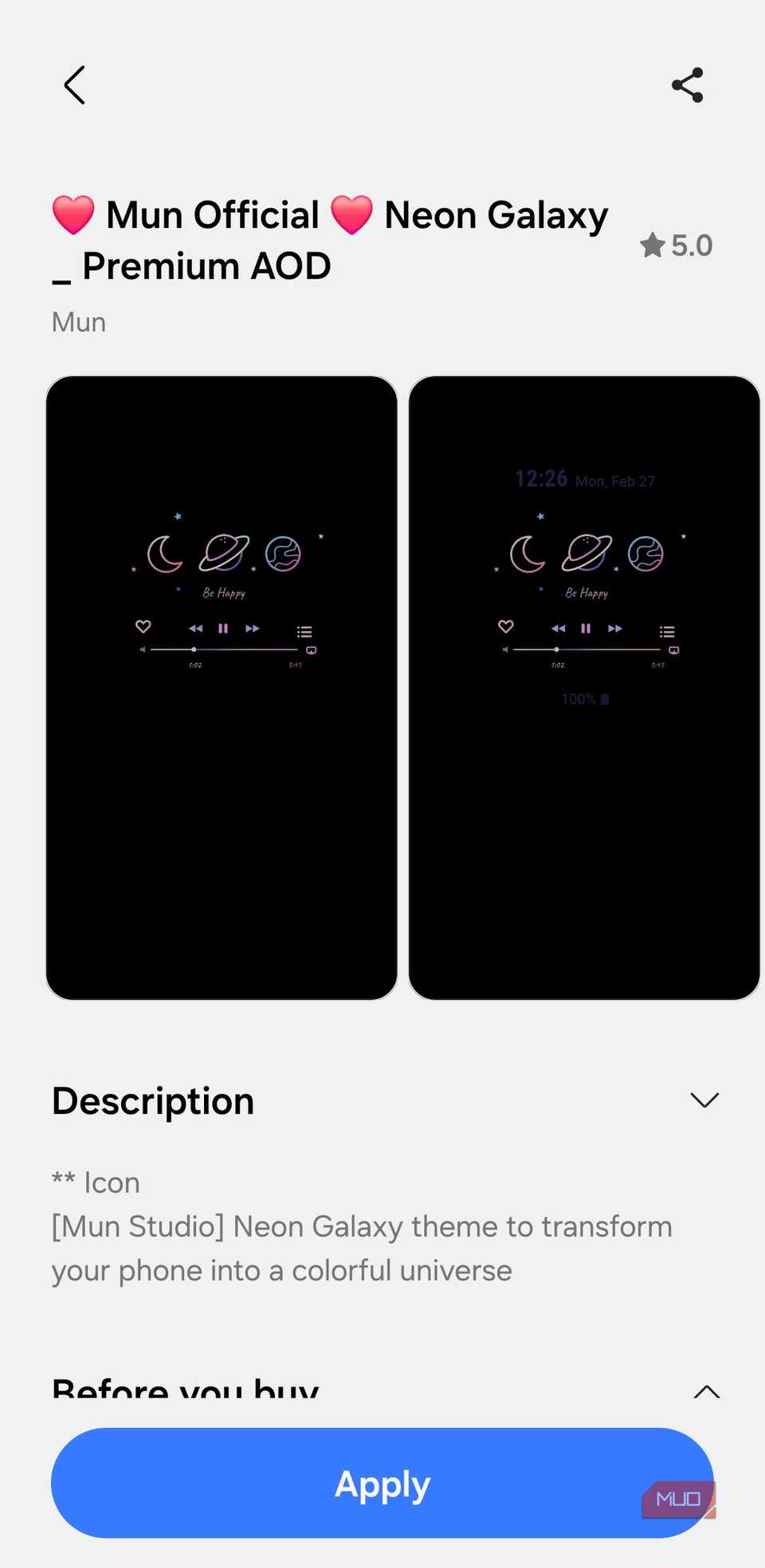
If you want to freshen up the AOD without diving into Good Lock’s deeper tools, you can use Galaxy Themes instead. Open the Themes app on your Samsung phone and head to the AODs tab.
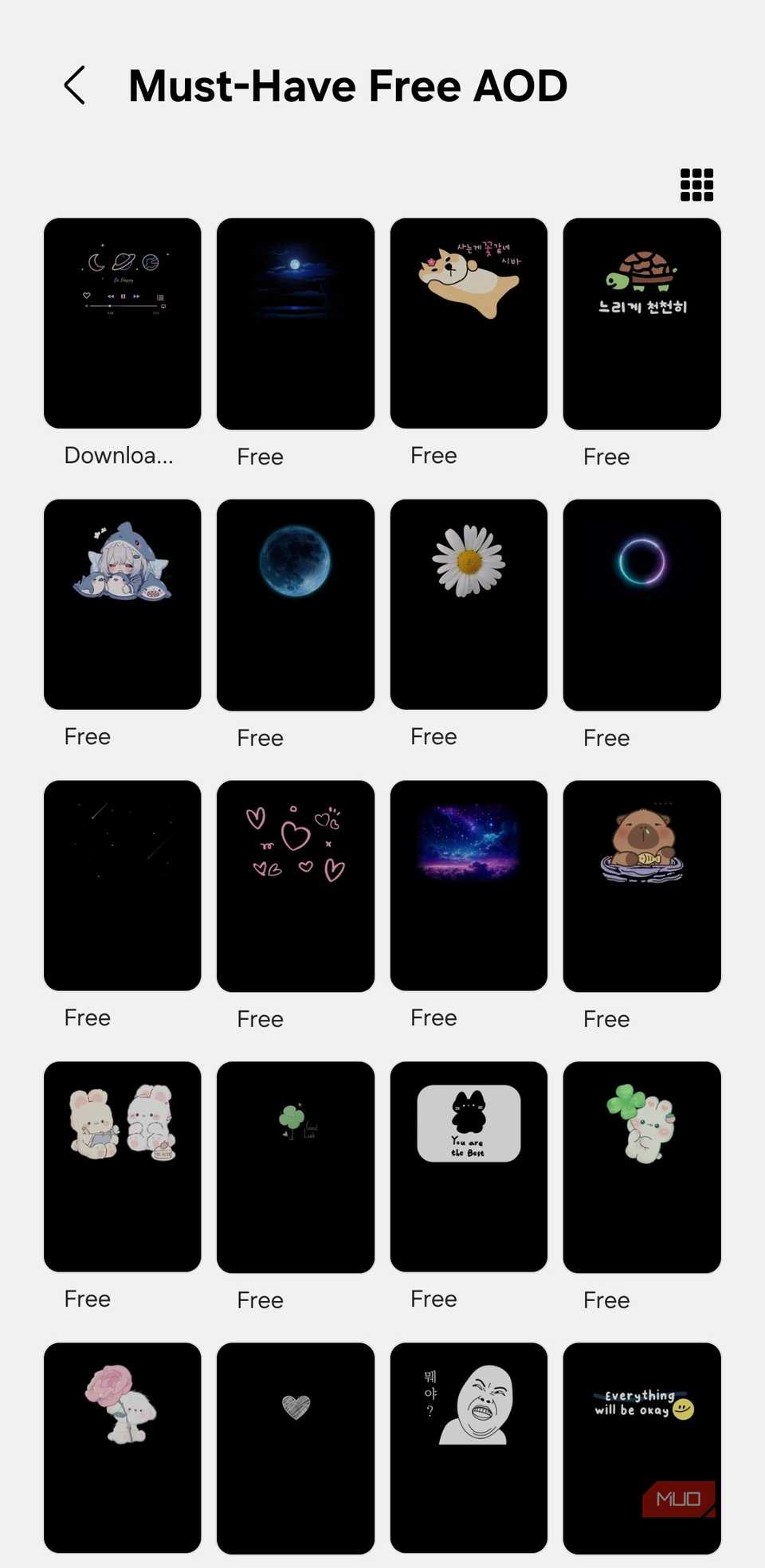
Here, you’ll see plenty of AOD clocks, most of them will be paid. But you can scroll all the way down to the Free section to explore without spending anything.
The biggest benefit here is that applying the AOD theme doesn’t affect the lock screen clock. That separation is a big deal because it gives you freedom you don’t get in Good Lock. The downside is that you can’t customize these styles. What you see is what you get.
Samsung may have scaled back its built-in AOD customization, but that doesn’t mean you have to stick with the basics. And customizing the AOD is just the start. You can use Good Lock to redesign almost every part of your Samsung phone.