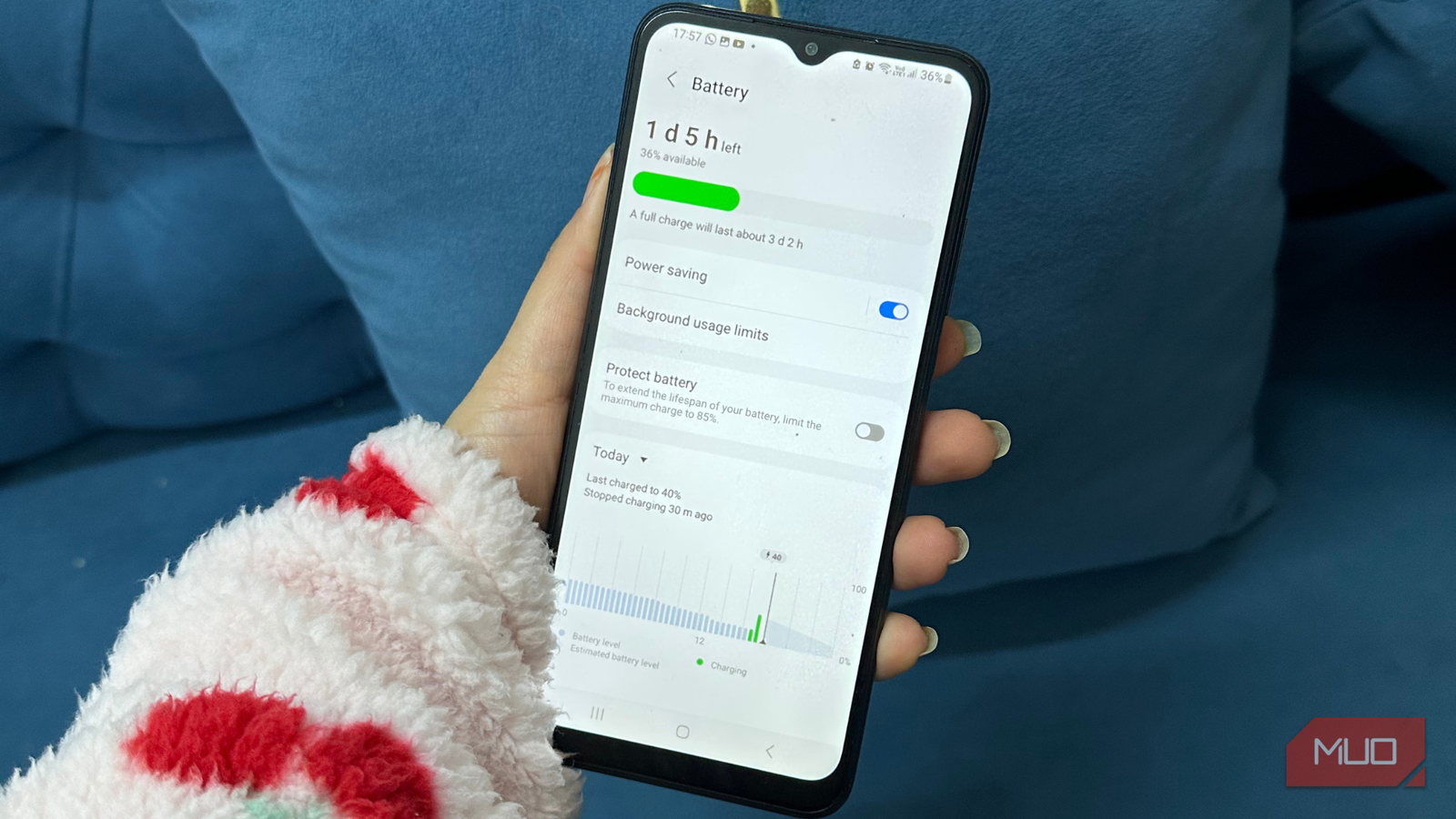
For a long time, I thought my phone’s declining battery was because of the aging hardware. Bigger and brighter displays, powerful processors, and advanced connectivity all come at a cost. I used to charge my smartphone twice and made sure to carry a power bank when I’m outdoors for long hours. I was being super-curious to tweak around the settings app; I did something simple yet super effective: I checked my app permissions.
Within just a few days of revoking three permissions, my phone’s battery life nearly doubled. No, I didn’t uninstall a dozen apps or close them unnecessarily, switch to low power mode all the time, or stick to a dimly lit display. I just stopped letting my apps do things they don’t even need to do. After doing so, I realized that permissions are the real battery hogs and need to be taken seriously.
Background Activity
The hidden cost of apps working behind the scenes
All iPhones have a Background App Refresh feature that lets apps run processes even when you aren’t actively using them. Android smartphones have a similar feature that, by default, allows all downloaded apps to run in the background. This allows them to sync data with their servers to fetch new content for you. While it’s a convenient feature that gives you the most up-to-date content every time you open that app, it also consumes unnecessary power. On top of it, not every app needs to work in the background. For instance, it makes sense for cloud storage services, but not every game or social media app.
While checking my phone, I found that several apps were running in the background even though I use them rarely. I decided to turn off background activity for unnecessary apps. You can do this by opening the app’s info and going to Settings -> Battery -> Restricted. Unarguably, it is one of the most effective ways to fix battery drain on your smartphone.
Location Services
A silent battery hog
There’s no doubt that location access is one of the most power-hungry permissions on any smartphone. This gets worse when you set location access to “Allow all the time” with a precise location. That’s because precise location uses GPS, Bluetooth, Wi-Fi, and your phone’s sensors to determine exactly where you are. On the other hand, the approximate location uses Wi-Fi or mobile data and consumes a lot less power.
While checking out which apps can track my location, I found out a lot of unnecessary apps like shopping and social media have requested precise, always-on access. It makes sense for navigation and ride-hailing apps to use precise location for greater accuracy. For other apps, I tweaked the location access permissions. For instance, I disabled location access for social media and shopping apps, and switched to approximate location only for news, weather, and other apps.
Bluetooth and Nearby Device Scanning
Restrict it to essentials
Even if you turn off Bluetooth, many smartphones continue to scan for background Bluetooth and nearby devices as long as apps have the permissions. While this offers convenience, such as fast pairing, nearby sharing, and more, it also comes at a cost. I found that several apps I rarely used still had the permission to continuously scan for Bluetooth devices. This would activate Bluetooth and networking components, preventing my phone from staying in deep sleep mode. While each scan uses little power, frequent wake-ups would trigger battery drain.
I restricted Bluetooth and access to nearby devices to only essential apps. This change doesn’t just feel better; my battery graphs got a lot flatter, and I enjoyed more screen time.
My experience: before vs after
There’s a whole lot of difference
Pankil Shah / MakeUseOfCredit: Pankil Shah / MakeUseOf
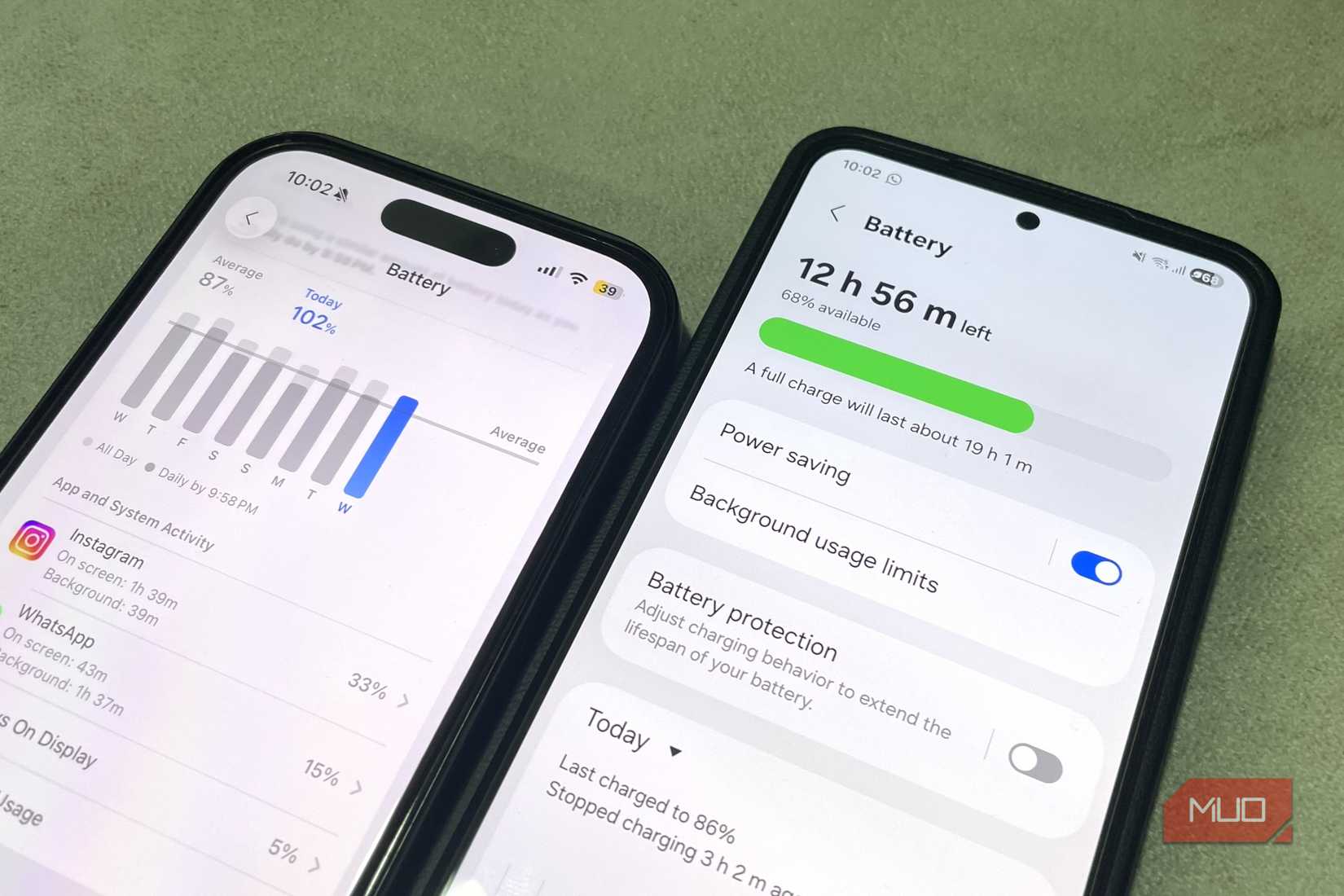
Before I revoked these permissions, my phone barely lasted a day, and I had to charge it again in the evening or at night. Sometimes, I also felt my phone was warmer than usual, even with light usage. I noticed frequent battery drain by a few levels even when my phone is idle. When I used to get up in the morning, I would see that my phone’s battery had dropped by around 15% overnight. Due to all this, I always used to carry a power bank in my bag all the time. After all, who would want to deal with a dead phone?
Once I disabled these nifty permissions, my smartphone lasted around a day and a half on a single charge. Now, the overnight battery drain is only around 5%, which makes sense. My phone stays cooler, especially when it’s sitting idle, because there’s no unnecessary background battery drain. Above all, I got rid of that midday charging anxiety. All of these changes came from permission changes, without deleting any apps or upgrading my smartphone.
What I didn’t disable (and why)
Some permissions still matter, after all
Pankil Shah / MakeUseOfCredit: Pankil Shah / MakeUseOf
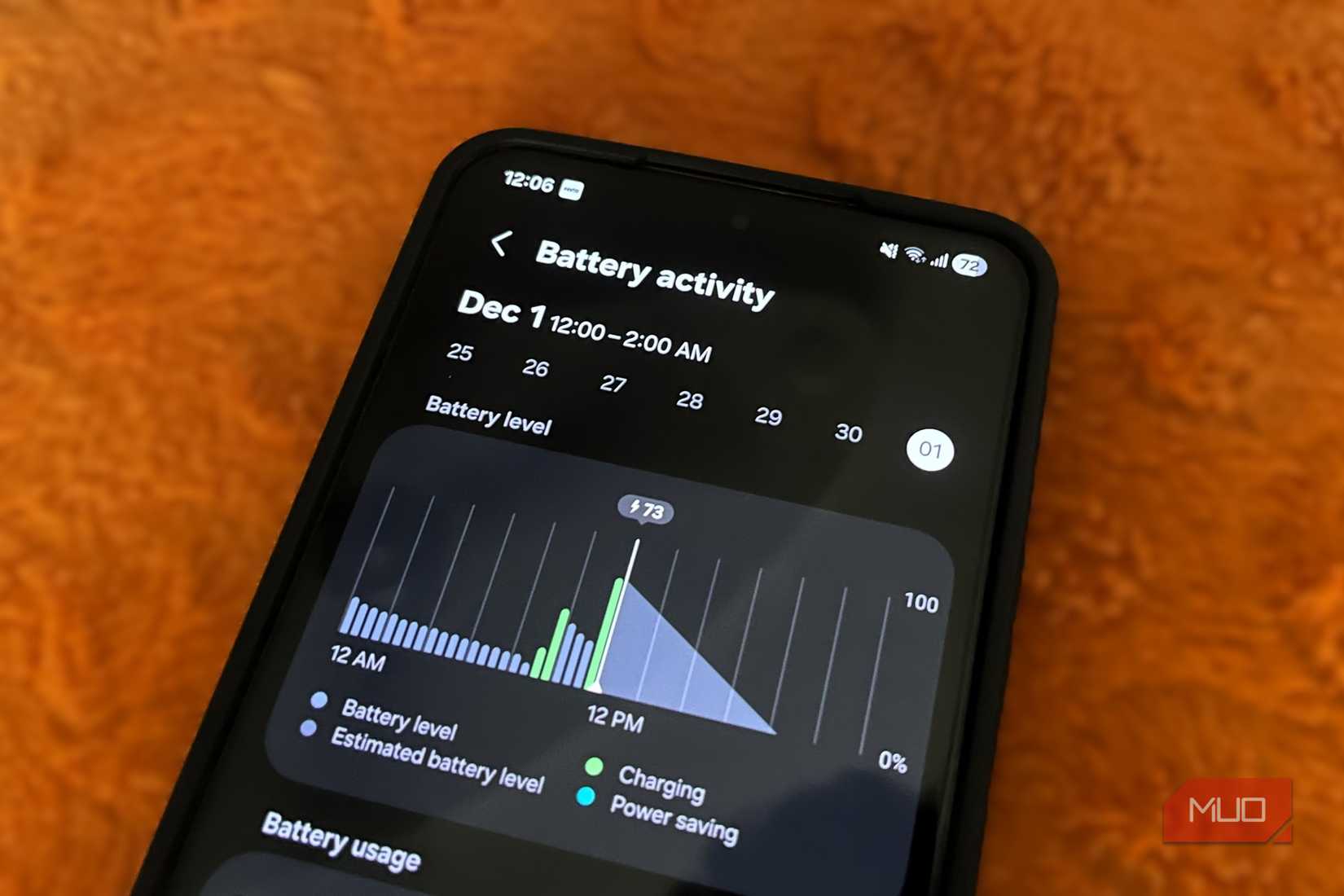
While checking out permissions on my phone, my goal wasn’t to disable or revoke every permission. Rather, I wanted to focus on the ones that can help me stop unnecessary background behavior. I didn’t disable all notifications and alerts on my phone because it makes no sense to me. Yes, I thoughtfully trimmed notifications from apps that I rarely use or don’t care about. I didn’t disable core permissions for system apps because they can do more harm than good. If you disable crucial system permissions, it can cause stability issues and increase battery drain.
I didn’t turn off Wi-Fi because I use it all the time, and turning it off would make only a slight difference in the battery. Coming to another important factor, the microphone and camera permissions on your smartphone. Many users believe that these permissions consume unnecessary power because they activate multiple hardware components and do intensive processing. While this is somewhat true, it largely depends on the app. I haven’t disabled camera and microphone permissions for each app. Rather, I’ve closely monitored each app and revoked access from the ones that certainly didn’t need them.
Related
Why I Always Check App Permissions Before Hitting Install (and How to Do It)
Taking a moment to check these settings can save you from problems down the line.
Permissions are real battery hogs
Thanks to the optimized hardware, software, and built-in tools, modern smartphones are pretty efficient. However, some nasty permissions can hamper this efficiency. There are some apps that don’t need to be opened to drain the battery. All they need is permission. By managing background activity, location access, and nearby device scanning, I almost doubled my smartphone’s battery life without compromising on functionality. If you feel your phone doesn’t last longer or needs a battery replacement, don’t replace it just yet. Spare some time and check permissions on your smartphone. Also, pay close attention to what apps are allowed to do on your device. You might be surprised to see how small changes can make your Android smartphone last longer.