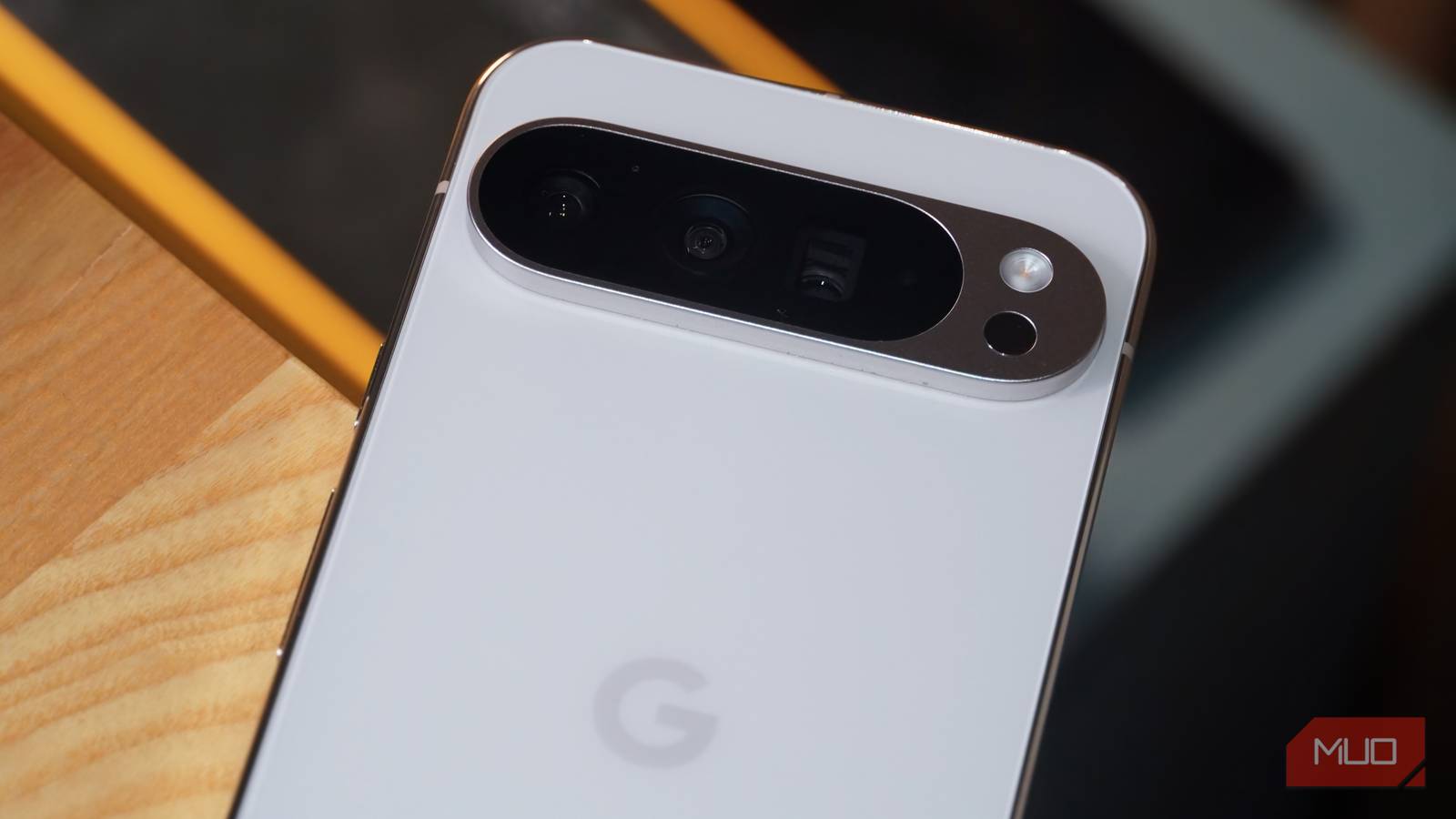
Google Pixel phones are jam-packed with camera options, both on the hardware and software side of things. Features like Camera Coach, Auto Best Take, and Video Boost improve the quality of your photos and videos. The latest Google Pixel 10 series includes a triple-camera system on all four models paired with a custom image-signal processor for excellent computational photography. However, that’s not all your Pixel phone camera can do — it can also provide conversational help, translate foreign languages, identify objects, and digitize paper documents.
Chat with Gemini Live
Give the voice assistant the context of your environment
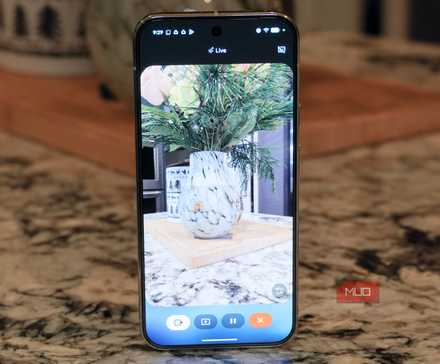
Google Pixel phones were some of the first Android devices to receive Gemini Live’s camera sharing support. For the uninitiated, Gemini has a text-based chat mode and a basic voice assistant mode. You can alternatively use Gemini Live for a continuous, free-flowing conversation with Google AI models. Beyond the audio mode of Gemini Live, users can share their live camera feed to provide the AI model with visual context, improving the quality of your responses.
To start chatting with Gemini Live, Pixel users can long-press the power button until the Gemini interface appears. Tapping the Live button, which looks like an audio wave with a sparkle, starts the continuous conversation. Finally, pressing the camera icon in the Gemini Live interface will open up your Pixel phone’s real-time camera feed. This activates a multimodal experience, providing Gemini with text, audio, and visual details simultaneously.
With the context of your environment, Gemini Live can guide you through troubleshooting steps, furniture assembly, meal prep, and plenty of other household tasks. Gemini Live is uniquely positioned to handle these tasks, as a live camera feed can reveal more about your situation than a Google Search query or a still Google Lens image.
Related
4 practical ways to use Gemini’s camera mode around the house
If you aren’t using multimodal Gemini Live, you’re missing out on a smarter way to troubleshoot household problems.
Translate text
Get real-time translations of documents, menus, and more
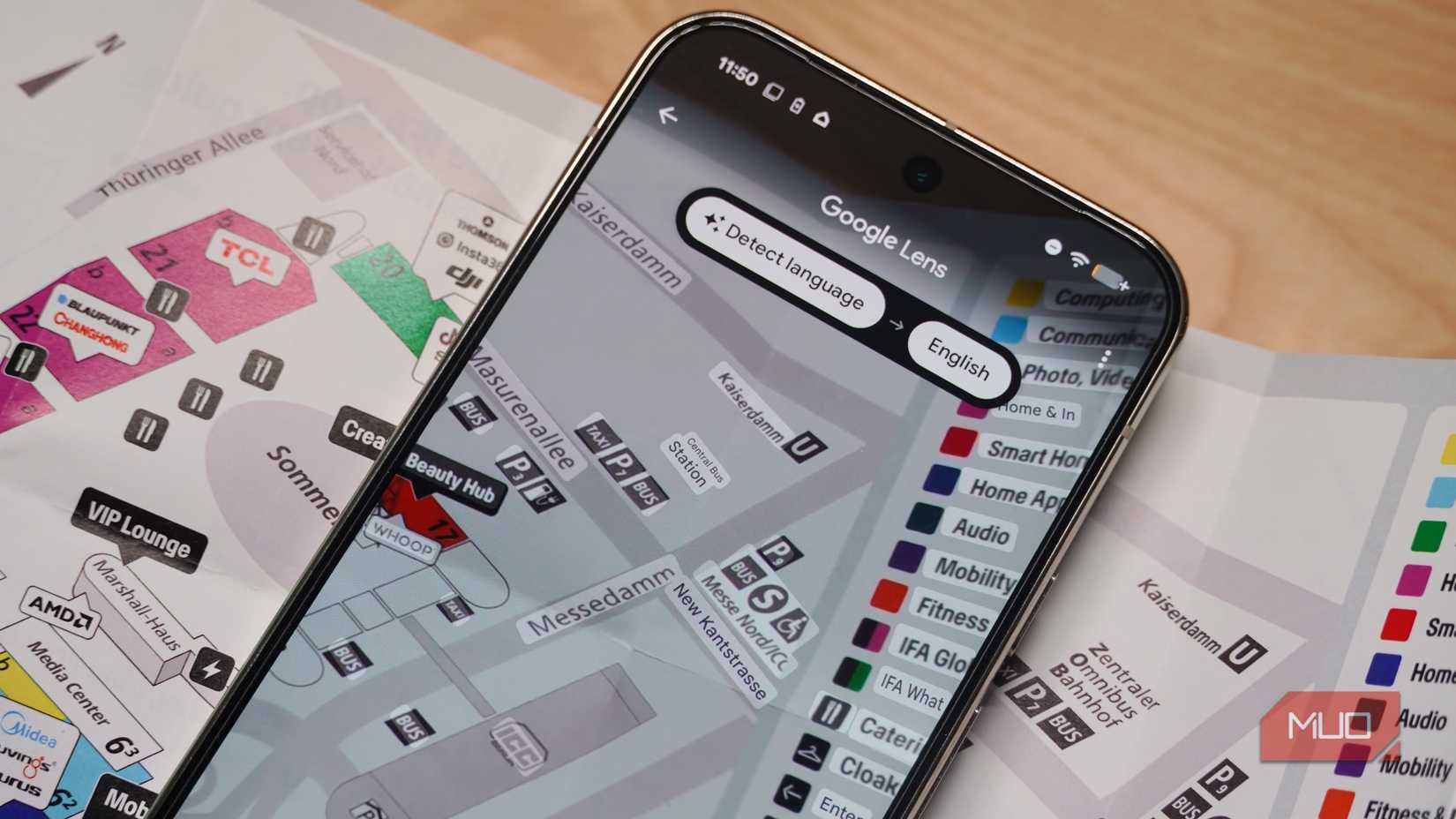
Credit: Brady Snyder / MakeUseOf
Google Lens started out as a basic image search tool but has since evolved to serve many functions, including language translation. By taking a photo with Lens, you can quickly decipher signs, menus, documents, and other text written in a foreign language. The tool can automatically detect the text’s language and translate it to your Pixel phone’s system language. It overlays translated text exactly where the original text was located on the image, making it easy to read maps and signs exactly as they were meant to be presented.
On a Pixel phone, using the rear camera to translate text is as easy as tapping the Lens button on the home screen. It’s part of the Google Search widget, which is a mainstay of the home screen while using the stock Pixel Launcher.
Search with Google Lens
Find anything on the web using your Pixel’s camera
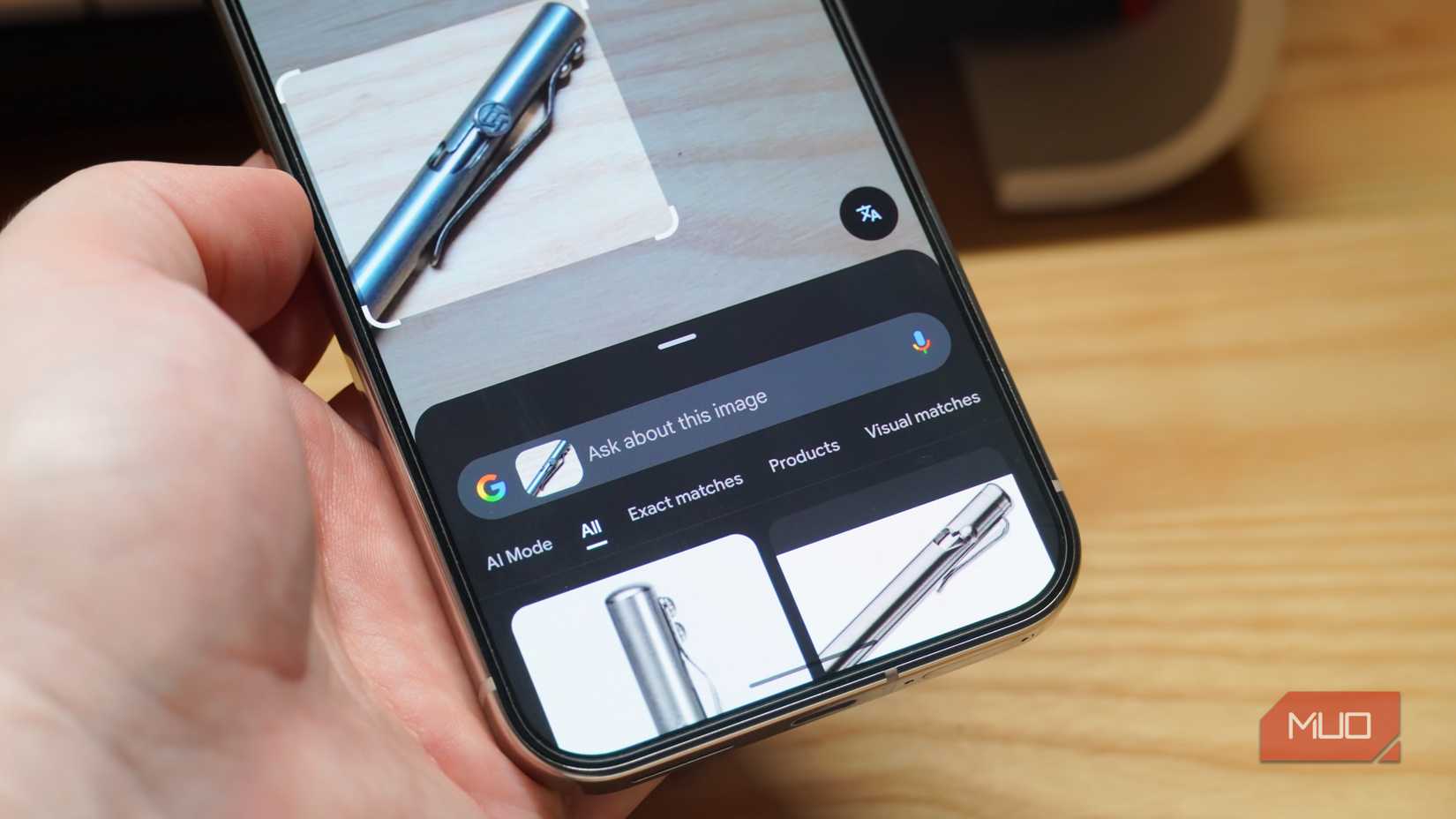
Credit: Brady Snyder / MakeUseOf
Google Lens can also identify objects in your surroundings using the camera, and it’s easier to access on a Google Pixel phone. Any Android phone, and any iPhone with the Google app installed, can make use of Google Lens. Pixel users have the benefit of Lens being just one tap away, since the default launcher includes a Google Search widget on the home screen. Besides the text field and dictation button, there’s a camera icon for Google Lens. By tapping it, you can search for anything your Pixel phone camera can see against Google’s image library.
Credit: Brady Snyder / MakeUseOf
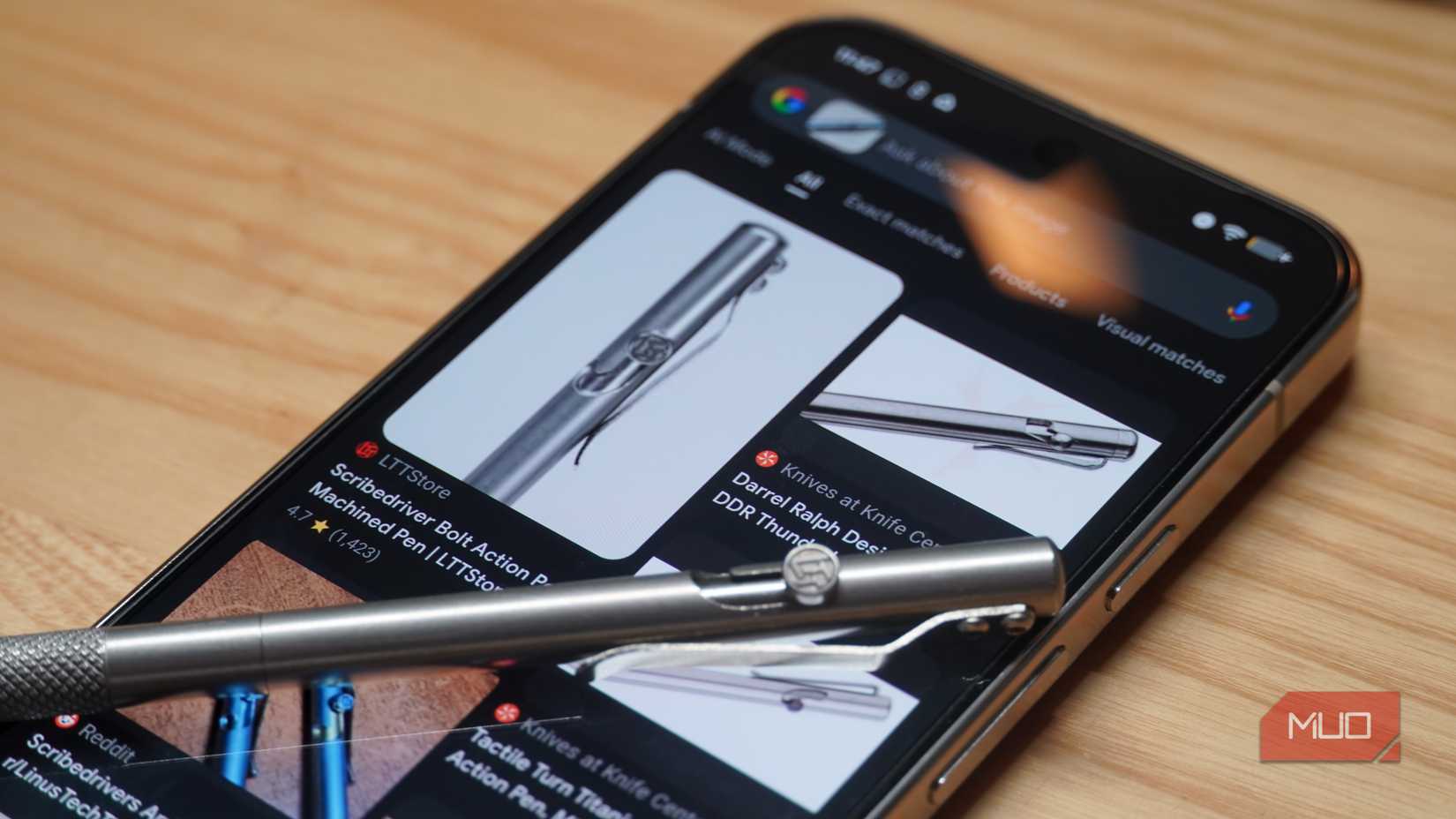
Lens works best for identifying products, surfacing purchase links, and information about items you encounter in the wild. For example, I used my Pixel to identify a pen on my desk, and it found the exact model and presented an online store link in seconds. It’s also great for identifying signs, landmarks, art pieces, or anything else you might want to learn more about.
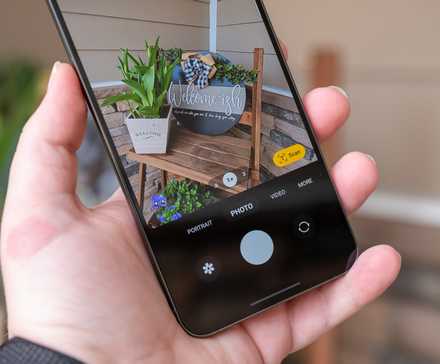
After tapping the Lens icon in the Google Search widget on Pixel phones, center the object in the viewfinder you want to scan, and tap the shutter button to search.
Related
10 Clever Ways Google Lens Makes Life Easier on Android
The perfect pocket companion.
Scan documents
Document scanning is built into the Pixel Camera app
Credit: Brady Snyder / MakeUseOf
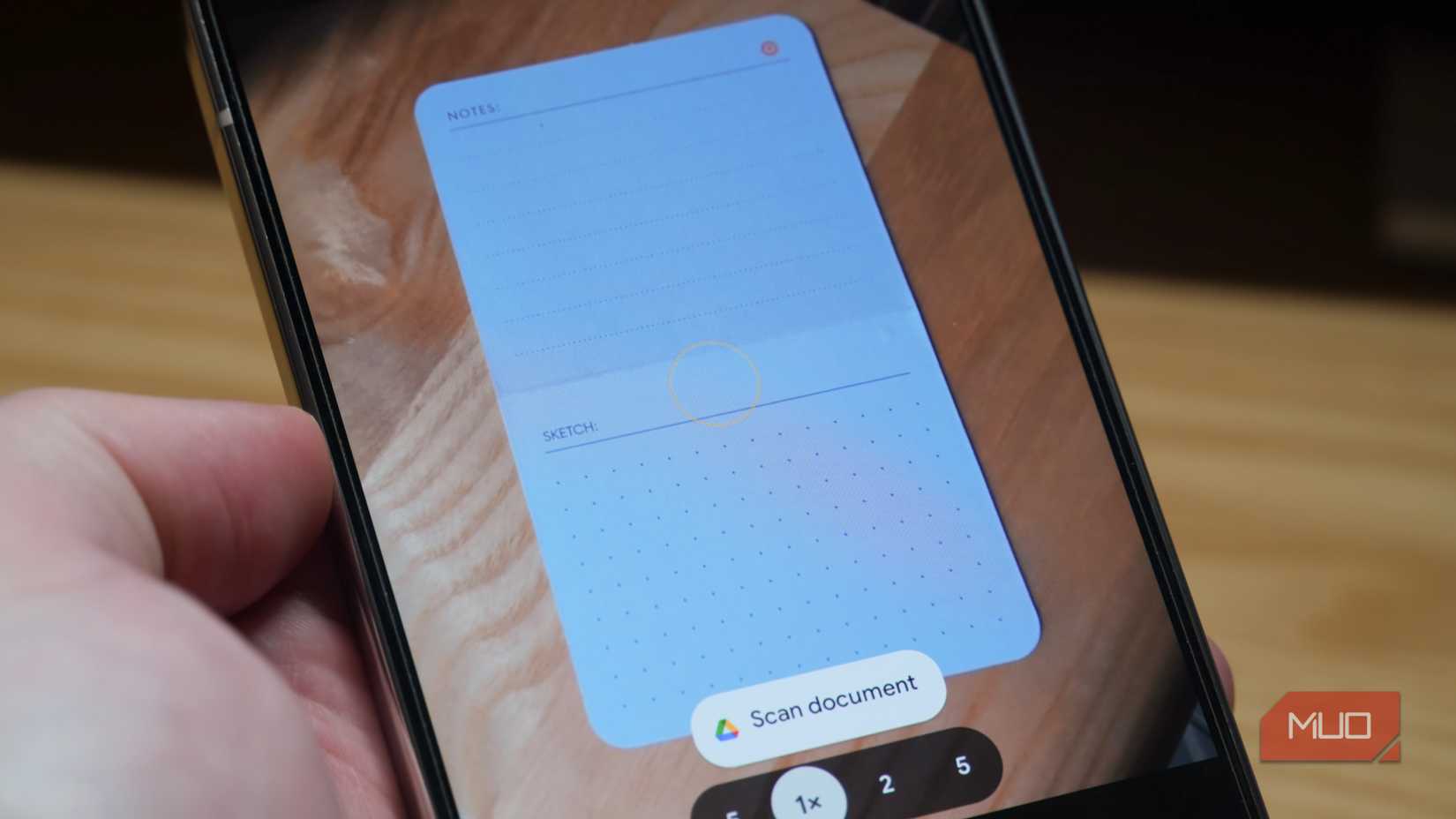
Google Pixel phones have a built-in document scanner that can quickly identify and digitize paper documents. While other Android phones can scan documents with the Google Drive or Files by Google apps, only Pixel handsets have this functionality included within their stock camera app. After opening the Pixel Camera app, pointing the camera at a physical document brings up a Scan document button. Tapping it will reveal a scanning interface that captures your document using the Pixel camera, with an option to clean up certain parts of the scan.
From there, you can press Done and one of the Save, Download, or Share options to add the scan to your Google Drive or export it somewhere else. The process saves a few steps compared to other Android phones, incorporating a document scanning tool right into the Pixel Camera app.
Honorable mention: measure temperature
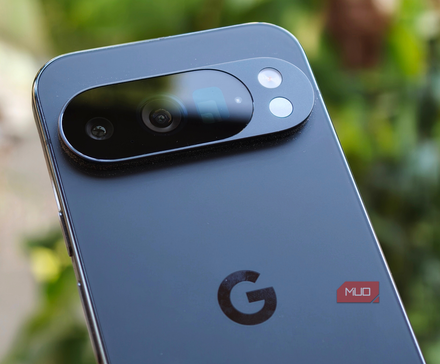
Although it’s technically not a camera feature, I’d be remiss if I didn’t mention the temperature sensor on the Pixel 8 Pro, Pixel 9 Pro, and Pixel 10 Pro (and their XL models). Google included an infrared sensor on these Pro models as part of the rear camera bump, allowing them to measure temperatures of objects, foods, drinks, and surfaces. It’s a handy tool that can check the surface temperature of just about anything.
Related
I can’t believe this sensor has been on my Pixel 10 Pro all along
An easy-to-miss sensor on the Pixel Pro lineup delivers real utility.
This feature uses the infrared sensor, not a camera. However, like the LiDAR sensor on recent iPhone Pro models, the temperature sensor on supported Pixel phones is an underrated part of the overall camera experience. Combined with Google Lens, Gemini Live, and Google Drive document scanning, Pixel phones have a surprising number of camera features that have little to do with taking photos and videos.