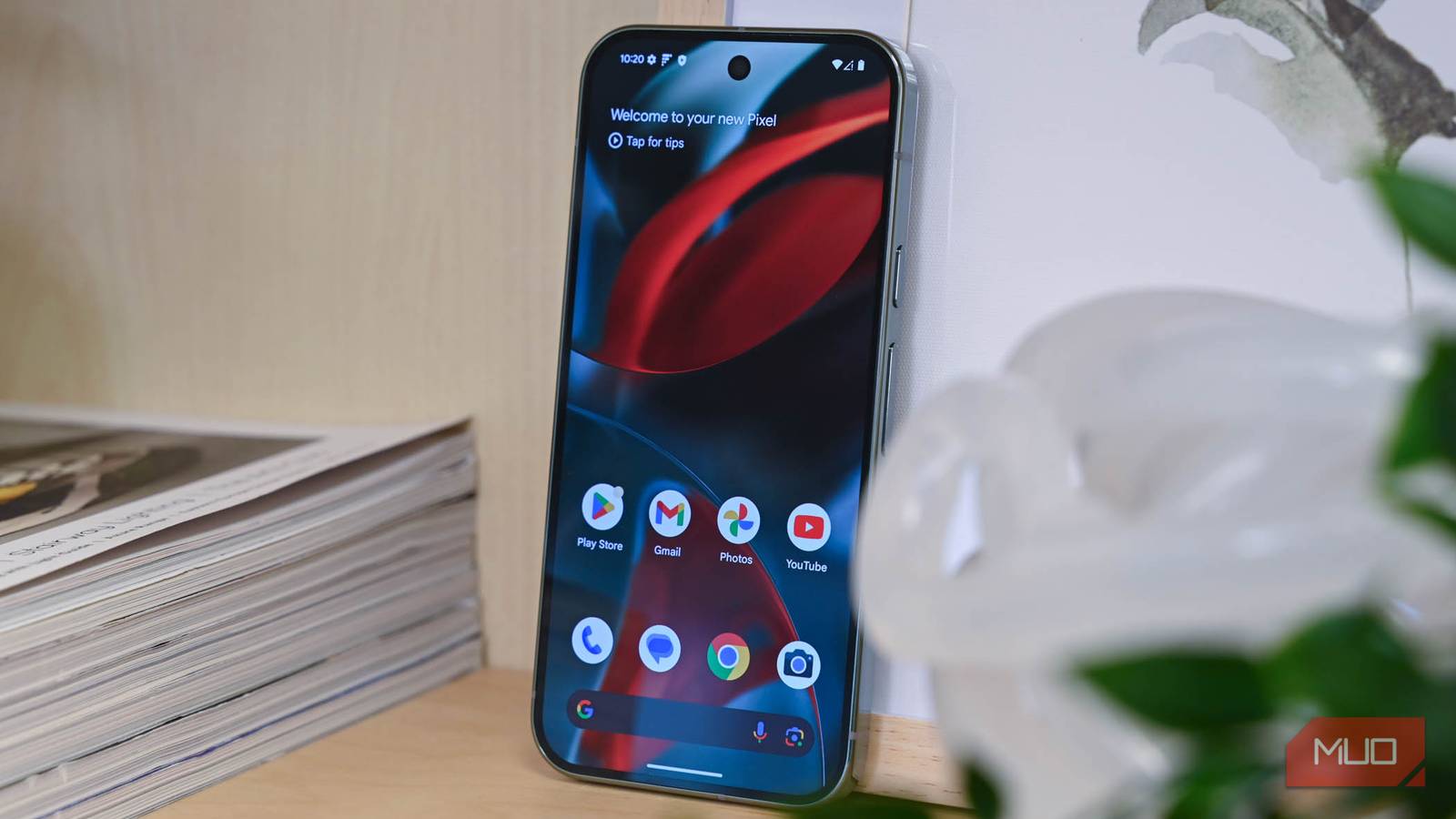
A slow Android phone is something that you don’t expect to deal with until a year or two after buying it. That gradual slowdown is normal, almost unavoidable. What’s not normal is experiencing that same sluggishness just days or weeks after buying a brand-new phone.
In most cases, this comes down to outdated software, default performance settings, and even preinstalled apps doing too much in the background. This kind of performance drop isn’t noticeable on flagship models, but those can benefit from a bit of optimization.
Install software updates
The fix most people ignore
 Screenshot by Pankil Shah — No attribution required
 Screenshot by Pankil Shah — No attribution required
 Screenshot by Pankil Shah — No attribution required
New phones often ship with a version of Android that was finalized months before the devices reached store shelves. So when you finally get your hands on it, there’s a good chance it’s already running outdated software.
This can cause problems in two ways. First, your phone misses out on the latest performance improvements both Google and your phone manufacturer have made to the software. Second, if the early software has any bugs that affect speed, animations, or battery behaviors, you’ll have to deal with them until you install the latest update.
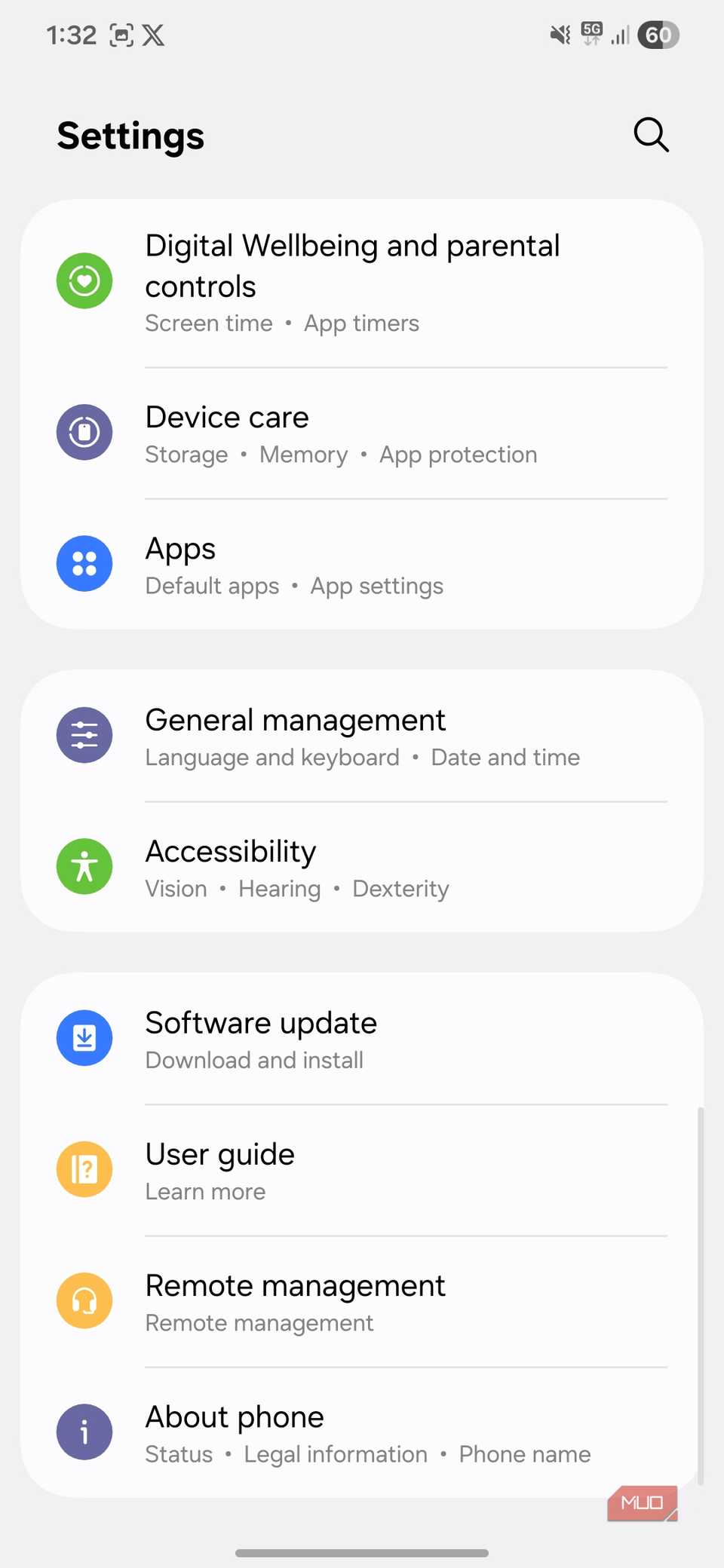
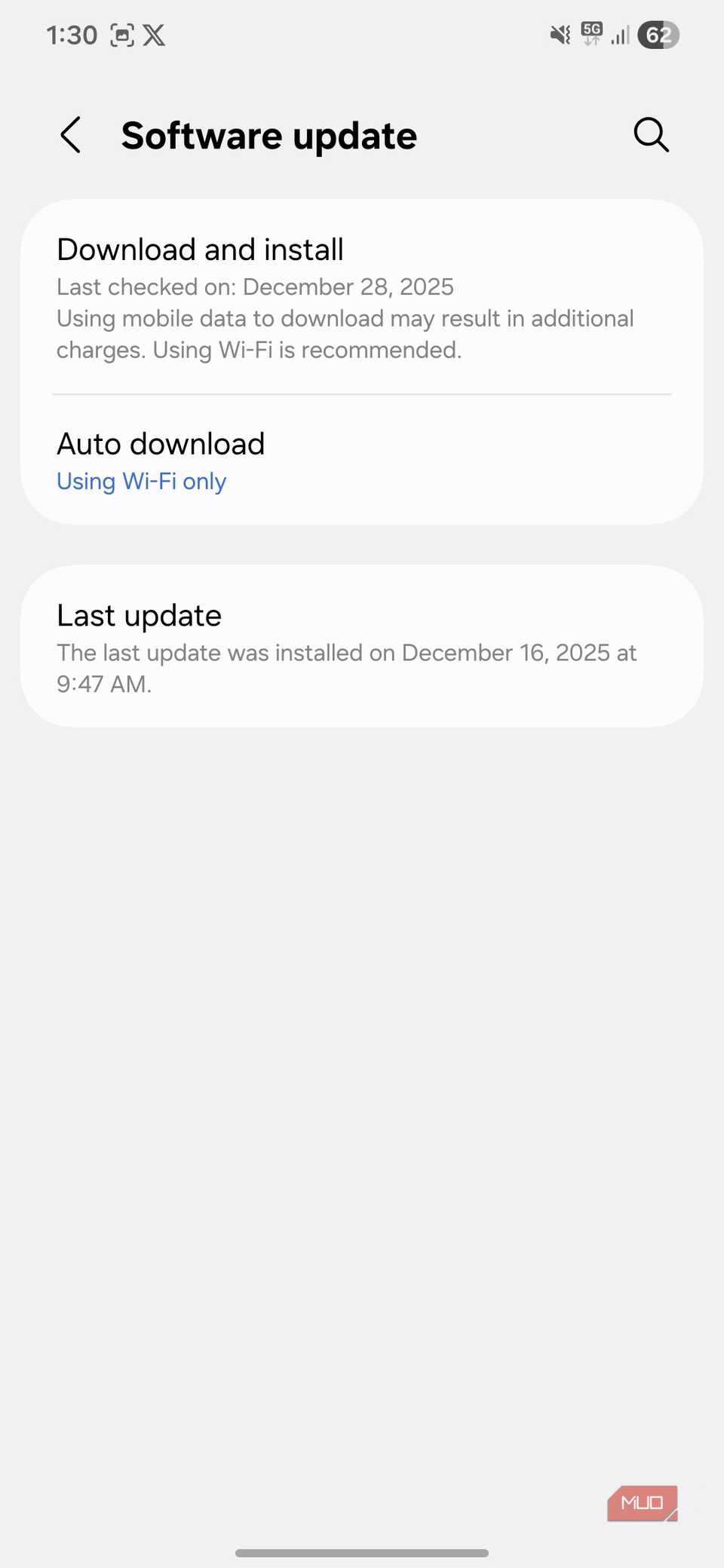
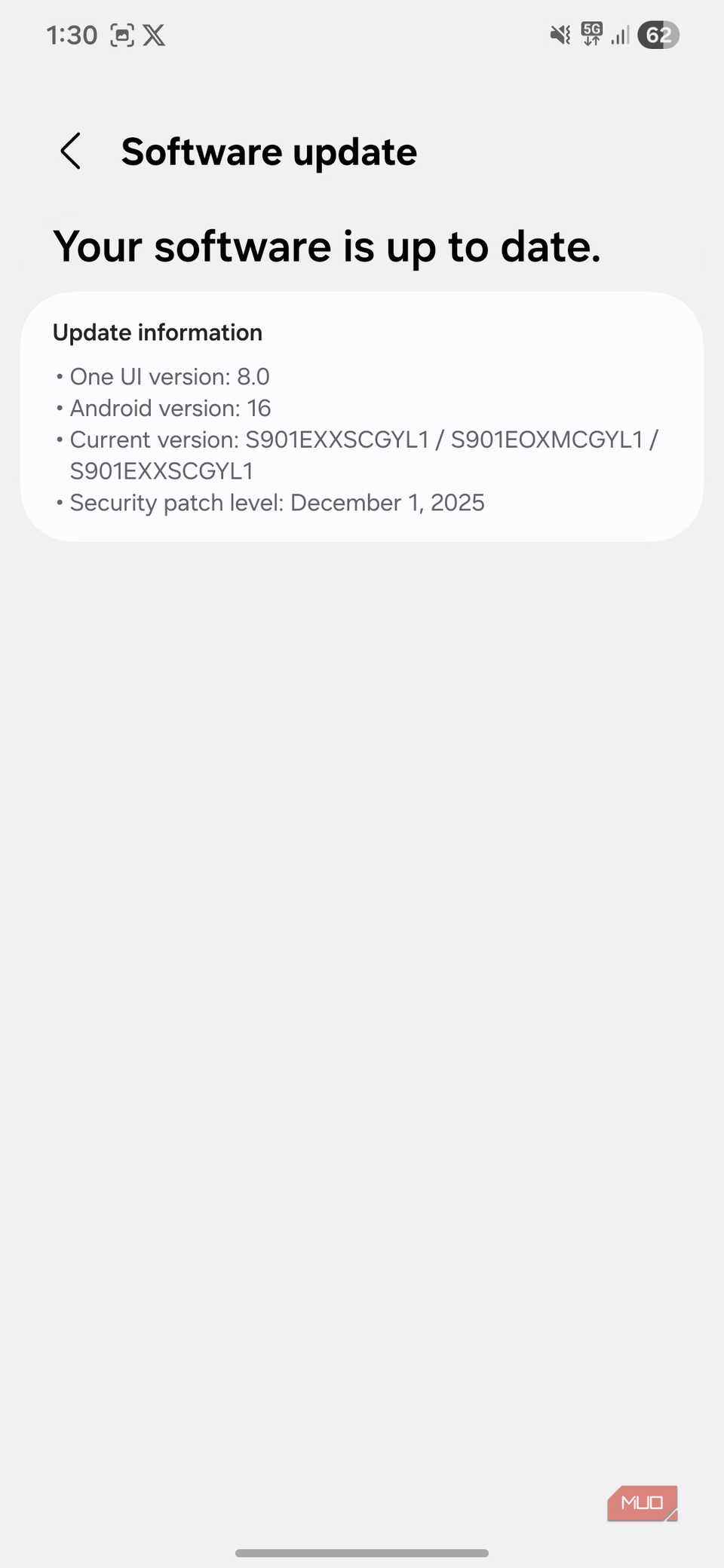
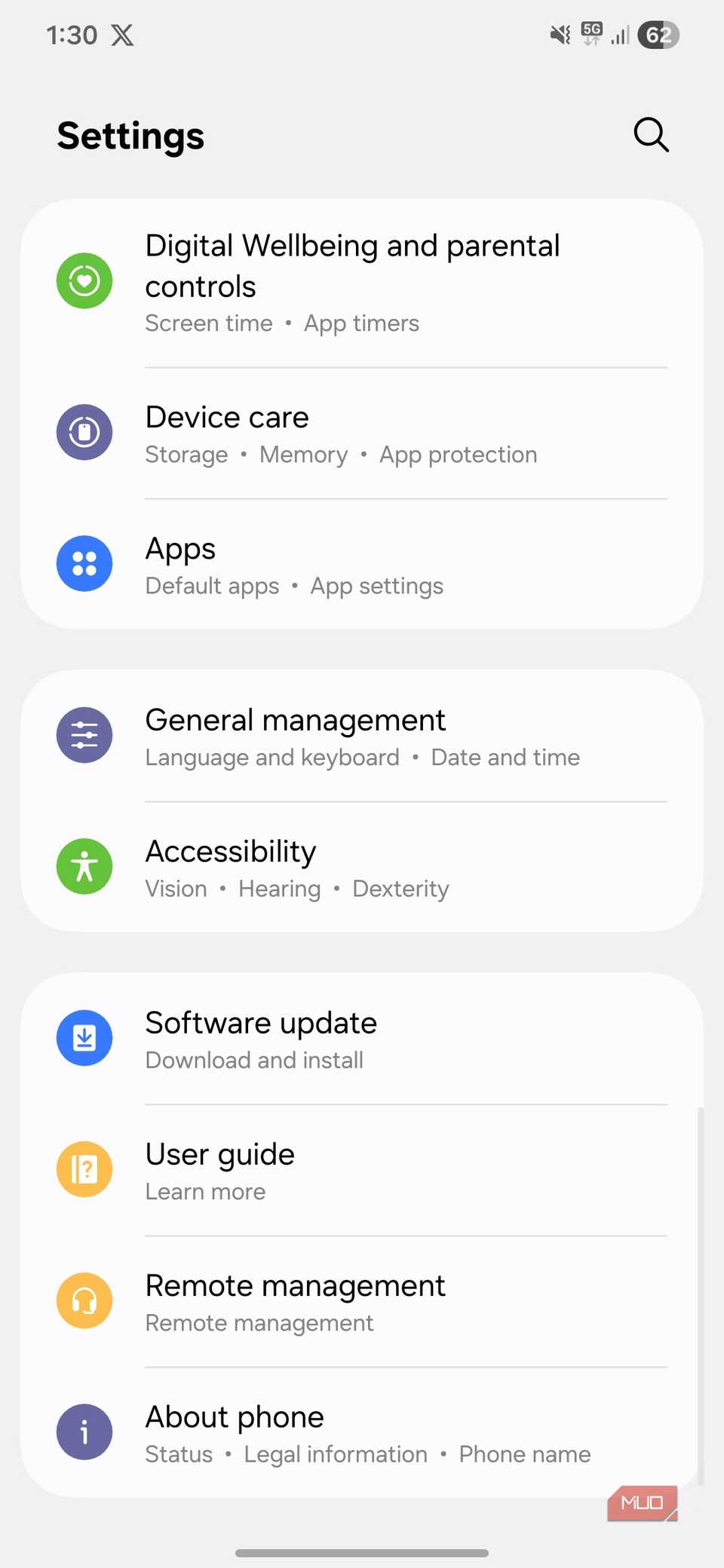
The fix is simple. Head to Settings > Software update and check for any pending updates. Of course, this isn’t a one-time thing. You should make it a habit to check for software updates regularly.
App updates are equally important. Most preinstalled apps are likely to be outdated by the time you get the phone. This means you’re missing out on the latest improvements the developer has made. To fix this, head to the Play Store and update all your apps. You can also turn on automatic updates from there so you don’t have to keep checking for them manually.
Check performance settings
Turn up the speed you already paid for
 Screenshot by Pankil Shah — No attribution required
 Screenshot by Pankil Shah — No attribution required
 Screenshot by Pankil Shah — No attribution required
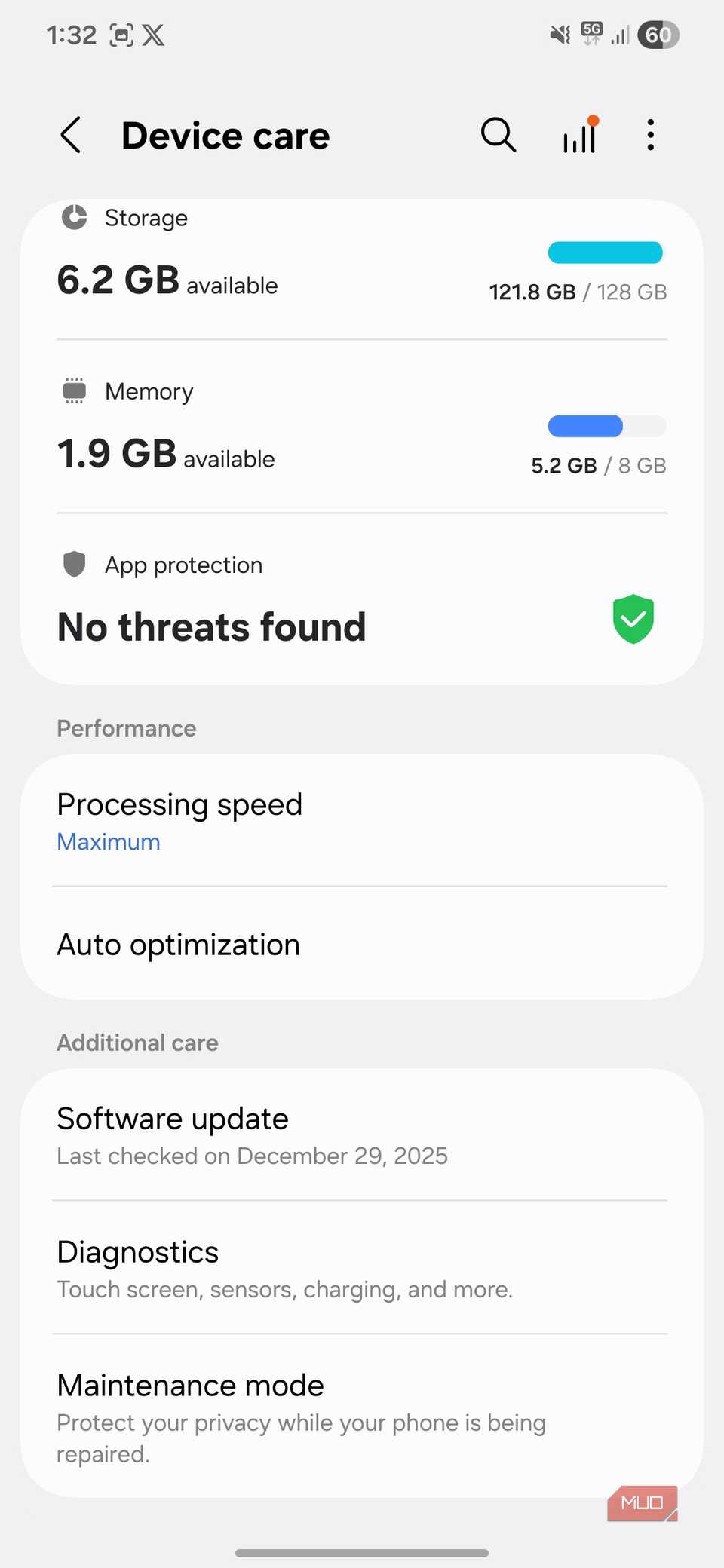
Out of the box, most Android phones are set up to strike a balance between speed and battery efficiency. In a way, this makes sense. Your phone tries to feel fast while still lasting all day and staying cool. For most people, this works fine. But if you’re chasing raw performance, this isn’t ideal.
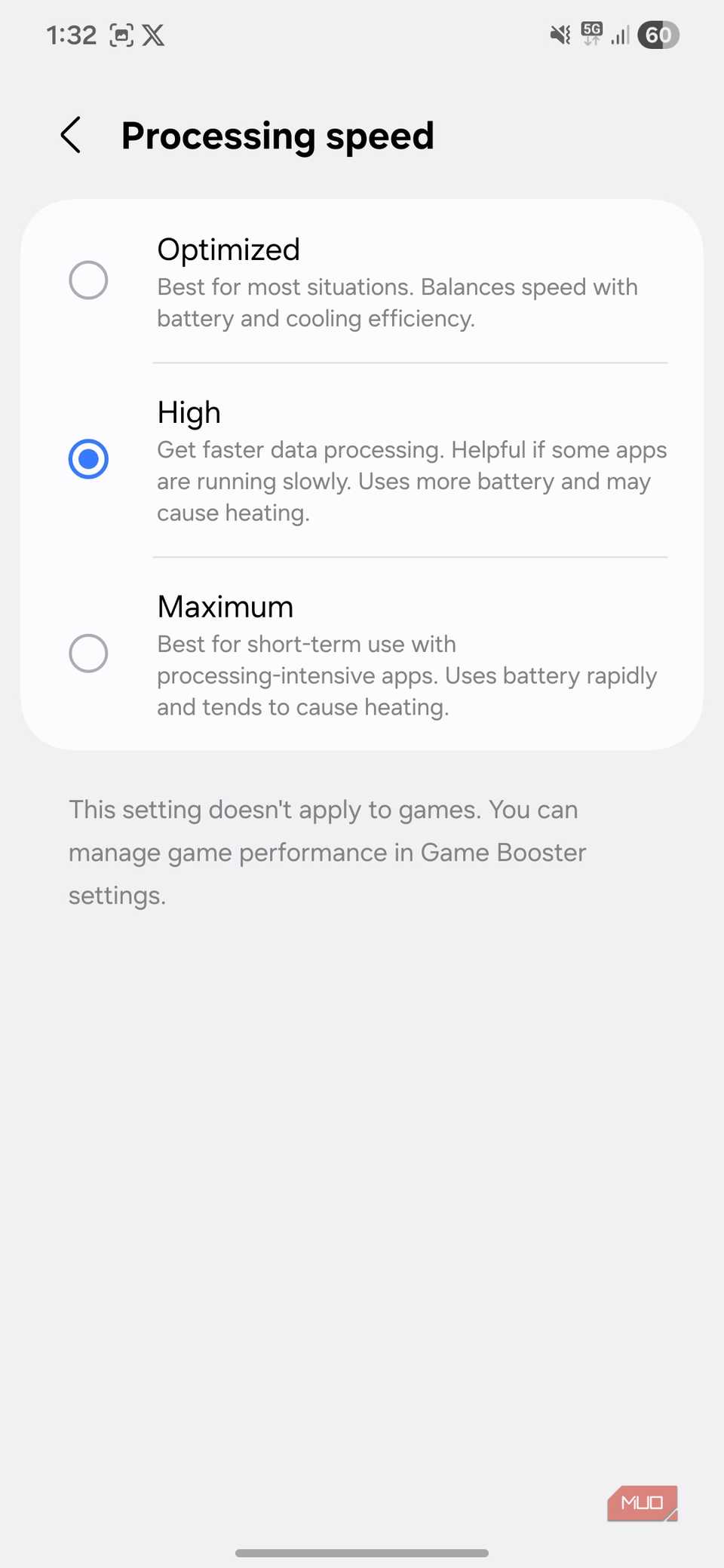
By default, Samsung Galaxy phones have processing speed set to Optimized. What most users never realize is that there are higher settings available, including High and Maximum.
Switching to these modes allows the phone to process data faster, and this can make a world of a difference. Apps can open more quickly, animations feel smoother, and multitasking becomes more responsive. You can also add a toggle in the Quick Settings panel to switch between different modes easily.
Get rid of bloatware
Cut the dead weight
Depending on your phone’s model, this can either be a serious performance issue or barely an issue at all. Bloatware refers to a collection of preinstalled apps that come on your phone for various reasons. Sometimes it’s the manufacturer promoting their own services. Other times, it comes from partnership with app developers or even mobile carriers.
Samsung phones, for instance, come with duplicate apps for things Android already offers, such as browsers, calendar apps, or cloud storage. Carrier models can add even more apps.
These apps not only take storage space but also consume RAM and affect battery life. Some of these may run in the background, send notifications, and wake up for no good reason. All of that adds up to slower performance and less responsive behavior.
The frustrating part is that most Android phones don’t include an option to uninstall these apps. The best you can do is disable them. But if you want to be more thorough, it’s also possible to get rid of these preinstalled apps without root. Once you do, you’ll be surprised how lighter and faster your phone feels after trimming the excess.
I Follow These 8 Steps to Keep My Phone Running Like New
It’s good to have a tech ritual.
Look out for problematic apps
Hunt down the real performance killer
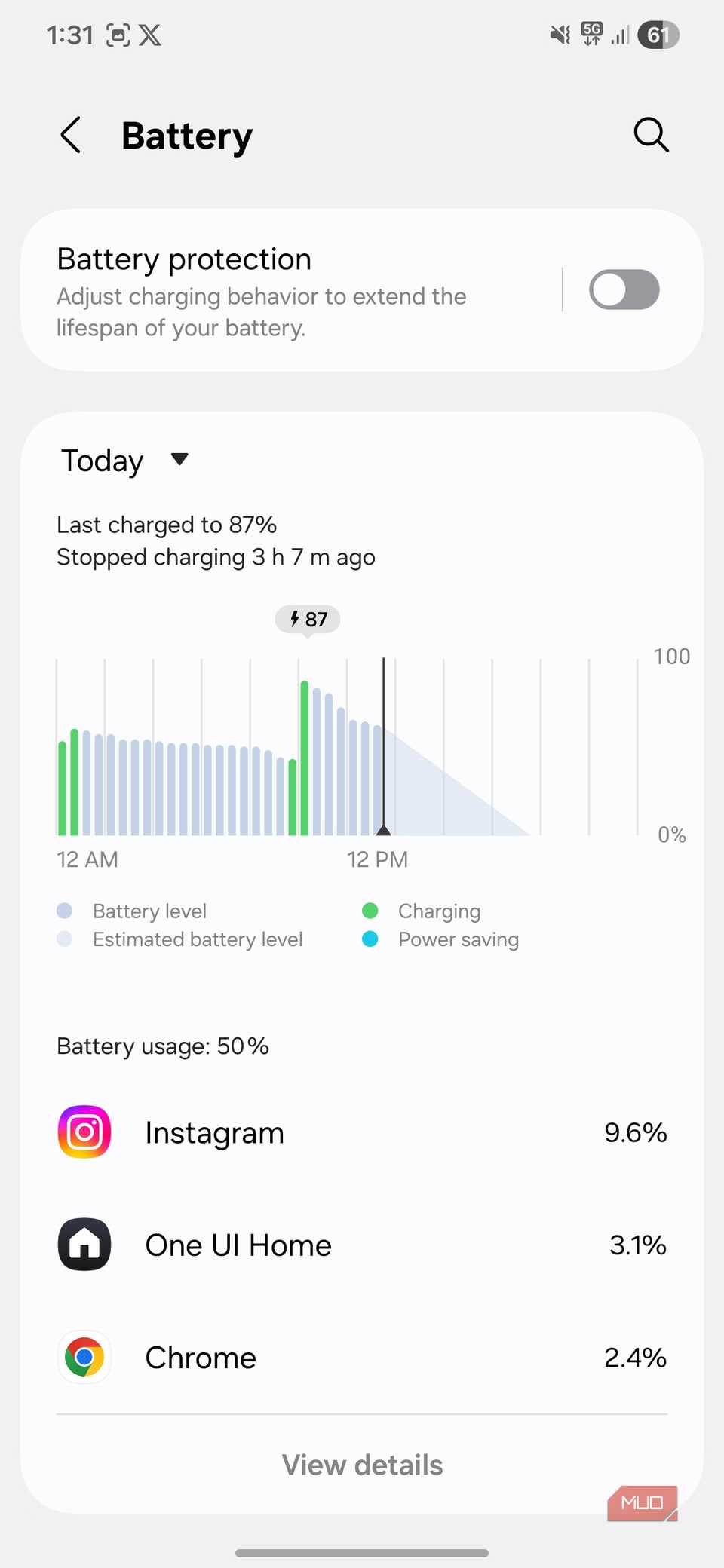 Screenshot by Pankil Shah — No attribution required
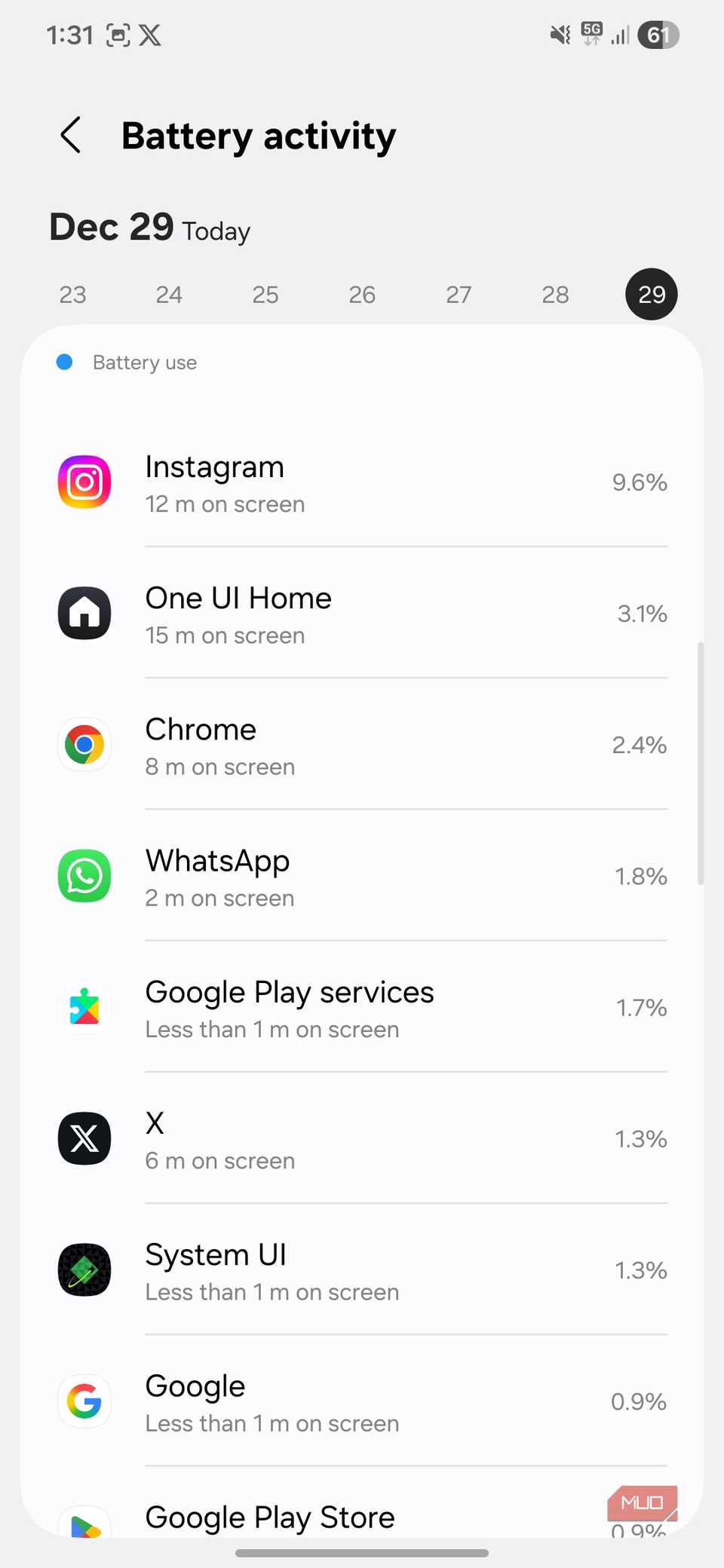 Screenshot by Pankil Shah — No attribution required
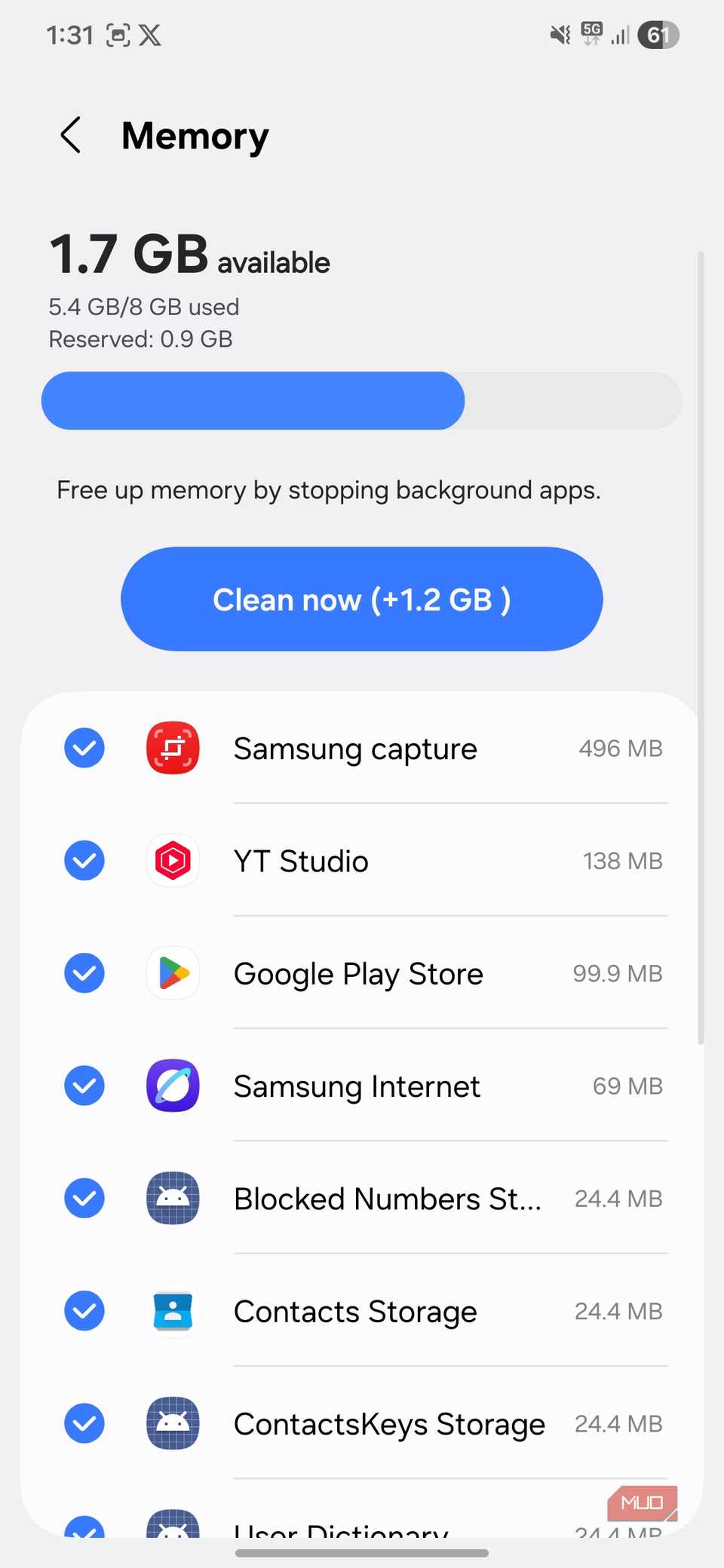 Screenshot by Pankil Shah — No attribution required
The first thing you’re likely to do after getting a new phone is install your favorite apps. Sometimes one too many. Now, installing apps isn’t a problem in itself, but it’s worth knowing that not all apps are created equal. And sometimes, all it takes is just one misbehaving app to make your entire phone feel slow or laggy.
The easiest way to spot such apps is by checking the battery usage menu. If you see an app you barely use near the top of the list, that’s a clear red flag. You can also dive into your phone’s RAM usage menu to identify apps that are using too much RAM on your phone.
If you find any app that’s using way too much battery or RAM, it’s best to get rid of it and replace it with an alternative.
The difference between using an Android phone and enjoying it mostly comes down to speed and performance. Applying the above tweaks shouldn’t take long, and the benefits will last you well beyond the first few months.