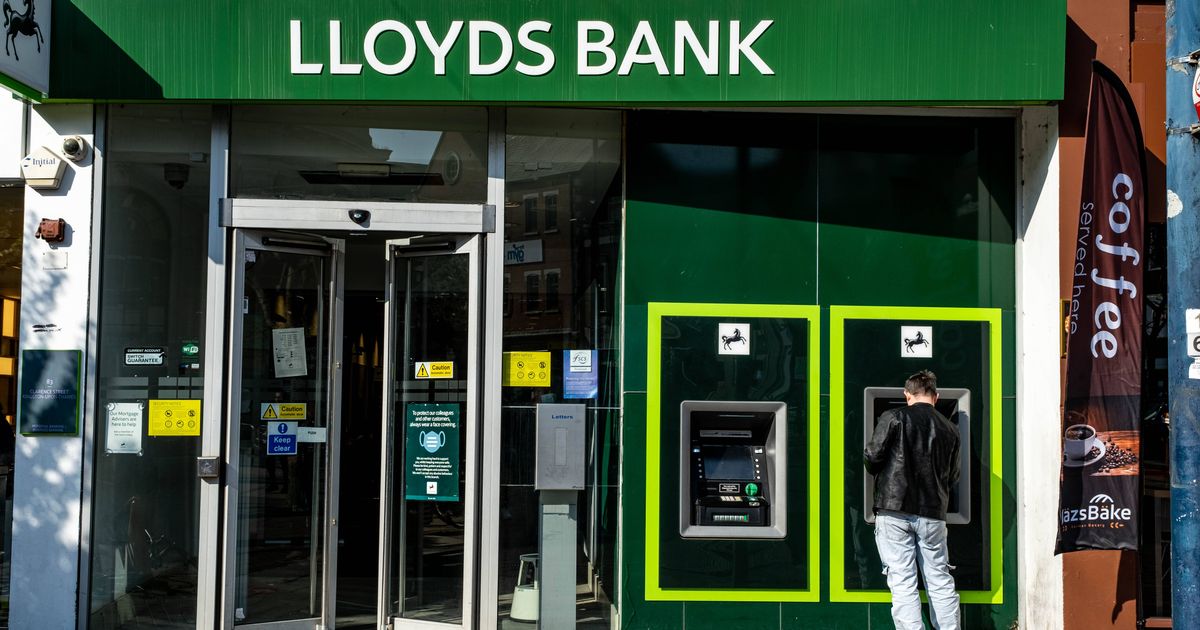
Lloyds Bank has clarified rules for Google Pay including payment restrictions and the chip-and-PIN requirement for credit card setup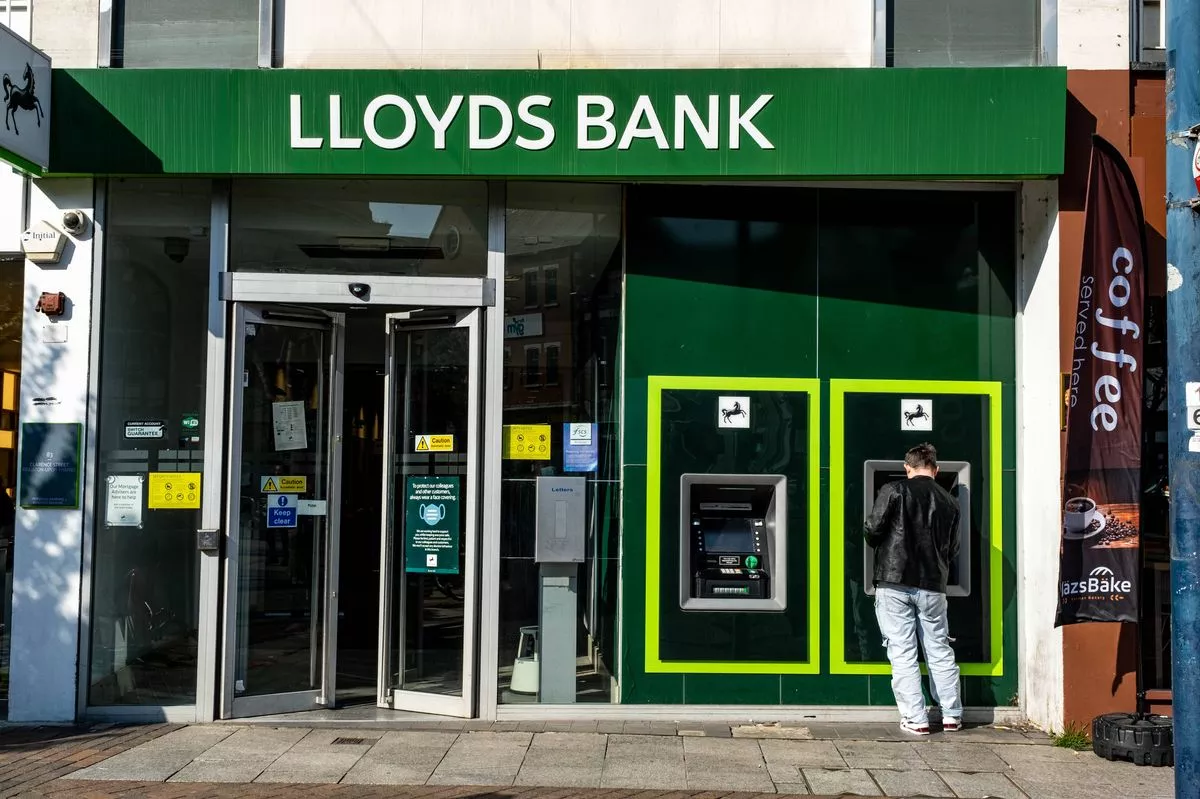 Lloyds Bank has clarified rules for Google Pay including payment restrictions and the chip-and-PIN requirement(Image: martinrlee via Getty Images)
Lloyds Bank has issued guidance for customers wishing to utilise Google Pay when making transactions. Those with Android devices are able to configure Google Pay for routine purchases.
The service permits transactions exceeding standard contactless card thresholds. Additionally, customers can take advantage of Lloyds‘ Everyday Offers on both debit and credit card purchases conducted through this method.
Information regarding the service on the Lloyds website carries this cautionary note: “We may restrict the value or number of payments you can make using Google Pay. Carry your debit or credit card with you just in case.”
One customer reached out to Lloyds via social media after encountering difficulties whilst attempting to configure Google Pay. They explained: “My credit card arrived today but states in the app that it cannot be used on Google Pay.
“Is this a thing or do I just need to do a chip and PIN transaction before adding to Google Pay?” Lloyds replied to clarify the procedure for establishing the feature, reports the Express.
The bank stated: “You should be able to add your Lloyds credit card to Google Pay once it’s activated. Please make a chip-and-PIN transaction first, as this often enables contactless and digital wallet use. If you still see the error after that, send us a DM, and we’ll help.”
How can Lloyds Bank customers configure Google Pay?
Google Pay can be configured via the mobile banking application. To do so, customers should log into the app, select ‘Card’ located in the bottom right corner, then choose ‘Google Pay’.
Firstly, locate the debit or credit card you wish to incorporate and then opt for ‘Add to Google Pay’. Following this, verify your card details and agree to the terms and conditions, after which your card will be integrated into Google Pay.
An alternative method of setting up this feature is via your Google Wallet. To achieve this, download and launch the Google Wallet application.
Choose ‘Add to Google Wallet’ and then select the card you wish to incorporate, adhering to the instructions displayed on-screen. You’ll then need to authenticate the card you’re adding, which will subsequently add your card to Google Pay.
We have a dedicated newsletter for ChronicleLive’s money-saving and cost of living stories. It’s free and you can sign up to receive it here. It will keep you up to date with all the latest money news and budgeting tips as well as stories on the cost of living crisis in our region.
 Join our WhatsApp communities
ChronicleLive is now on WhatsApp and we want you to join our communities.
We have a number of communities to join, so you can choose which one you want to be part of and we’ll send you the latest news direct to your phone. You could even join them all!
To join you need to have WhatsApp on your device. All you need to do is choose which community you want to join, click on the link and press ‘join community’.
No one will be able to see who is signed up and no one can send messages except the ChronicleLive team.
We also treat our community members to special offers, promotions, and adverts from us and our partners.
If you don’t like our community, you can check out any time you like. To leave our community click on the name at the top of your screen and choose ‘exit group’.
If you’re curious, you can read our privacy notice.
Join the ChronicleLive Breaking News and Top Stories community
Join our Court & Crime community
Join the Things to do in Newcastle and the North East community
Join our Northumberland community
Join our County Durham community
Join our Great North Run community
Join our shopping deals and bargains community
Join our Christmas and New Year community