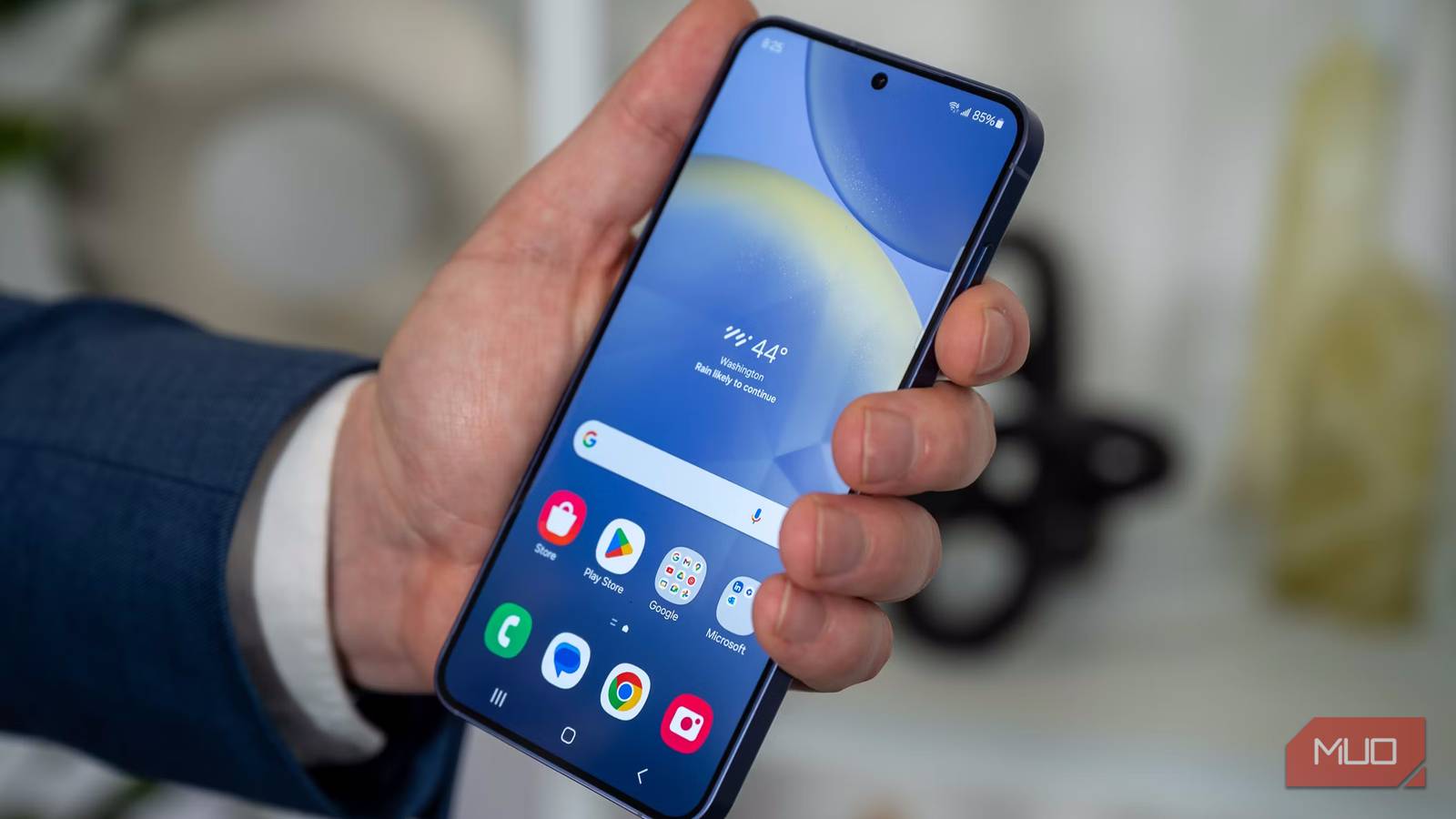
One of the worst things about owning a Samsung phone is the sheer number of apps that come preinstalled. Sure, some of these, such as Phone, Contacts, Messages, Gallery, Notes, and Themes are absolutely essential. But beyond those basics, you’ll also find a long list of pointless apps that you’ll probably never touch.
What’s even more annoying is that Samsung doesn’t make it easy to uninstall most of these apps. But that doesn’t mean you’re completely out of luck. It’s still possible to get rid of unwanted apps using ADB or third-party tools like Shizuku and Canta.
Samsung Members
The all-in-one hub you’ll open once
Samsung Members is an all-in-one hub where you can read tips, community posts, and official brand news. It’s also where you can join beta programs and ask questions to experts directly. Unless you’re the kind of person who enjoys these things, you don’t need this app.
The only useful feature here is the built-in diagnostics menu that lets you test the speakers, microphone, touch input, and sensors on your phone. Even then, it’s not something you need if everything is working as it should. And if you ever need this app later, you can always download it again from the Play Store or Galaxy Store.
Samsung News
Google Discover, but less interesting
 Screenshot by Pankil Shah — No attribution required
 Screenshot by Pankil Shah — No attribution required
 Screenshot by Pankil Shah — No attribution required
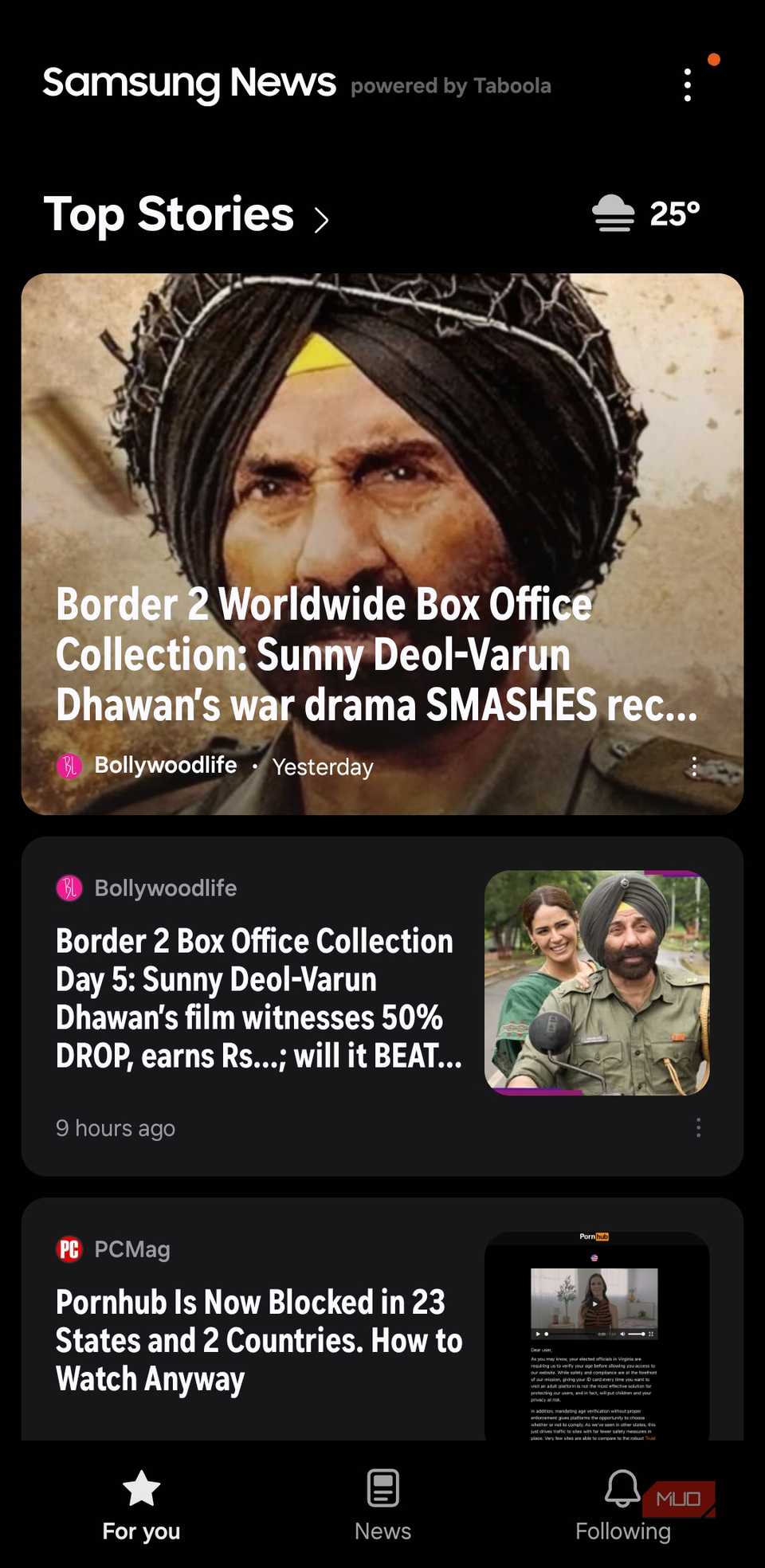
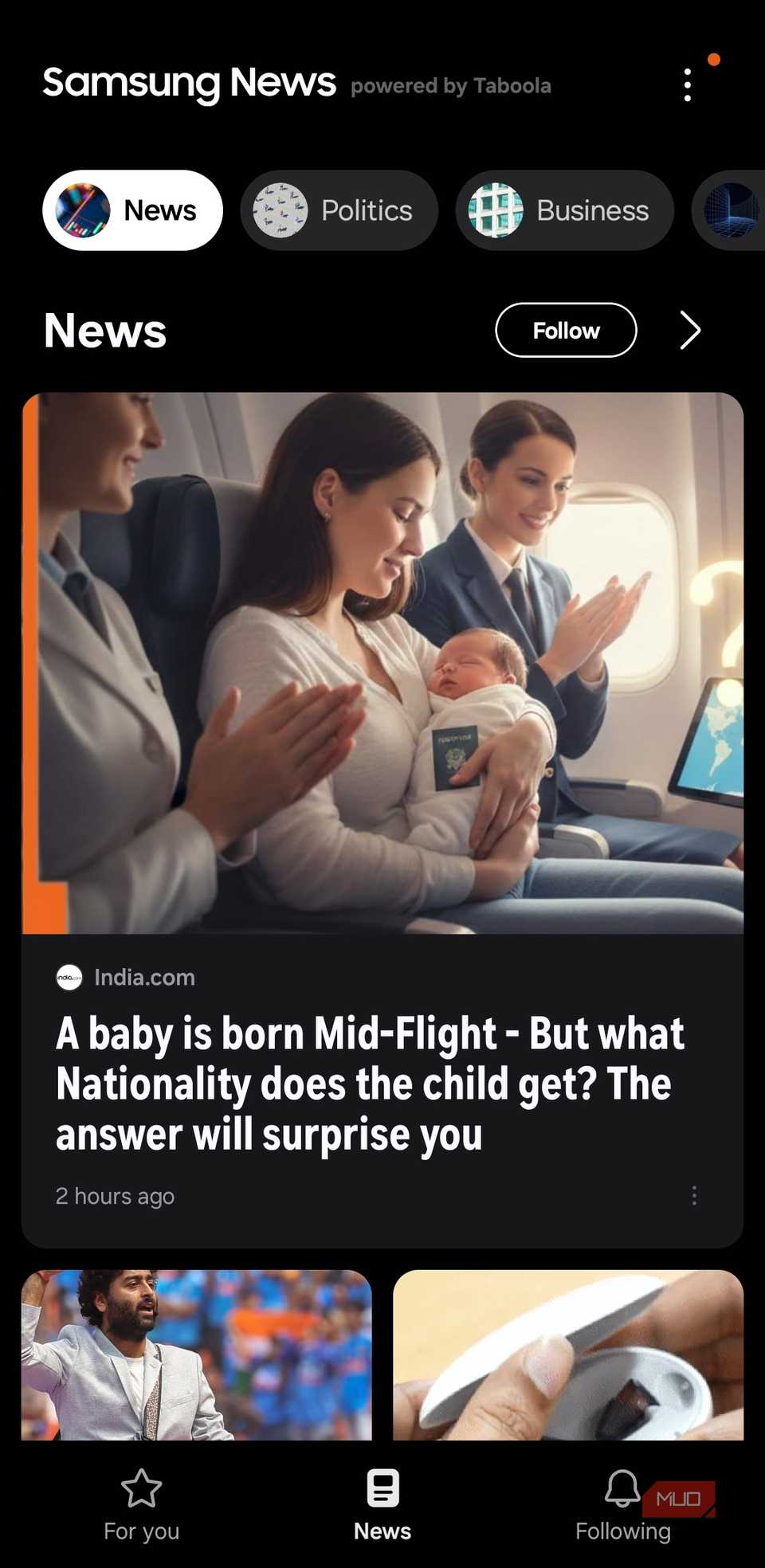
The easiest way to understand Samsung News is to think of it as an alternative to Google Discover. It pulls headlines, stories, and trending topics from various publishers and presents them in a clean feed.
You can even set Samsung News to replace Google Discover by heading to Settings > Home screen > Add media page to Home screen. This way, you can access the news feed by simply swiping left on the home screen. I’ve tried Samsung News myself, and it’s nowhere near good enough. The news stories it shows often feel generic and unrelated.
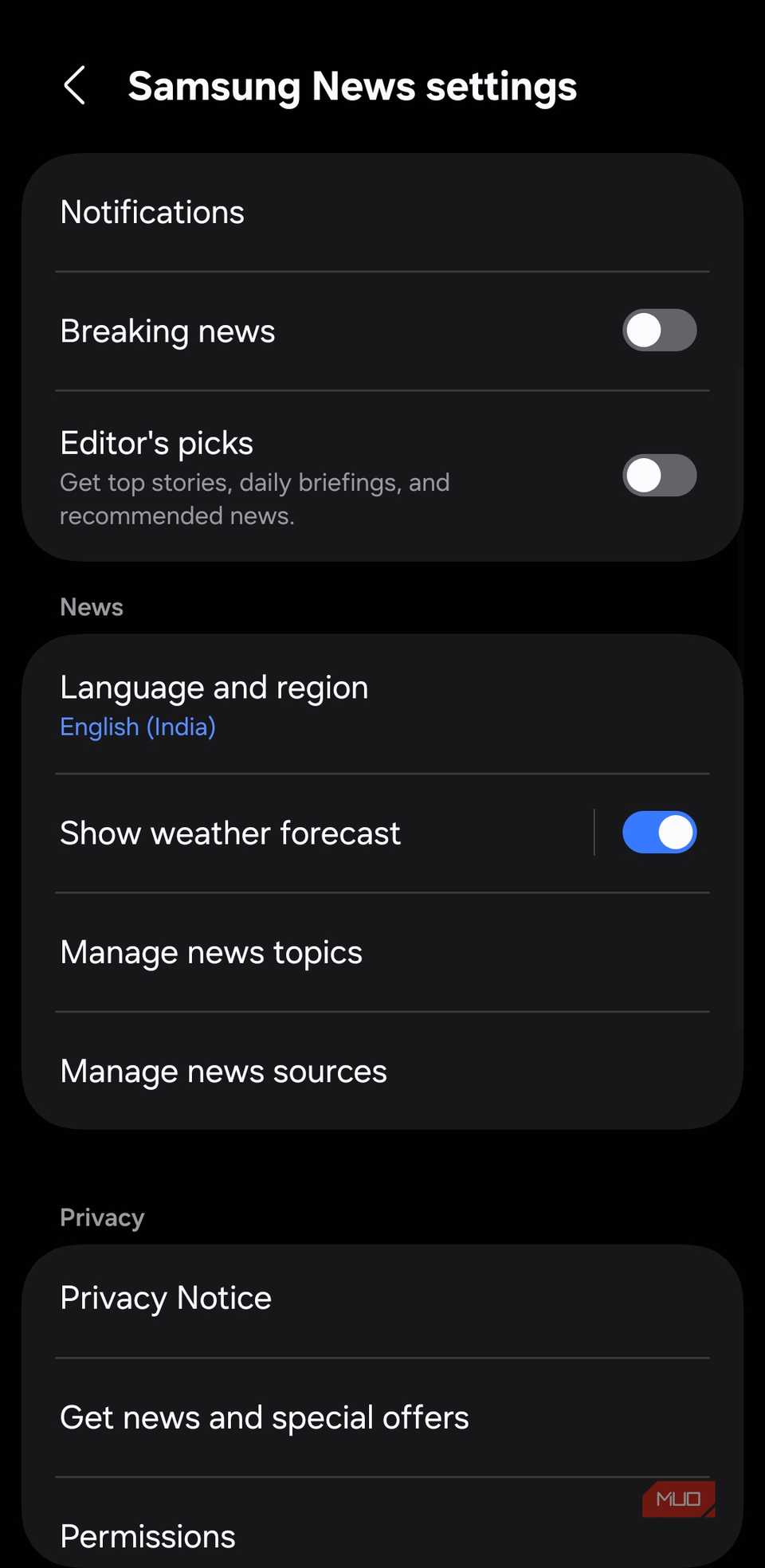
What makes this worse is that even if you never open Samsung News, it’ll still show you alerts you probably didn’t ask for. That’s why it’s usually best to get rid of it.
AppCloud
Discovery or data collection?
Cropped screenshot by Ayush
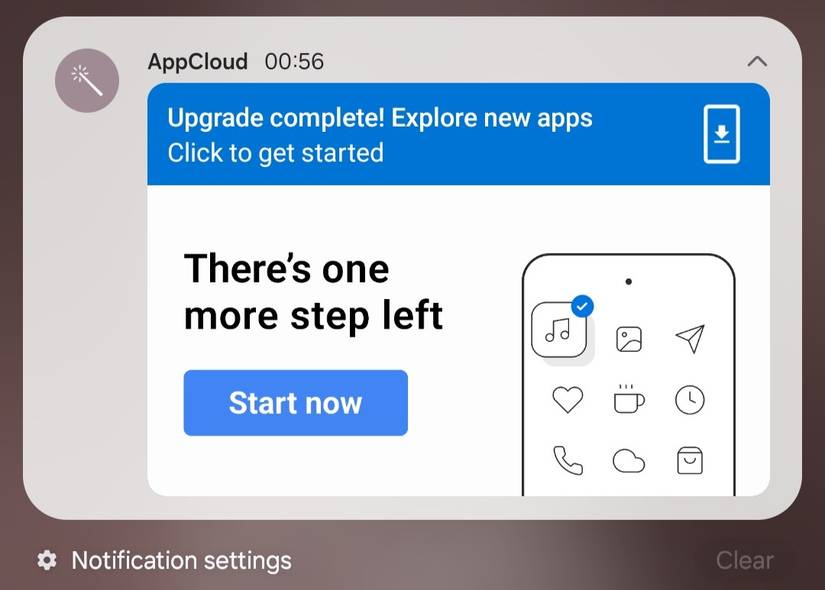
If you have a flagship Galaxy phone, you can skip this. But if you own a budget or mid-range Samsung phone, AppCloud is your worst enemy. Its entire purpose is to watch how you use your phone. It tracks which apps you use and the ones you’re interested in, then uses this data to recommend new apps and games.
In theory, it’s meant to help you discover new apps. In reality, it’s a privacy nightmare. AppCloud can sometimes even install apps automatically without your permission. What’s worse is that Samsung doesn’t give you a simple uninstall or disable button for AppCloud, so your only option is to use ADB.
Related
I’ve used Samsung for years, but these 5 features make me feel like a pro
It’s sad that most Galaxy users never find or try these features.
Bixby
How is it still alive?
 Screenshot by Pankil Shah — No attribution required
 Screenshot by Pankil Shah — No attribution required
 Screenshot by Pankil Shah — No attribution required
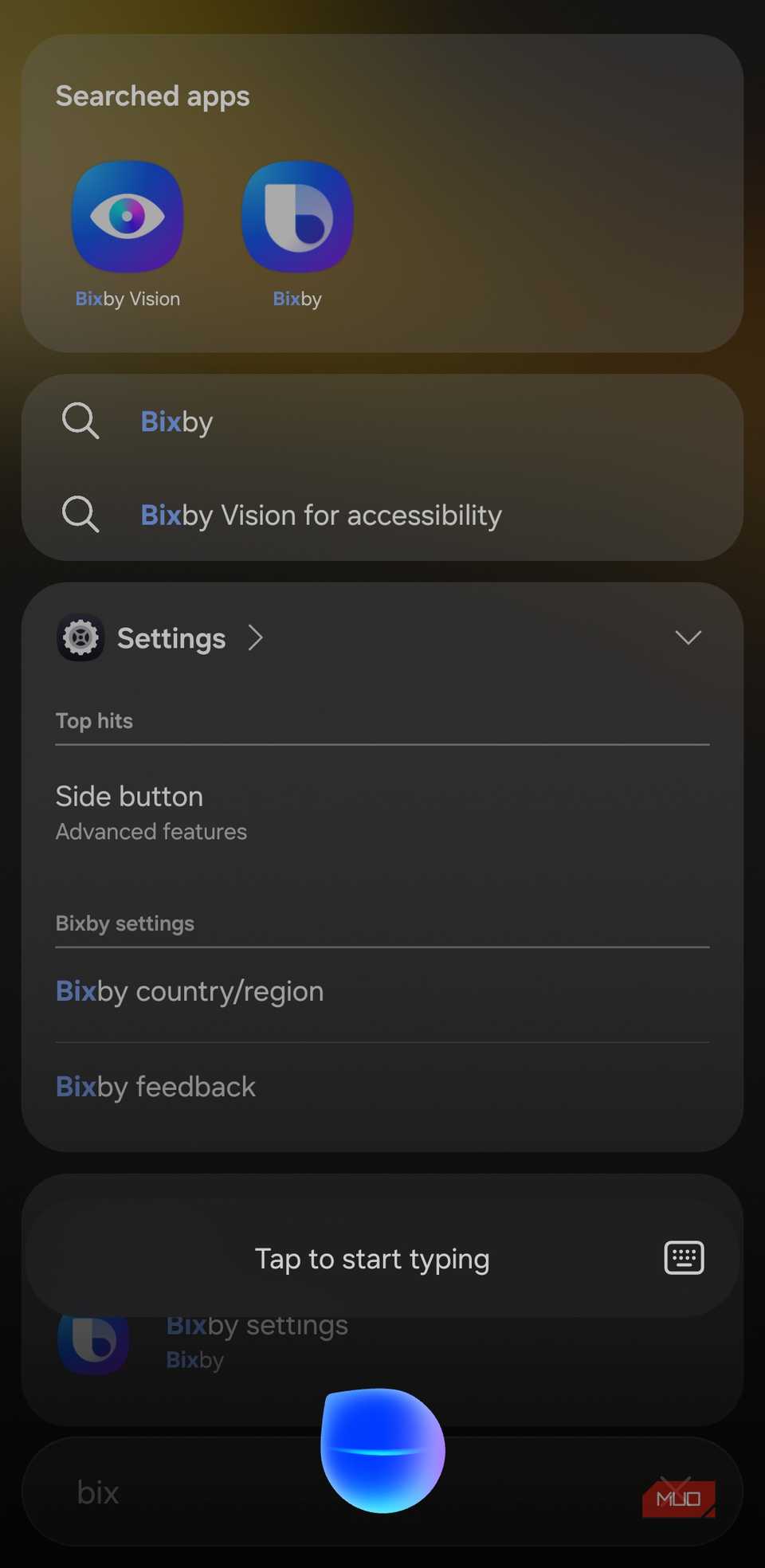
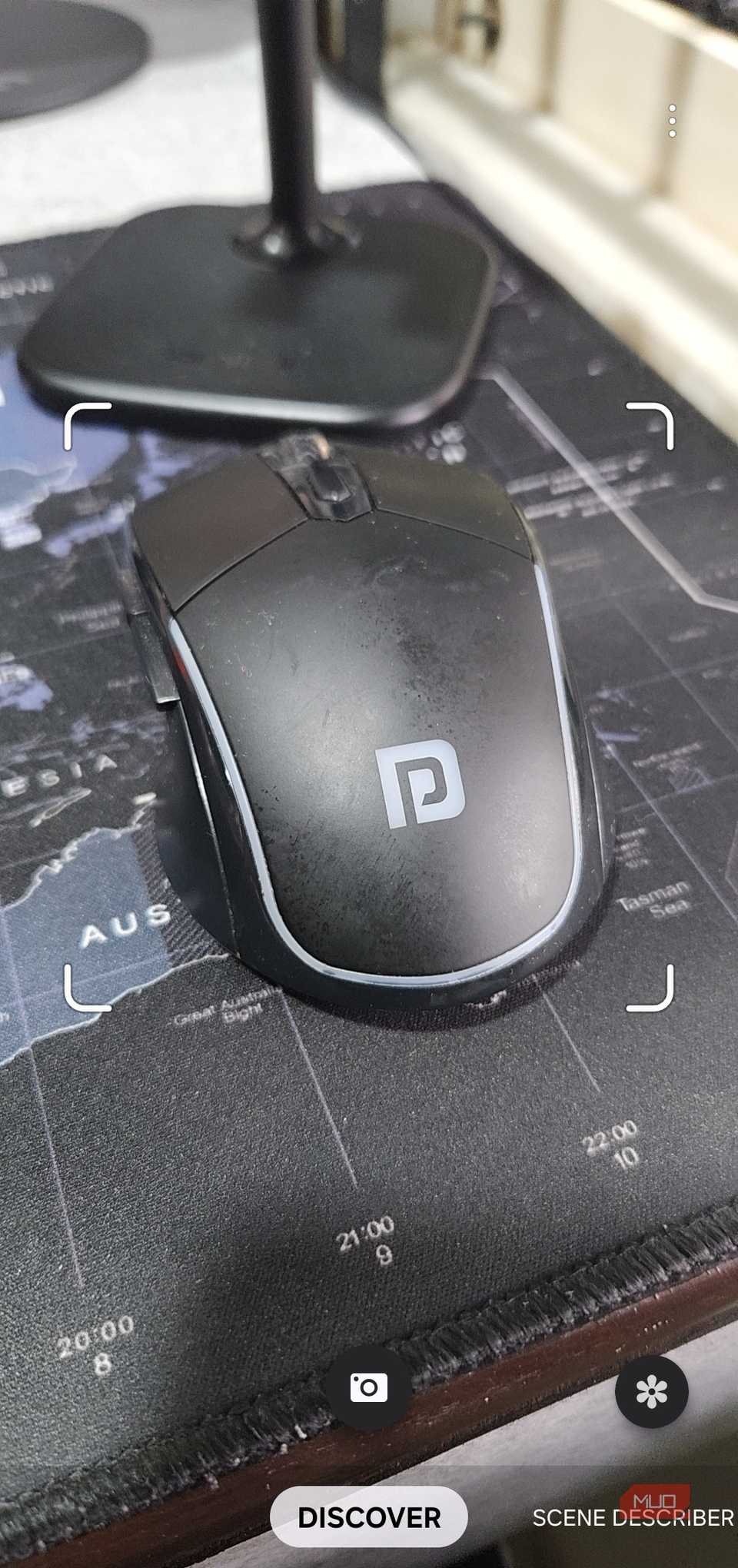
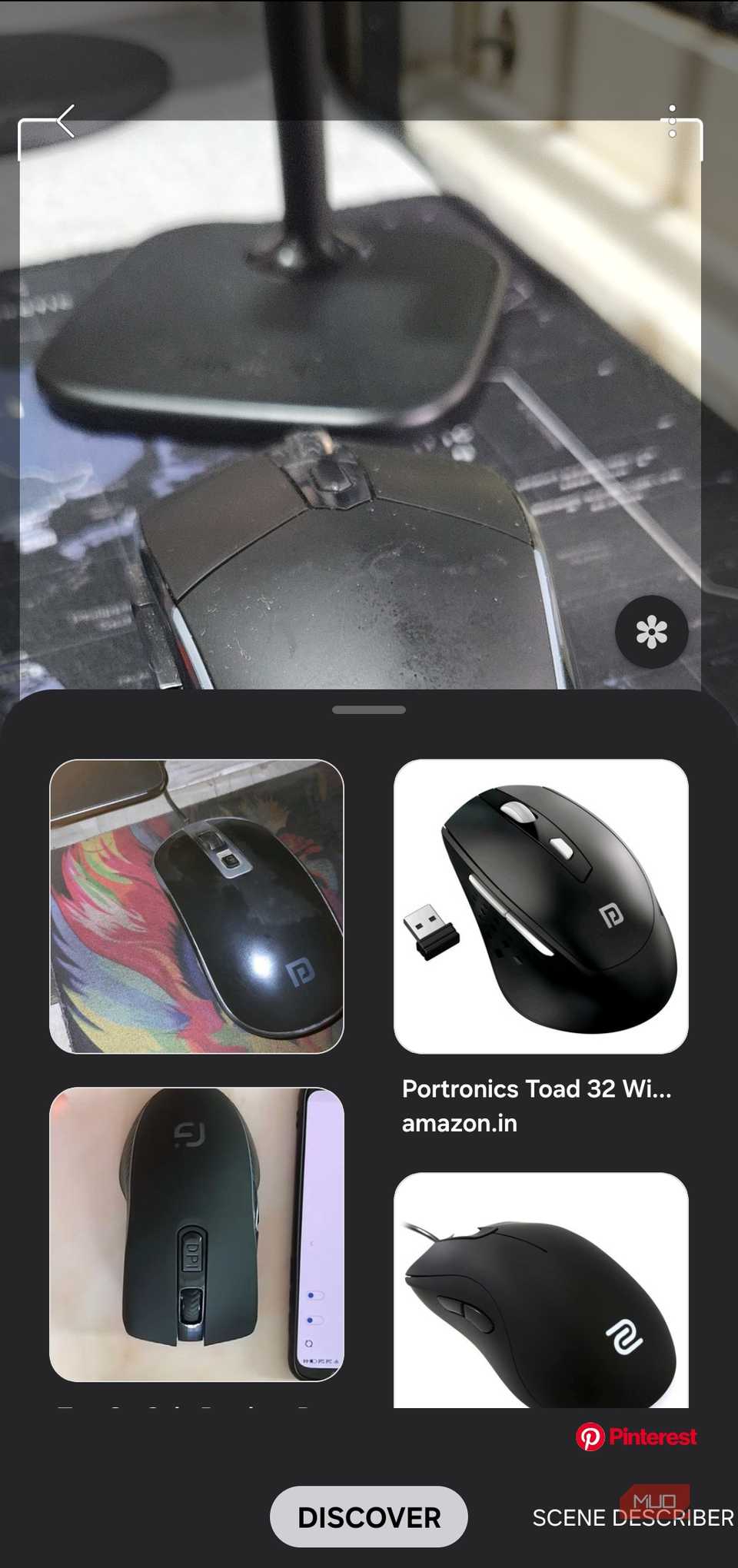
Bixby needs no introduction. It’s Samsung’s virtual assistant that almost nobody uses. To Samsung’s credit, they have tried to make it useful with features like Bixby Vision and Bixby Text Call, but the overall experience still falls short.
If you prefer using Gemini on your Galaxy phone, or don’t use a virtual assistant at all, there’s really no reason to keep Bixby around. In the app drawer, you’ll see several Bixby-related apps like Bixby, Bixby dictation, and Bixby Vision. All of these take up storage space and run in the background even if you don’t use them.
Galaxy Avatar apps
Cute, clever, and quickly forgotten
 Screenshot by Pankil Shah — No attribution required
 Screenshot by Pankil Shah — No attribution required
 Screenshot by Pankil Shah — No attribution required
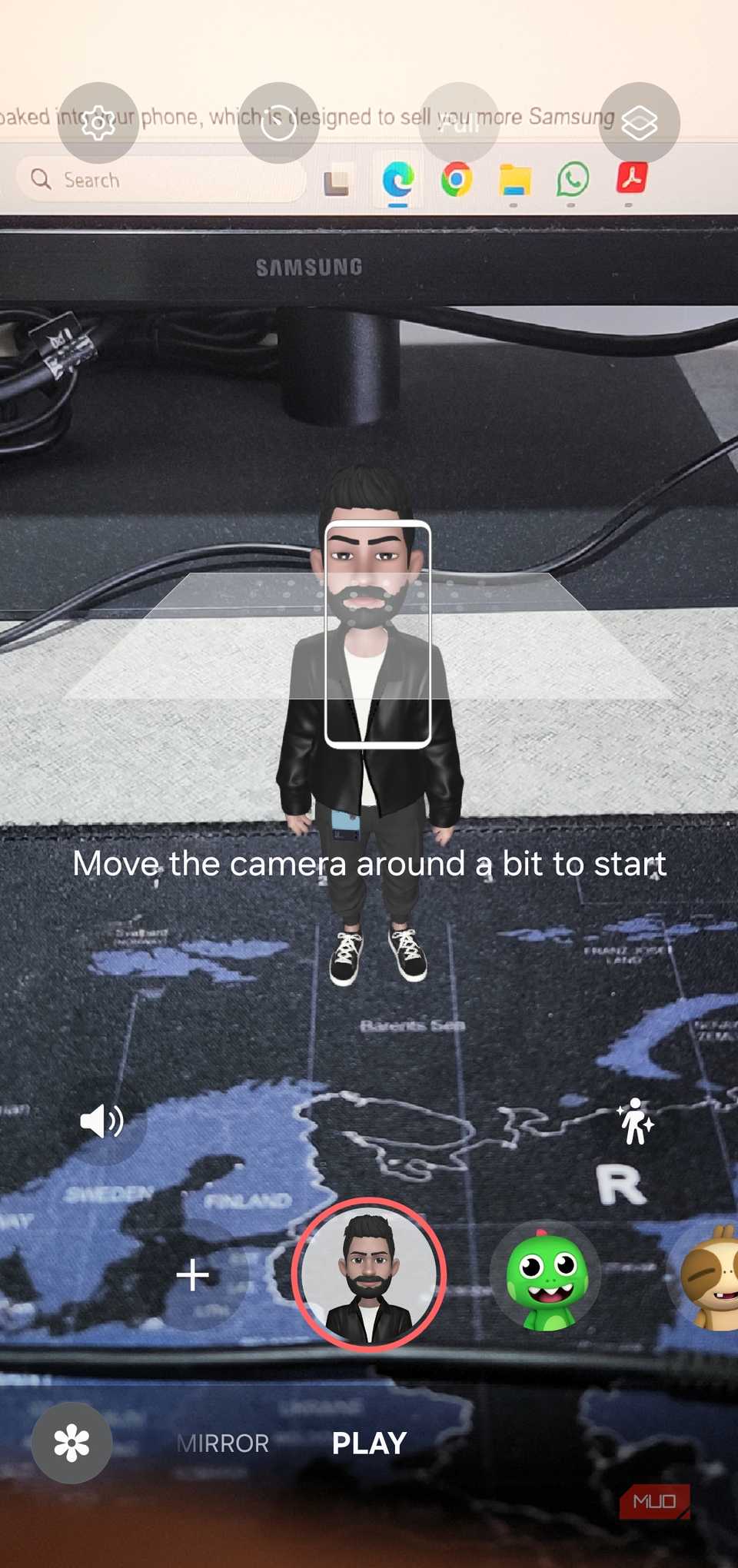
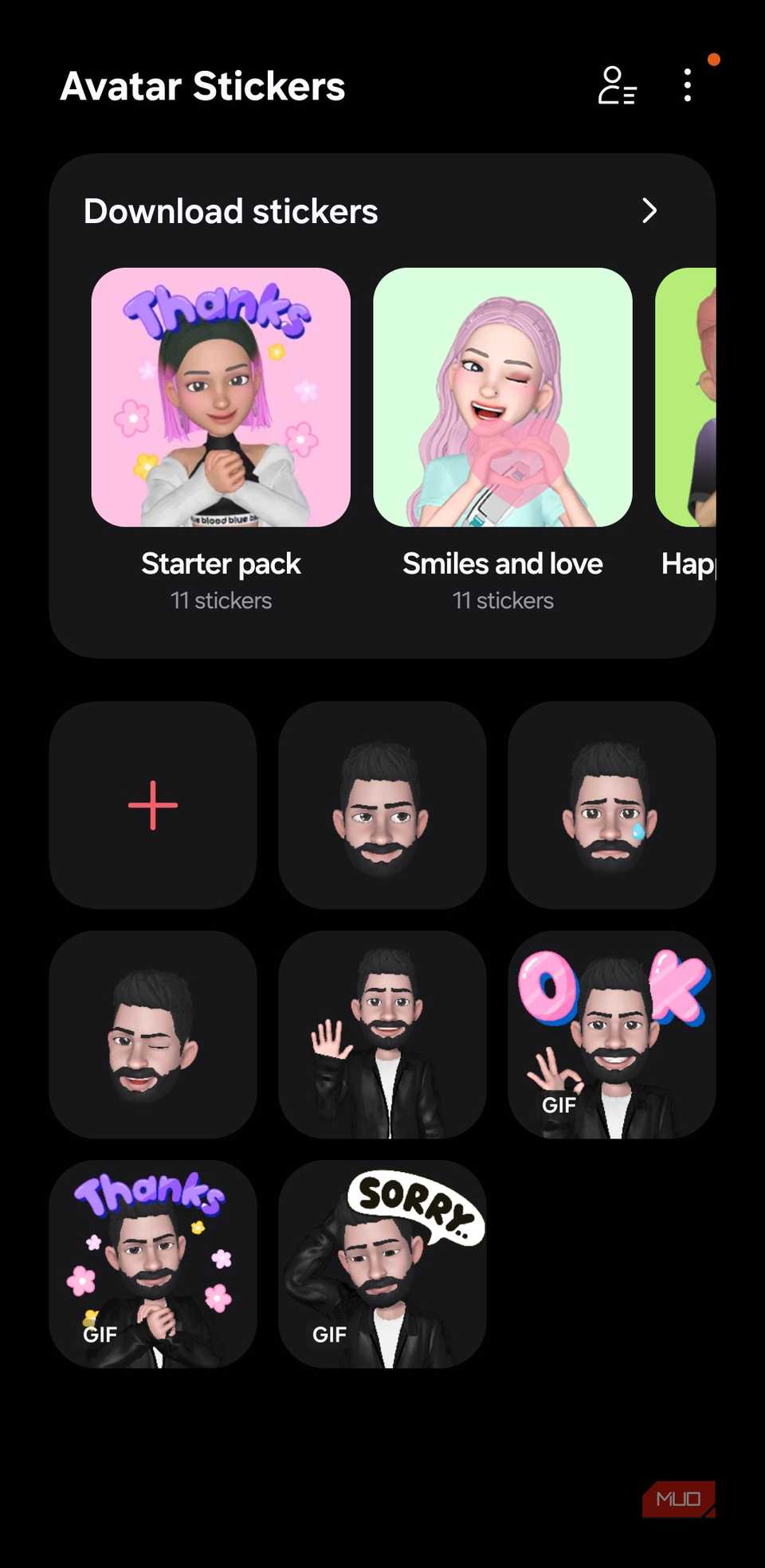
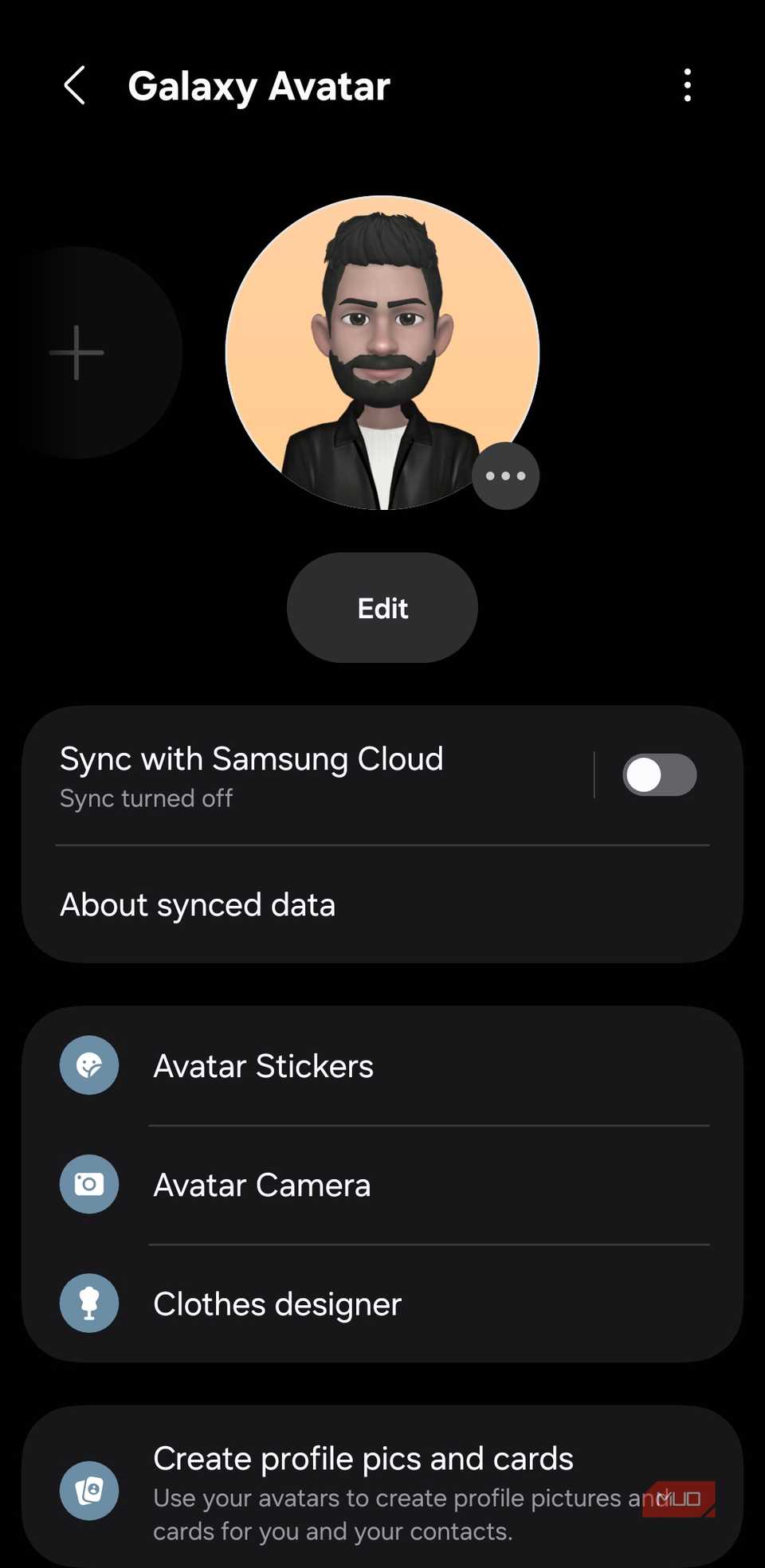
Galaxy phones also come with a few avatar apps if you want to turn yourself into a cartoon. That’s the entire purpose of apps like Avatar Camera, Avatar Stickers, and Galaxy Avatar. These apps let you create a digital version of yourself, with animated expressions, stickers, and filters you can use in messages or photos.
Even if you enjoy that kind of thing, it’s only fun for a few minutes before the novelty wears off. I removed these avatar apps as soon as I got my Galaxy phone, and haven’t missed them since.
Samsung Shop, Tips, and Kids
Pointless for most
 Screenshot by Pankil Shah — No attribution required
 Screenshot by Pankil Shah — No attribution required
 Screenshot by Pankil Shah — No attribution required
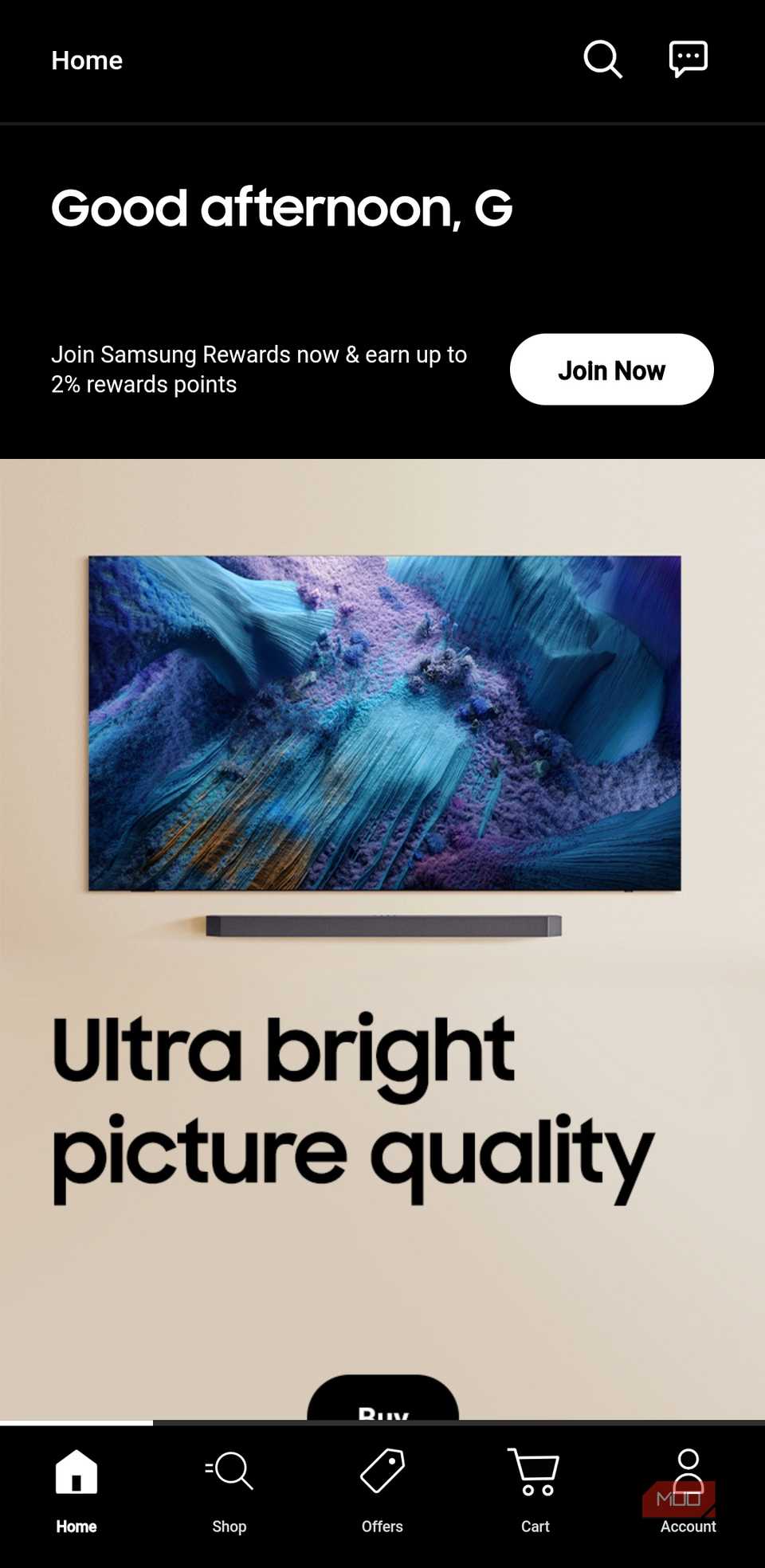
Samsung Shop is exactly what it sounds like. It’s a storefront baked into your phone, where you’ll find exclusive deals, promotional offers, and trade-in suggestions. You can even earn rewards and redeem points when you shop via the app. But if you don’t want a shopping app sitting permanently on your phone reminding you to spend money, it’s best to remove it.
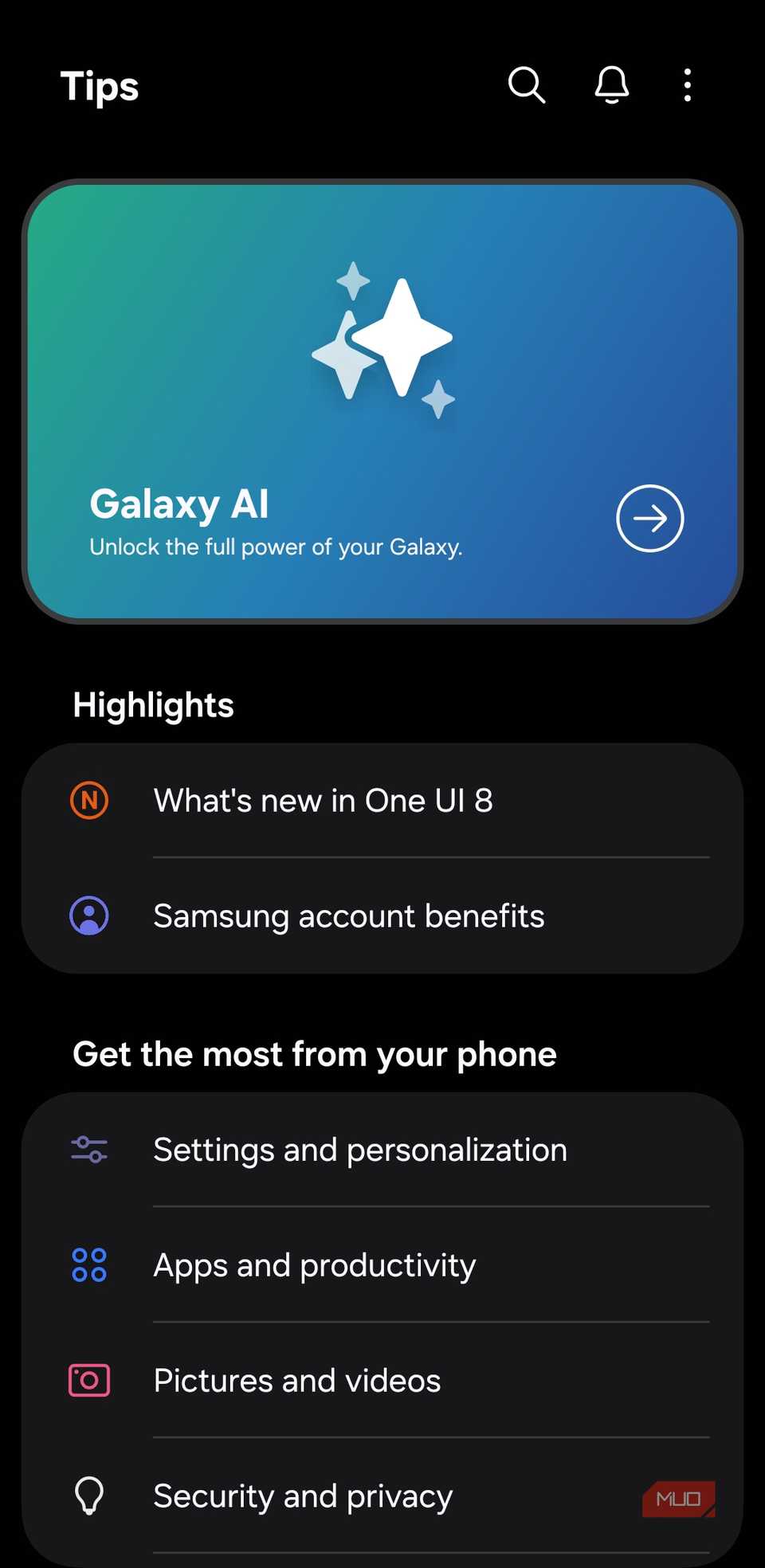
Samsung Tips tries to be helpful by showing guides, tricks, and feature explanations for your Galaxy phone. But unless you’re using a smartphone for the first time or completely unfamiliar with Android, you will find most of the tips and suggestions unnecessary.
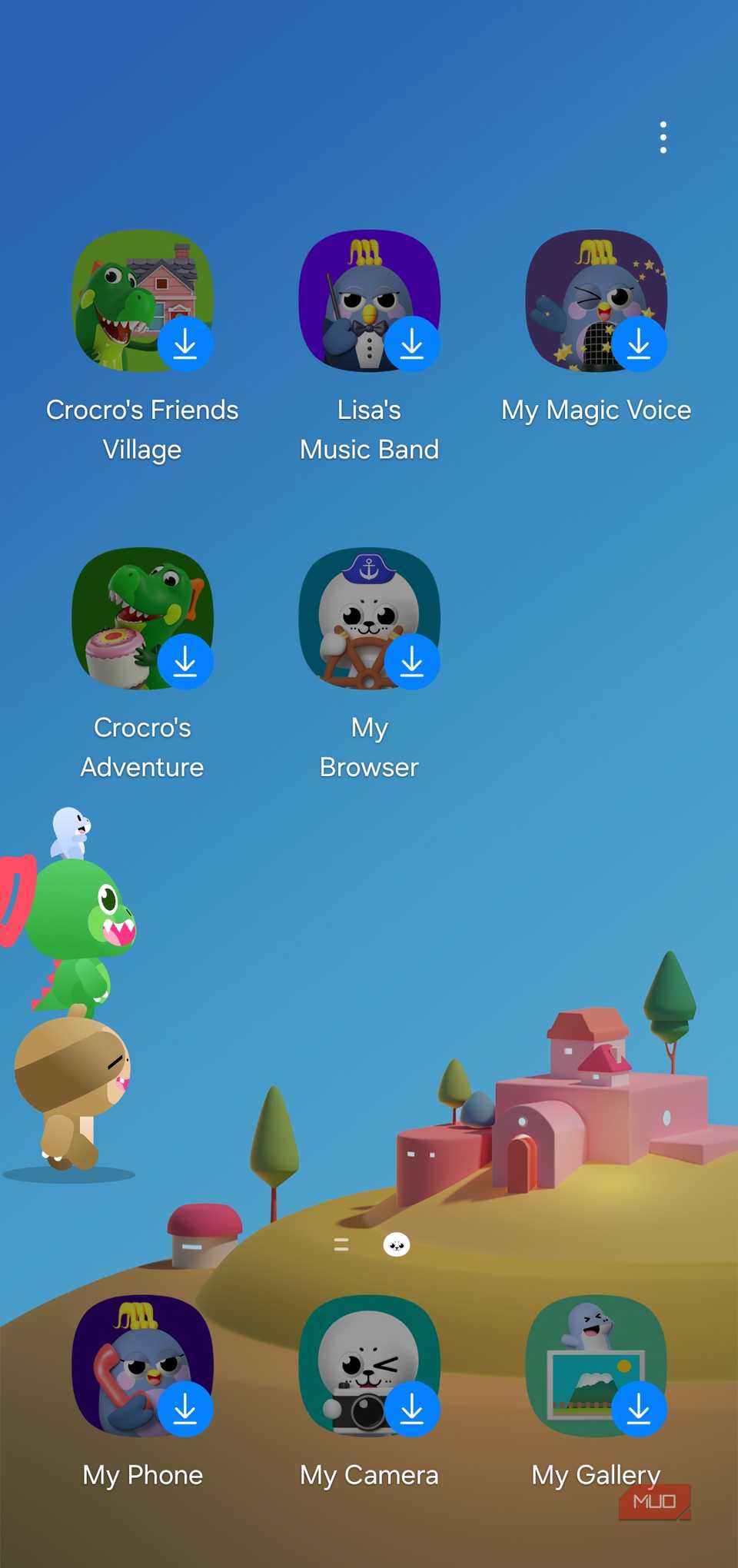
Samsung Kids is the odd one out. It’s actually well made and does what it promises. It creates a safe environment for your kids, where they can enjoy colorful content, play games, and learn how to use a smartphone in the safest way possible. But if you don’t have kids, or don’t plan on handing your phone to one, it’s completely useless.
There are a few more you probably don’t need
The apps I mentioned are just the most obvious offenders. Samsung phones also come with a few Microsoft apps you probably don’t need, like Copilot, OneDrive, Outlook, Office, and LinkedIn. And if you’ve bought your phone from a carrier, you’ll likely deal with even more preinstalled apps. The best thing you can do is remove anything you don’t need before you actually start using your phone.