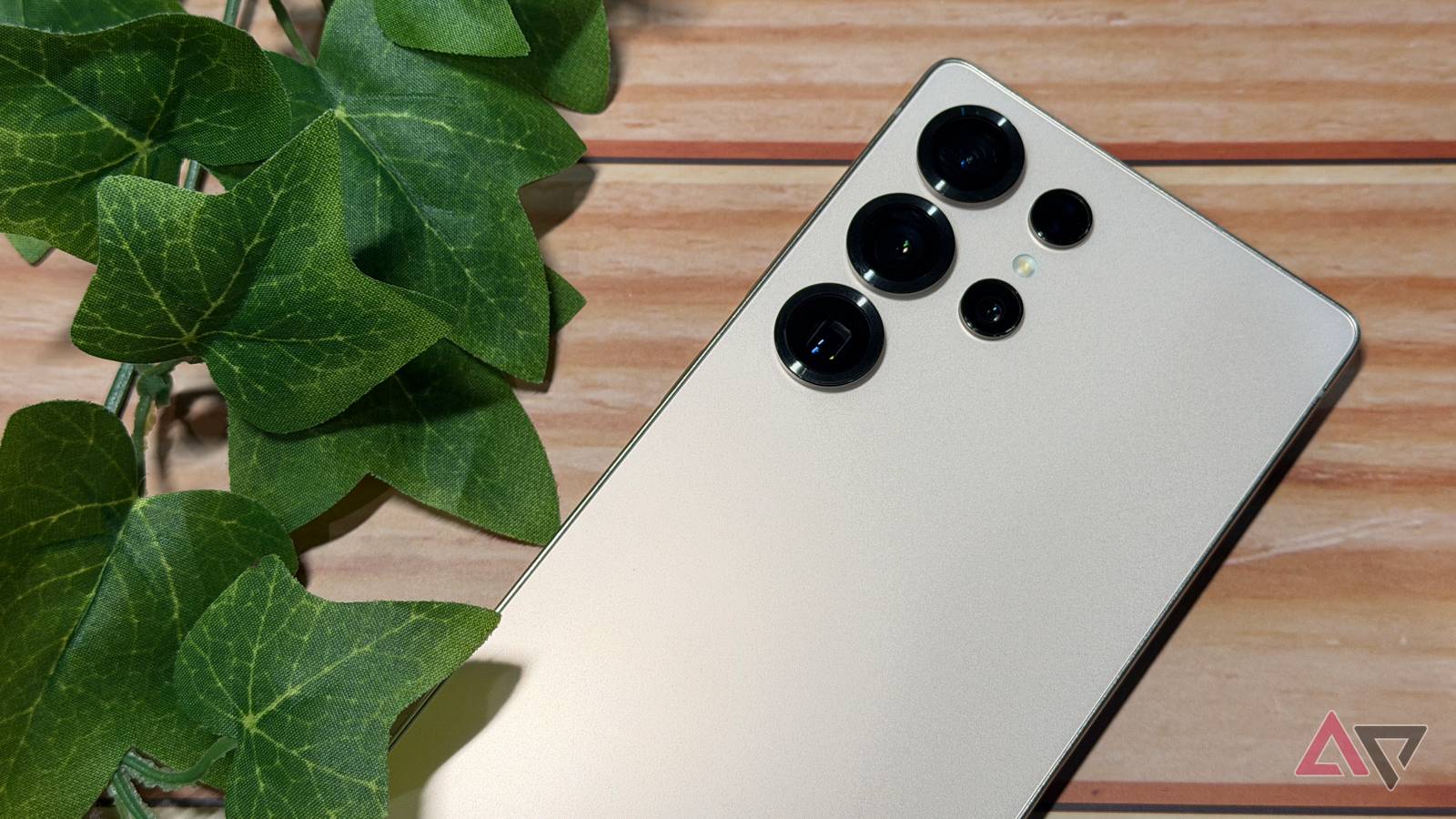
The biggest issue with Samsung’s One UI is that it feels like too much. From dozens of menus, duplicate apps, and features, the South Korean giants throw away many things that you will likely never use.
But after daily driving my Samsung Galaxy for months, I realized the problem wasn’t the software; it was the default setup.
Samsung hides its most powerful productivity gems and aesthetic refinements behind layers of sub-menus that most users never bother to touch.
I spent the last few weeks digging through them and found several tweaks that helped me create a perfectly tailored productivity machine.
Related
These 5 Good Lock modules feel too essential to stay optional on Samsung phones
They should be built into One UI
Combining panels
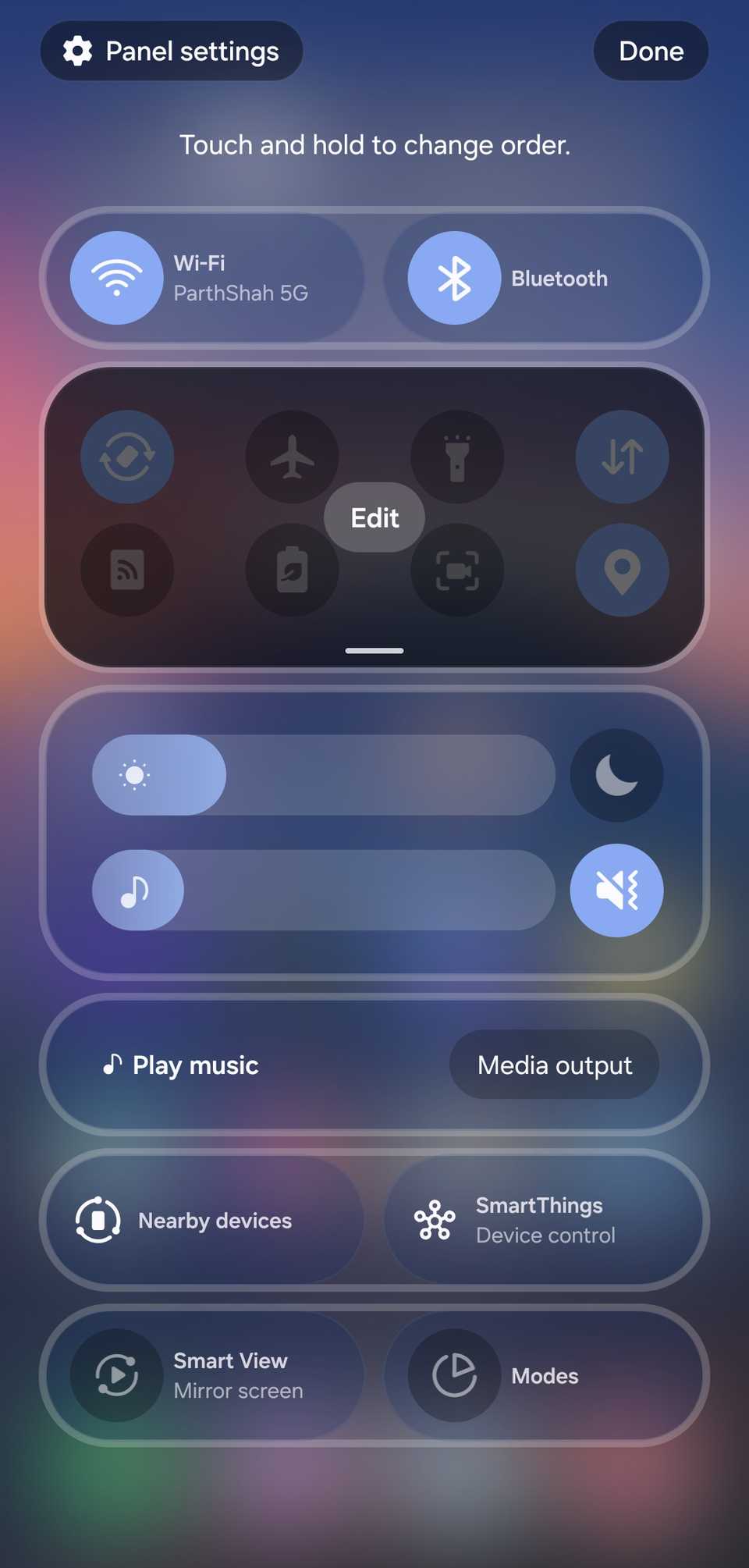
Samsung followed Apple’s footsteps and started separating the quick toggles menu from the notification bar. Now, I must reach the top of the right corner just to disable Wi-Fi or enable the power-saving mode.
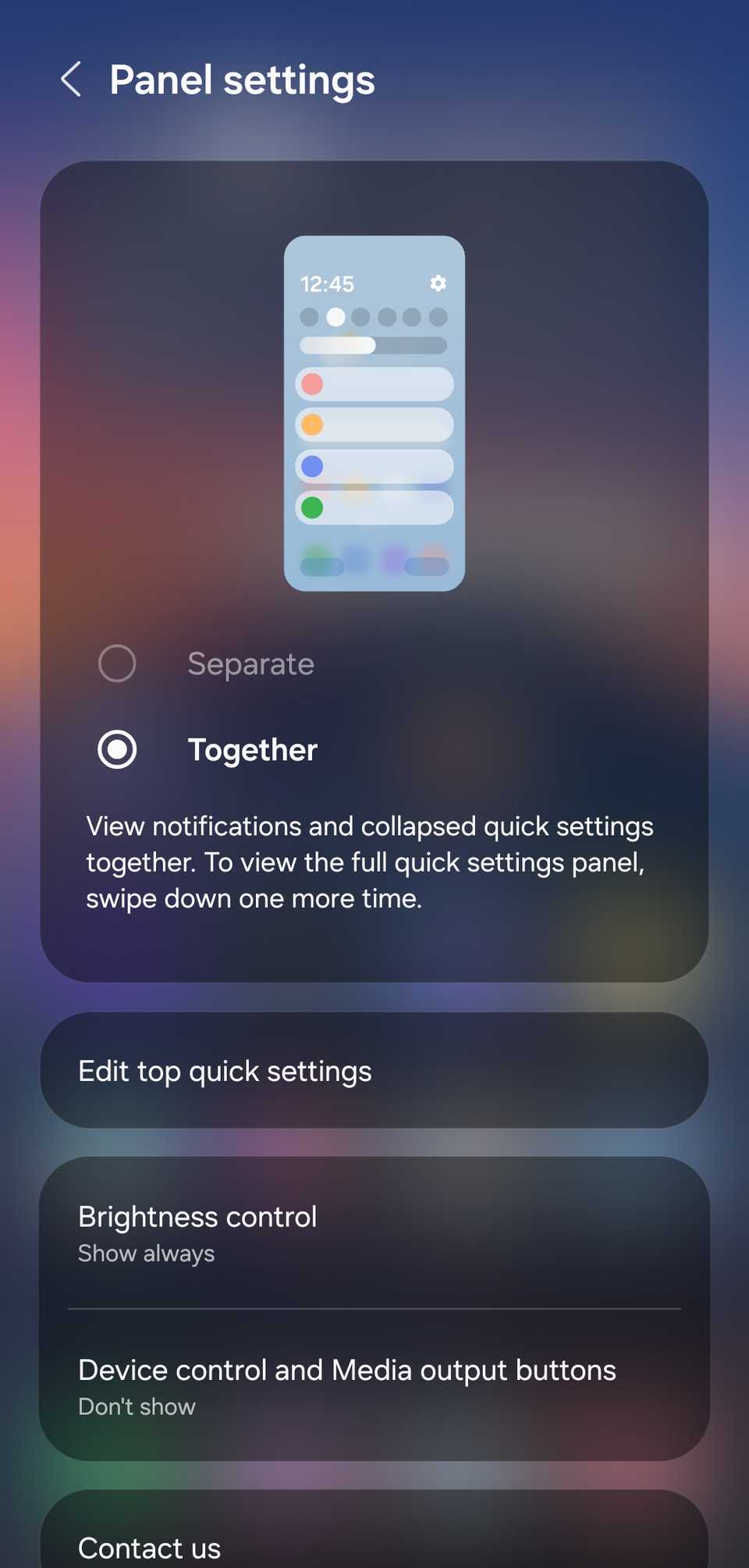
I prefer the old layout where I could swipe anywhere on the screen and access both my notifications and quick settings. Thankfully, unlike Apple, Samsung offers an option to revert the change.
I went into the quick settings menu and opened the Panel settings. I selected Together and made sure the brightness control appeared under the same menu with a single swipe. And that’s about it.
I don’t need to download any Good Lock module or rely on any third-party hacks for such convenience.
Whether I’m quickly toggling a VPN, switching my Google Pixel Buds from my MacBook back to Samsung, or just checking a Slack notification, I’m doing it with a single gesture from the middle of the screen.
Tweaking live notifications on the Now bar
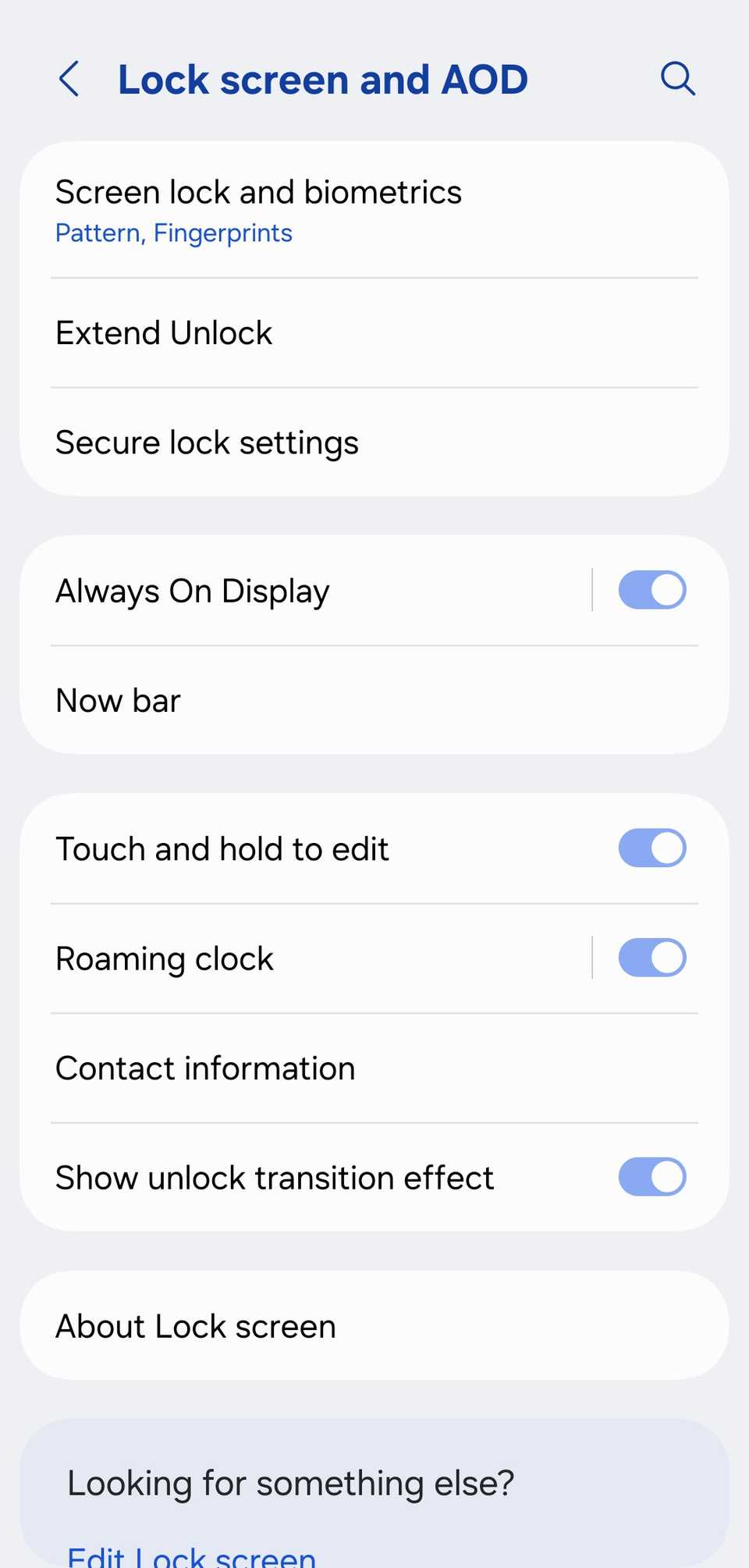
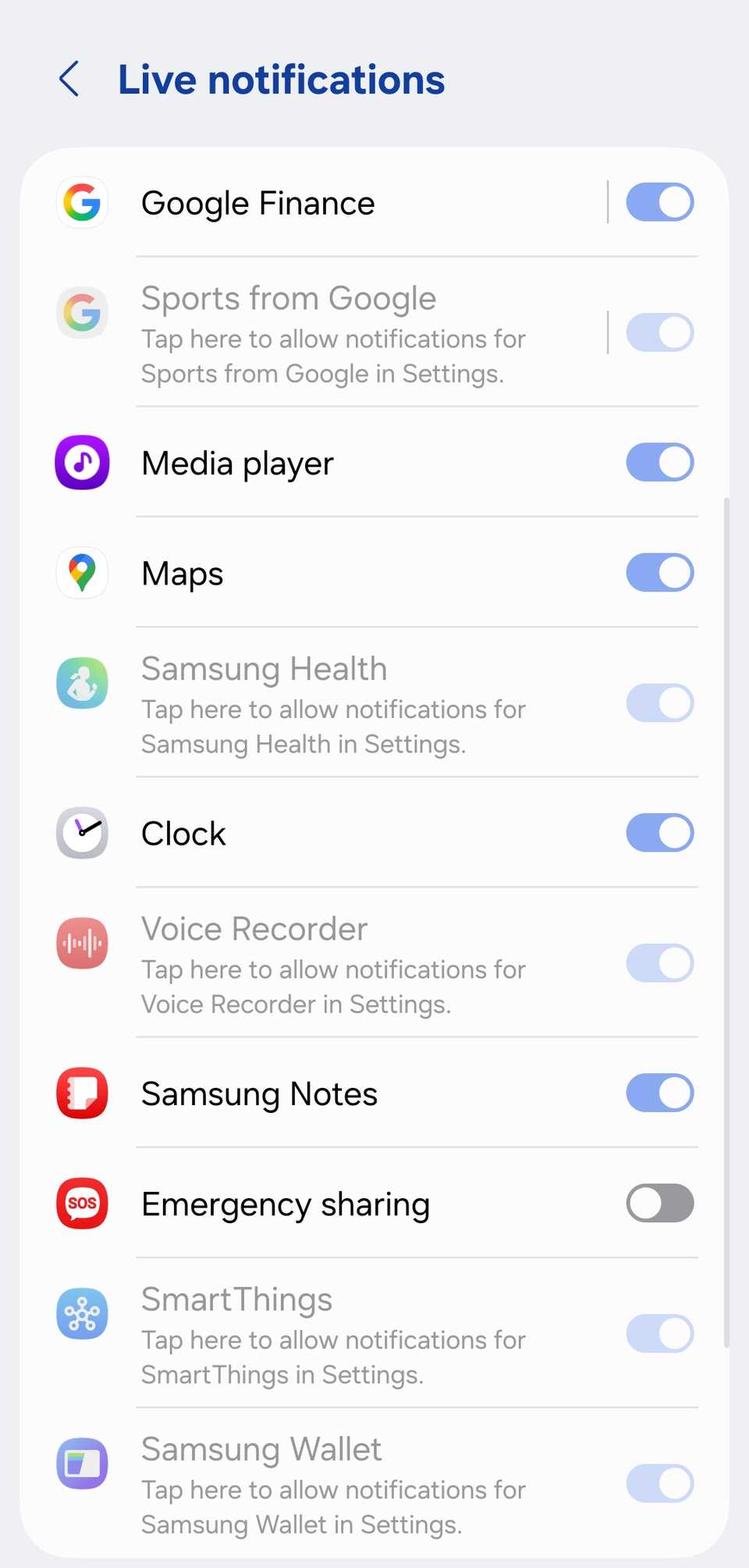
One of the most distracting parts of any phone is the constant stream of live updates that you didn’t actually ask for. On Samsung’s new Now Bar, this can quickly turn from a useful tool into a cluttered mess of random alerts.
To fix this, I went to Settings > Lock screen and AOD > Now bar. Under the Live notifications section, I tapped View more to see the full list of apps. From there, I toggled off anything that wasn’t vital.
By disabling the broad Google alerts, I received only relevant alerts from Samsung Health, Music, and other utilities on the lock screen.
Customizing the side button
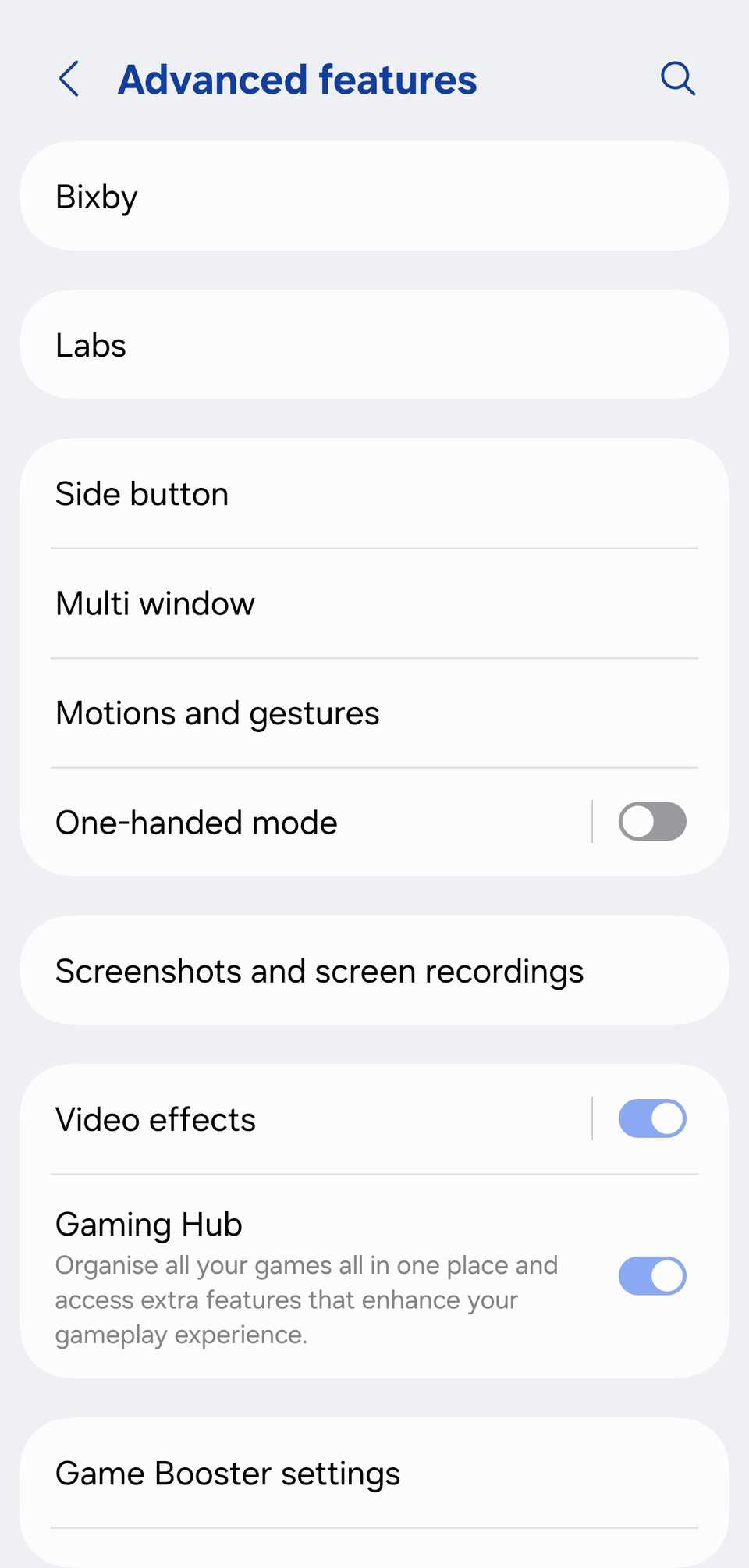
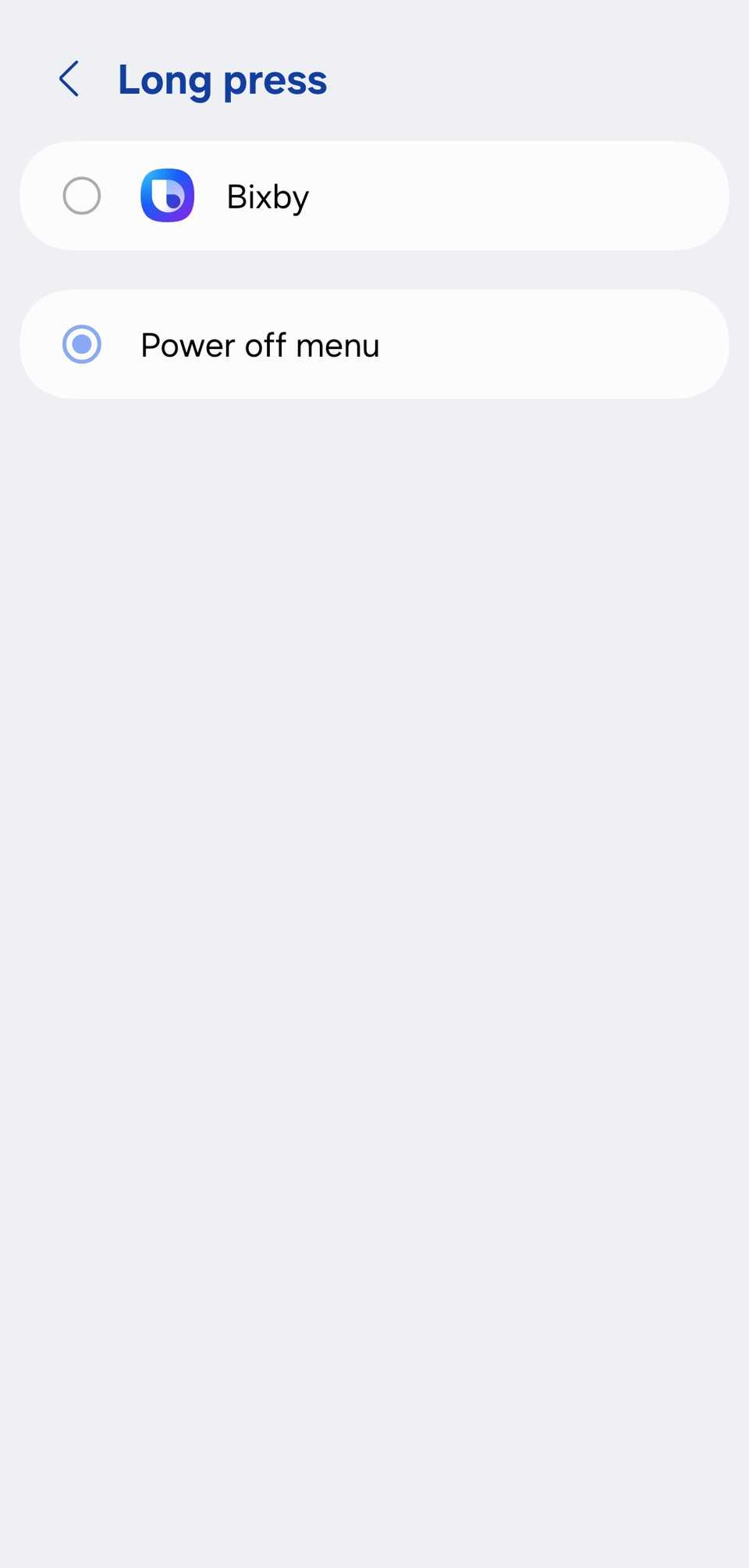
For a long time, the default behavior for holding down the side button wasn’t to turn off the phone. It was to summon an assistant I frankly never use.
I lost count of how many times I was just trying to restart my device or shut it down for a movie, only to be greeted by a Bixby splash screen.
I headed straight into Settings > Advanced features > Side button. In the Press and hold section, Samsung gives you two choices: Wake Bixby or Power off menu. I can’t tap that second option fast enough.
Now, when I hold that button, I get exactly what I expect — the classic shutdown, restart, and emergency call toggles. I would love to see more customization options, though.
Hiding status and navigation bars in screen recording
One of the biggest issues I have as a tech writer is seeing a beautiful, clean screenshot ruined by a cluttered status bar.
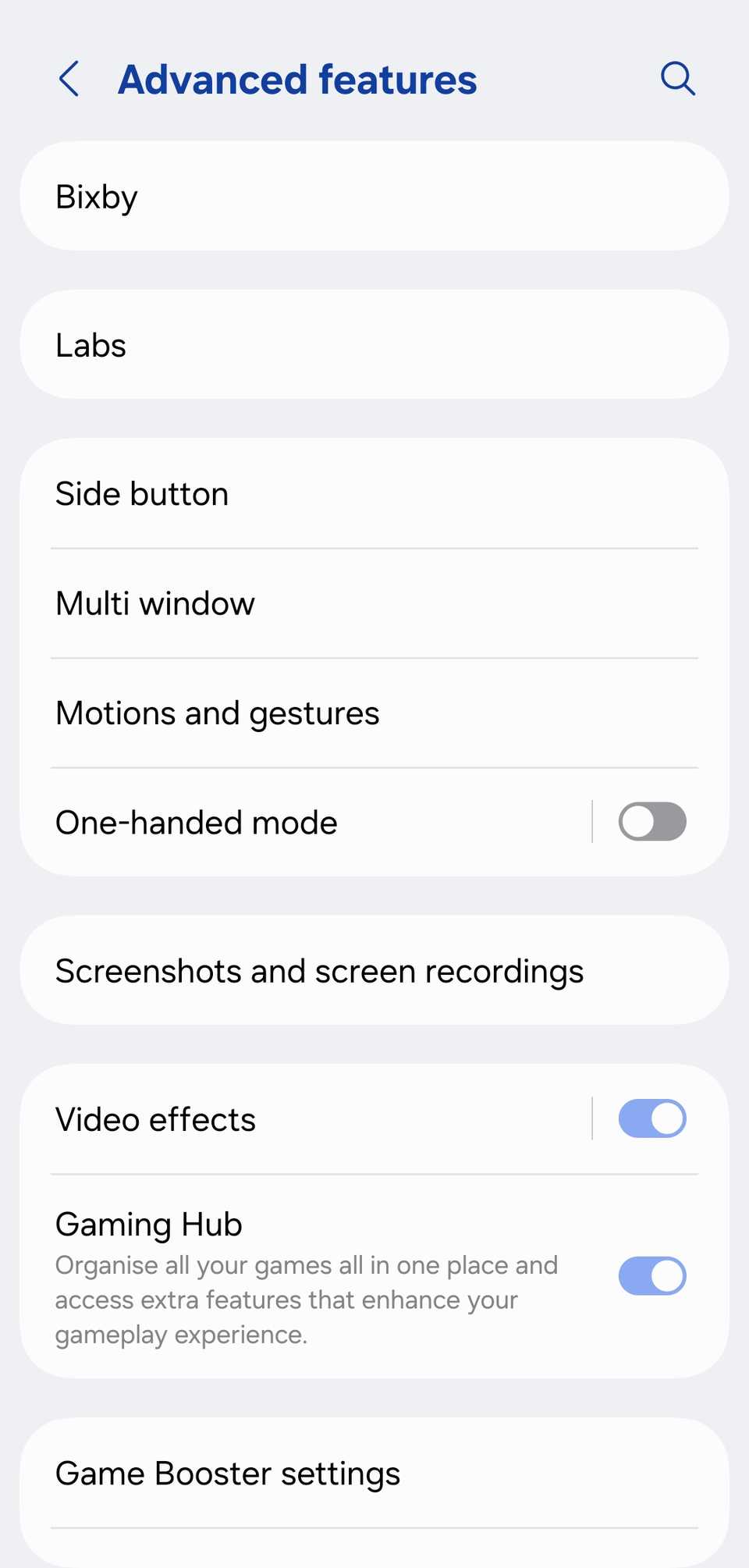
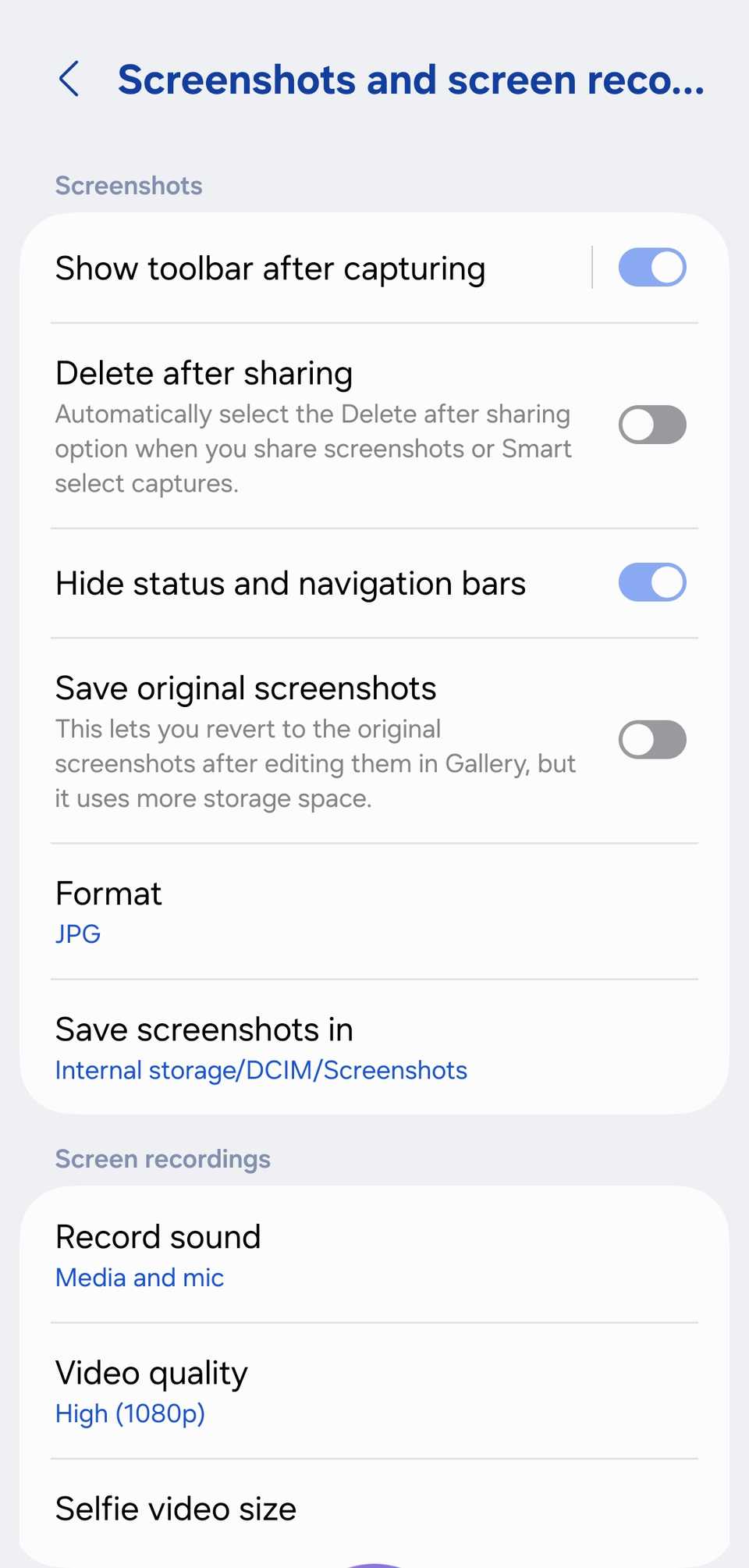
Samsung has a solution for that as well. I headed into Settings > Advanced features > Screenshots and screen recordings and toggled the option to hide status and navigation bars.
Now, the second I tap that screenshot shortcut or start a screen recording, my phone automatically strips away the clock, the signal bars, and notifications.
Related
6 useful built-in Samsung One UI apps you’re probably not using — but you should be
As a Samsung user, you owe it to yourself
Using Dual Messenger
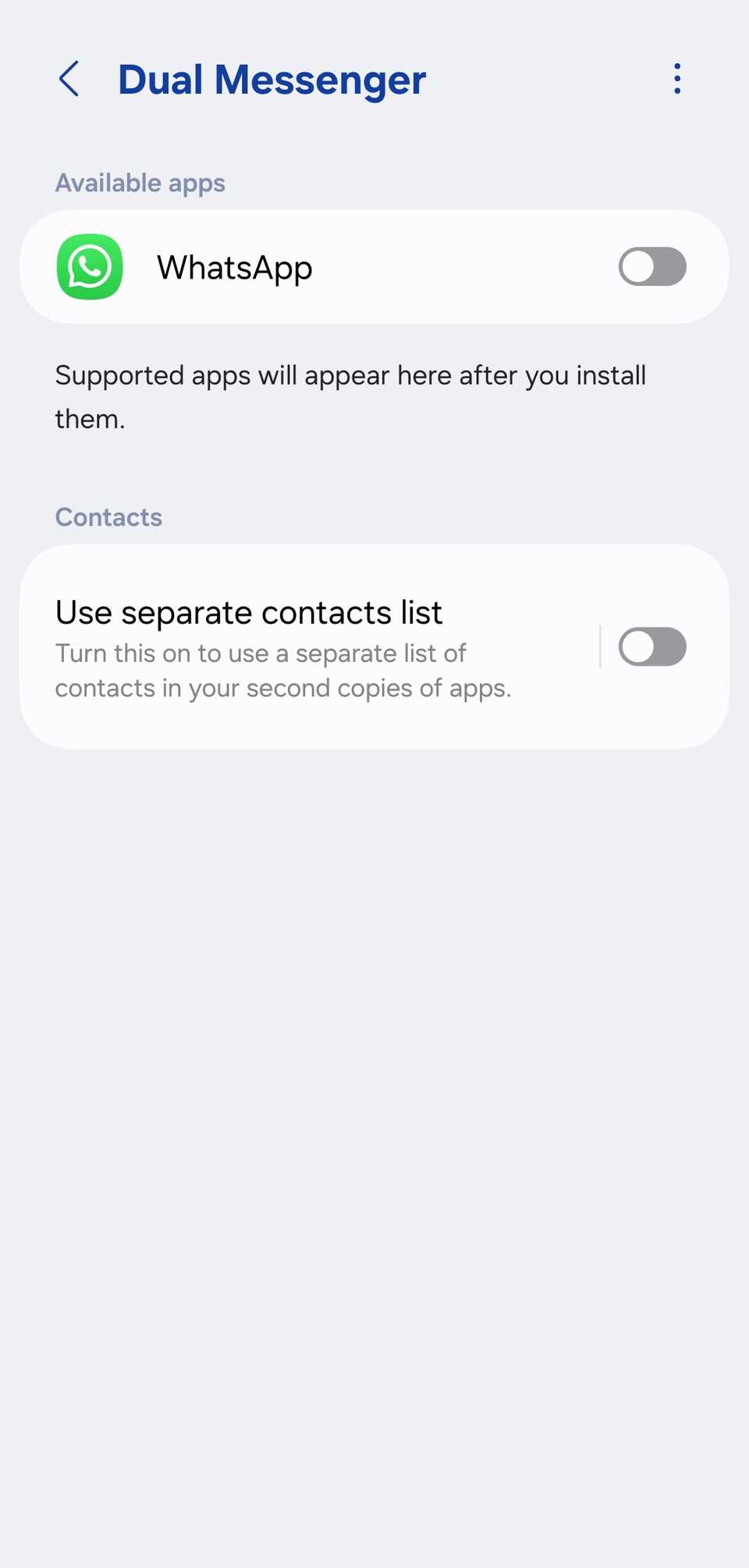
Since I run a dual-SIM setup, one of the biggest frustrations used to be the ‘one app, one account’ limitation.
I carry both a personal and a professional line on a single device, but for the longest time, WhatsApp made it clunky to stay logged in on both.
So I rely on a native Samsung feature that handles it much more elegantly: Dual Messenger.
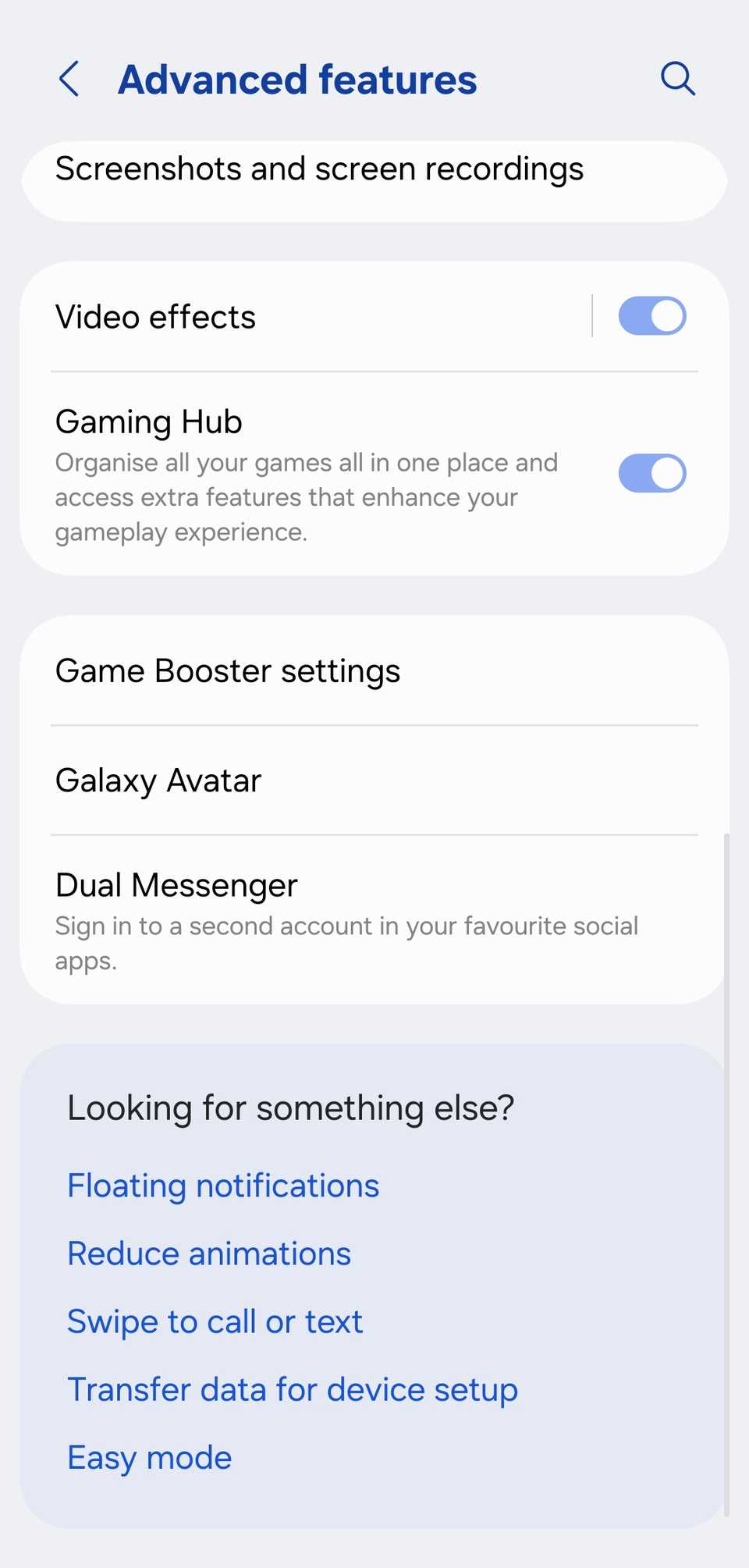
Instead of carrying two phones or constantly switching between Business and Personal app versions, I went into Settings > Advanced features > Dual Messenger.
I toggled the switch for WhatsApp, and the system instantly created a second, completely isolated instance of the app.
Restarting the phone when needed
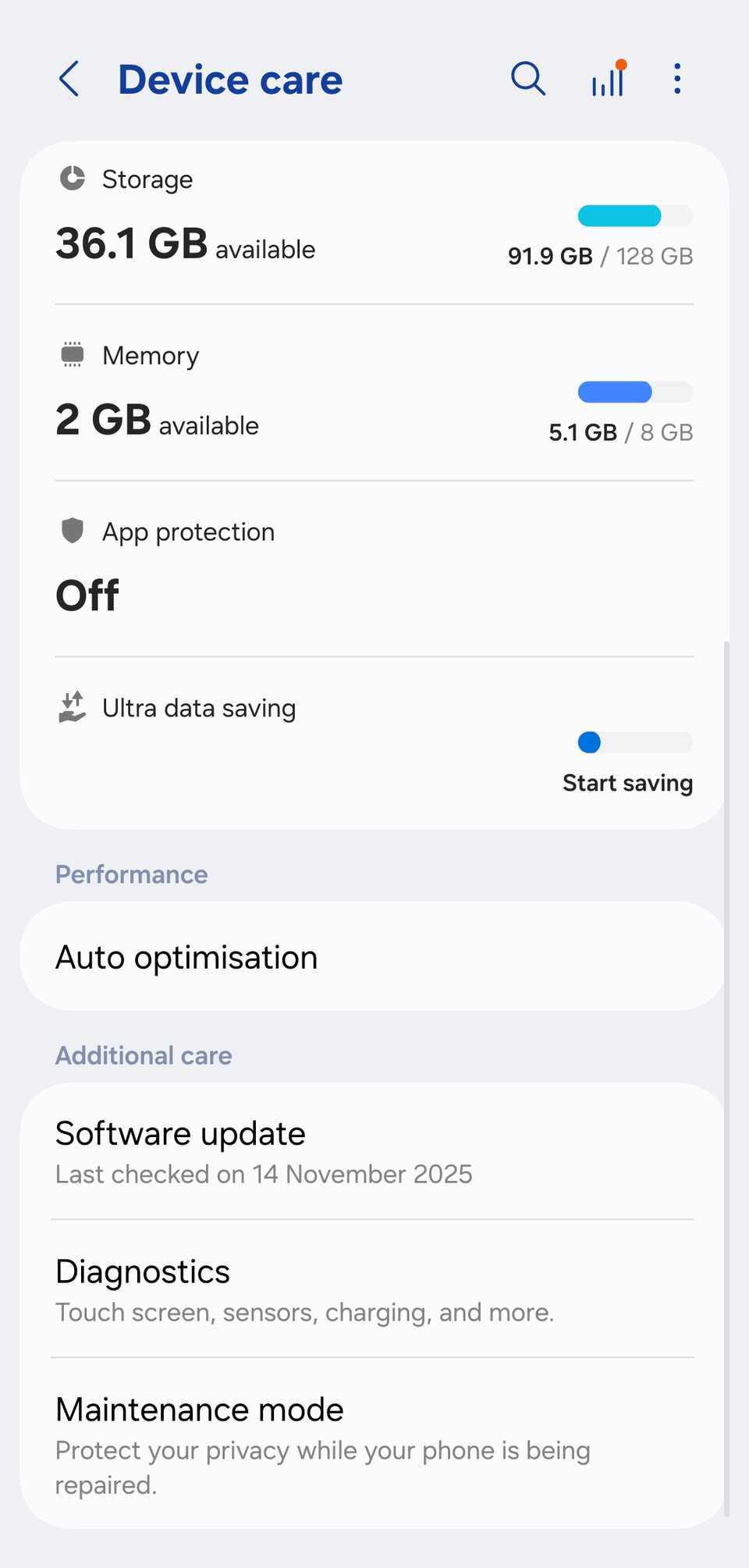
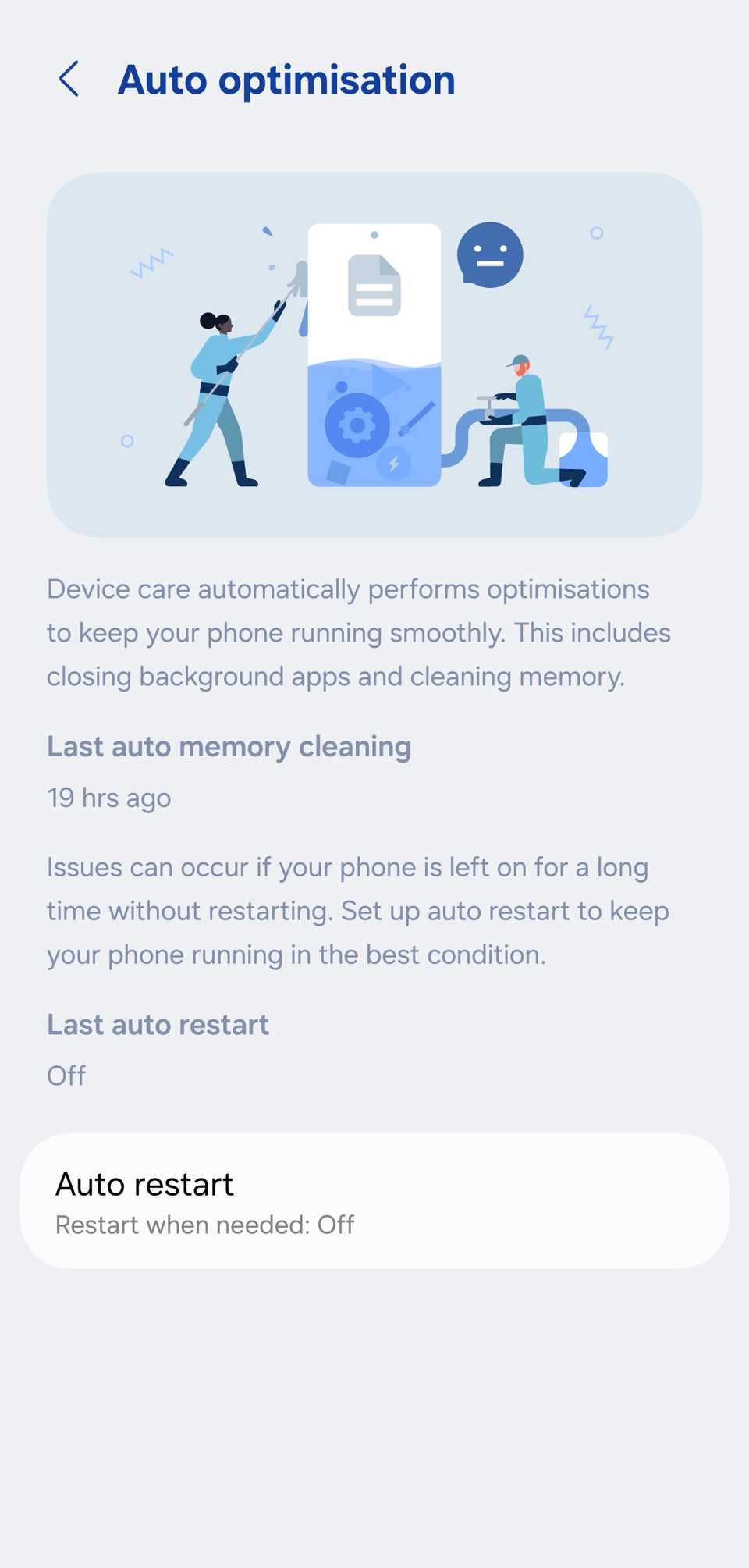
One of the most effective ways I have found to keep my Galaxy feeling snappy isn’t some complex cleaner app or a hidden developer trick. It’s just a simple, scheduled reboot.
Instead of waiting for my phone to lag, I let my Galaxy take care of itself while I’m asleep. I headed into Settings > Device care > Auto optimization and toggled on Auto restart.
Samsung gives you two ways to handle this: you can let the phone decide when it needs a reboot, or you can set a specific schedule.
What I love about this feature is that it isn’t dumb automation. My phone won’t just cut off in the middle of something important. It only triggers the restart if specific conditions are met:
- The screen is off.
- I’m not actively using the phone.
- The battery is above 30%.
- The SIM card lock is off.
From bloatware to powerhouse
The beauty of the Samsung ecosystem isn’t just in the raw specs. It’s in the incredible amount of control hidden just beneath the surface.
It took me a lot of trial and error to find the sweet spot between ‘feature-packed’ and ‘cluttered’, but the result is a phone that finally feels like it was built for my workflow.
If you have been feeling like your Galaxy is a bit too noisy or a little too slow, try these tweaks for a couple of weeks.