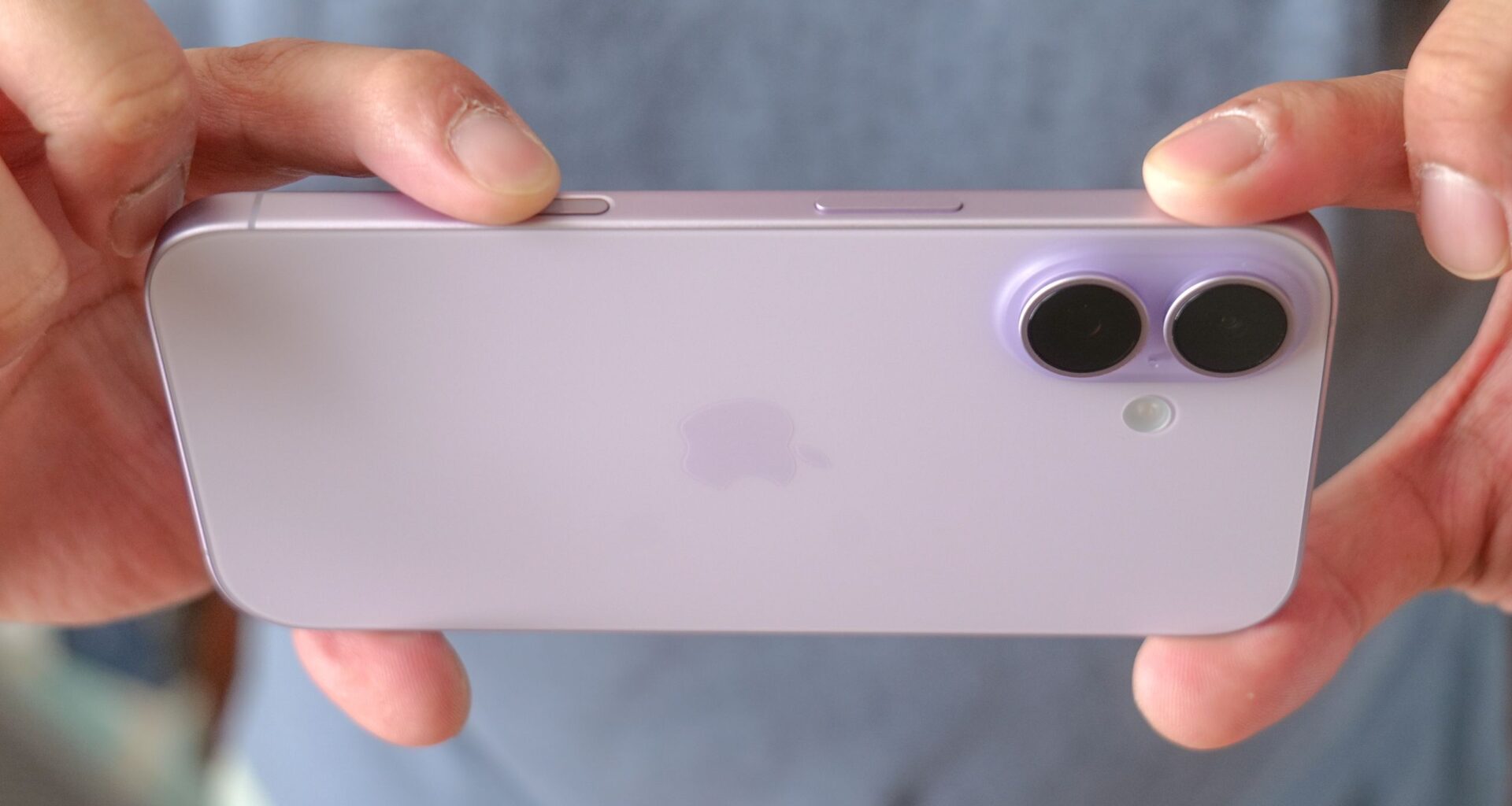
Apple added the Camera Control button to its phones starting with the iPhone 16, but since I never really spent much time with that model, my first exposure to this new button came when I recently upgraded to an iPhone 17. And I’ve grown to hate the Camera Control button with the power of a thousand burning suns.
The Camera Control button provides a shortcut for launching the Camera app without having to first unlock your phone, and you can also use it for other controls like zooming, switching modes and more. Press and hold the Camera Control button, and you can jump right into Visual Intelligence — one of the better features in Apple Intelligence that lets you use your phone’s camera to summon more information, get real-time translations or create calendar entries just by photographing dates. What’s not to love?
You may like

The Camera Control button on the iPhone 17 Pro (Image credit: Tom’s Guide / John Velasco)
I fish around my pocket for the iPhone 17, and by the time I pull out the phone, the Camera app is already fired up and ready to take photos. I’ve grabbed the phone to answer an incoming call and ended up launching Visual Intelligence instead. It’s maddening, and it has to stop.
So I disabled Camera Control completely. If you find yourself similarly frustrated by this feature, here’s how you can do likewise — plus, the steps you can take to still access Camera Control’s functionality in other ways.
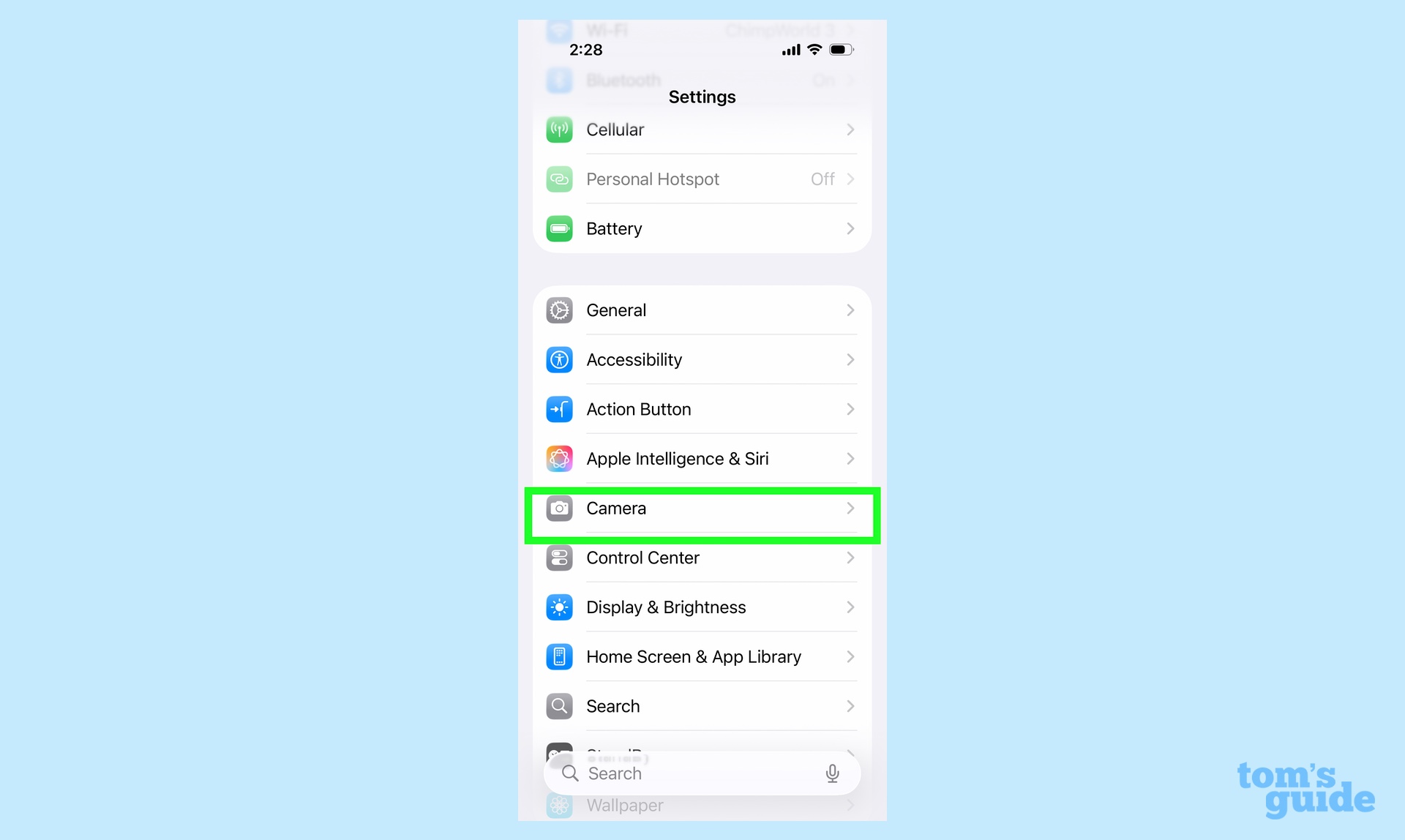
1. Go to the Camera settings
(Image: © Future)
In the Settings app, select Camera — it’s in the second block of settings as you scroll down the screen.
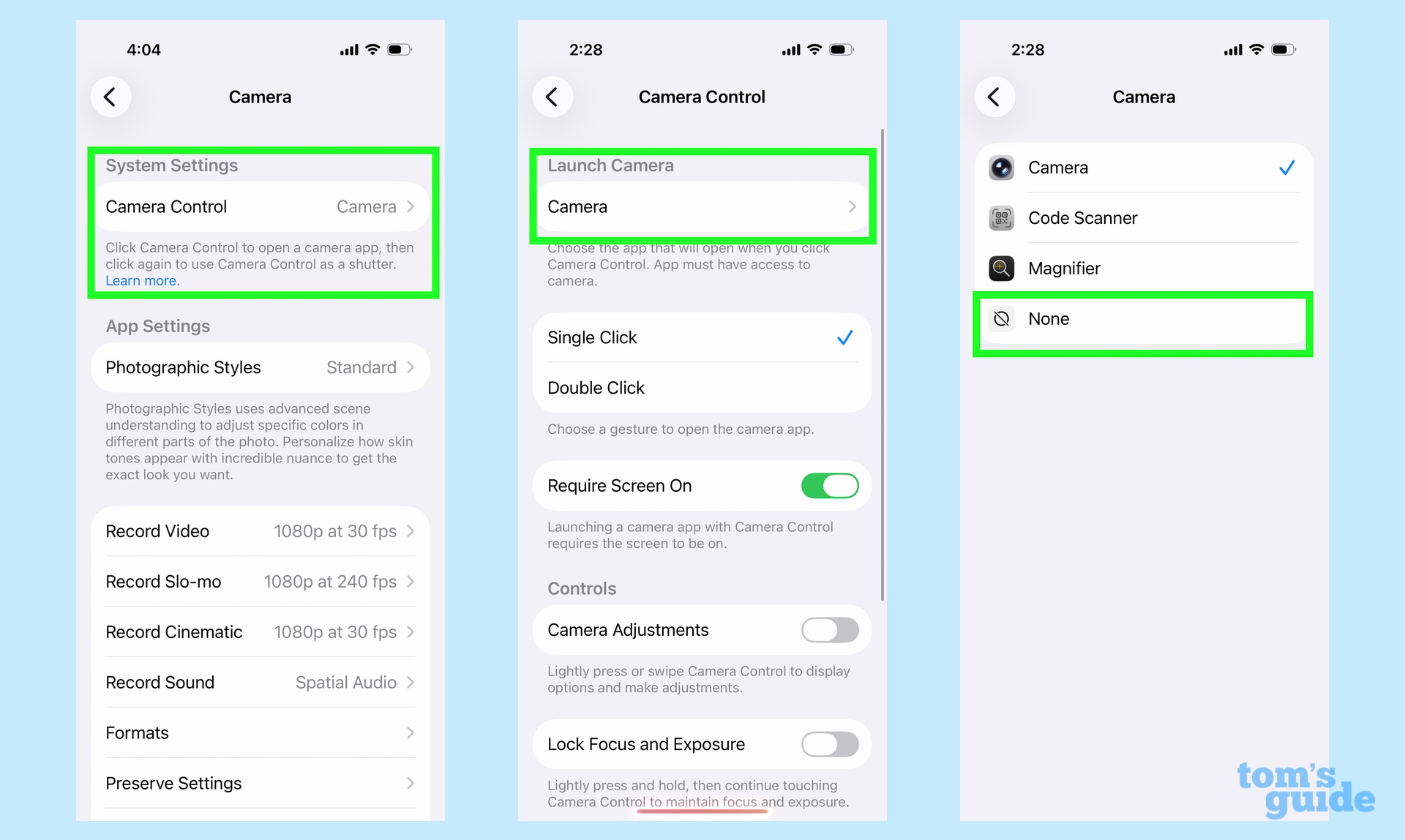
2. Adjust Camera Control
(Image: © Future)
From the Camera settings screen, select Camera Control under System Settings, and on the ensuing screen, tap Camera under Launch Camera.
Here, you select the option of what happens when you press the Camera Control button — you either launch the Camera, activate a Code scanner or jump into the iPhone’s Magnifier app. But it’s the last option that interests me — None. Tap None, and the Camera Control button won’t do anything when you press it.
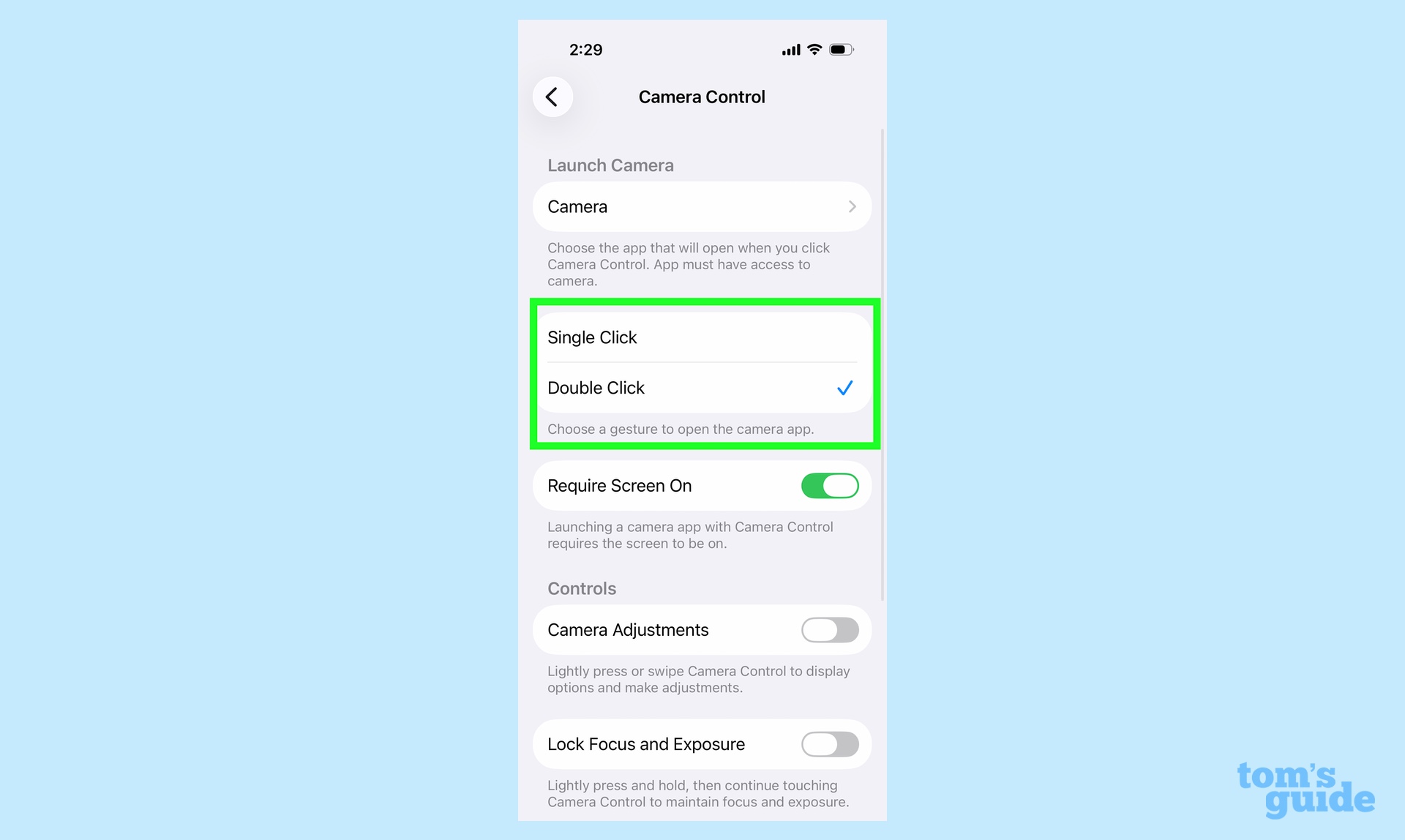
If you’re not quite ready to enact the nuclear option of disabling the Camera Control button, there’s another option on the Camera Control screen. Underneath the Launch Camera option, you’ll see two options for what actually launches the app — Single Click and Double Click.
(Image credit: Future)
Single Click is the default choice, but by opting for Double Click, you at least increase your chances of only launching the Camera app when you intend to. You’re still likely to inadvertently fire up Visual Intelligence if you press and hold the button, though.
Re-creating Camera Control’s behavior
So by disabling Camera Control, have I completely eliminated the ability to quickly launch things without unlocking my phone? Not exactly, as I can turn to the ability to customize my iPhone lock screen to restore some of that functionality.
Apple has long offered an on-screen camera shortcut that fires up the camera when you tap it. So that takes care of duplicating Camera Control’s ability to quickly fire up the camera. And, ever since iOS 18.1, that same approach can give you a Visual Intelligence shortcut when you press and hold on your lock screen to customize what controls are available.
1. Change your Control Center shortcut

(Image: © Future)
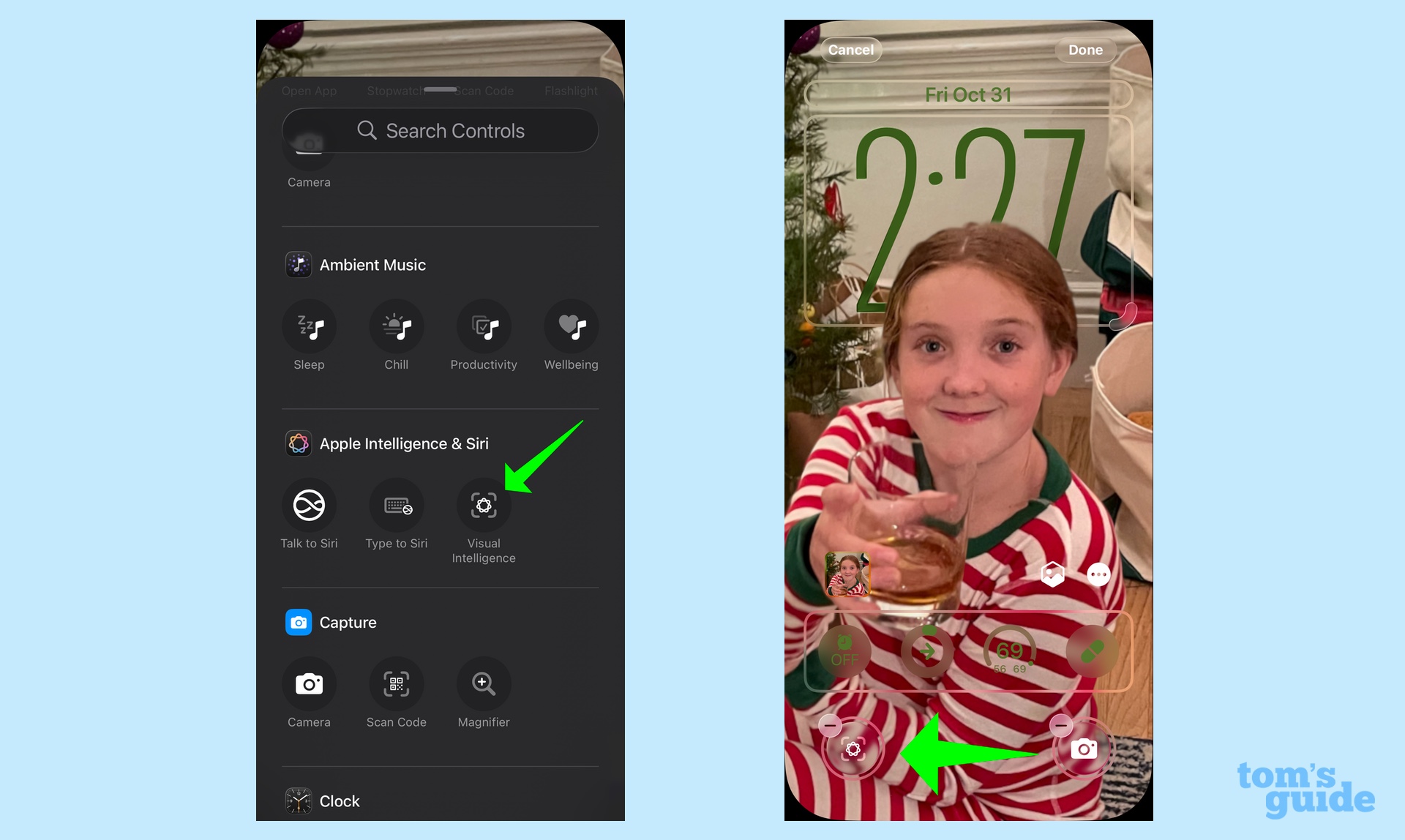
In this example, I’m replacing the Flashlight shortcut. I press the minus button on that shortcut and tap the plus button again to add a new control.
2. Select Visual Intelligence shortcut
(Image: © Future)
On the Control Center shortcut screen, select the Visual Intelligence shortcut. It’s located under Apple Intelligence & Siri, though you can also type “Visual Intelligence” in the Search bar to find it.
And that’s it. You’ve now got Visual Intelligence on one side of the lock screen and the camera shortcut on the other. And now there’s little chance of inadvertently pressing the Camera Control button and launching something you don’t want to.
Looking for more iOS 26 and iPhone tips? We can show you five iPhone tricks that are buried within your phone’s settings. I’ve also got a guide for using the new live translation feature available to Apple Intelligence-ready iPhones running iOS 26 as well as tips for screening texts from unknown senders in Messages.
Today’s best Apple iPhone 17 and Apple iPhone 17 Pro deals