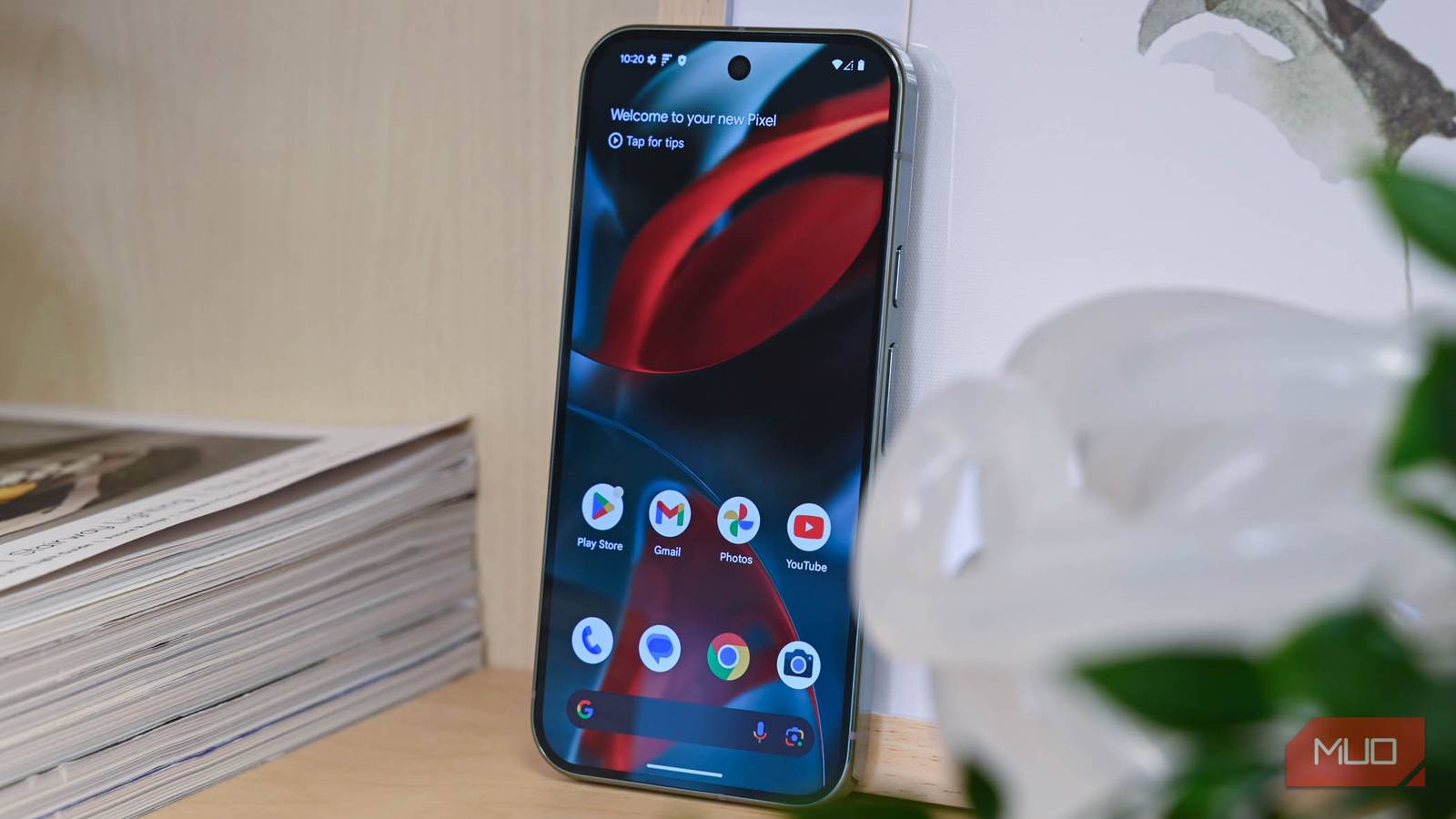
Android phones come loaded with AI features and apps that help improve productivity, but nothing can boost your day-to-day efficiency quite like gestures. I use them all the time, and half the magic is that they let you interact with your phone without breaking your flow.
These gestures let me switch apps, multitask, capture screenshots, and even access my favorite accessibility features without digging through menus or wasting time. Now that I’ve gotten used to them, they have become part of my muscle memory, and honestly, I regret not discovering some of them earlier.
Switch apps and tabs with a swipe
Swipe your way
 Screenshot by Pankil Shah — No attribution required
 Screenshot by Pankil Shah — No attribution required
 Screenshot by Pankil Shah — No attribution required
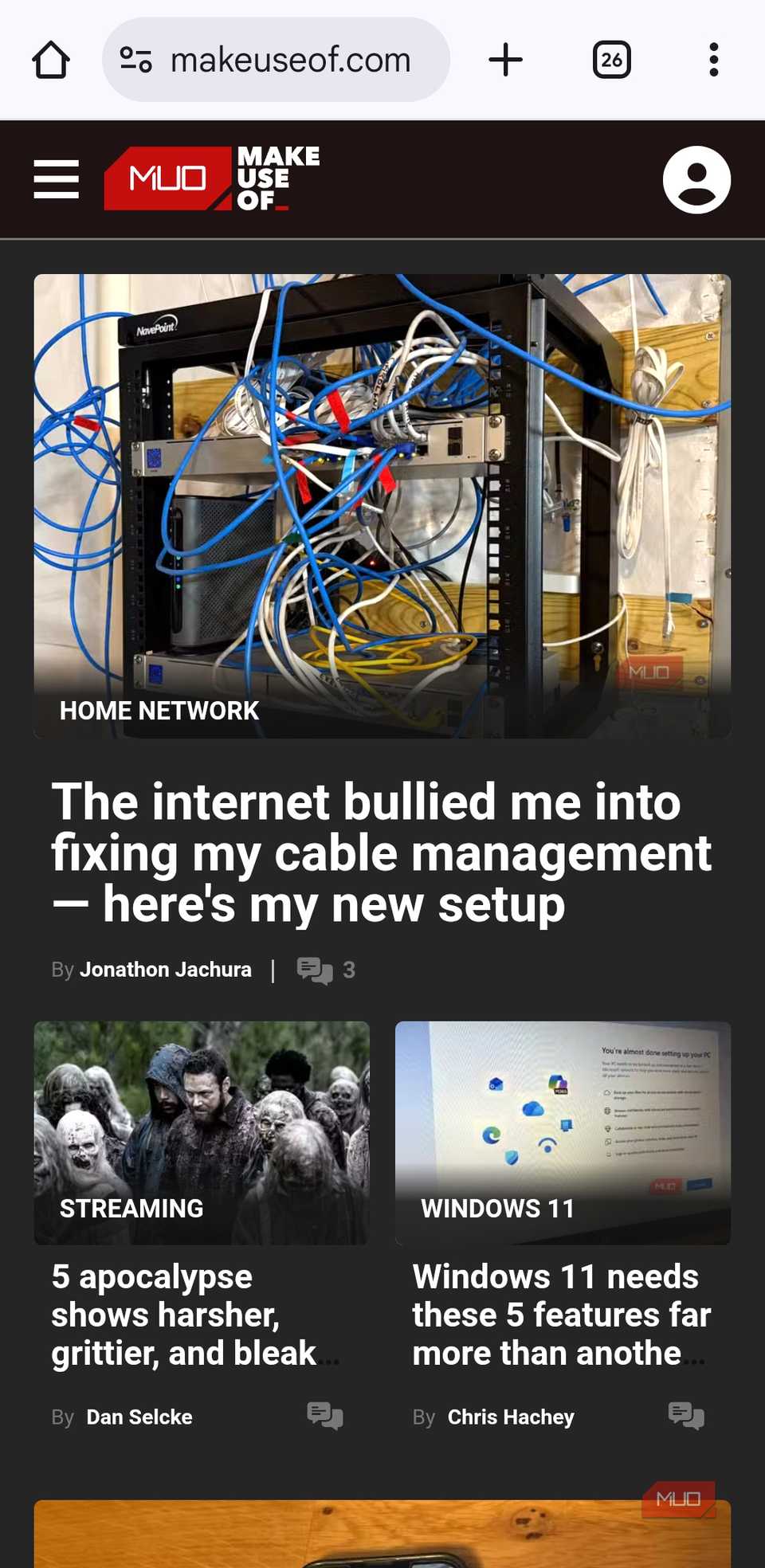
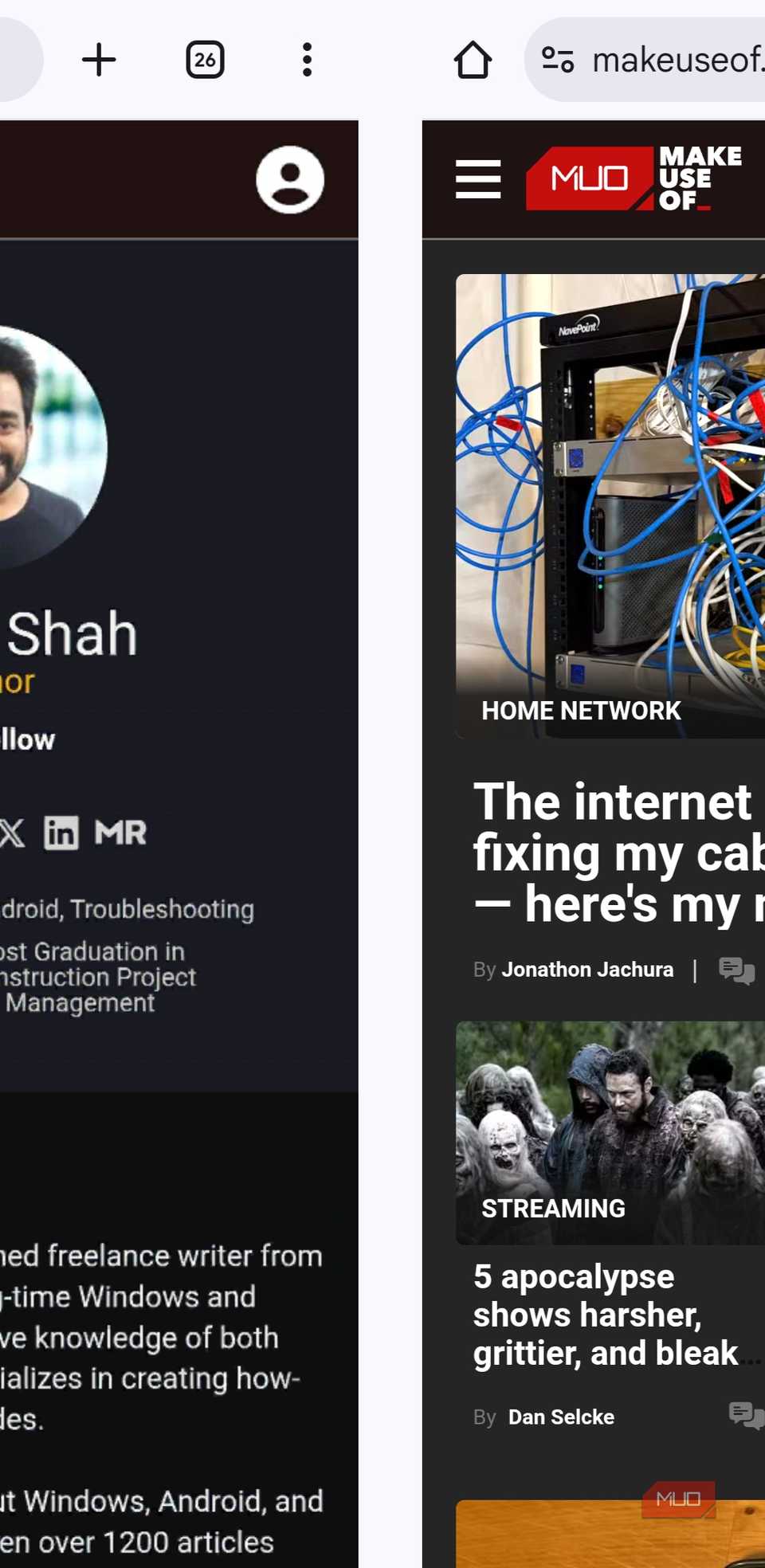
Android’s app switcher menu makes it easy to switch between your recently opened apps, but you don’t necessarily have to open it every time. You can also swipe left or right on the navigation bar at the bottom to quickly open your previous or next app.
The same trick works in Chrome too. Instead of swiping on the navigation bar, you need to swipe left or right on Chrome’s URL bar to switch between open tabs. It’s quite useful when you’re comparing product prices or doing some research.
Open apps in split screen or windowed mode
Multitask like a pro
 Screenshot by Pankil Shah — No attribution required
 Screenshot by Pankil Shah — No attribution required
 Screenshot by Pankil Shah — No attribution required
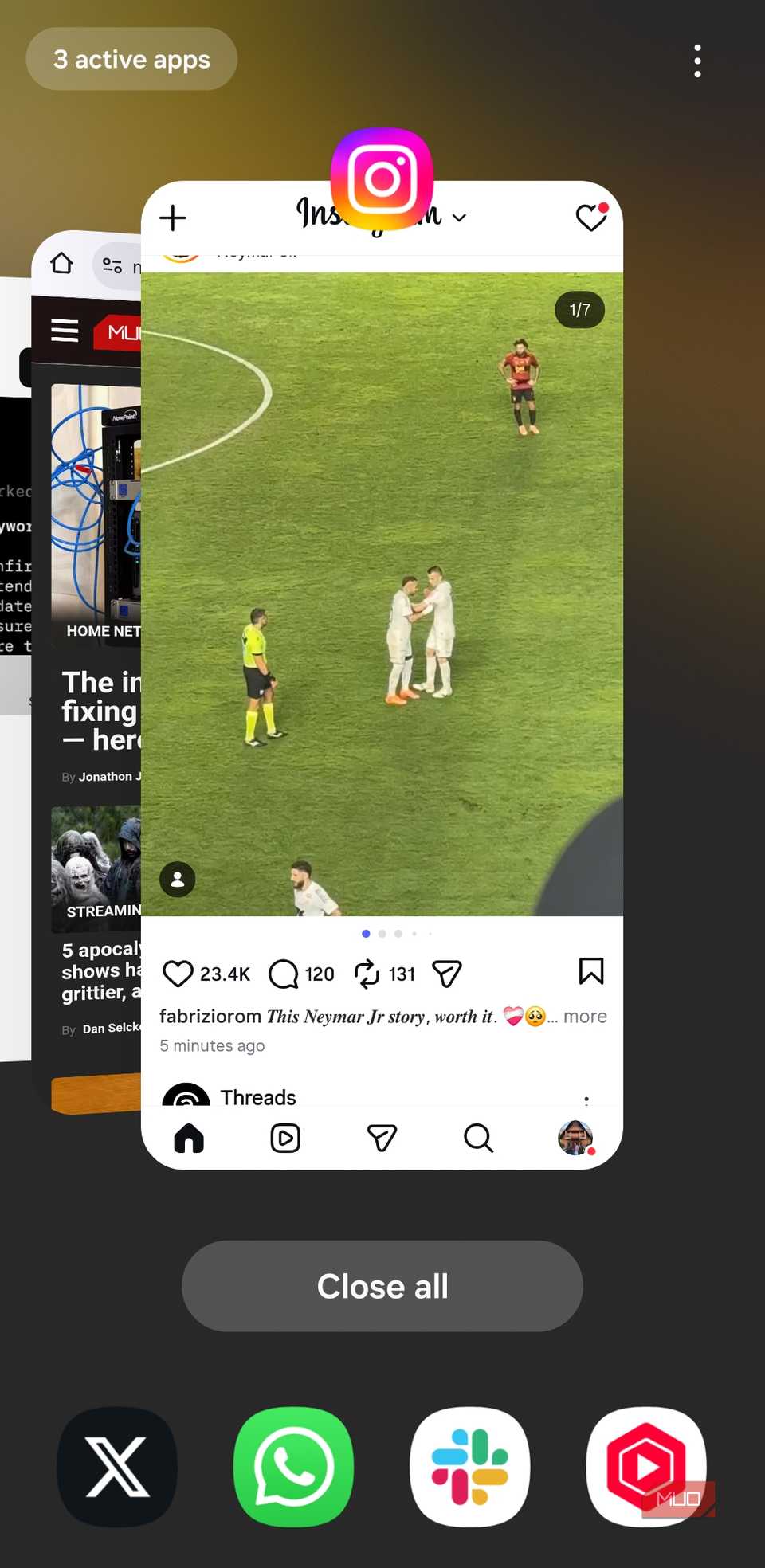
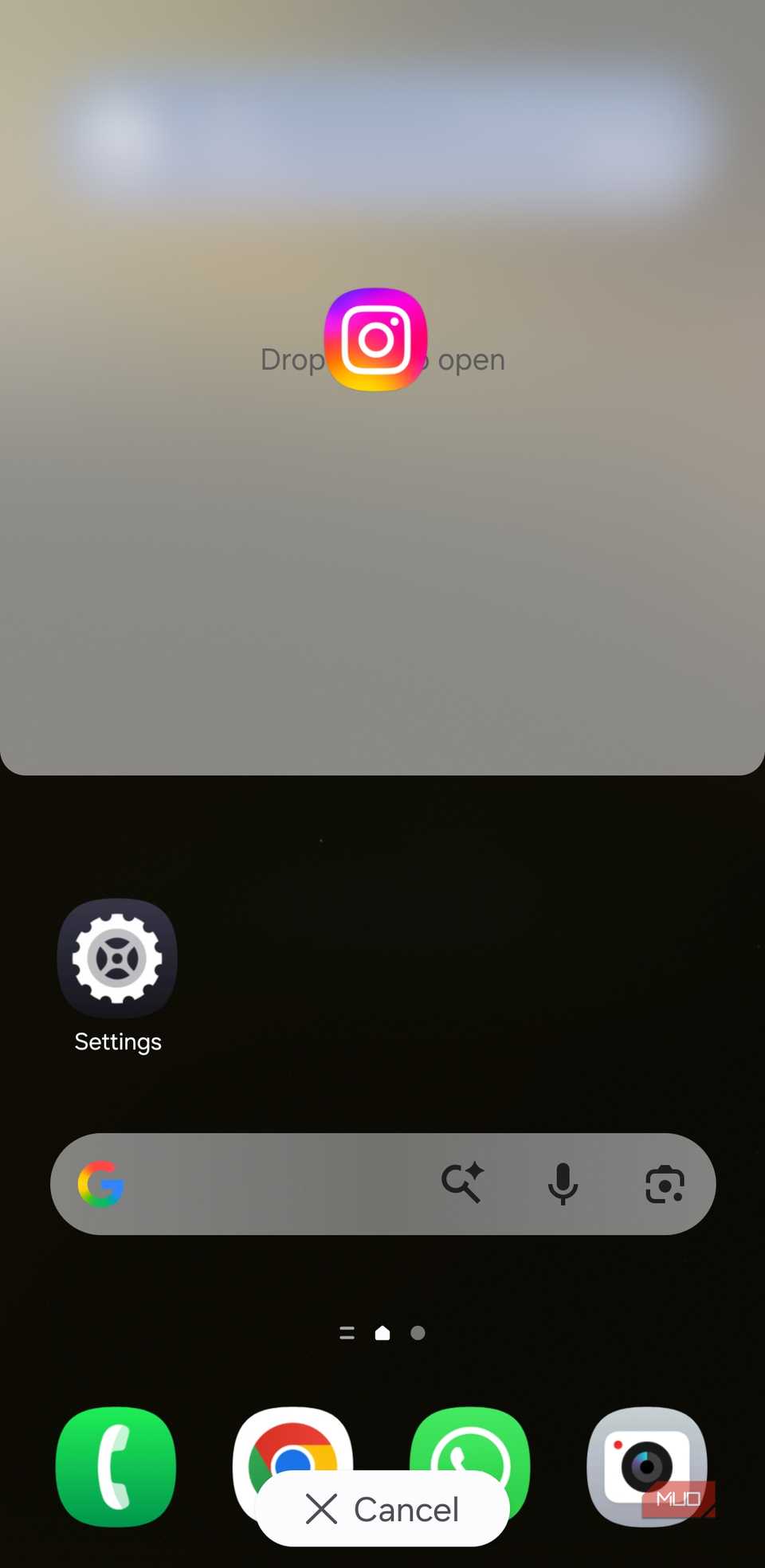
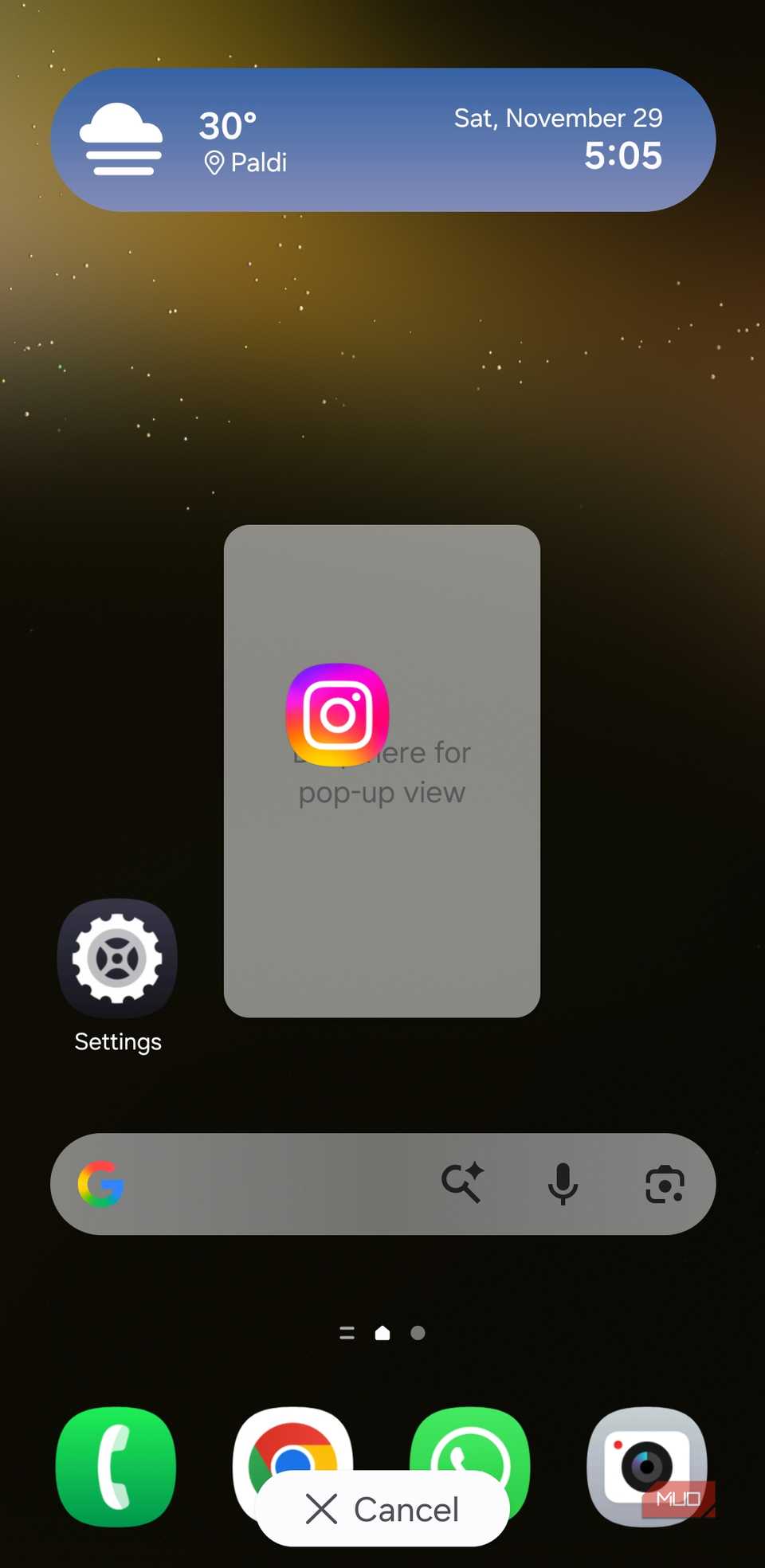
Android phones come packed with useful multitasking features that make life easier. One of the most underrated ones is split-screen mode. To open an app in this mode, long-press the app in the app switcher and drag it to the top half or the bottom half of the screen.
If you have a Samsung phone, One UI also offers a windowed mode option. For that, long-press an app in the app switcher and drag it toward the center of your screen. It will then open in a floating window that you can resize or move around just like a tiny desktop app.
Switch to one-handed mode
Tame your big screen
 Screenshot by Pankil Shah — No attribution required
 Screenshot by Pankil Shah — No attribution required
 Screenshot by Pankil Shah — No attribution required
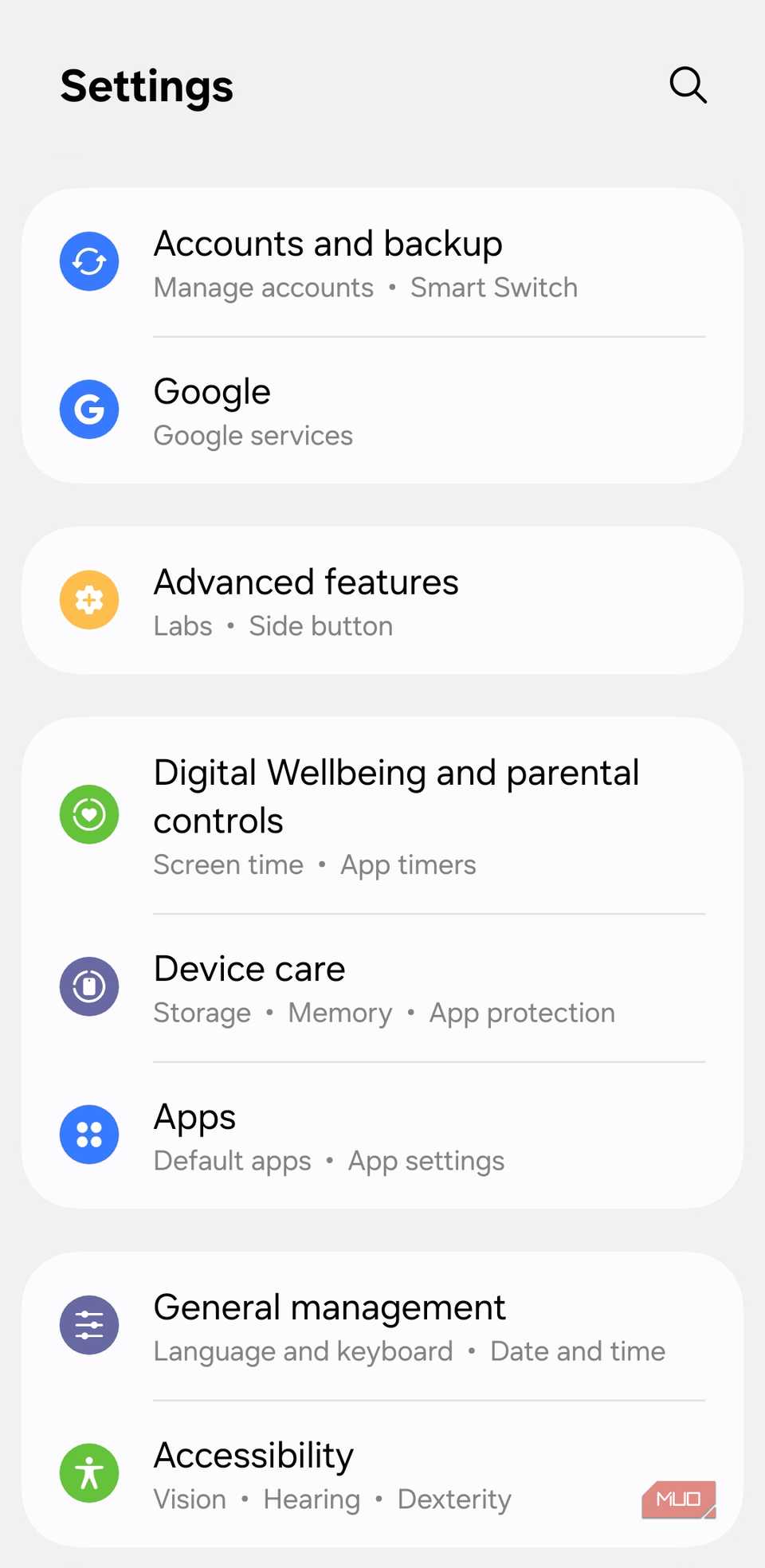
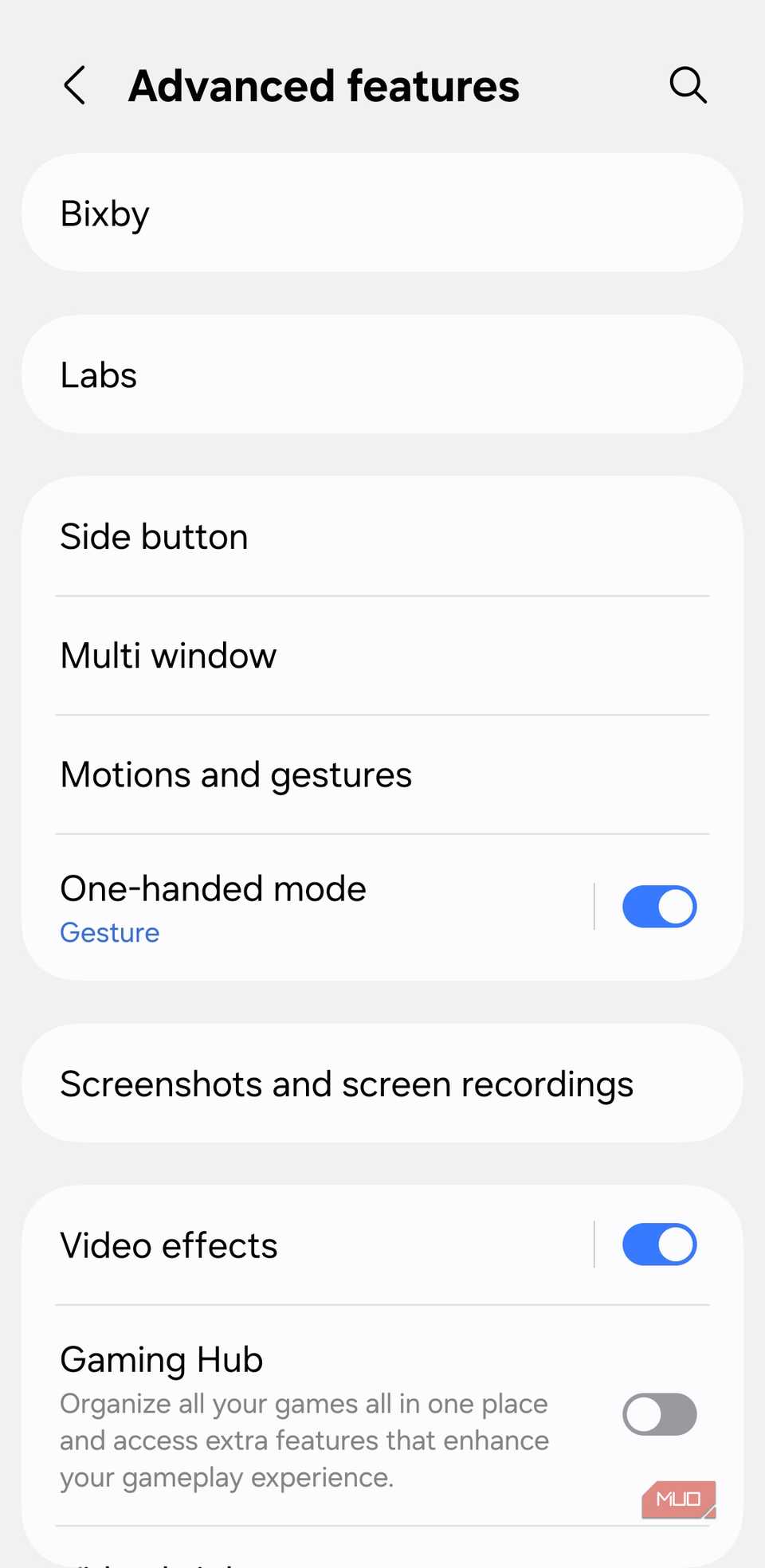
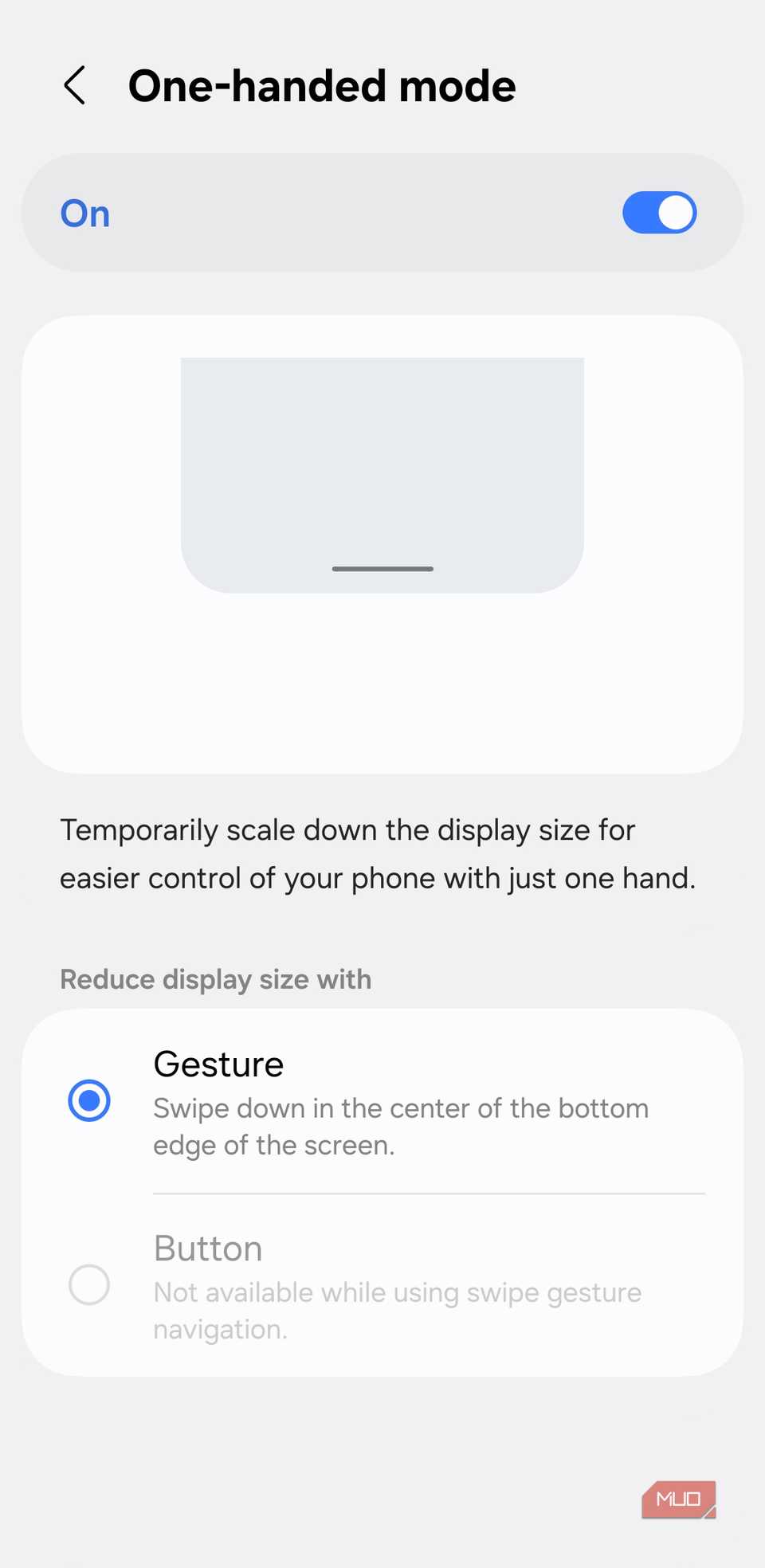
Our phones are no longer small enough to use comfortably with one hand. Enabling one-handed mode shrinks your phone’s screen so you can interact with it using just one hand. To access this mode, all you have to do is swipe down on the navigation bar.
Note that on some phones, you may need to enable one-handed mode from the Settings app first for this gesture to work. Once it’s on, the same swipe-down gesture will take you out of one-handed mode.
Swipe to capture a screenshot or switch accounts in Google apps
Snap and switch with minimal effort
 Screenshot by Pankil Shah — No attribution required
 Screenshot by Pankil Shah — No attribution required
 Screenshot by Pankil Shah — No attribution required
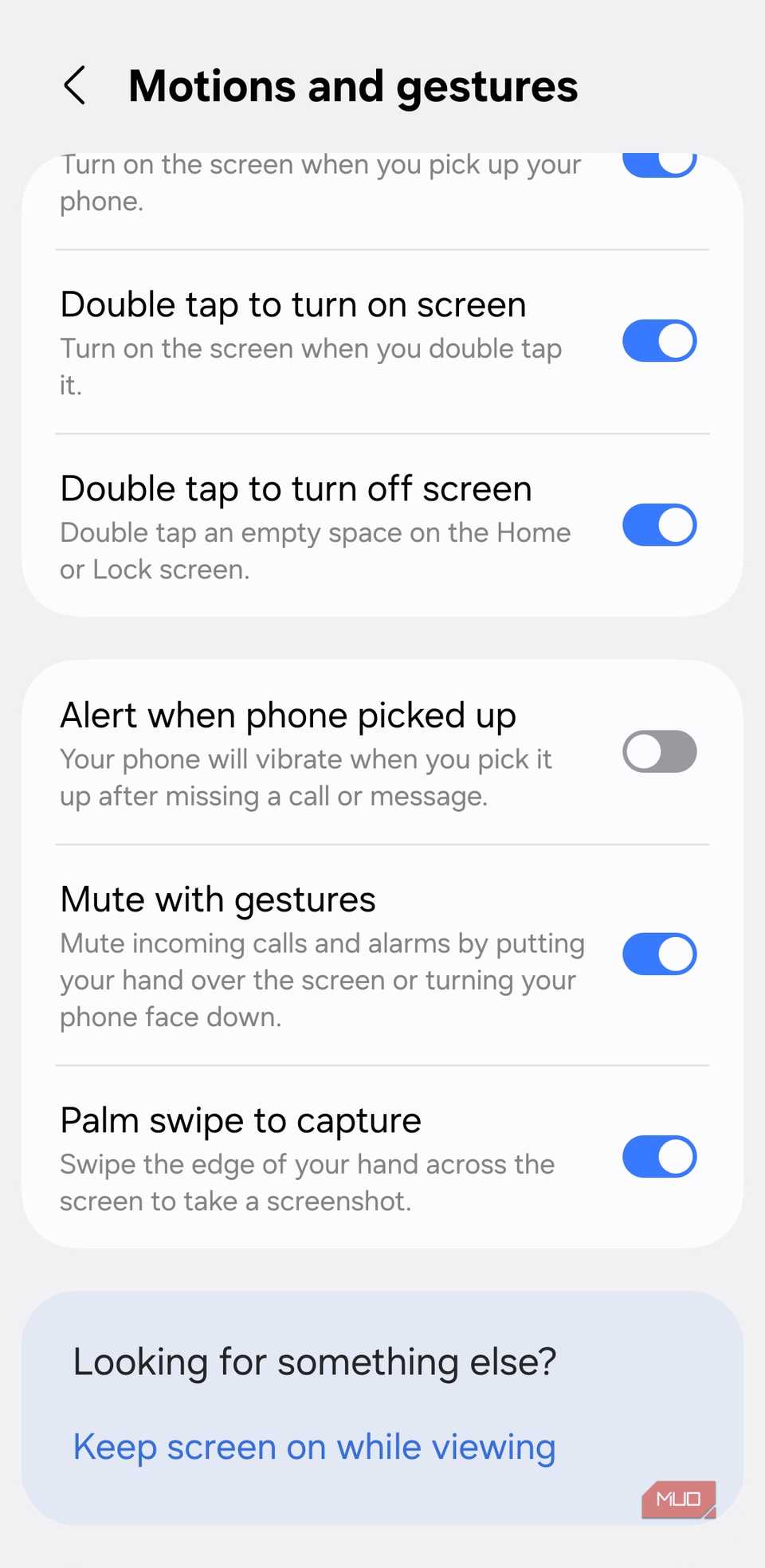
Some gestures feel so natural you forget they’re even features. Swiping to capture a screenshot is one of those. Instead of trying to press both power and volume buttons at once, you can simply swipe downward with three fingers on any screen to capture it. This works on OnePlus, Oppo, Vivo, and several other phones. On Samsung phones, the gesture is a little different. You need to swipe the edge of your hand across the screen to capture a screenshot without buttons.
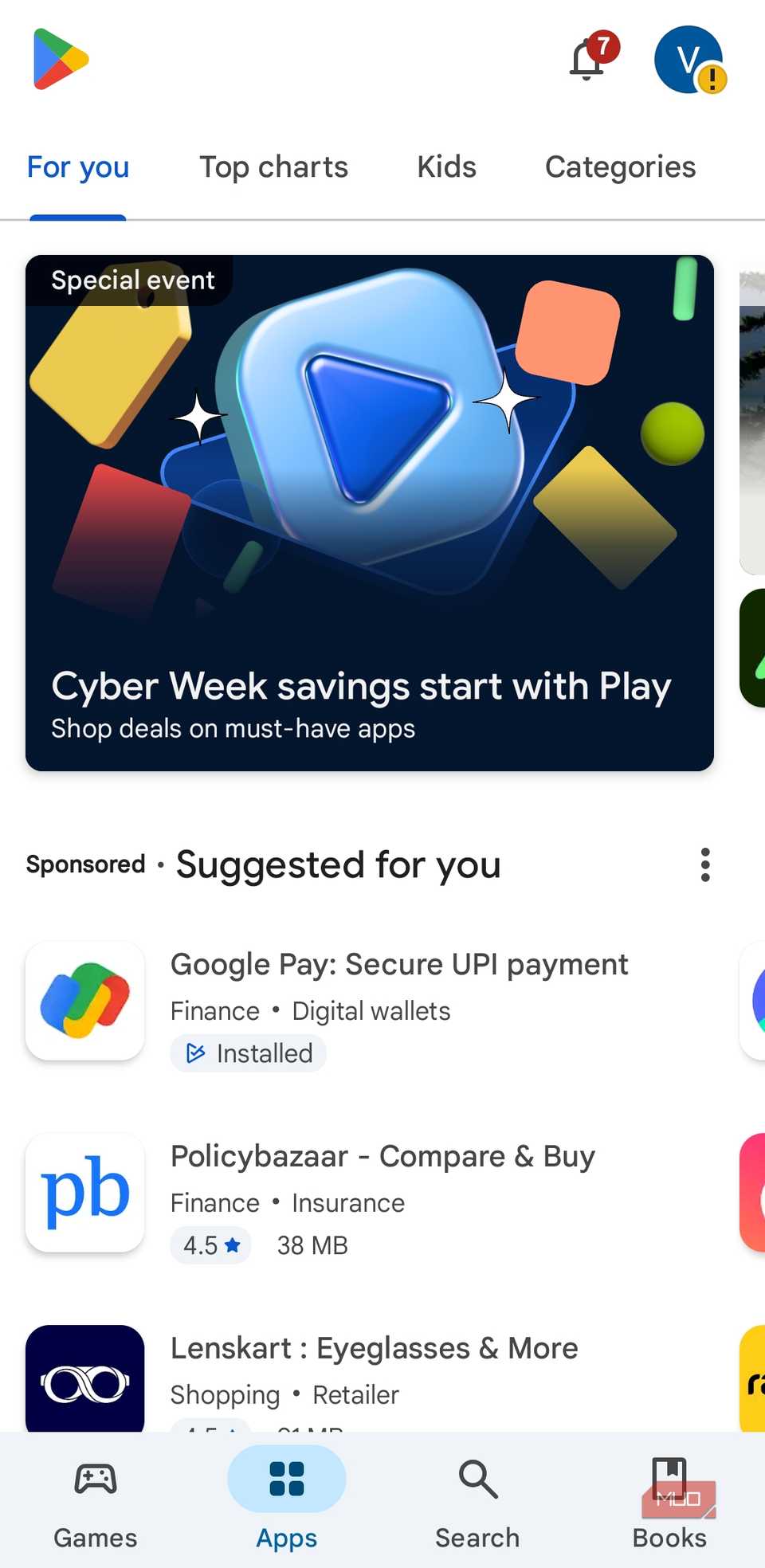
Another swipe gesture that’s become one of my personal favorites works across most Google apps. To switch between accounts inside apps like Google, Gmail, Photos, Google Drive, Play Store, and others, you can swipe up or down on your profile picture in the top right corner. Once you get used to it, you’ll never go back to doing it the old way.
Swipe with two fingers to use an accessibility feature
Trigger your favorite tool
Although Android’s accessibility features are designed for people with specific needs, there are some that can be useful for everyone. For instance, you can use your phone’s camera as a magnifier to read fine print, or turn on Live Captions to follow along a video.
You can trigger your favorite accessibility feature by swiping up from the bottom with fingers. To set which feature this gesture activates, head to Settings > Accessibility > Advanced settings > Accessibility button/gesture.
Tap the back of the phone for specific actions
Use the secret button
There’s something oddly satisfying about performing a task with a quick double or triple tap on the back of your phone. It’s almost like you have a secret action button. Pixels call it Quick Tap. Samsung phones can do it too, but you need the Good Lock app to make it work.
What’s great about the back tap gesture is that you can set it to do almost anything you do often. This could be launching a specific app, taking a screenshot, controlling music, opening the notification panel, and more. I use the back tap gestures to create a note on the fly and dive into my Instagram DMs.
Getting used to some of these gestures can take time, but once you do, you’ll be able to fly through your phone without even thinking. Beyond the default Android gestures, most apps also sneak in their own clever shortcuts that make everyday actions easier, so make sure to look out for them too.