I used to be a two-phone person. You know the type. I walked around with a flagship Android in one pocket and an IT-issued one in the other.
It was me, trying pretty desperately to split my life into labor and leisure. I thought physical separation was the only way to keep my boss from invading my Saturday afternoon.
Turns out, what I really needed was to draw better lines.
Related
These Google Calendar features quietly fixed my work–life balance
These small changes subtly reshaped how I plan my days
Seeing a work icon is enough to ruin your evening

It’s Sunday evening, around 6 PM, and you’re trying to relax with a movie. You check your phone. The Outlook icon, right next to your Netflix app, is marked with a red 3.
Even if you don’t open it, the damage is done. Your brain has left the person behind and entered employee mode.
Research says it takes 23 minutes to get back into the zone after one interruption. So if you get a work badge, you’re already losing 23 minutes, even if you never touch the phone.
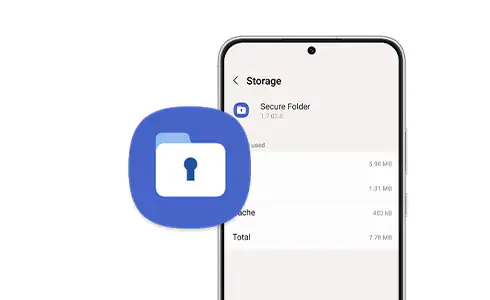
Secure Folder works because when it’s locked, those apps don’t show up at all. It creates a separate space that tells your brain that the office is closed.
It is built on Samsung Knox, a security platform that starts at the chipset level. Most people don’t care about the technical architecture of their phone, but you should care about this.
Knox uses something called TrustZone to create a sandbox inside your processor.
When I put my work apps in the Secure Folder, the standard Android environment — the one where I scroll through Instagram and text my friends — cannot access or see those work apps unless the Secure Folder is unlocked.
Secure Folder versus everything else that almost works
Credit: Samsung
Do Not Disturb is a volume knob, not a wall. It suppresses sound, but it doesn’t suppress presence.
The apps are still there. The badges are still there. If you pick up your phone to check a sports score, you’ll see the unread emails. DND is also too easy to bypass.
Android Enterprise Work Profiles are the other way to do this, but they are a nightmare for the average user. They usually require an IT administrator to set up.
This can give your company’s IT department a disturbing amount of admin control over your hardware.
How to build a digital office without leaking into your life
If it’s for work, it doesn’t belong on your main home screen.
Most people make the mistake of cloning apps. They keep Slack on the main phone and put a second copy in the Secure Folder. Don’t do that.
Open the Secure Folder. You can find it in your app drawer or under Settings > Security and Privacy. Next, tap the plus icon to add your work apps like Teams, Slack, Outlook, and LinkedIn.
Finally, if your work requires a managed Google account, make sure to sign in to that account only within the Secure Folder.
You can have your personal Gmail on the outside and your corporate G-Suite on the inside. They will never meet. Your personal contacts won’t be muddled.
Now the Secure Folder is a bit suspicious, which can invite the wrong kind of curiosity.
I renamed mine to “the office” with a briefcase icon. You can even change the color of the icon to match your theme.
Controlling what your lock screen is allowed to say
Credit: Lucas Gouveia / Android Police
In the Secure Folder settings, you have granular control over what the outside world sees.
You can set it so that when the folder is locked, notifications are completely suppressed.
In the Settings (Secure Folder > Settings > Notifications and data), there is an option called Show content. I turned it off. When this is off, even if I get a notification, the lock screen hides the content.
Letting your phone enforce boundaries for you
Credit: Lucas Gouveia / Android Police | Siberian Art / Shutterstock
Combine the Secure Folder with Modes and Routines.
You can set an automation that says, “When I arrive at my home, GPS coordinates, lock the Secure Folder, and hide the icon.” Or, “On Saturday at 9:00 AM, disable all Secure Folder notifications.”
This takes the human element out of it. You don’t have to remember to set boundaries; your phone enforces them for you.
The fear of missing out won’t be a problem
“But what if there’s an emergency?” This is the number one objection I hear.
Here is the reality. If the building is burning down, nobody is going to Slack you. They will call you.
Secure Folder isolates data, but it doesn’t block incoming phone calls from the numbers saved in your work contacts (unless you explicitly tell it to).
So, if my boss calls my cellular number, it rings. For everything else — emails, chats, project updates — I realized that emergencies are usually just other people’s poor planning.