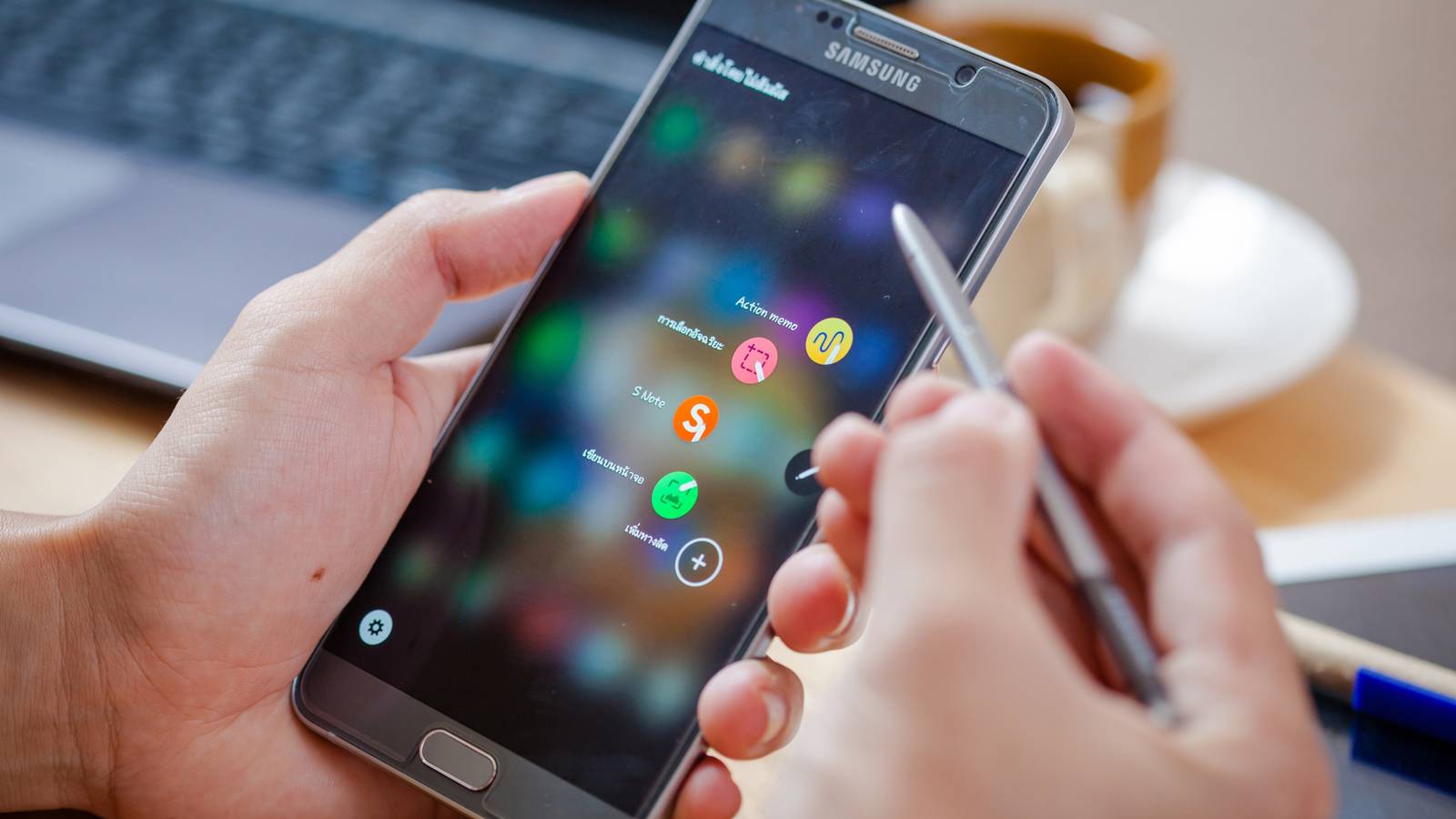
Android phones slow down over time, and that is completely natural. As software becomes more demanding and hardware starts to show its age, your phone feels gradually less responsive. I recently found myself in the same situation. However, after changing just a couple of settings on my Android phone, its performance improved far more than I expected. The difference was noticeable almost immediately, to the point that it feels brand new again.
Related
My old Android was laggy until I toggled this setting
I thought I needed a new phone—this tweak saved it.
Turn off animations to make your phone feel quicker
Making your phone feel more snappy
Credit: Shimul Sood / MakeUseOf
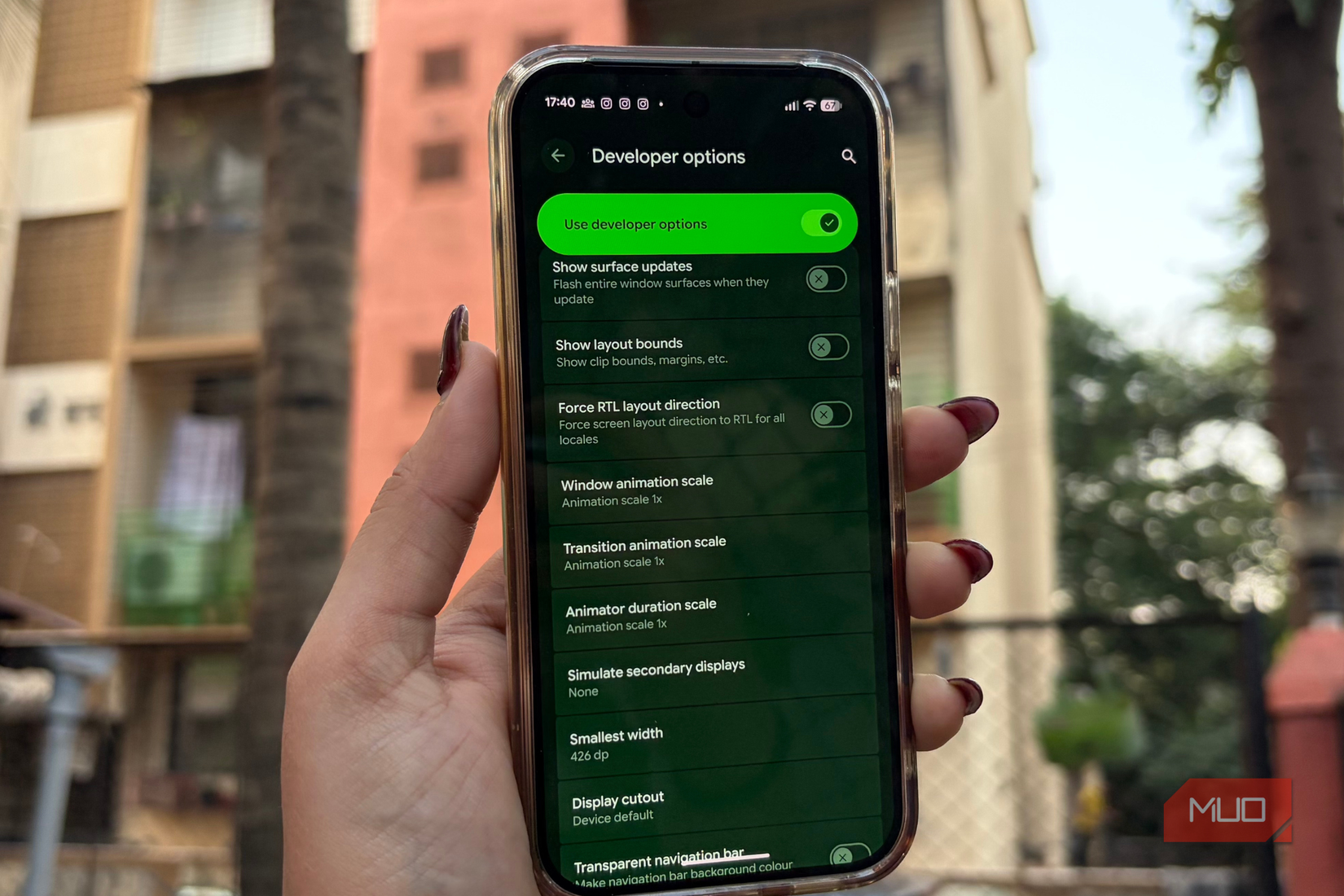
You can turn off animations on older Android devices to make them feel far more responsive. The difference is so noticeable, it can almost feel like you’re using a brand-new phone. To do this, you’ll first need to enable Developer options:
- Open the Settings app on your phone.
- Go to About Phone, then tap the Build number 7 times in quick succession.
- You’ll see a pop-up saying: “You’re now a developer!”
Next, follow these steps:
- Go back to System and tap Developer Options.
- Scroll down to the Drawing section.
- Look for Window animation scale, Transition animation scale and Animator duration scale.
- Tap each one and select Animation off.
At first, scrolling and swiping might feel a little bit unusual, but after a short adjustment period, your phone will feel noticeably snappier and more responsive.
Routinely flush out app memory
A quick spring-clean for your most-used apps
Credit: Shimul Sood / MakeUseOf
Most of what we do on a smartphone happens inside apps. Social media, messaging, emails and payments; apps like Instagram, WhatsApp, Gmail and several others are opened multiple times a day. Over time, these apps quietly pile up cached data in the background. While the cache is meant to speed up loading, it often slows things down over time. Apps start feeling sluggish, occasional stutters creep in and it eventually hampers the overall experience.
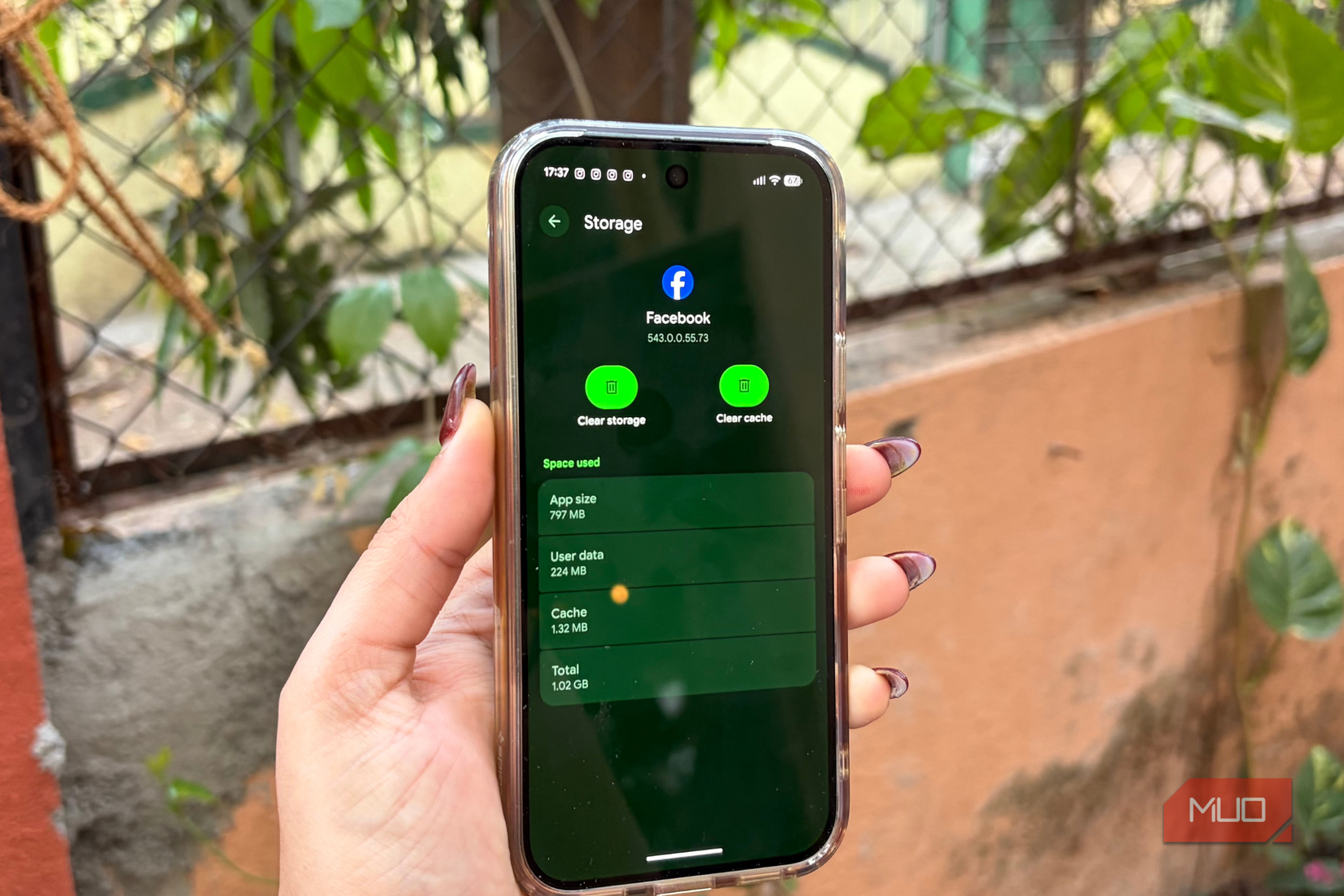
This is where clearing the cache actually helps. I make it a habit to sit down once every 20 days or so with an older Android phone and clear the cache for the apps I use most. It’s a very simple process: long-press the app icon, tap the small “i” icon to open App Info, head to Storage & Cache and tap Clear Cache. The button greys out instantly, and you’re done. It takes barely a few seconds per app, but the impact is noticeable. Once you get back to the app normally, everything feels smoother and quicker.
Look for storage-heavy apps and clean them
The usual suspects in your storage list
Every smartphone user has one or two apps that quietly eat up a huge chunk of storage. In my case, it’s WhatsApp. To figure out which apps are doing this on your Android phone, open the Settings app, go to Storage, and tap the Apps menu. You’ll see a list sorted by storage usage, with the heaviest apps right at the top. Tap the app that’s taking up most space, and if the storage isn’t important, you can safely tap Clear Storage to free up space.
For apps like WhatsApp, though, where your storage includes important photos, videos and documents, a more careful approach works better here. Open WhatsApp, tap the three-dot menu in the top-right corner, and go to Settings. From there, tap Storage and data, then tap Manage storage. It may take a few seconds or even a minute when you have a lot of data. Once it does, you’ll see the largest files (usually over 5MB) and the chats that are consuming the most space. Review and delete items individually to avoid accidentally losing something important. This cleanup can free up a surprising amount of storage and help your phone run more smoothly overall.
Always take a moment to review what you’re deleting within each app. Rushing through the process can lead to losing important data, and once it’s gone, there’s no easy way back.
Don’t skip those updates
The secret to a happier, faster phone
Credit: Shimul Sood / MakeUseOf
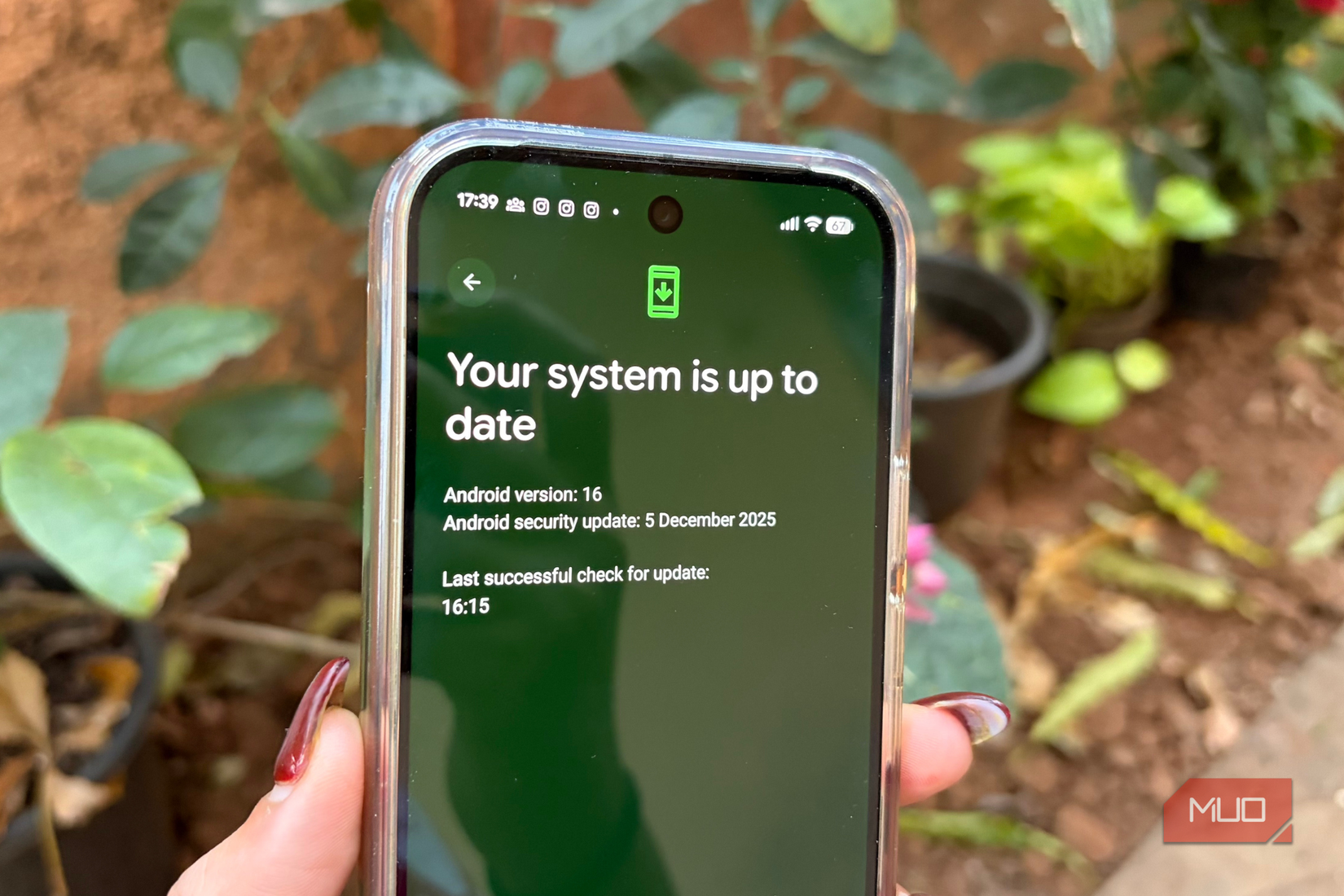
Software updates are often overlooked by many smartphone users. While it’s okay to wait for a few days before installing a new security patch or system update, you should make a point of updating your phone regularly. Updates not only bring new features to your phone but also improve performance, whether your device is old or new.
To update your smartphone, open the Settings app, go to System and tap Software updates. Tap System update again, and your phone will check for any available updates. If your device is already up-to-date, you’ll see a confirmation; if not, go ahead and install the latest update to keep your phone performing at its best.
Remove apps you no longer use
Make room for what actually matters

Credit: Shimul Sood / MakeUseOf
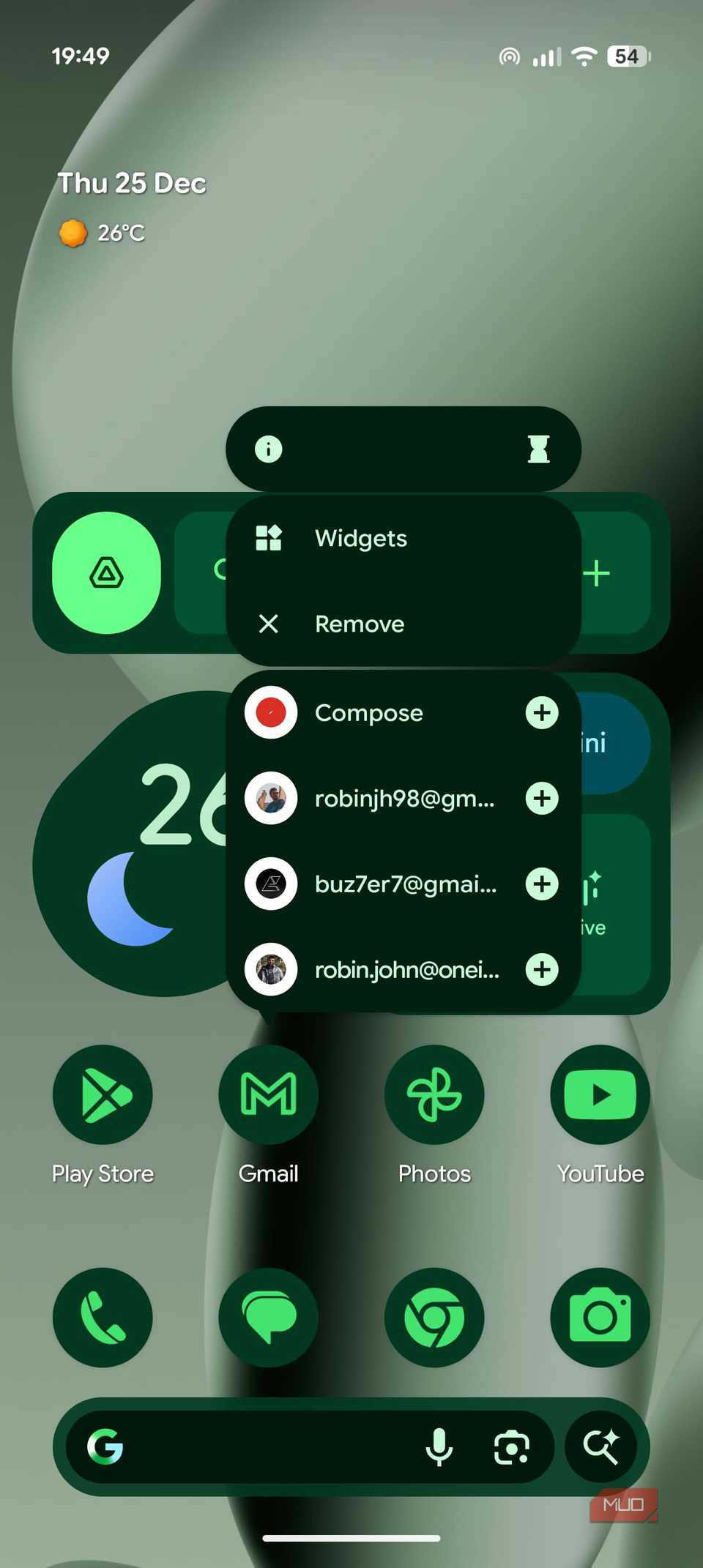
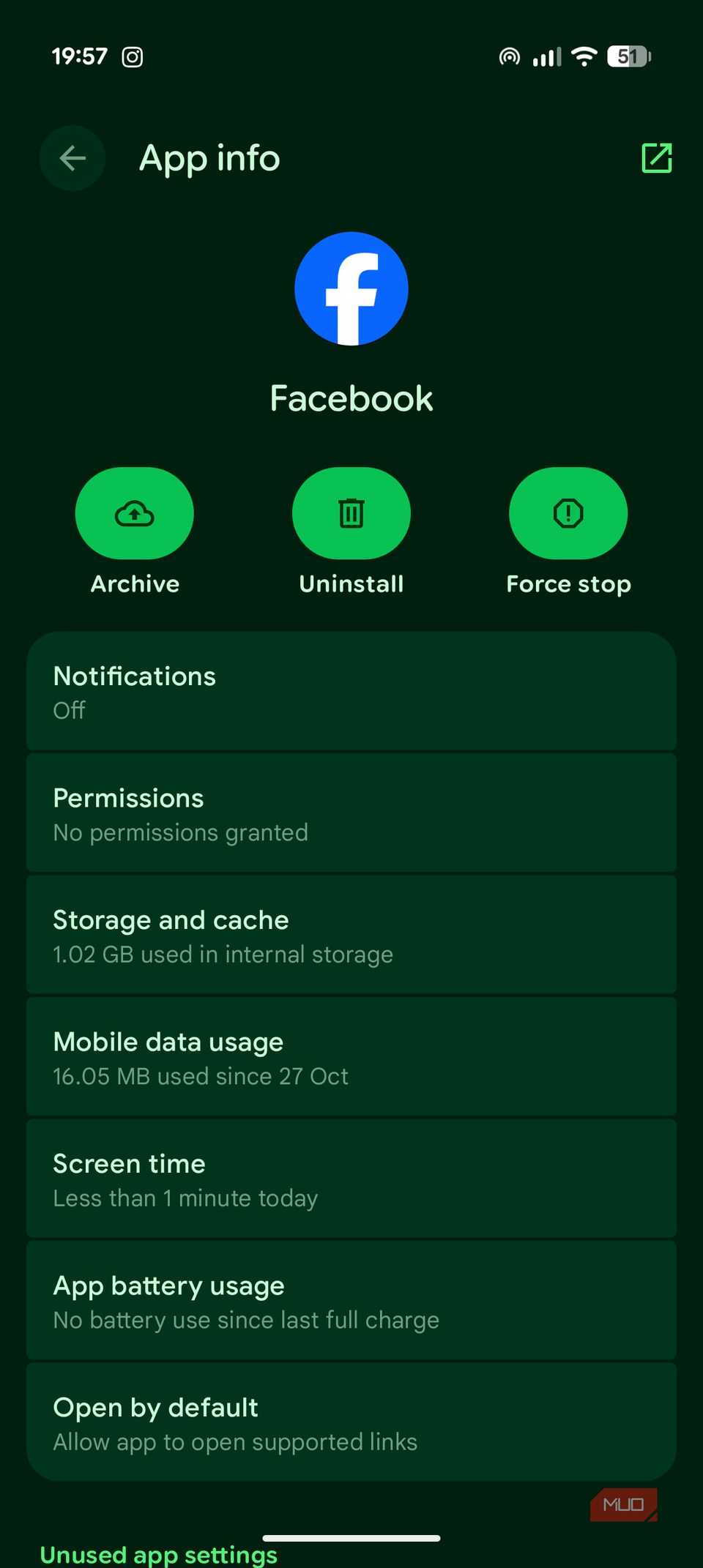
These days, many smartphones come loaded with pre-installed apps, and over time, you may have installed a few more that you no longer use. It’s a good idea to delete these apps; you don’t really need them. Simply long-press the app icon, go to App Info, and select Uninstall. Doing this frees up valuable storage and can make your phone feel faster.
Bonus tip: sometimes, all your phone needs is a restart
When your phone just needs to start over
Credit: Shimul Sood / MakeUseOf
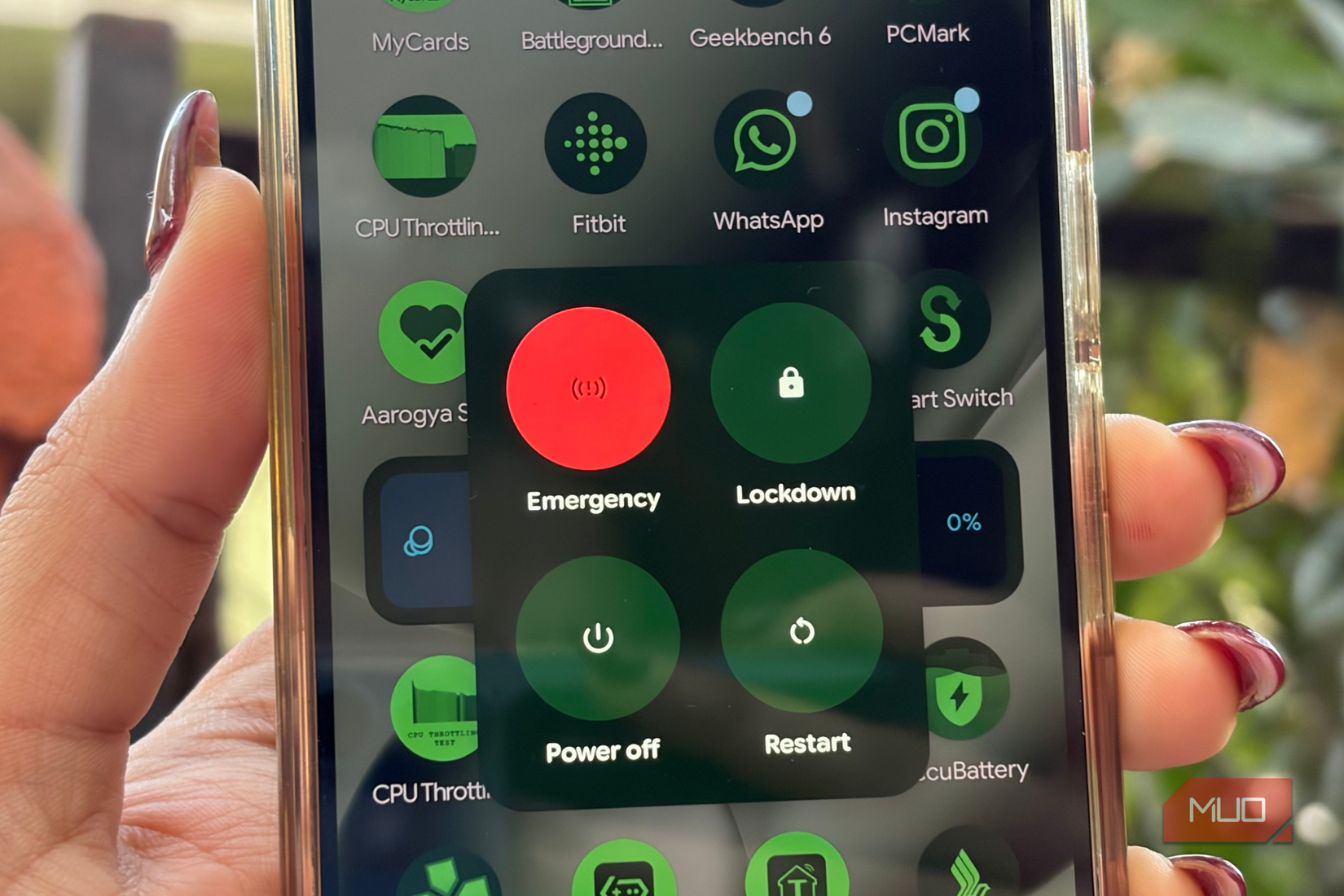
When your phone starts behaving unpredictably, freezing up, lagging and leaving you with no option but to wait, it usually means it needs a simple restart. Restarting your phone sporadically helps clear temporary memory, shut down background apps, and fix general sluggishness and unresponsiveness. It is one of the quickest ways to give your smartphone a quick reset instead of changing settings.
To do this, simply long-press the power button and volume up button together. A menu will appear on the screen. Tap Restart. In a few seconds, your phone clears everything it was handling in the background and boots back up fresh. In my experience, this works like a charm.
A few tweaks away from a faster phone
These are all the simple tweaks you need to make your smartphone feel almost brand new, and believe me, the difference is impressive. Just follow them occasionally and your phone will keep running smoothly. If, over time, these tricks stop doing the job, then well… it might just be time to treat yourself with a new device. Conversely, if you’re using an older iPhone, and want to get rid of the sluggishness, this there’s a trick for speeding up iPhones too.