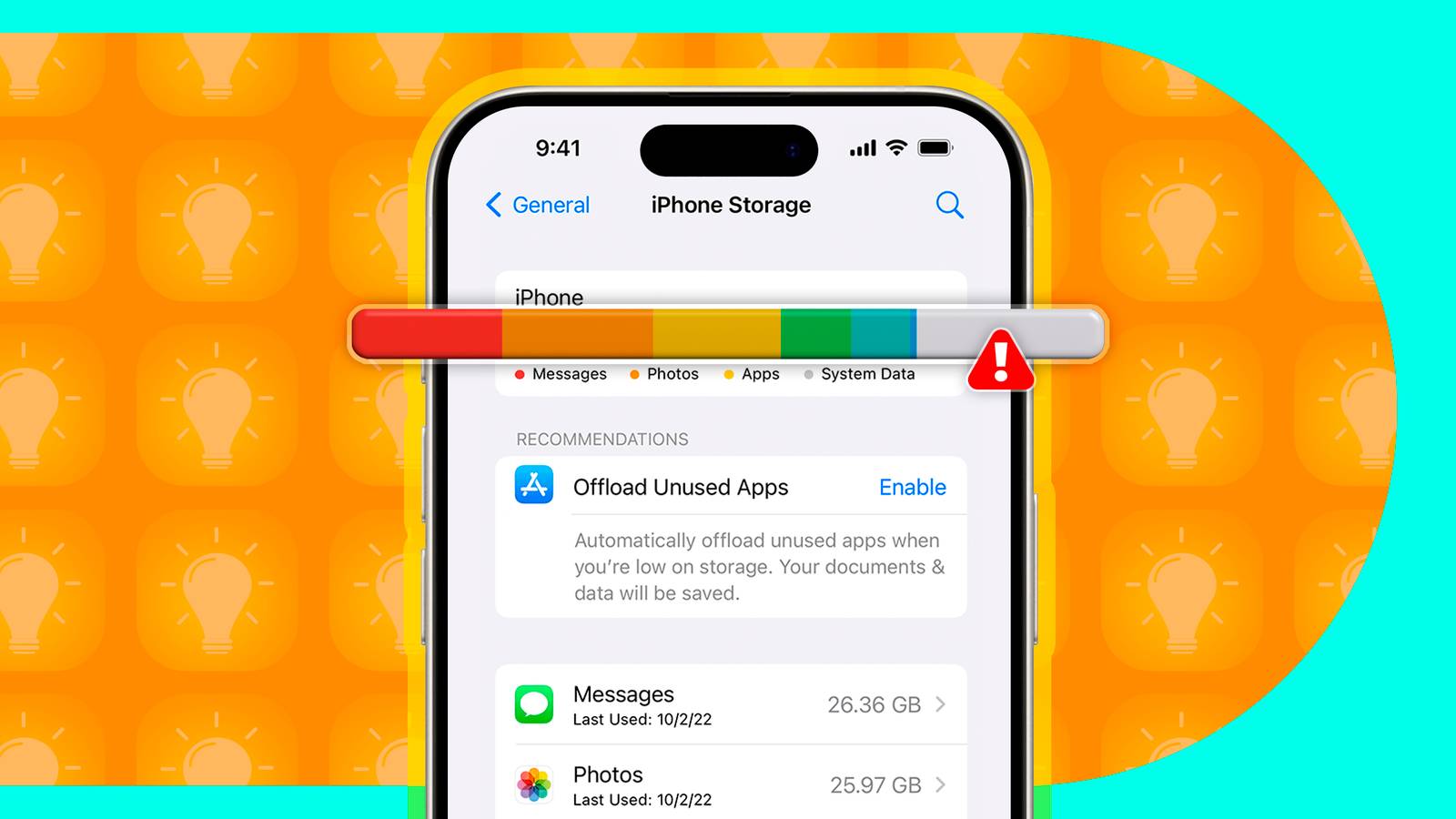
My iPhone 15 Pro has 256GB of internal storage. The last time I’d checked, I was using about half of that capacity. Imagine my surprise, then, when I discovered that my storage was suddenly almost completely full. The culprit was not what I was expecting.
My System Data blew up
The first indication that I had that something was up with my phone was when I was unable to use Duolingo to complete my daily language lessons. I could open the app, but nothing was loading, and at first, I thought that maybe Cloudflare was down again. When this turned out not to be the case, I started looking for other causes.
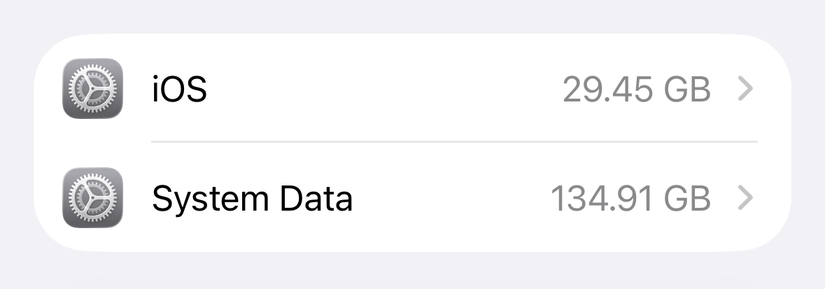
It was when I went into the Storage settings on my iPhone that the cause became apparent. My System Data was showing as 134.91GB, more than half of the entire capacity of my 256GB iPhone. This meant that my storage was effectively full, which was stopping my iPhone from functioning correctly, with apps crashing or failing to work.
System Data is a catch-all category for iPhone storage that doesn’t fit under other categories, such as Applications, Photos, and Music. It includes app caches, system logs, and other random bits of data that your iPhone uses to run smoothly.
System Data can take up a significant amount of storage, but it shouldn’t be getting much north of 20GB under normal circumstances. It most definitely should not be reaching more than 130GB, which is higher than the entire 128GB capacity of a base model iPhone 16.
The quick fixes everyone suggests didn’t work
Looking online, I wasn’t the first person to experience this problem, although I didn’t find many examples where System Data had become quite so large. There were several solutions suggested to fix the problem, so I tried the most common suggestions in turn.
Restarting my device was frequently suggested, but after doing so, System Data was still sitting at over 130GB. Clearing Safari caches also made a negligible difference. I also tried setting “Keep Messages” in the Messages settings to “30 Days,” but this also made little difference.
A suggestion that has worked for some people is a trick involving changing the date on your iPhone. This trick is intended to force your iPhone to purge cached files that now appear to be very old. Changing the date can mess with calendars and other time-sensitive apps, and may potentially cause issues with 2FA apps, so make sure you won’t need to do anything important before you get a chance to complete this process.
Turn on Airplane Mode. Go to Settings > General > Date & Time, and turn off “Set Automatically.” Change the date to two years in the future and wait for a minute. Change the date back to Set Automatically. Turn off Airplane Mode and restart your iPhone.
Despite many people having success with this method, after trying it, my System Data was still well over 130GB.
I had to resort to the nuclear option
There was only one suggestion left, and it was one I had been reluctant to try, because it was the nuclear option. The final suggestion was to back up, erase, and restore my iPhone.
I knew this would be a pain because I’d have to reconfigure lots of apps and re-authorize things such as payment cards linked to Apple Pay. However, my phone was effectively unusable in its current state, so I had little choice.
This method will completely erase your iPhone. If something goes wrong during this method, you could potentially lose important data. Ensure that you have adequate space on your computer to back up your entire iPhone, and only attempt this method if nothing else will work.
Connect your iPhone to your Mac or PC and locate your iPhone in the Finder sidebar or in the Apple Devices app. Under the “General” tab, select “Back up all the data on your iPhone to this Mac.” Check the “Encrypt local backup” option, as otherwise data such as your passwords and data from the Health app will not be backed up. Click “Back Up Now” and wait for the backup to complete. Ensure that “Last backup” shows a backup to your Mac (not iCloud) for today’s date.
Now that you’ve backed up your iPhone, you can erase it. Go to Settings > General > Transfer or Reset iPhone. Select “Erase All Content and Settings” at the bottom of the screen. Tap Continue and follow the instructions to erase your iPhone.
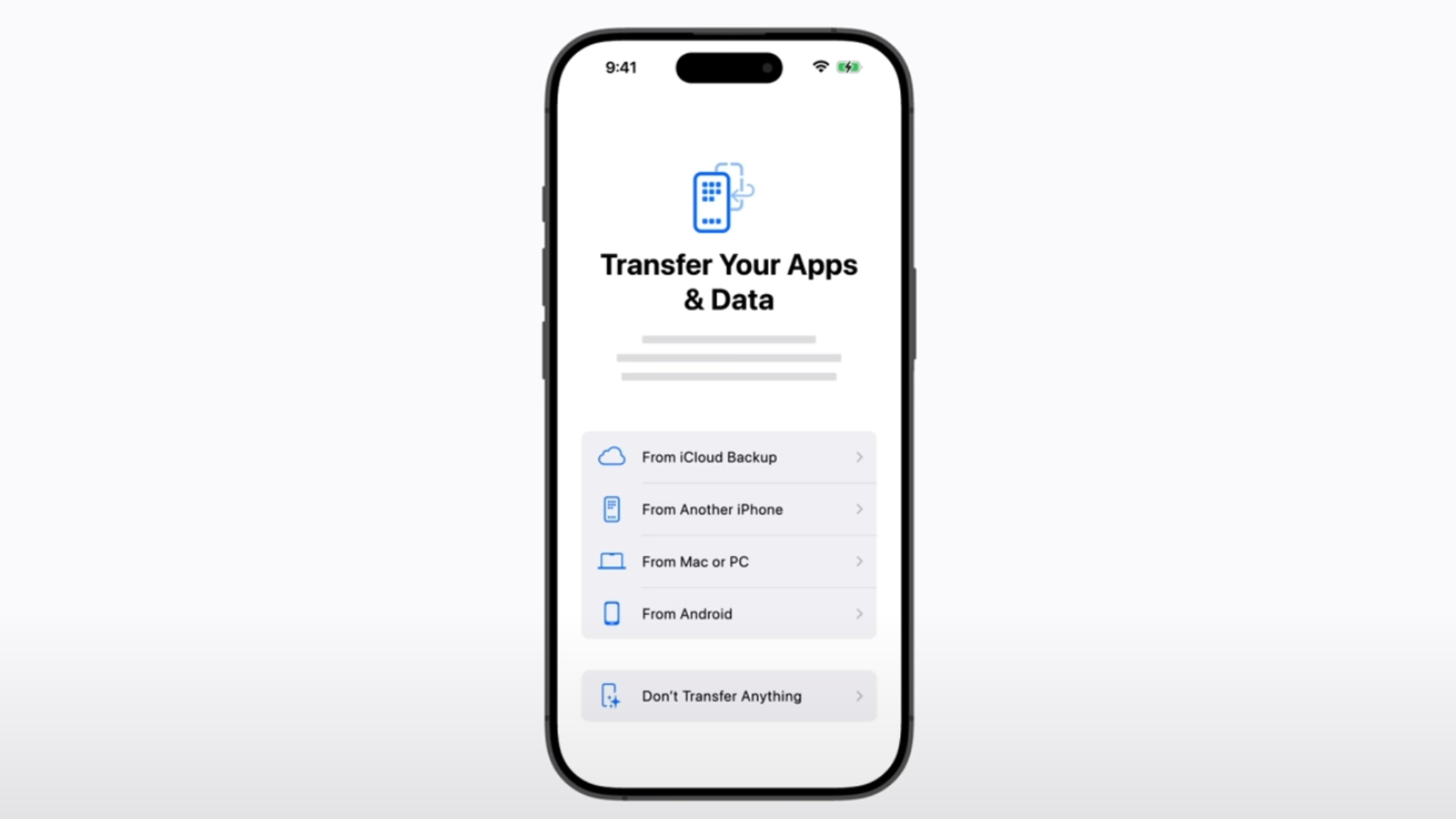
The final step is to restore your iPhone from the backup that you took. Keep your iPhone plugged into your computer, and from the “Hello” screen, follow the on-screen instructions to set up your iPhone until you reach the “Transfer Your Apps & Data” screen. Select “From Mac or PC”. Choose the backup you saved to your Mac and enter the password you used when you encrypted it. Your iPhone will start to restore, which can take a long time to complete.
Credit: Apple
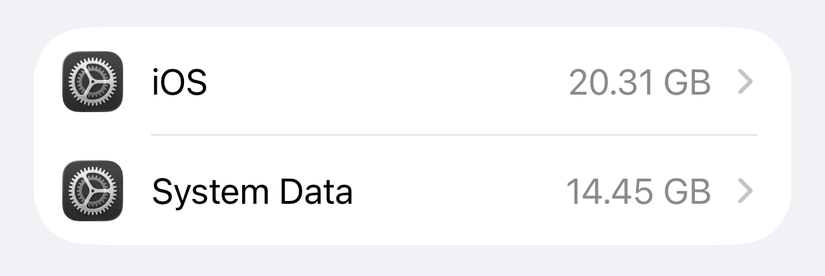
After following these steps, my System Data was down to less than 15GB, having dropped by more than 120GB.
It shouldn’t have to be this way
Reducing my System Data was a relief, but having to erase and restore my iPhone was far from ideal. I was forced to spend time fixing a number of issues, such as reauthorizing my payments with my bank to use them in Apple Pay, setting up Face ID again for sensitive apps such as banking apps, and other fixes that were necessary to get my phone back to the state it was before it was erased and restored.
The whole thing was a real inconvenience and felt very unlike the “it just works” experience that people expect from Apple. System Data shouldn’t run wild in the first place, and if it does get out of control, you shouldn’t have to resort to restoring your iPhone to fix it. My concern is that I have no guarantee that it won’t happen again.
If you find that your System Data gets out of control, I recommend trying the other potential fixes first, because getting my iPhone back to the state it was before erasing it and restoring it was a frustrating process. If all else fails, however, it may be the only way to get your iPhone’s storage back down to normal levels again.