There are 29 iPhones that are able to upgrade with people being urged to act sooner rather than later or risk running into issues
Sophie Buchan Money and Lifestyle Writer
08:12, 04 Jan 2026
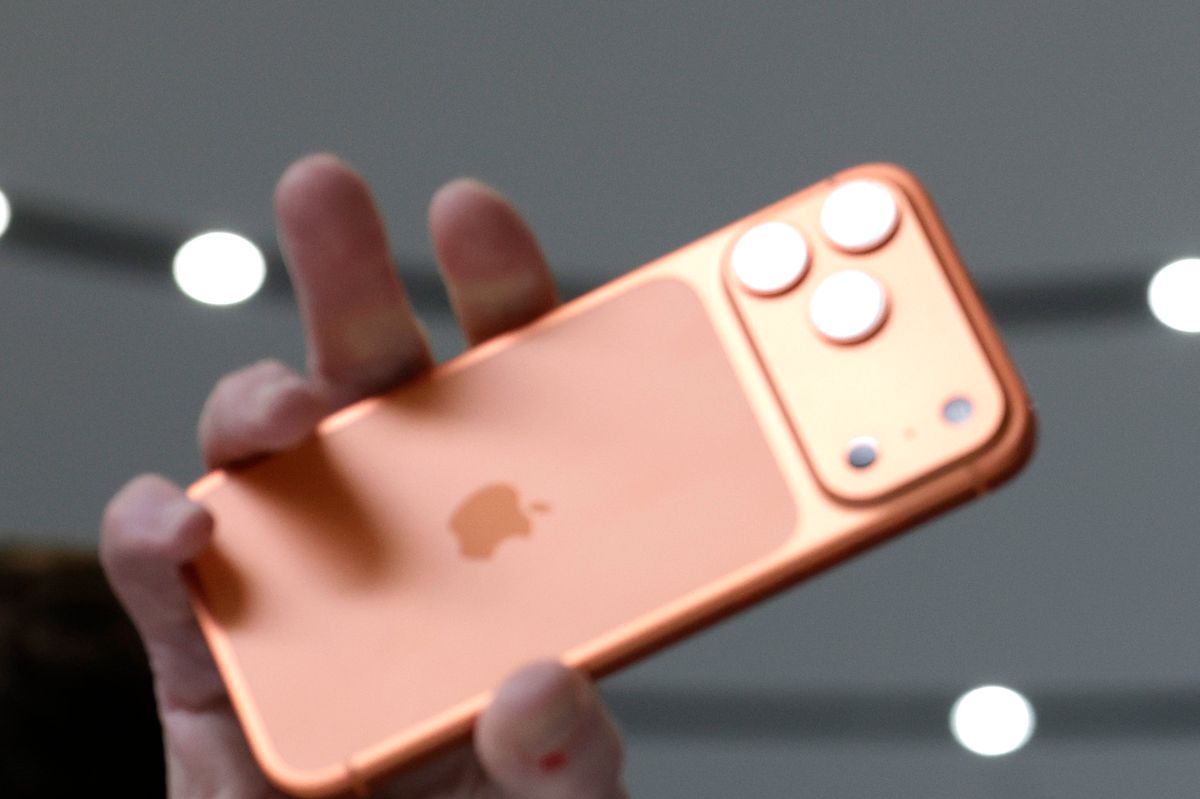 The iPhone 17 Pro(Image: Justin Sullivan/Getty Images)
Apple has issued an urgent warning to iPhone users. The technology giant announced on its official website that device owners may need to implement certain modifications to their handsets or risk running into tech issues.
The company highlighted that people encountering technical difficulties might require an upgrade to their existing iOS software to resolve any glitches. The update in question is specifically iOS 26. Encouraging people to take immediate action, emphasising that this upgrade will provide access to the “latest features and security enhancements”, the firm’s support page advises: “Before downloading new software, back up your device to make sure that you have a copy of your important information.”
However, not all users will have access to this update. Apple clarifies: “You will only see updates that are compatible with your current software version.
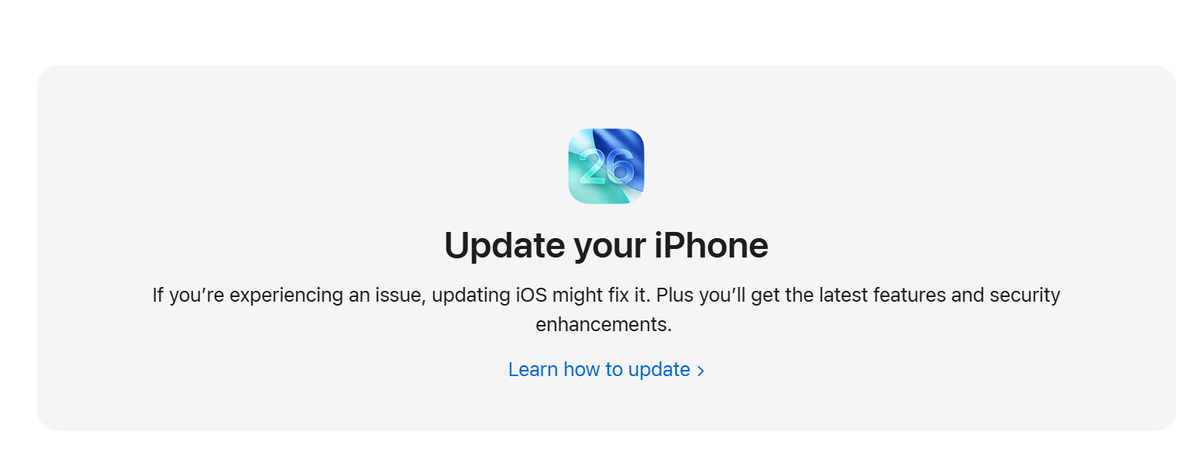 Apple have urged people to upgrade their iOS(Image: Apple)
“If you have not downloaded the most current release, you will not see the option to install the latest release.”
All 29 iPhone models compatible with iOS 26 – full list
- iPhone 17
- iPhone 17 Pro
- iPhone 17 Pro Max
- iPhone Air
- iPhone 16e
- iPhone 16
- iPhone 16 Plus
- iPhone 16 Pro
- iPhone 16 Pro Max
- iPhone 15
- iPhone 15 Plus
- iPhone 15 Pro
- iPhone 15 Pro Max
- iPhone 14
- iPhone 14 Plus
- iPhone 14 Pro
- iPhone 14 Pro Max
- iPhone 13
- iPhone 13 mini
- iPhone 13 Pro
- iPhone 13 Pro Max
- iPhone 12
- iPhone 12 mini
- iPhone 12 Pro
- iPhone 12 Pro Max
- iPhone 11
- iPhone 11 Pro
- iPhone 11 Pro Max
- iPhone SE (2nd generation and later)
In order to download the latest version, you can make sure you have updates automatically switched on meaning you don’t need to do anything. Alternatively, you can check for updates manually in the Software Update settings.
To turn on automatic updates you can:
- Open Settings.
- Tap General.
- Tap Software Update.
- Tap Automatic Updates.
- Choose one of the following options: Automatically Install: When an update is available, iPhone downloads and installs the update overnight while charging and connected to Wi-Fi. You’re notified before an update is installed. Automatically Download: Downloads updates automatically when your iPhone connects to Wi-Fi, charging, and locked so you can install them later. To see this option, first turn off Automatically Install.
To manually install software updates:
- Open Settings.
- Tap General.
- Tap Software Update. The screen shows the installed version of iOS and whether an update is available.
- If an update is available, tap Download and Install, then follow the onscreen instructions.
 Apple have shared the simple method – and it’s easy to follow(Image: neirfy via Getty Images)
One of the most eagerly awaited features of the latest iOS is Liquid Glass. Described as its “broadest design update ever”, the “new design across Apple platforms elevates the content people care about most and it creates a unified design language between platforms – all while maintaining the distinct qualities that make each unique.”
Other features include Live Translation, an improved gaming experience, privacy updates and more.